Overview
The top of the main window’s options sidebar controls what happens to your files after they’re compressed:Output Folder
When a compressed file would replace an existing file with the same name, Compresto adds a number to the new file’s name instead.
Drop Zone and folder monitoring have their own output folder settings.
Mirror Folder
Mirror folder rebuilds the folder you compress inside a new folder, so you get a compressed copy of the whole tree while your source folder stays untouched.1
Set Output folder to Mirror folder
2
Choose where to create the mirrored folder. It defaults to your Desktop. Press Change to pick another location
3
Drop a folder into the main window and press Compress
Trip with the destination set to Desktop creates Desktop/Trip (or Trip 2 if that name is taken) with the same subfolders inside.
- Every file is included. Mirror folder always reads all subfolders, so Include subfolders shows All (mirror folder)
- Same names. Compressed files keep their original names
- Same number of files. Files that aren’t compressed (unsupported or filtered out), that don’t get smaller, or that fail are copied as they are, so the mirror has the same folders and the same number of files as the source
- Your source folder is never changed. Remove input files is turned off and can’t be turned on in this mode
- Dates. With Retain creation date or Retain modification date on, the mirrored folders keep the original folders’ dates too (learn more)
If Drop Zone uses Last used settings while the main window is set to Mirror folder, Drop Zone saves its files straight into the mirror destination without recreating the folder tree.
Original Kept
If compressing a file doesn’t make it smaller, Compresto keeps the original instead, in every output mode:- With Same as input, the original stays where it is
- With Subfolder, Custom, or Mirror folder, the original is copied into the output folder
- The original is never moved to the Trash, even with Remove input file(s) on
- The result shows Original kept instead of a negative size
Remove Input Files
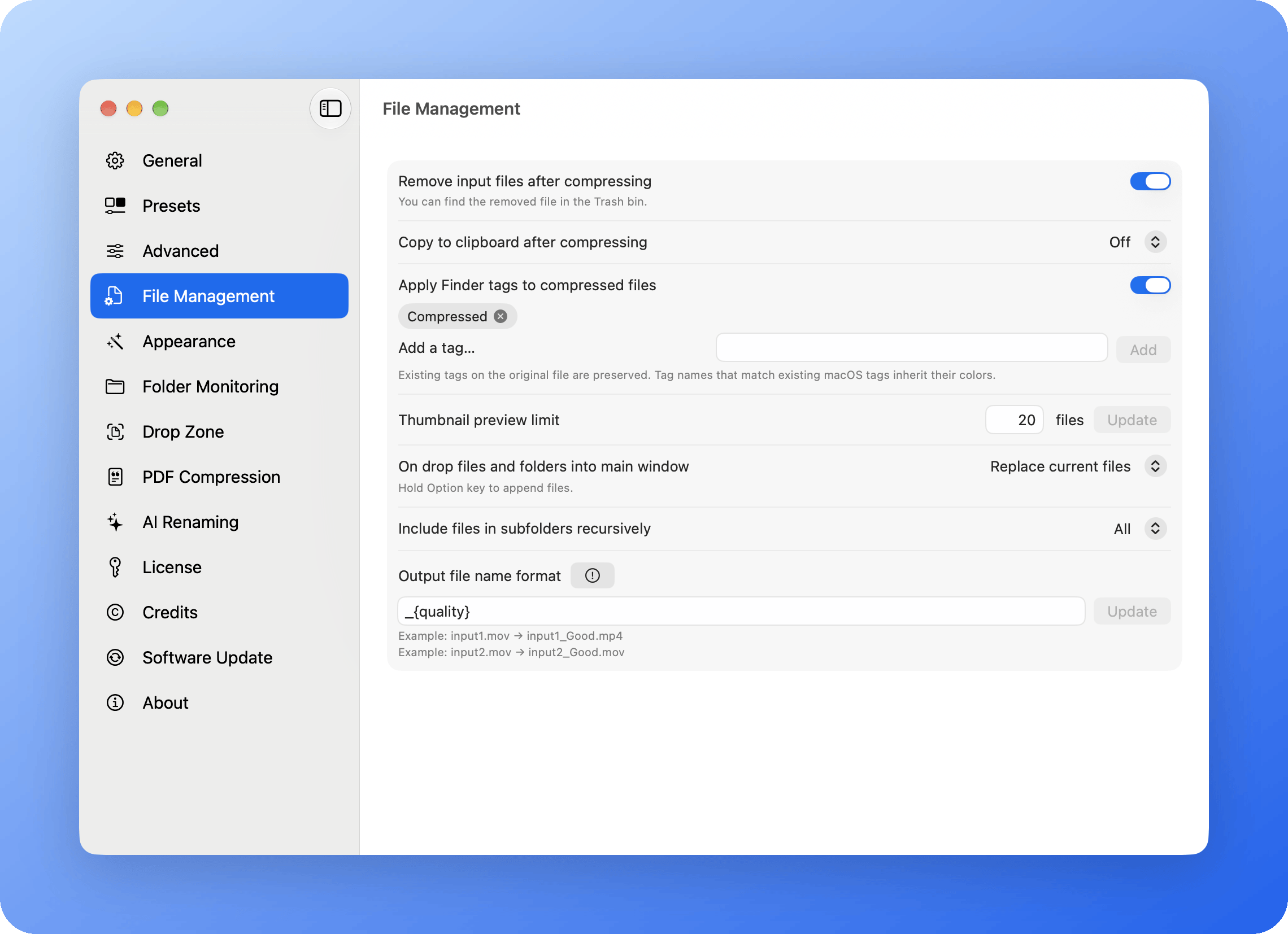
Turn on Remove input file(s) to move the originals to the Trash after they’re compressed. You can restore them from the Trash if you need them. You can also set this in Settings > File Management > Remove input files after compressing. Both switches control the same setting.Originals are only removed when compression succeeds and the output is smaller. A kept original is never removed.
Output File Name Format
Go to Settings > File Management > Output file name format to add text to the end of every output file name. These variables are replaced when the file is saved:
For example,
_{quality} turns input1.mov into input1_Good.mp4. Press Update to save the format. The settings page shows two example names as you type.
Folder monitoring can use a different format for each folder, and deep links can set one with
fileNameFormat. See Folder monitoring and Deep linking.Copy to Clipboard After Compressing
Go to Settings > File Management > Copy to clipboard after compressing to put the results on the clipboard when a batch finishes:
If you rename an output in the notch, the clipboard is updated with the new name.
The Files / File paths choice is new after version 1.32. Earlier versions have a single on/off switch that copies the files.