

Overview
Compresto allows you to set a target frame rate (FPS) for video compression. Reducing the frame rate can significantly decrease file size while maintaining acceptable visual quality for certain types of content.Available Options
How It Works
The target FPS setting only reduces frame rate - it never increases it. If your input video has a lower frame rate than the target, the original frame rate is preserved. For example:- Input: 60 fps, Target: 30 fps → Output: 30 fps
- Input: 24 fps, Target: 30 fps → Output: 24 fps (unchanged)
When to Use Each Option
Same as input
Best for preserving original quality when file size isn’t a concern.60 fps
- Gaming videos
- Sports footage
- High-motion content
30 fps
- General web content
- Social media videos
- Screen recordings
24 fps
- Film-like aesthetic
- Cinematic content
- Good balance of quality and file size
15 fps
- Simple animations
- Slideshows with minimal motion
- Maximum file size reduction
How to Configure
1
Open Compresto
2
Go to Settings > Advanced
3
Select your preferred frame rate from the Target video FPS dropdown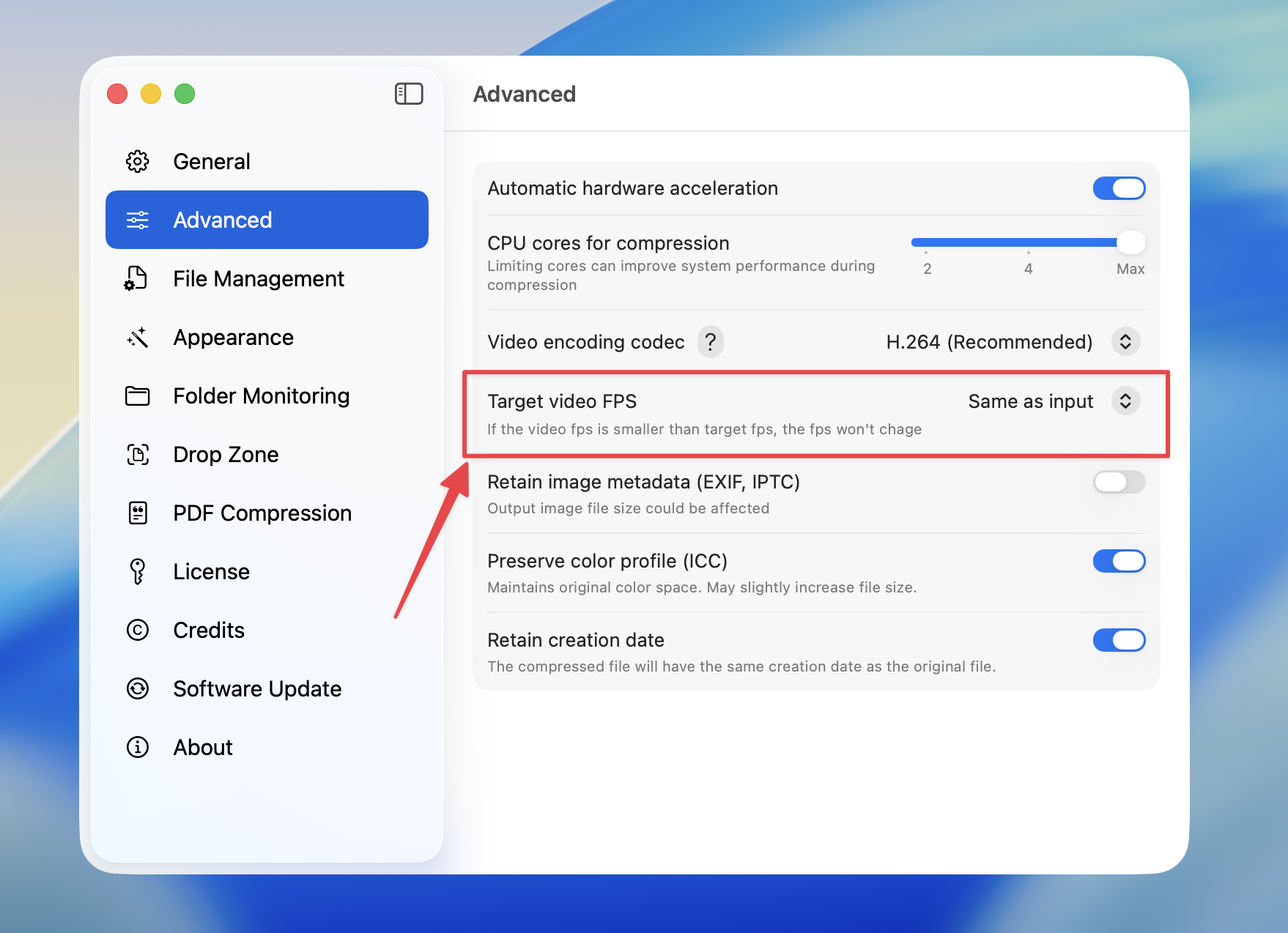
Lowering frame rate reduces file size but may make motion appear less smooth. Use lower frame rates only when the content doesn’t require high motion fidelity.