
Quick Start
1
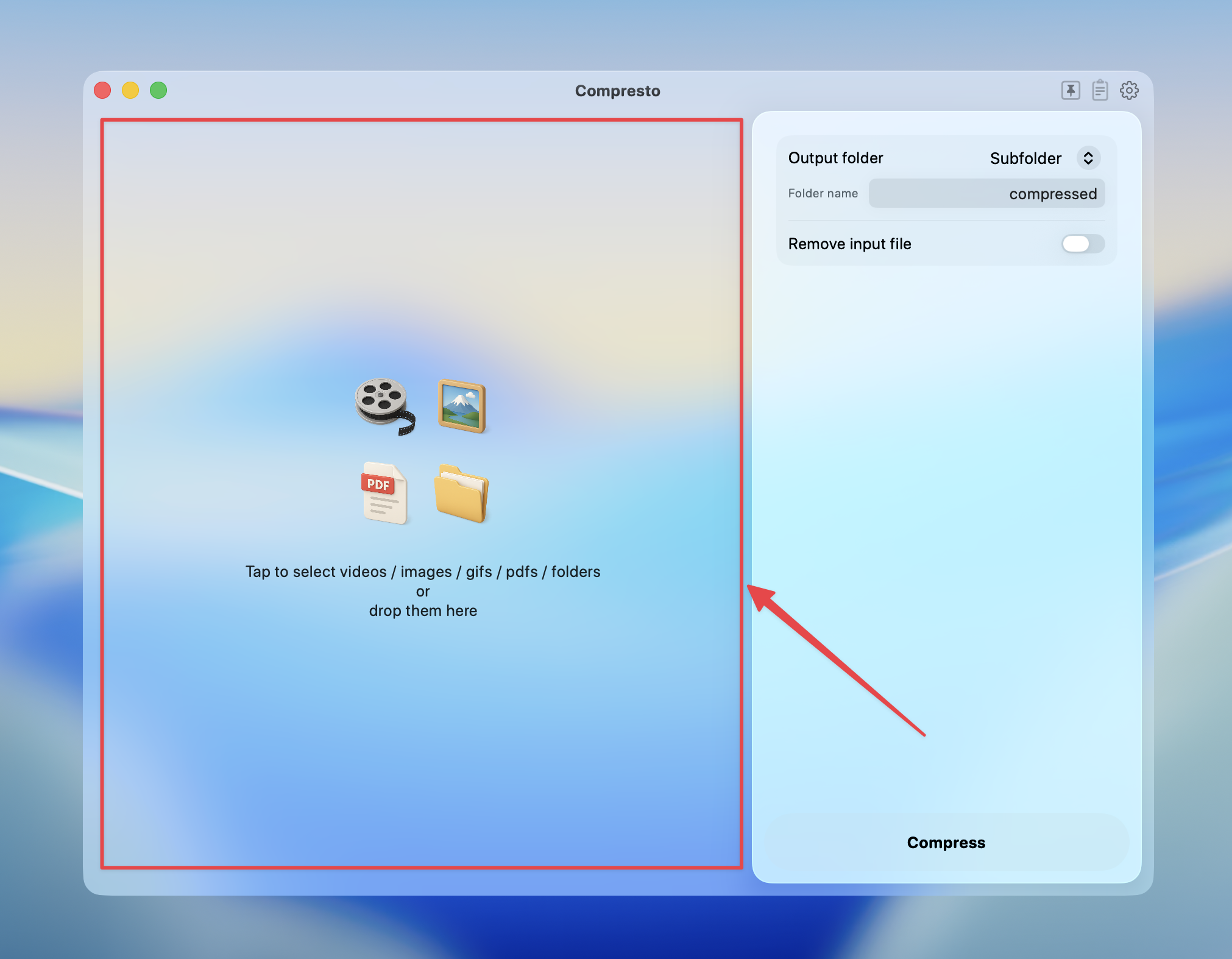
Click on the selection panel to select images, or drag and drop images/folders into it
2
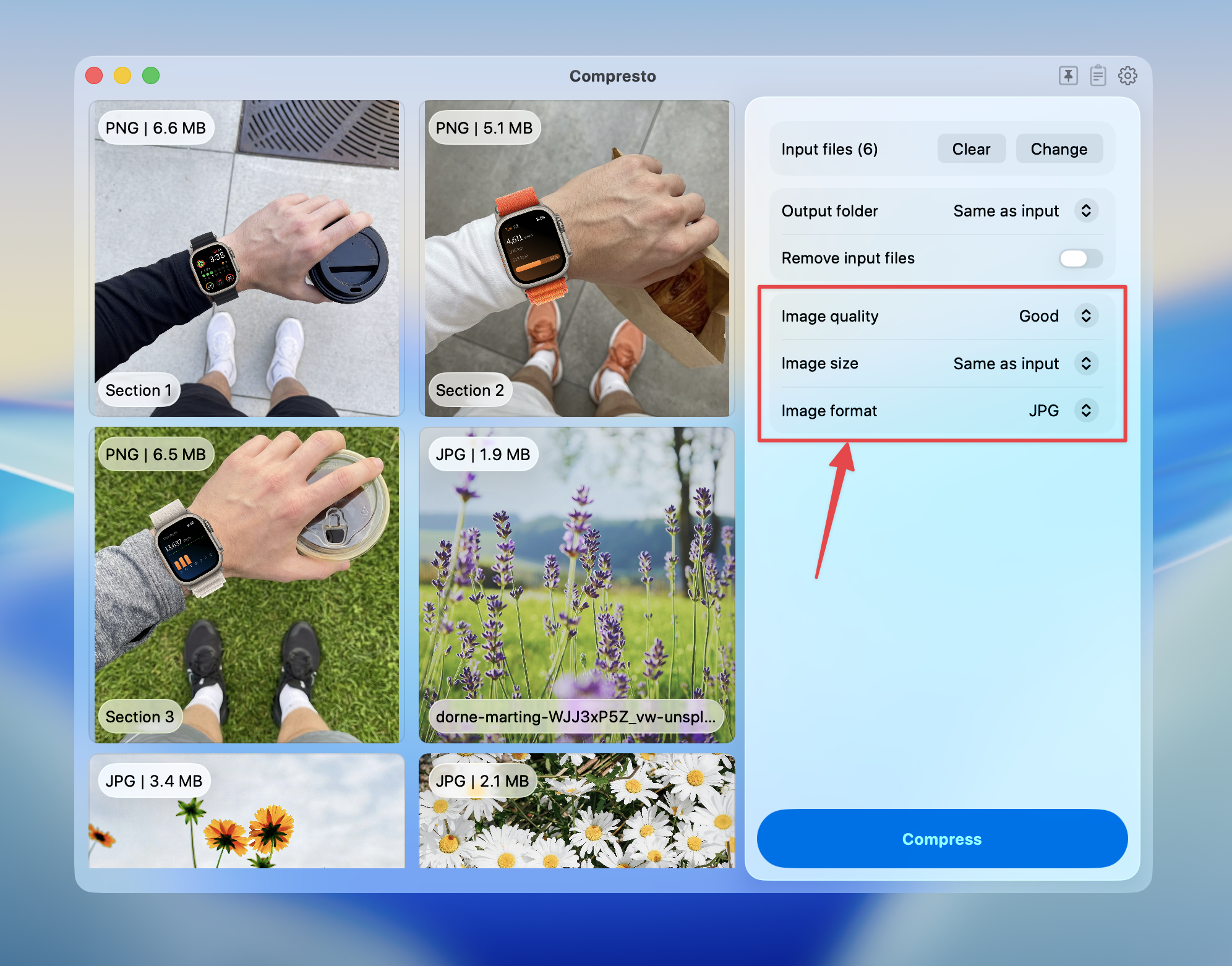
Adjust the image compression options
3
Press Compress to start

4
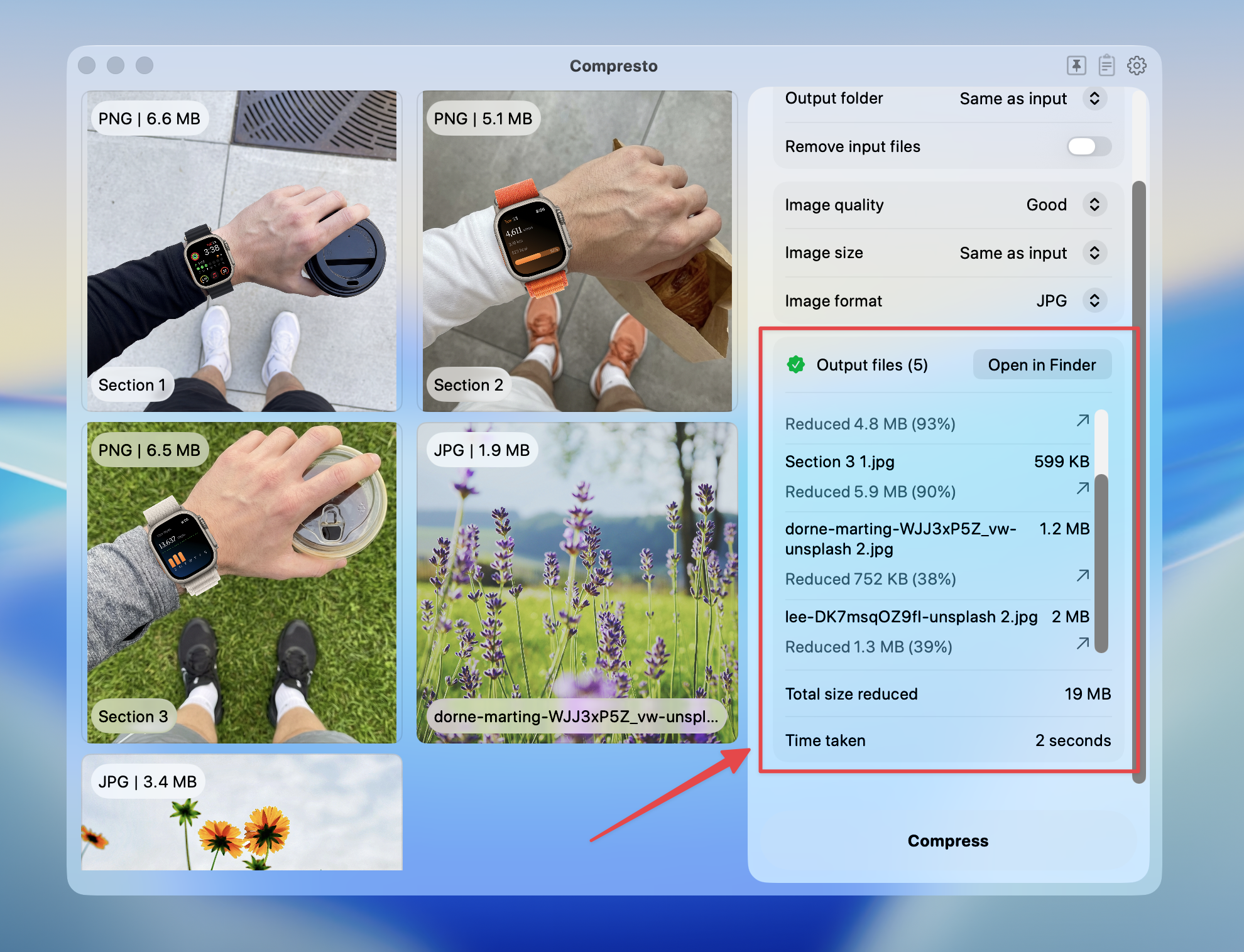
View compression results and open files in Finder
Compression Options
Image Quality
| Quality | Description | Best For |
|---|---|---|
| Highest | Maximum quality, minimal compression | Archiving, print |
| High | Excellent quality | Professional use |
| Good | Good balance of quality and size | Web images |
| Medium | Moderate compression | Social media |
| Acceptable | Higher compression, smaller files | Thumbnails, previews |
Image Size
Resize images during compression:| Option | Description |
|---|---|
| Same as input | Keep original dimensions (default) |
| Percentage | Scale by percentage (e.g., 50% = half size) |
| Max width | Set maximum width in pixels |
| Max height | Set maximum height in pixels |
| Max long edge | Limit the longer dimension |
| Max short edge | Limit the shorter dimension |
When resizing, aspect ratio is always preserved.
Image Format
| Format | Description | Best For |
|---|---|---|
| Same as input | Keep original format (default) | General use |
| JPG | Lossy compression, small files | Photos |
| PNG | Lossless, supports transparency | Graphics, screenshots |
| WebP | Modern format, excellent compression | Web images |
| AVIF | Newest format, best compression | Modern browsers |
Supported Input Formats
Compresto supports compressing these image formats:- JPG / JPEG
- PNG
- WebP
- AVIF
- HEIC
- TIFF
- BMP
- GIF (static)
Tips for Best Results
- For photos: Use JPG format with “Good” or “High” quality
- For graphics with transparency: Use PNG or WebP format
- For web optimization: Use WebP format with “Good” quality
- For maximum compression: Use AVIF format (check browser support)
- For batch resizing: Use “Max long edge” to uniformly resize images

