

Overview
Folder monitoring allows Compresto to automatically compress files when they are added to specified folders. This is useful for automating compression workflows.Getting Started
1
Open the Settings window and choose the Folder Monitoring tab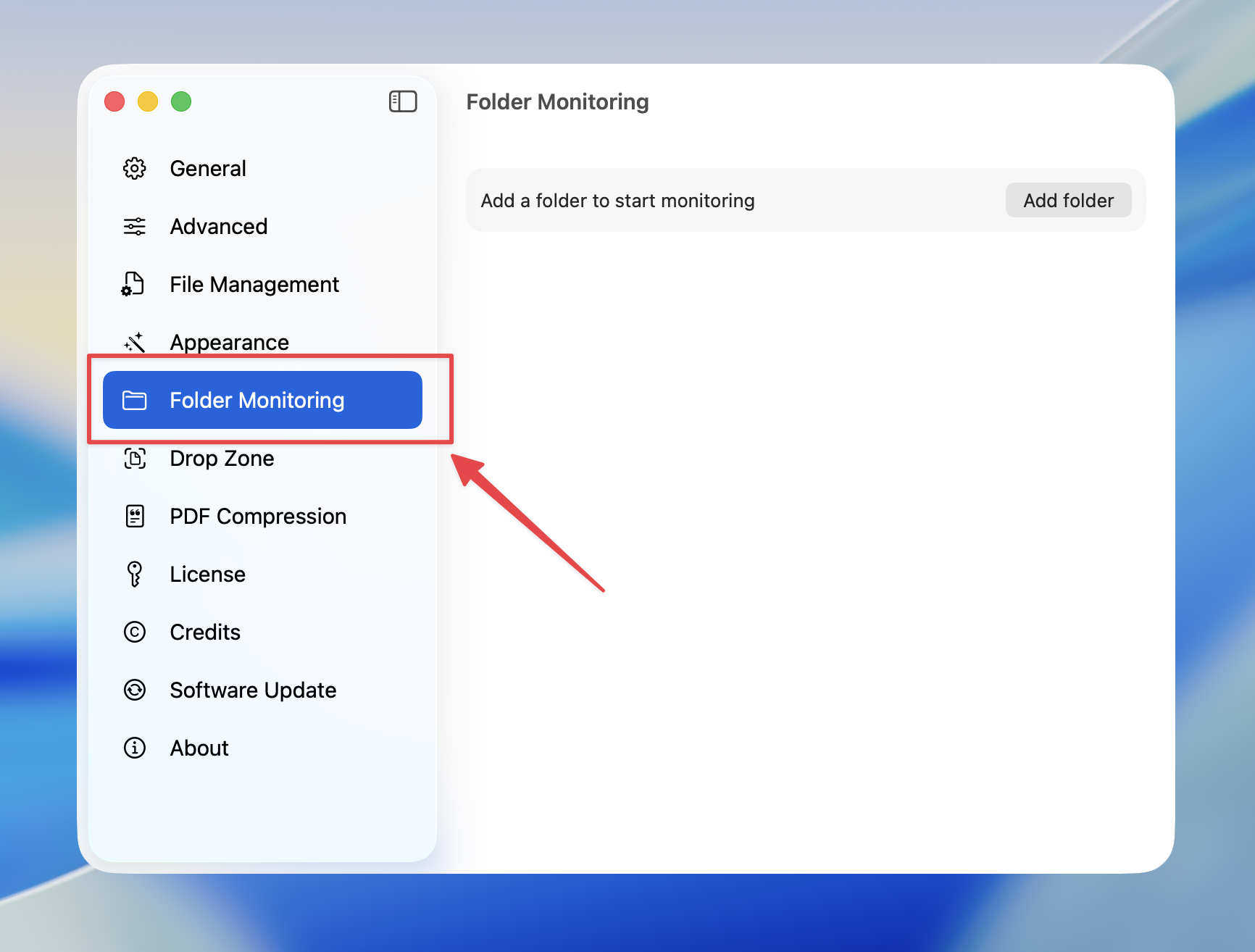
2
Press Add folder to add the folder you want to monitor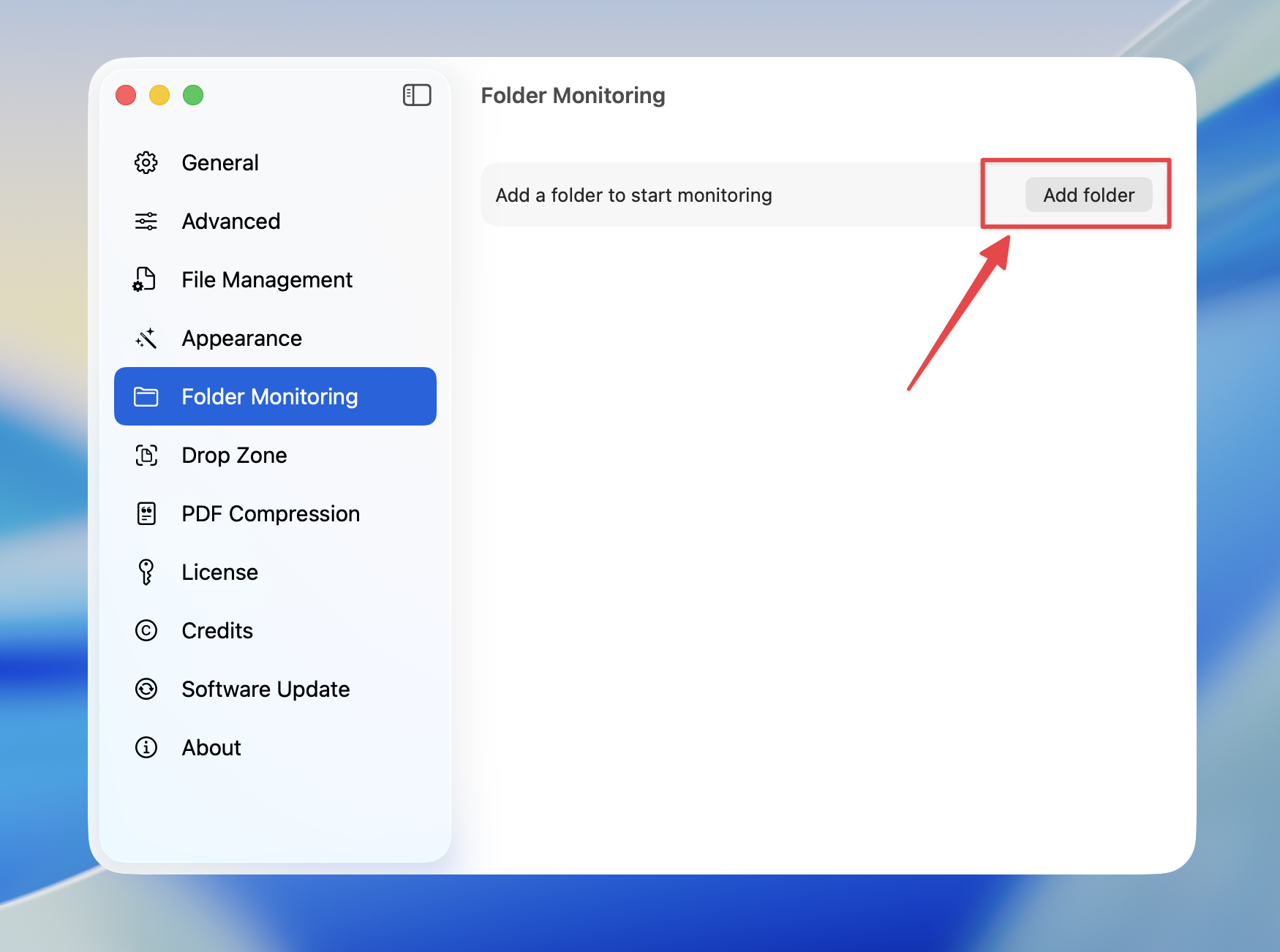
3
Once the folder is added, press Settings to customise the compression settings for that folder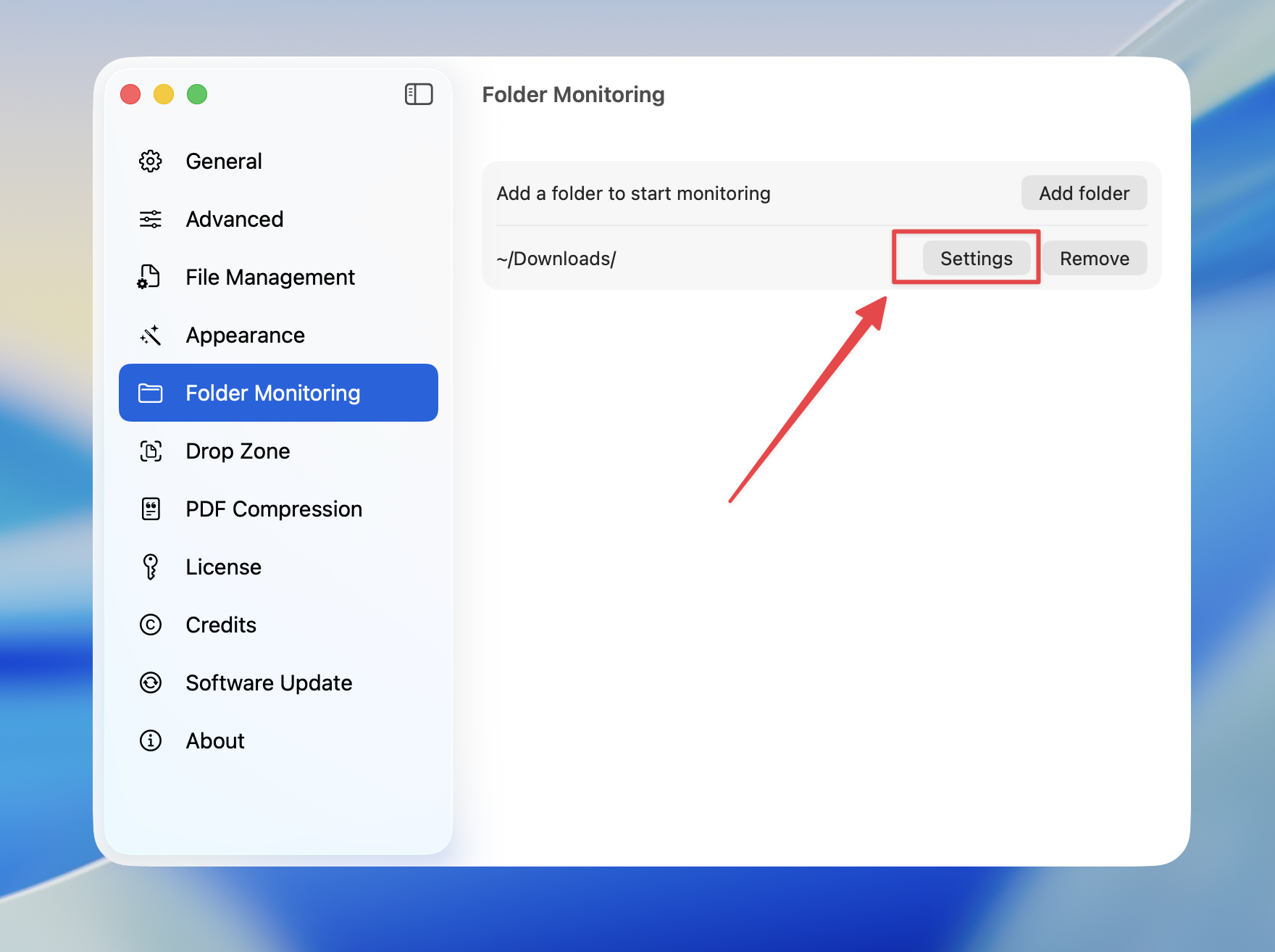
4
Configure your compression settings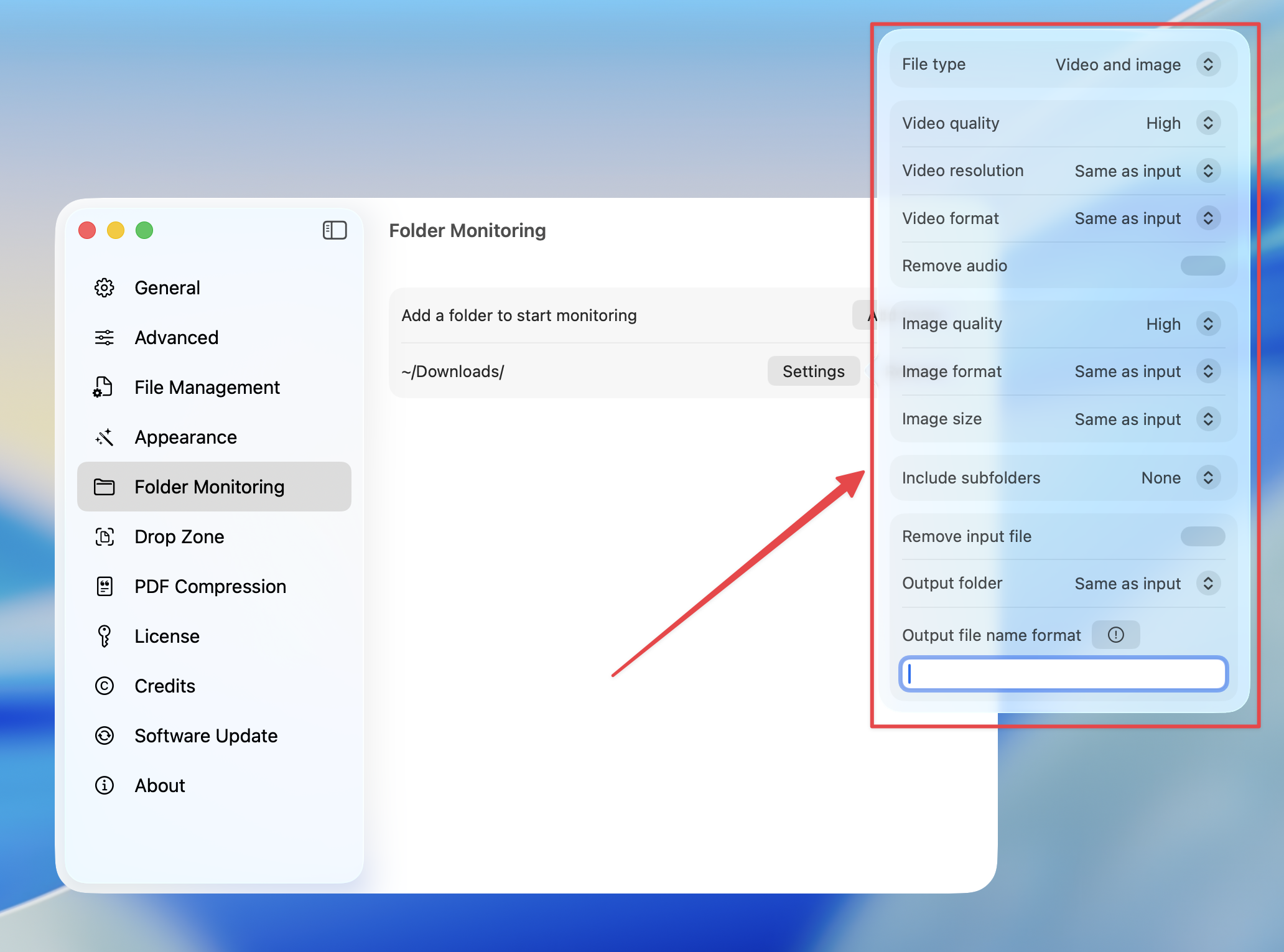
5
Whenever a new file is added to the folder, Compresto will automatically compress it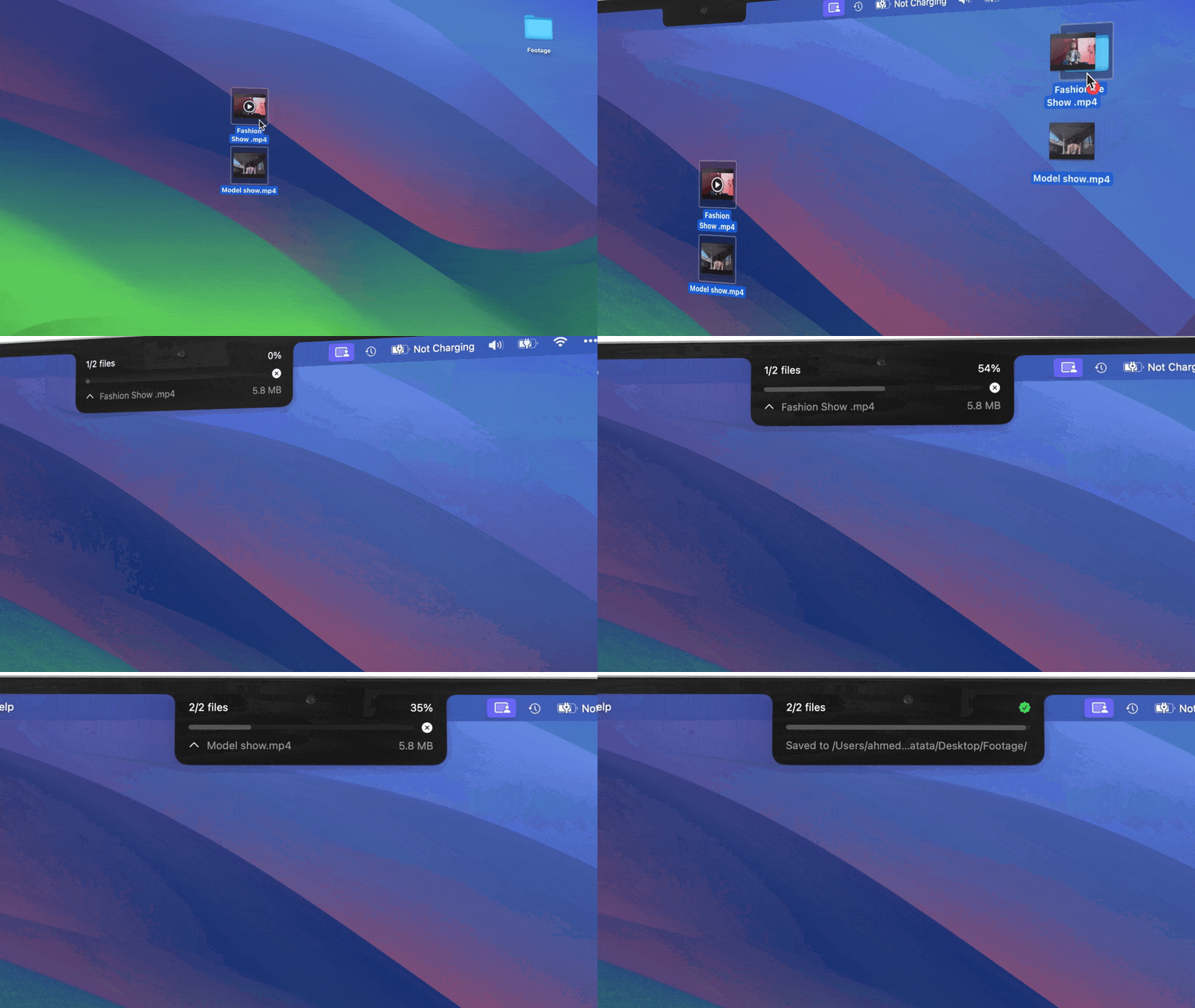
Configuration Options
File Type
Choose which file types to monitor and compress:Video Settings
- Video quality: highest, high, good, medium, acceptable
- Video resolution: Keep same or resize
- Video format: same, mp4, webm
- Remove audio: Strip audio track from videos
Image Settings
- Image quality: highest, high, good, medium, acceptable
- Image format: same, webp, jpg, png
- Image size: Keep same, percentage, or fixed pixel width
Subfolder Processing
Control whether to monitor subfolders:Output Settings
Remove Input File
Enable to automatically delete the original file after compression.Output Folder
Output File Name Format
Customize the output file name using these variables:Each monitored folder can have its own independent compression settings.