

Quick Start
1
Click on the selection panel to select videos, or drag and drop videos/folders into it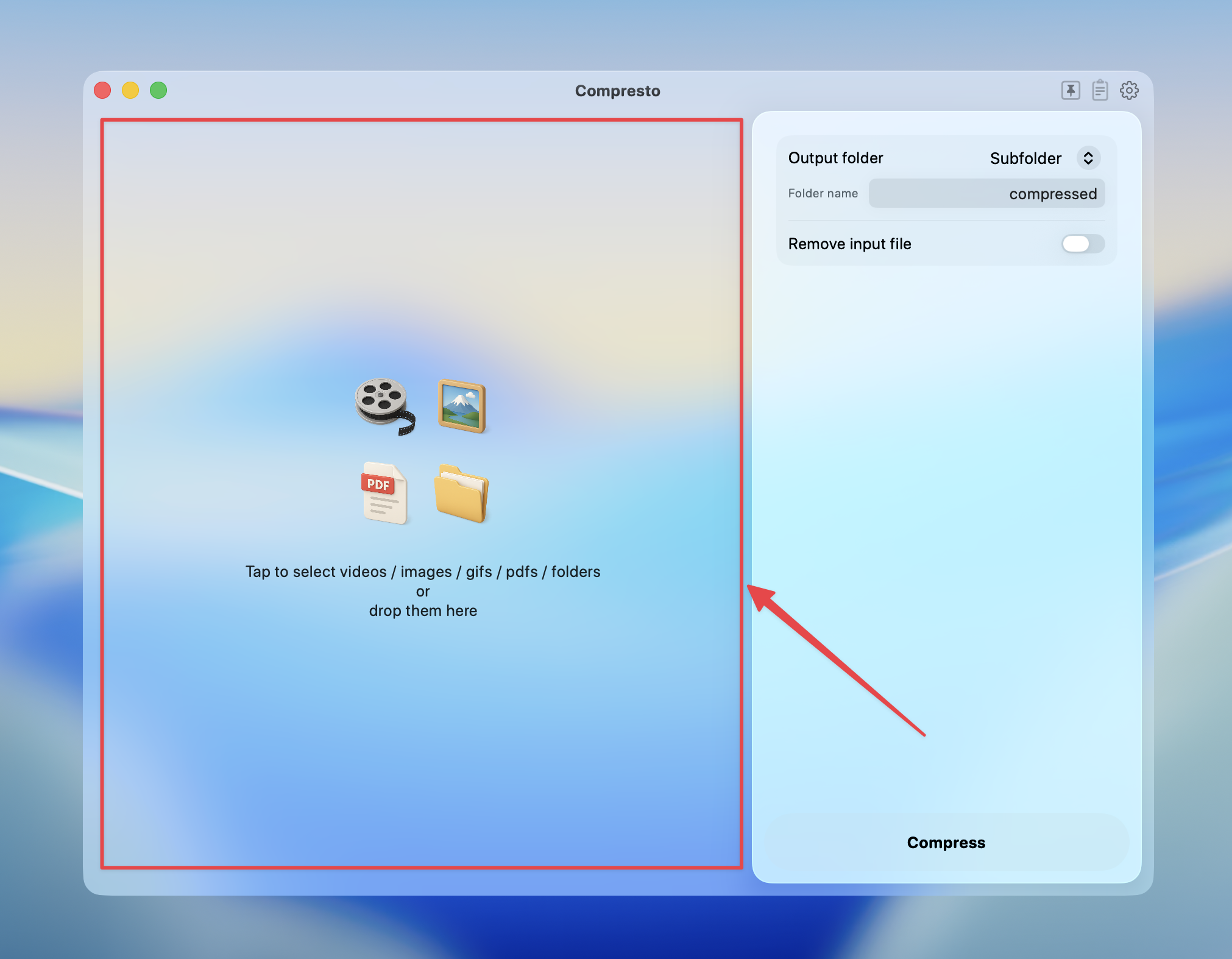
2
Select GIF as the video format, then adjust the GIF options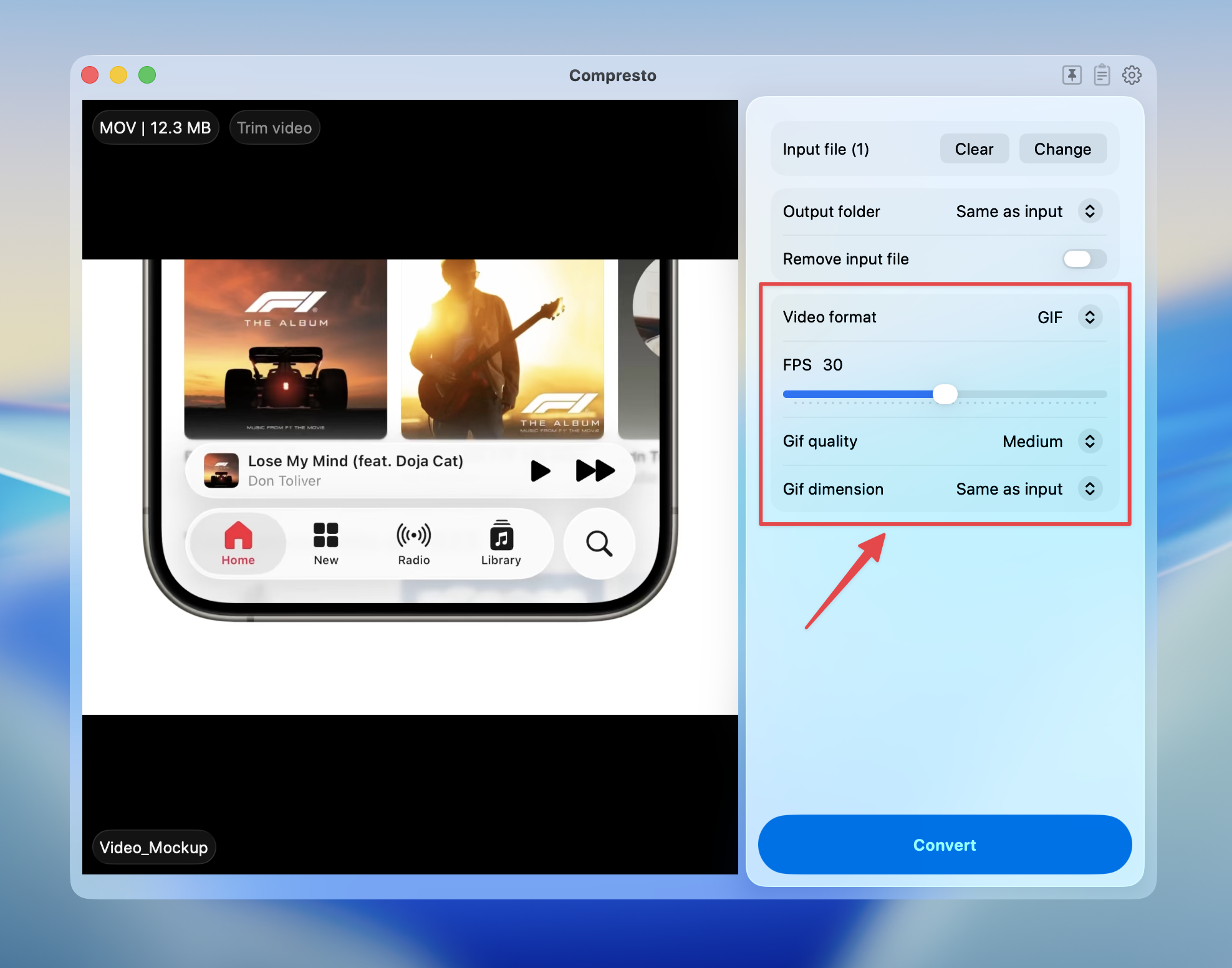
3
Press Convert to start
4
View conversion results and open files in Finder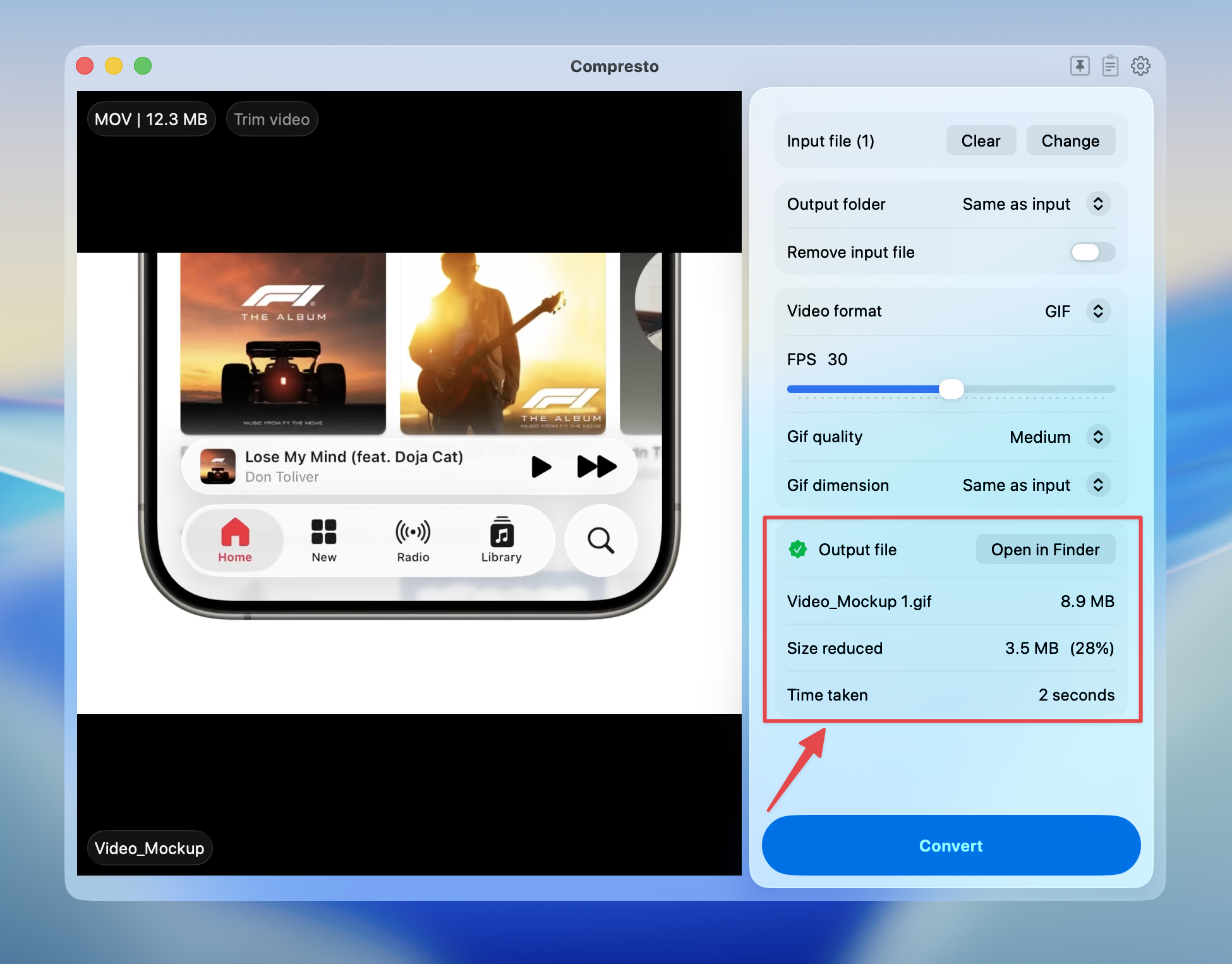
Conversion Options
FPS (Frames Per Second)
Adjust the frame rate of the output GIF using the slider (10-50 fps).Lower FPS significantly reduces file size. For most GIFs, 15-20 fps is sufficient.
GIF Quality
GIF Dimension
Resize the output GIF to reduce file size:Supported Video Formats
Convert these video formats to GIF:- MP4
- MOV
- WebM
- AVI
- MKV
- And more
Tips for Best Results
- For Discord: Use 15-20 fps, 50% dimension, “Good” quality (max 8MB)
- For Twitter/X: Use 15 fps, reduce dimension for faster loading
- For websites: Balance quality and size based on use case
- For short clips: Higher FPS is fine since file won’t be too large
- For long animations: Use lower FPS and smaller dimensions