

Add Files
There are several ways to get files into the main window:- Click the selection panel and choose files or folders
- Drag and drop files or folders onto the window
- Paste files or images you copied (⌘V)
- Right-click a file in Finder and choose Open With > Compresto
- Use a deep link or the Raycast extension
Replace or Append
When you drop files on a window that already has files, Compresto replaces them by default. Change this in Settings > File Management > On drop files and folders into main window:
Hold Option while dropping to do the opposite for that drop.
Folders and Subfolders
When you add a folder, Compresto compresses every supported file inside it. Hidden files are skipped. If the folder has subfolders, use Include subfolders in the sidebar to choose how deep to go:
The same choice is in Settings > File Management > Include files in subfolders recursively.
With Mirror folder output, every subfolder is always included.
Filter by File Type
When you add a mix of file types, a File types picker appears in the sidebar. It lists how many images, videos, GIFs, PDFs, and EPUBs you added. Uncheck a type to leave those files out of the batch. At least one type always stays selected.Grid and Tree View
Use the Grid / Tree switch next to Input files to change how the list looks.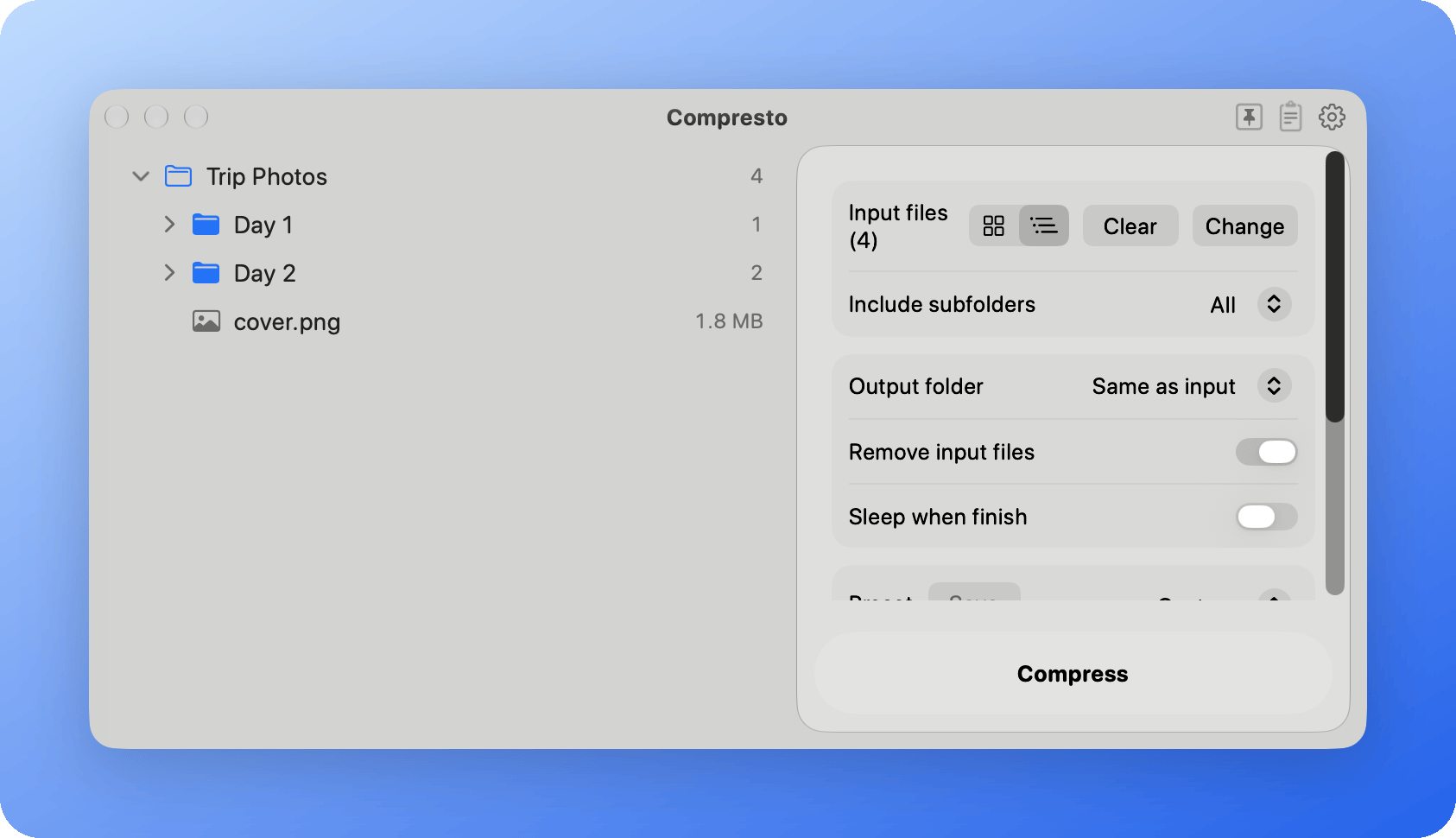
Compresto switches to Tree view by itself when you drop folders or add more files than the Thumbnail preview limit. In Grid view with too many files, thumbnails are hidden and you can press Show as tree.
Status in Tree View
Each file shows its progress while the batch runs:- A spinner while the file is being compressed
- A check and the size saved when it’s done
- Original kept when compressing didn’t make the file smaller (learn more)
- A failure mark if the file couldn’t be compressed
Per-file settings are only available in Grid view.
Thumbnail Preview Limit
Set Settings > File Management > Thumbnail preview limit to choose how many files can show thumbnails in Grid view. Type a number and press Update. Above this number, Compresto uses Tree view.Single File Preview
When you add one file, the main window shows a large preview instead of a grid. Hover over a video to see its format and size, and to trim it.Remove Files
- Hover over a file in Grid view and click the remove button, or right-click it in Tree view and choose Remove
- Press Clear next to Input files to remove everything
- Press Change to pick a new set of files