Embed video pdf: Quick Mac Guide to Adding Video to PDFs
Adding video to a PDF on a Mac used to be a real headache, but with the right tools, it’s surprisingly straightforward. You can embed video directly into a PDF with professional software like Adobe Acrobat Pro or even use clever workarounds with presentation apps like Keynote, turning a static document into something much more dynamic.
Why Bother Embedding Video in Your PDFs?
Let's be honest, static documents can be a bit of a snooze. When you embed a video, you instantly transform a flat, lifeless PDF into an engaging piece of content that actually grabs and holds someone's attention. This isn’t just a gimmick; it’s a strategic move that delivers real-world benefits across tons of different fields.
Imagine a graphic designer sending out their portfolio. Instead of just showing off flat images, their PDF includes a motion graphics reel that plays right on the page. Now think about a sales team sending a proposal with an embedded product demo. The potential client can see the software in action without ever leaving the document. That's powerful.
Boosting Engagement and Understanding
The biggest advantage is simple: videos are just more captivating than text. They can break down complex processes, showcase dynamic products, or inject a brand's personality in ways that words and images just can't match.
This leads to a few key wins:
- Better Information Retention: People are far more likely to remember something they saw in a video compared to something they just read.
- Making Complex Topics Simple: A short tutorial video can explain a difficult concept much more effectively than paragraphs of dense, technical text.
- Looking More Professional: An interactive PDF with a well-produced video gives your work a polished, modern edge that helps you stand out from the crowd.
The PDF format itself has come a long way to support these kinds of rich media experiences. The PDF ecosystem saw its interactive features grow by over 650% between 1993 and 2023. This shift shows just how far PDFs have come from being simple static pages. If you're curious, you can dig into these PDF statistics and see how by 2023, nearly 45% of all PDFs were interactive.
Key Takeaway: Embedding a video isn't just about adding some cool motion. It’s about creating a more effective communication tool that saves the viewer time and leaves a real impression. It’s the difference between telling someone about your work and actually showing them.
Getting Your Video File Ready for Embedding
Let's start with the single biggest mistake people make: trying to embed a raw, unoptimized video file directly into a PDF. If you drop a massive 4K video straight from your camera into a document, you're going to create a bloated, multi-gigabyte PDF that’s a nightmare to share. Worse, it will probably crash most PDF viewers.
Properly preparing your video isn't just a suggestion—it's the only way this works.
The entire process of turning a boring, static document into something dynamic and engaging hinges on this one optimization step.
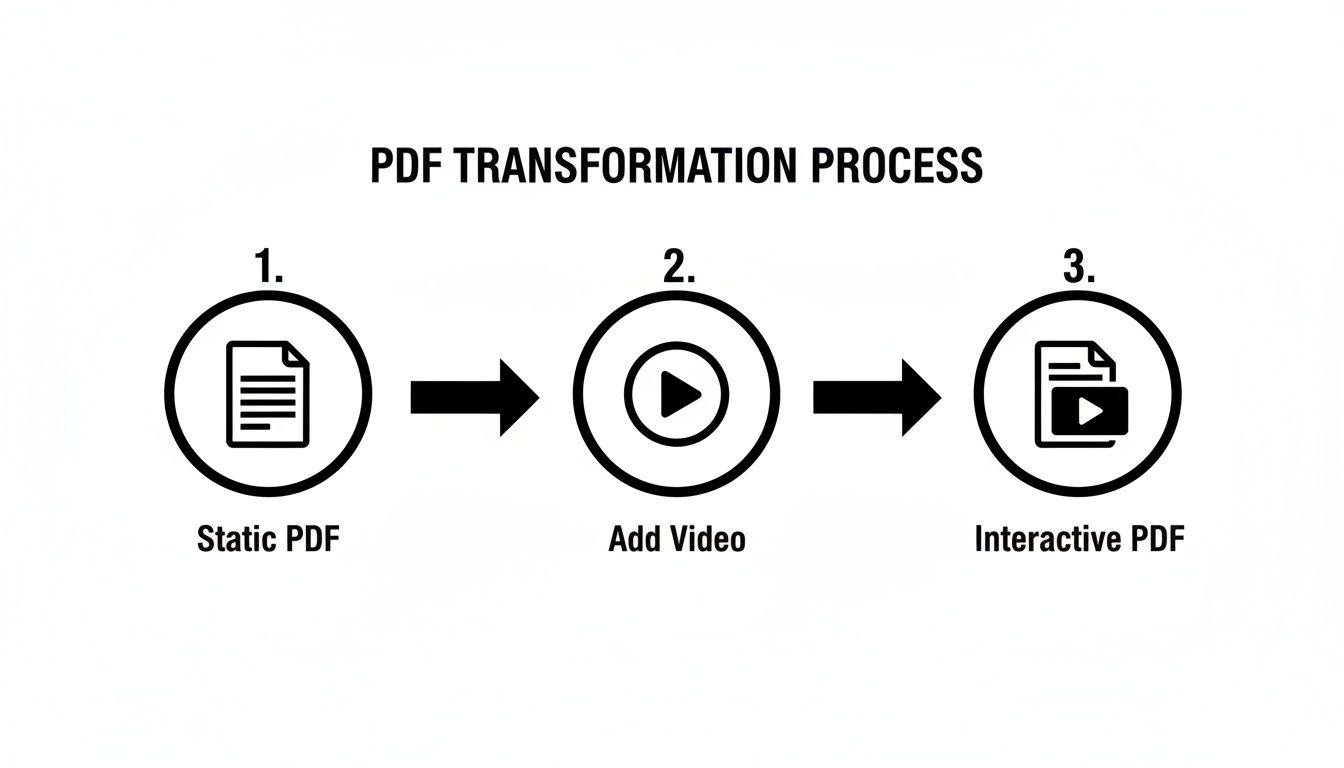
This diagram shows the transformation, but the real secret is in that "add video" step. It's all about making the video file as lean as possible without destroying the viewing experience.
Pick the Right Format and Resolution
For the best compatibility, your video absolutely needs to be an MP4 container with H.264 encoding. This is the universal standard that Adobe Acrobat and most other media players understand without any fuss.
Next up is resolution. You might have shot your footage in beautiful 4K, but that's total overkill for a small video player window inside a PDF. For most situations, a resolution of 1080p (1920x1080) or even 720p (1280x720) is plenty. This adjustment alone will slash the initial file size before you even touch compression.
Think about how it will actually be viewed. If the video player on the page is only a few inches wide, all that 4K detail is just wasted data making your file bigger.
A smaller resolution means fewer pixels to encode, which leads to a significantly smaller file. Always match your video’s resolution to its intended display size within the PDF.
Getting this right is more important than ever. Video is dominating how we communicate online, accounting for 65.93% of all internet traffic in early 2022—a 24% jump from the year before. This trend shows why learning skills like embedding video is so valuable for making your documents stand out.
Smart Compression is a Must
This is where the magic really happens. Smart compression shrinks your video file size down dramatically while keeping the quality sharp.
For Mac users, a dedicated tool like Compresto makes this ridiculously easy. Instead of fumbling around with confusing export settings in a professional video editor, you just drag, drop, and get a perfectly optimized file in seconds.
Here are a few real-world compression tips to get you started:
- For UI animations: These are usually short with simple graphics. You can compress them aggressively and get the file size under 1-2 MB without anyone noticing a drop in quality.
- For product walkthroughs: These videos are longer and need more detail. Aim for a balance, keeping the file size under 10-15 MB. That’s still small enough to email without any trouble.
Knowing your way around video specs is a skill that translates everywhere, much like optimizing video formats and export settings for various platforms.
Ultimately, a well-compressed video is the foundation of a functional, interactive PDF. If you want to go deeper on this, check out our detailed guide on Mac video compression for more advanced tips and tricks.
When you need the absolute highest level of control and a truly professional finish, Adobe Acrobat Pro is the way to go.
Sure, other methods get the job done, but Acrobat Pro has a dedicated Rich Media toolset that gives you precise command over how your video looks, behaves, and integrates into the document. This is the path for creating a polished, interactive experience—not just dropping a video onto a page.
Getting Started with the Rich Media Tool
The whole process kicks off in the "Rich Media" tool within Acrobat. Once you're there, you can draw a marquee box exactly where you want the video to appear, giving you pixel-perfect placement.
That simple action opens up a world of advanced settings that most people completely overlook, but they're essential for getting a professional result. This is where you can dial in your video's placement and playback behavior with incredible precision.
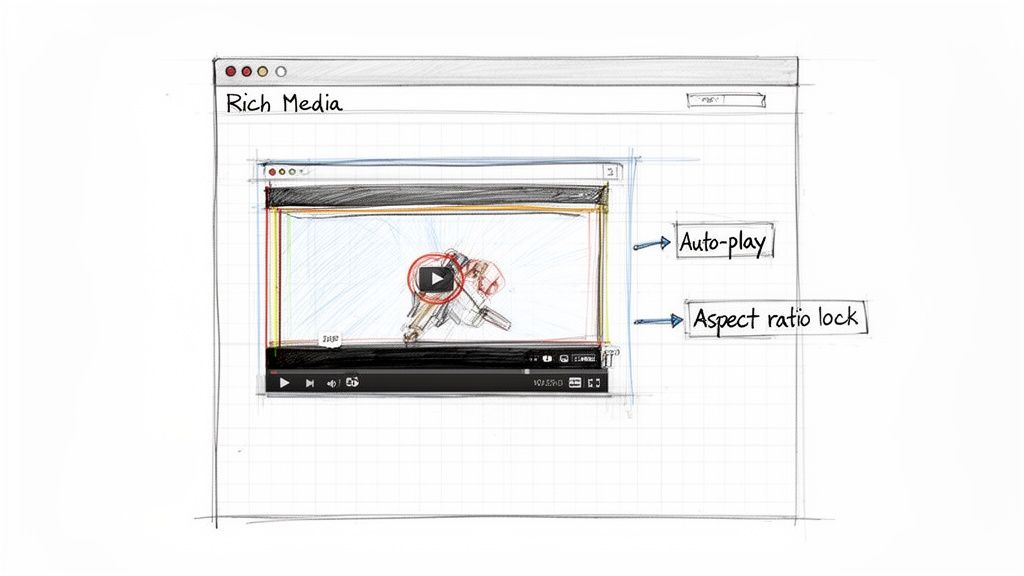
This screenshot gives you a glimpse of the powerful editing capabilities available, allowing you to embed video pdf elements exactly how you envisioned.
Configuring Advanced Playback Settings
Once your video file is selected, Acrobat pops up a surprisingly robust settings panel. This is where you move beyond a basic embed and start really designing the user experience.
Here are the crucial settings I always focus on:
- Set Poster Image: Instead of showing a generic black frame, you can create a custom thumbnail. This could be a branded graphic, a specific frame from the video, or an image with a "Play" icon overlay to make the video much more inviting.
- Activation Settings: You get to decide how the user starts the video. Do you want it to play when the page is opened? When it becomes visible? Or only when the user explicitly clicks on it? For most projects, clicking is the safest bet.
- Playback Location: Choose whether the video plays directly within the frame you drew ("Play in Content") or opens in a separate, floating window. Playing in-content offers a more seamless feel, which is perfect for portfolios and proposals.
- Controller Skin: Acrobat provides several different controller skins—that's the play/pause bar. Selecting one that matches your document's aesthetic adds a subtle but important layer of professionalism.
Pro Tip: Always enable the "Snap to content proportions" option. This locks the video's aspect ratio, preventing it from getting stretched or distorted if you decide to resize the media box later on. It's a lifesaver.
To help you decide which playback options are best for your project, here’s a quick breakdown of the key settings available in Acrobat Pro.
Acrobat Pro Video Playback Options
| Playback Setting | Description | Best For |
|---|---|---|
| Play in Content | The video plays directly within the frame you drew on the PDF page. | Creating a seamless, integrated experience, like in digital portfolios or interactive reports. |
| Play in Floating Window | The video opens in a new, resizable window that floats above the PDF content. | When you want to allow the viewer to move the video around or keep reading the PDF while it plays. |
| Activate on Page Open | The video starts playing automatically as soon as the viewer lands on that page. | Situations where the video is the primary focus, like a title page or a dedicated video section. Use with caution! |
| Activate on Click | The video only plays when the user clicks on the poster image or video frame. | The most common and user-friendly option, giving the viewer full control and avoiding unexpected audio. |
Choosing the right combination of these settings is what separates an amateur PDF from a professional, engaging document.
A Real-World Scenario
Imagine you're a real estate agent creating a PDF brochure for a high-end property. You want to embed a walkthrough video on the main photo page.
Using Acrobat Pro, you can set a beautiful, high-resolution photo of the home's exterior as the poster image.
Then, you'd configure the video to play only when clicked, ensuring it doesn’t distract from the property details on the page. By selecting a minimalist controller skin, the playback controls won't clash with your elegant branding.
This level of detail is what makes the difference between a simple document and a premium marketing piece. It’s all about making the final product feel intentional and well-crafted.
A Clever Workflow Using Presentation Software
So you don't have an Adobe Creative Cloud subscription. You might think that locks you out of embedding video into a PDF, but there’s a fantastic workaround using software you almost certainly have on your Mac: Apple Keynote or Microsoft PowerPoint.
This method is my go-to when I need to whip up a simple, interactive one-pager without firing up a heavy-duty design app. The whole trick is in the export process.
You can design a visually rich page, pop your optimized video exactly where it needs to go, and then save the whole thing as a PDF that keeps the video functionality intact.
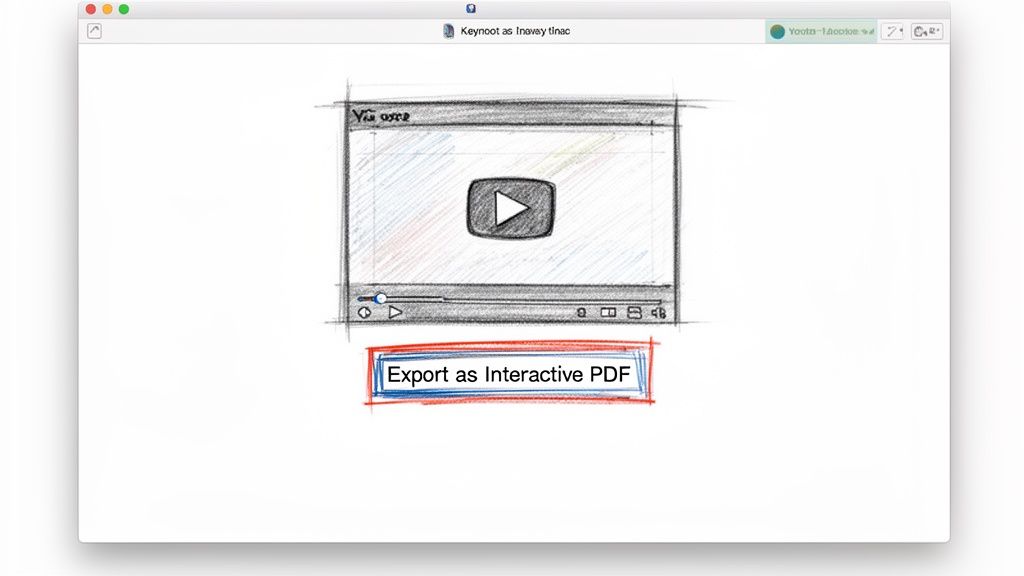
The Keynote and PowerPoint Process
The workflow is surprisingly similar in both apps. Just fire up a new presentation and design your page layout. From there, drag your optimized MP4 video file right onto the slide and get it positioned perfectly. Feel free to add text, shapes, and other design elements just like you would for any other slide deck.
The most critical part of this whole technique is the export. Instead of a standard "Save as PDF," you need to find the specific settings that tell the app to keep the multimedia interactive.
- In Apple Keynote: Head to
File > Export To > PDF. In the dialog box that pops up, I usually set the image quality to "Best" to keep things crisp. The magic here is that Keynote's PDF export automatically keeps the video interactive—no special checkbox required. - In Microsoft PowerPoint: The process is almost identical. Navigate to
File > Save Asand choose PDF from the format dropdown menu. PowerPoint for Mac is pretty good about this, but I always recommend opening the final PDF to test that the video is clickable and plays as expected.
Once it's exported, open your new PDF in a viewer like Adobe Acrobat Reader to double-check that the video plays correctly. It’s a shockingly effective trick for quick projects.
My Experience: I’ve used this exact technique countless times to create interactive one-pagers for client pitches. It’s way faster than waiting for a big design app to load, and the result is a clean, professional PDF with an embedded demo video that clients can watch on the spot.
Understanding the Limitations
While this method is a lifesaver, it’s important to be realistic. You're using presentation software, not a dedicated PDF authoring tool like Acrobat Pro, so you won't get the same level of granular control.
You’ll have fewer options for things like:
- Playback Controls: Forget about setting custom poster frames or choosing different controller skins.
- Activation Settings: The video will almost always be set to play on click. Options like autoplay are off the table.
- Advanced Actions: You can't create complex interactions, like linking the video to other buttons or elements in the document.
Despite those trade-offs, it remains an excellent, no-cost alternative for creating functional, interactive documents. If you need a refresher on the basics, our guide on how to create a PDF on a Mac covers all the essentials. This workflow just adds a powerful interactive layer to those fundamentals.
You’ve done the hard work. Your video is perfectly prepped, expertly compressed, and finally embedded into your PDF. So, you’re done, right? Not quite.
This is where so many creators trip up, forgetting one last, crucial check: will the person on the other end actually be able to see it? The unfortunate truth is that not all PDF readers play by the same rules.
Whether your interactive document succeeds or fails often comes down to the software your audience uses. Some viewers handle multimedia beautifully. Others will just show a lonely, blank white box where your cinematic masterpiece should be.
The PDF Viewer Lottery
The single biggest compatibility hurdle for Mac users is Apple’s own Preview app. It's great for quickly viewing static documents or adding a signature, but it offers zero support for playing embedded video. If your recipient opens your PDF in Preview, they will see nothing. Game over.
It's the same story for most web-based PDF viewers, like the ones baked into Gmail or Google Drive. They're built for speed and basic document display, not for handling complex, rich media features.
This is exactly why a little guidance for your audience goes a long way. You need to gently nudge them toward a viewer that can deliver the full experience you intended.
Key Insight: Always assume your audience will try to open the PDF with an incompatible viewer first. A simple note on the first page of the PDF—something like, "For the best experience, please view this document in Adobe Acrobat Reader"—can save a lot of confusion and support emails.
When it comes to reliable playback, the gold standard is, without a doubt, Adobe Acrobat Reader. It’s free, works on pretty much any device, and is specifically designed to support the entire range of PDF features, including your embedded video. For rock-solid, predictable playback, it's the only viewer you should be recommending.
The way videos are prepared also plays a huge role in compatibility. To get a better handle on this, you can learn more about what video encoding is and why it's so critical for making sure your files play correctly everywhere.
Troubleshooting Common Playback Problems
Even with the right software, a couple of common hiccups can still get in the way. Thankfully, they're both easy fixes with a little bit of direction.
-
The Yellow Security Warning: Adobe Reader has built-in security features that can block multimedia content from playing automatically. The first time someone clicks your video, a yellow bar might pop up with a warning like, "Multimedia content has been disabled." All they need to do is click the "Options" button in that bar and choose "Trust this document always" to enable playback for good.
-
The Dreaded Blank White Box: If someone tells you they just see a blank space, it’s a near-certainty they're using an unsupported viewer like Mac’s Preview. Your job is to gently guide them. Simply instruct them to download and install the free Adobe Acrobat Reader to view the document as intended.
To make things even clearer for you and your audience, here's a quick rundown of which PDF viewers you can count on and which you can't.
PDF Viewer Video Support Comparison
Navigating the world of PDF viewers can be tricky, as support for embedded media varies wildly. This table gives you a quick reference for what to expect from the most common applications your audience might be using.
| PDF Viewer | Embedded Video Support | Common Issues |
|---|---|---|
| Adobe Acrobat Reader | Excellent | May require users to "trust" the document to enable multimedia content. |
| Apple Preview | None | Video will not appear or will be shown as a static, non-interactive image. |
| Web Browser Viewers | None | Most browsers (Chrome, Safari) cannot play embedded videos within PDFs. |
| Third-Party PDF Apps | Inconsistent | Support varies wildly; many lack the codecs needed for video playback. |
Ultimately, guiding your viewer to use Adobe Acrobat Reader is the simplest and most effective way to ensure they see your video content without any hitches. A little proactive instruction makes all the difference.
Common Questions Answered
When you start embedding video into PDFs, a few questions always seem to pop up. Trust me, getting these cleared up from the start will save you a ton of headaches down the line. Let's tackle the most common ones I hear all the time.
We'll cover everything from trying to use YouTube links to the real-world limits of file size and whether your video will even play on a phone. Knowing this stuff helps you set realistic expectations for your interactive documents.
Can I Embed a YouTube Video Directly into a PDF?
This is easily the most popular question, and the answer is a simple no. The PDF format just isn't built to stream videos from platforms like YouTube or Vimeo. All the methods we've walked through rely on embedding an actual video file—like a compressed MP4—directly into the document itself.
But don't worry, there's a really effective workaround that most people use:
- First, grab a high-quality screenshot of the YouTube video player.
- Drop this image into your PDF right where you want the video to appear.
- Then, just add a hyperlink to that image, pointing it directly to the video's URL.
Sure, it’s not a true in-document playback experience, but it’s a rock-solid method if your video has to live online. It guides your reader to the content without bloating your PDF file to an unmanageable size.
What Is the Maximum Video File Size for a PDF?
Technically, the PDF specification doesn't set a hard limit on the file size. The real limit is a practical one: usability. A PDF with a massive video file will be painfully slow to open, a nightmare to share over email, and will probably crash weaker PDF viewers.
As a rule of thumb, always aim to keep your embedded video under 10-20 MB after you've compressed it. A file in this sweet spot gives you a great balance between video quality and document performance, keeping the PDF nimble and shareable.
This is exactly why using a good compression tool isn't optional—it's essential. It's the only way you're going to shrink that video down to a reasonable size while keeping it looking crisp and professional.
Will My Embedded Video Play on a Mobile Device?
This is where things get tricky. Mobile compatibility is, frankly, all over the place. The vast majority of mobile PDF viewers, including the official Adobe Acrobat Reader for both iOS and Android, have very limited or zero support for playing embedded media. It usually comes down to security protocols and performance issues on mobile operating systems.
Because of this, if you know most of your audience will be on their phones or tablets, linking out to a hosted video is a much safer and more reliable bet. Always, always test your final PDF on a few different mobile devices to see exactly what your audience is going to experience.
Do I Need Adobe Flash Player to Play Videos in PDFs?
Absolutely not. This is an old requirement that just doesn't apply anymore. Back in the day, PDFs did rely on the Adobe Flash Player plugin to handle multimedia, but that technology was phased out years ago because of some major security holes.
Modern versions of Adobe Acrobat and Reader have their own secure, built-in media players. As long as you stick to the standard MP4 (H.264) format we’ve been talking about, your video will play natively inside up-to-date Adobe software. No extra plugins required for the viewer.
Ready to create lightweight, interactive PDFs? Compresto makes it easy to compress your videos to the perfect size for embedding. Reclaim your storage, speed up sharing, and ensure your documents are professional and performant—all with a simple drag and drop. Try it today at https://compresto.app.