How to Embed Video in PDF and Make Your Documents Stand Out
Embedding a video in a PDF isn't just a technical trick; it's how you turn a flat, static document into something that grabs and holds a reader's attention. This simple move can boost reader interaction and make complex ideas much easier to digest than with text alone. It’s your secret weapon for making proposals, portfolios, and guides genuinely unforgettable.
Why Bother Embedding a Video in a PDF Anyway?
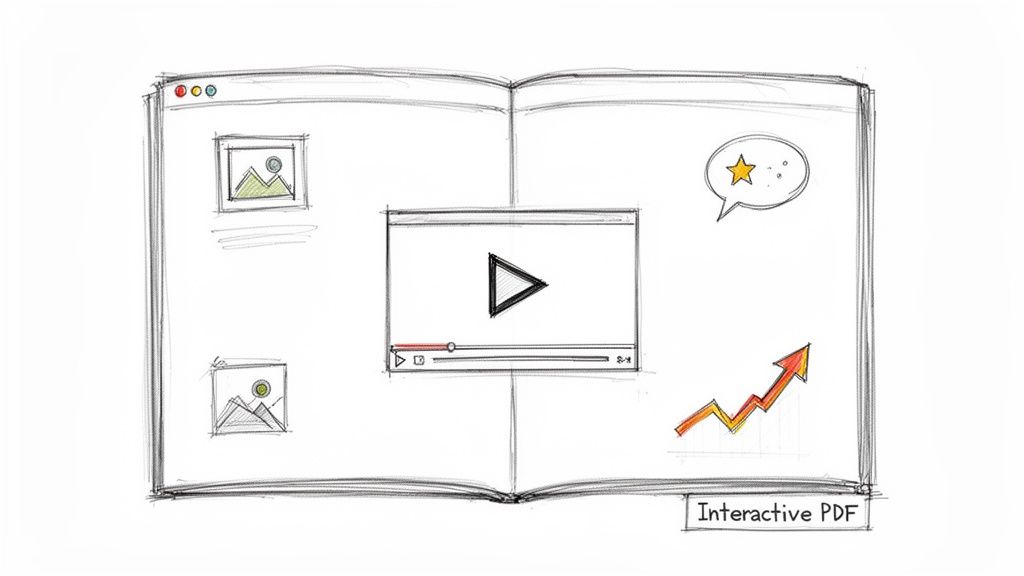
Let's get past the "how" for a minute and focus on the "why." The real reason you embed a video is simple: to make people stop and pay attention. We're all guilty of skimming through documents, but a video thumbnail is an invitation to engage on a deeper level.
Imagine you're sending a sales proposal. Instead of just describing how great your solution is, you could drop in a short video of a client raving about their results. That single clip builds instant trust and social proof, all without the reader ever leaving your PDF.
Turn Standard Documents into Dynamic Assets
This technique is incredibly versatile and adds a layer of interactivity that plain old text and images just can't match.
- Portfolios: A graphic designer or video editor can showcase their work in motion right inside their PDF portfolio. Potential clients can see their skills in action without having to click away to another website.
- Training Manuals: Complicated instructions suddenly become crystal clear when you embed a quick tutorial video. This dramatically improves how much people remember and cuts down on frustration.
- Marketing Materials: Embed a product demo in a digital brochure to show your features in action. You're no longer just telling—you're showing.
The goal is to stop your reader from just scanning. A video acts as a powerful hook that pulls them deeper into your content, making your message more memorable and persuasive.
The Professional Edge in a Crowded Field
In a competitive world, anything you can do to stand out matters. An interactive PDF signals a commitment to quality and a modern, thoughtful approach to communication. It shows you're willing to go the extra mile to provide a better experience, which can be the small detail that helps you close a deal or land a new client.
The demand for this kind of integrated media is only getting bigger. The Video as a Service (VaaS) market, which powers a lot of this technology, was valued at USD 3.8 billion in 2021 and is projected to hit USD 6.2 billion by 2026. This growth just highlights how crucial video has become in our everyday business documents. You can dig into more of these market trends in this detailed report.
The Secret to Lightweight PDFs: Compress Your Video First
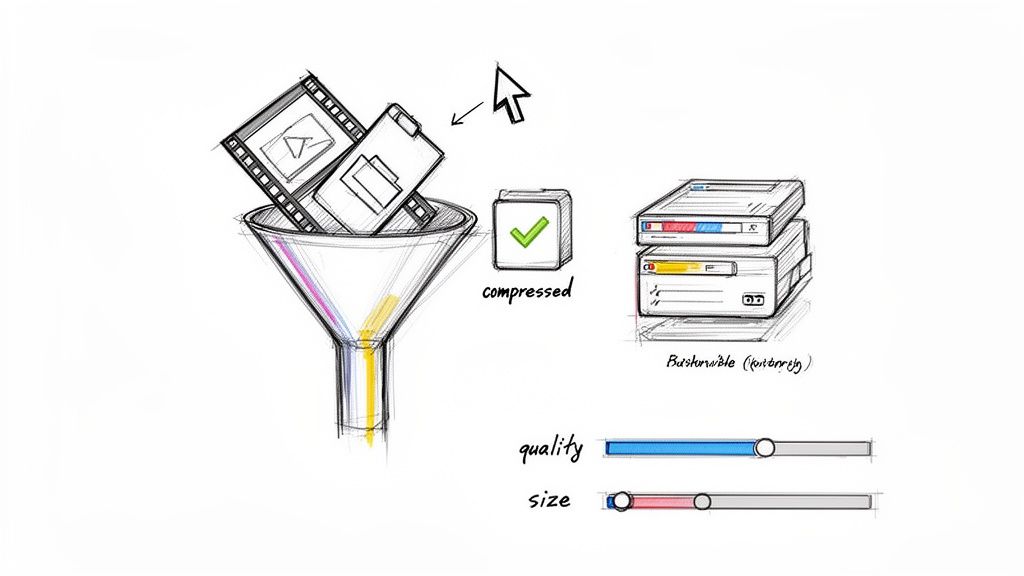
Before you even think about dropping a video into a PDF, there's a crucial first step that separates a sleek, professional document from a clunky, unusable one: video compression.
Skipping this step is a recipe for disaster. You’ll end up with a bloated, frustratingly slow PDF that’s impossible to email and takes forever to load. Imagine trying to send a multi-gigabyte proposal—it's not just impractical; it's unprofessional. The real secret to creating a lightweight, shareable PDF is to shrink your video file first, all while keeping the quality sharp.
Why Compression Is Non-Negotiable
A smaller video file means a smaller final PDF. Simple as that. This translates directly to faster email attachments, quicker downloads for your audience, and smoother playback, even for people on a spotty connection. By compressing, you're not just tweaking a file; you're actively removing barriers between your content and the people you want to see it.
Video compression is the unsung hero that makes embedding video in a PDF practical in the first place. And with video marketing blowing up, it's a skill you can't afford to ignore. One recent survey found that 74% of marketers share between two and six videos monthly, often embedding them in reports and proposals to make a bigger impact. You can dig into more of these valuable video marketing insights on Lemonlight.
Think of it this way: a compressed video ensures your brilliant content gets seen, not abandoned. A viewer is far more likely to watch a video that plays instantly than one that makes them wait.
A Simple Workflow for macOS Users
If you're on a Mac, tools like Compresto make this whole process incredibly straightforward. You don't need to be a video engineer to get fantastic results. The app is built around a simple drag-and-drop interface, letting you shrink your files in seconds before you embed them.
Here’s a quick look at how easy it is:
- Drag and Drop: Just pull your video file straight into the app.
- Choose a Preset: Select a setting like "Web Optimized" to automatically strike the perfect balance between quality and file size.
- Batch Process: Have a bunch of videos for one project? Drop them all in at once and let the app handle the entire queue.
This whole approach can shrink a video's file size by up to 90% right on your Mac—nothing gets uploaded to the cloud, so your files stay completely private and secure. If you want to dive deeper, you can learn more about how to compress video without losing quality in our detailed guide.
By making compression a mandatory first step, you guarantee your interactive PDF is an effective communication tool, not just a technical headache. A little prep work here pays off big time in the end.
Embedding Video with Adobe Acrobat Pro: The Gold Standard
When you need absolute, pixel-perfect control over how your video appears in a PDF, nothing beats Adobe Acrobat Pro. While there are other ways to get the job done, Acrobat is the definitive tool for a professional finish. It turns a static document into a polished, interactive experience.
This isn’t just about dropping a file onto a page. Think of it as the difference between slapping a sticker on your document and building a custom picture window. Acrobat Pro gives you the tools to define the exact size and placement of your video player, making sure it aligns perfectly with your layout.
Getting Your Files and Workspace Ready
First things first: before you even open Acrobat, make sure your PDF is finalized and your video is already compressed. Trust me, trying to embed a massive, uncompressed video will create a bloated file that’s a nightmare to share and painfully slow for your audience to load.
Once your assets are good to go, open your PDF in Adobe Acrobat Pro.
The tool we need for this is called Rich Media. If it’s not already in your sidebar, it’s super easy to add.
- Just head over to the Tools center.
- Scroll down until you see the "Rich Media" section.
- Click Add to pin it to your sidebar for easy access.
Taking a moment to set this up makes the whole process much smoother. You’ll thank yourself later when the tool is just a click away.
This little interface is your command center for drawing the video’s playback area and diving into all the settings that control how it behaves.
Placing and Configuring Your Video
With the Rich Media tool selected, your cursor will change into a crosshair. Now, just click and drag on the page to draw a rectangle where you want the video to appear. This box is your video’s playback area. Don’t stress about getting it perfect on the first try—you can easily resize and move it around later.
When you let go of the mouse, a dialog box will pop up asking you to select your video file. Once you’ve picked your compressed video, you’ll land on the "Insert Video" settings window. This is where the real magic happens.
Pro Tip: Your video doesn't have to be a boring rectangle. For a more dynamic layout, try creating custom-shaped frames or other design elements in your source document (like InDesign or Word) before bringing it into Acrobat. Then, you can place the video right inside those shapes.
This settings panel is where you can fine-tune every part of the viewing experience. You get to decide if the video plays automatically when the page opens or if the user has to click to start it.
You can also choose a poster image—the static image that shows before the video plays. A compelling poster image acts like a visual invitation, tempting viewers to hit that play button. You can grab a frame from the video itself or, for a more branded look, upload a custom image you’ve designed separately. This is the kind of control that lets you embed video in a PDF in a way that truly matches your document’s style and goals.
Beyond Acrobat Pro: Other Ways to Get Video into Your PDFs
While Adobe Acrobat Pro is the gold standard for creating slick, interactive PDFs, it’s far from the only tool for the job. If you don't have a subscription or just need a different approach, a few clever workflows can get you there. Each has its own strengths and weaknesses, so it’s all about picking the right one for your project.
One of the most straightforward methods uses a tool most of us already have installed: Microsoft Word. It lets you pop an "Online Video" right into your document. This method doesn't actually embed the heavy video file itself; instead, it streams it from a host like YouTube or Vimeo.
Using Microsoft Word as a Bridge to PDF
The process is surprisingly simple. You just insert an online video into your Word document, which places a clickable thumbnail image. When you save or export that document as a PDF, the thumbnail and its link come along for the ride.
The biggest win here? Your PDF file size stays incredibly small. Since the video data isn't actually in the document, you avoid the bloat. But this convenience has one major string attached: the viewer must have an active internet connection to watch it. It’s a perfect solution for documents you know will only be viewed online, but it’s a non-starter for offline presentations or archives.
Key Takeaway: The Word-to-PDF method is fantastic for keeping file sizes tiny and leveraging existing video platforms. Just remember that playback is entirely dependent on the viewer's internet access, making it unsuitable for offline use cases.
A Powerful Option for Technical Documents
For those who aren't afraid of a little code, LaTeX offers a seriously robust and customizable solution with its media9 package. This is a favorite in academic, scientific, and technical circles where precision and control are non-negotiable.
With media9, you can truly embed video and audio files that play directly inside compatible PDF viewers, much like you would with Acrobat Pro. This gives you offline playback and fine-grained control over how the video player looks and acts. The catch, of course, is that this route requires a working LaTeX environment and a willingness to write some markup, so it’s definitely geared toward a more technical user.
This decision tree gives you a simple way to think about placing, setting, and configuring your video within a PDF.
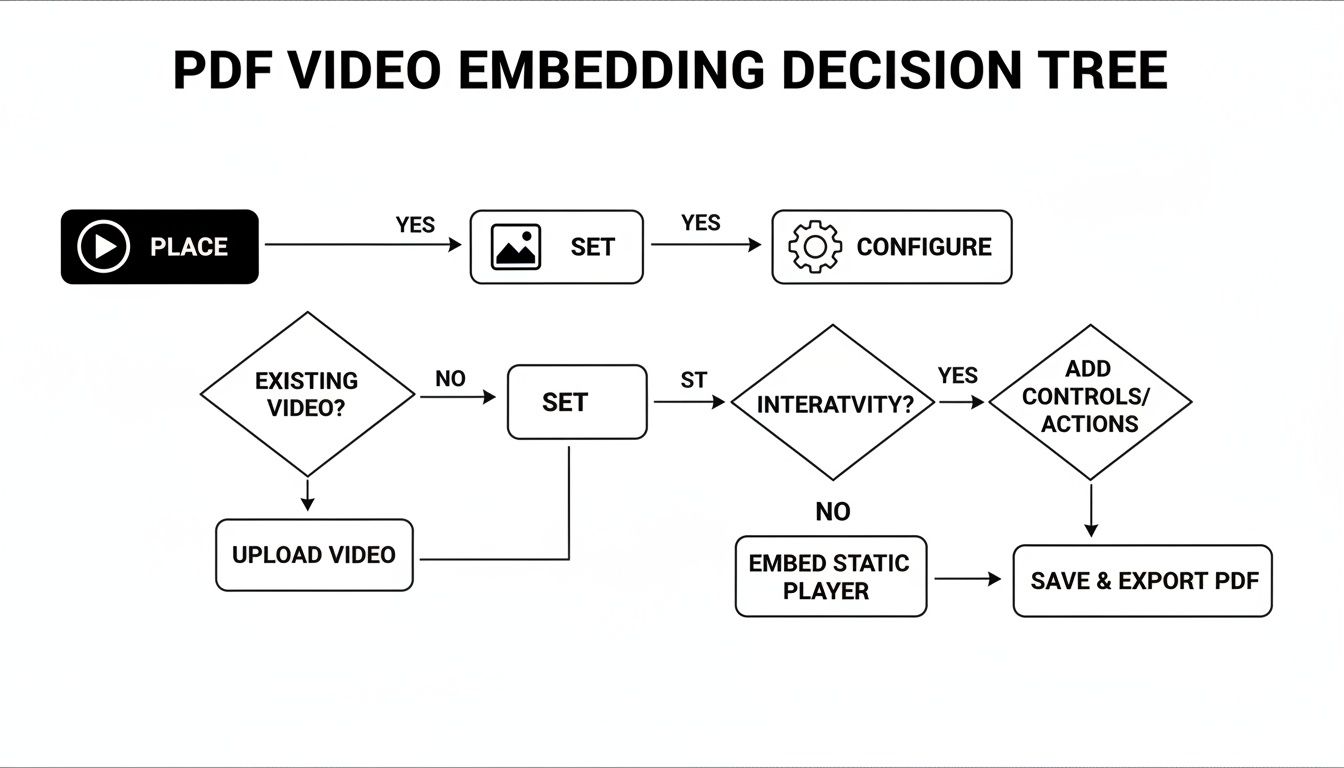
Each choice you make along the way shapes the final user experience and file compatibility.
Picking the right tool really boils down to your specific needs, your comfort with the technology, and how you expect your audience to interact with the document. If you're looking at moving beyond the Adobe ecosystem for other tasks, our guide on Adobe PDF alternatives might have some useful tips for you.
To make the choice a bit easier, here’s a quick breakdown of how these methods stack up.
Comparison of PDF Video Embedding Methods
This table compares the key features, requirements, and outcomes for different ways to get video into a PDF, helping you pick the best approach for your project.
| Method | Software Required | Playback Type | Best For |
|---|---|---|---|
| Microsoft Word | Microsoft Word | Online (Streaming) | Quick and simple embedding for online sharing and keeping PDF files small. |
| LaTeX (media9) | A LaTeX distribution | Offline (Embedded) | Academic papers, technical manuals, and users who need absolute control. |
| Adobe Acrobat Pro | Adobe Acrobat Pro | Offline (Embedded) | Professional designers and marketers who need robust interactive features. |
Ultimately, whether you opt for a simple streaming link or a fully embedded local file, there are plenty of effective ways to bring dynamic video content into your static PDFs.
Making Sure Your Audience Can Actually Watch the Video
Getting the video embedded is a huge win, but your job isn't quite done. The real measure of success is whether your audience has a smooth, frustration-free viewing experience.
This is where things can get tricky. The biggest hurdle you'll face is the wild west of PDF readers out there. They are not all created equal, and most of them simply weren't built to handle rich media.
The PDF Reader Compatibility Minefield
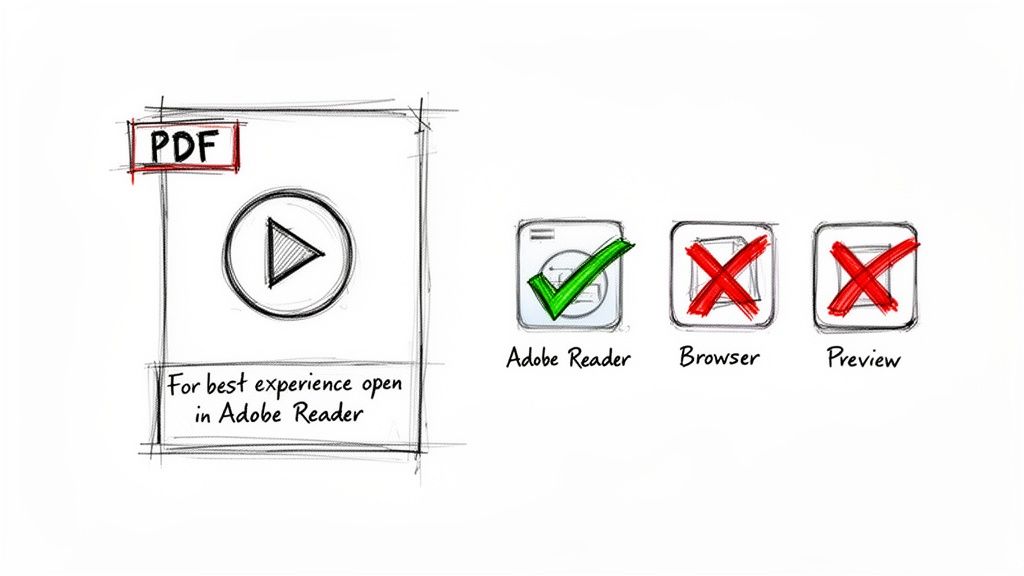
Here's the hard truth: only a few PDF readers can reliably play embedded videos. The undisputed champ is Adobe Acrobat Reader. It’s the platform these interactive features were designed for, so it almost always delivers the best performance.
Unfortunately, many other common viewers will simply fail.
- Web Browsers: Chrome, Safari, and Firefox all have built-in PDF viewers that are great for quick peeks at simple documents. But they prioritize speed and will almost always ignore embedded video, leaving a blank space or a static image.
- macOS Preview: If you're on a Mac, the default Preview app is fantastic for basic viewing and annotation, but it offers zero support for interactive elements like video.
- Most Third-Party Readers: A lot of the lightweight, free PDF readers out there strip out rich media to keep their apps lean and fast.
This compatibility lottery means you can't just email your interactive PDF and hope for the best. You need to give your audience a heads-up.
My Go-To Tip: I always add a small, friendly note right below the video in the PDF itself. Something like, "For the best experience, please download this file and open it in the free Adobe Reader." This one sentence can save you from a mountain of confusion and support questions.
Set Expectations and Troubleshoot Proactively
A great video deserves a great viewing environment. To make sure your content really connects, you can create some amazing, high-quality clips using the best AI video generators. And before you embed, it's always a good idea to run your file through one of these video optimizer tools for better playback to keep the PDF's file size down.
Embedding rich media is becoming more and more common, especially in video marketing. In fact, recent stats show that videos placed on key pages—like course materials or sales proposals—get surprisingly high play rates, with many viewers watching about halfway through. This is a huge deal for PDFs used in training or sales.
Ultimately, managing expectations is key. By addressing potential playback issues before they happen, you look professional and ensure your audience doesn't blame your document for their PDF viewer's limitations. The goal is to deliver a seamless experience, and that includes guiding your user on how to get one.
Answering Common Questions About Embedding Video in PDFs
Even when you've got the steps down, a few practical questions always seem to pop up. Knowing the answers to these common sticking points is often the difference between a smooth workflow and a frustrating afternoon. Let's dig into some of the most frequent queries that come up when embedding video into a PDF.
Will Adding a Video Make My PDF Too Big to Email?
This is probably the number one question, and the short answer is: yes, it absolutely can.
Even after you've compressed a hefty 500 MB video down to a lean 50 MB, that's still well over the typical attachment limit for most email servers. Most providers cap attachments somewhere around 20-25 MB, so a 50 MB file just isn't going to fly.
When your PDF is on the larger side, your best bet is to skip the email attachment altogether. Instead, use a file-sharing service like Dropbox or WeTransfer to generate a shareable link.
What About Using a GIF Instead of a Video?
It's technically possible, but I almost never recommend it. While Adobe Acrobat Pro lets you place animated GIFs, they have one massive drawback: file size. It's not uncommon for a short, decent-quality GIF to be larger than a well-compressed MP4 video of the same length.
Here’s a quick breakdown:
- GIFs: Best for super short, silent, looping animations where file size is not your main worry. Think tiny, simple visual accents.
- MP4s: The clear winner for anything longer, clips with audio, or projects where keeping the final PDF lightweight is a top priority.
So, while you can use a GIF, a compressed video almost always gives you better quality for a smaller file size. It's just the more practical choice.
What’s the Best Video Format to Embed?
Stick with an H.264 encoded MP4. It’s the safest, most widely supported format out there.
This format hits the sweet spot between high-quality visuals and efficient compression, which is exactly what you want. More importantly, it ensures broad compatibility with the media players built into PDF viewers like Adobe Reader.
You might be tempted to try a more obscure or specialized format, but doing so dramatically increases the risk that your audience won't be able to play the video. Sticking with the MP4 standard is a simple way to sidestep compatibility headaches.
One of the most common mistakes I see is people assuming any old video format will work. Save yourself the future support emails and just convert everything to an H.264 MP4 before you even start the embedding process. It's a reliable standard for a reason.
By getting these practical details sorted out upfront, you can build your interactive documents with confidence, knowing you've already sidestepped the most common pitfalls.
Ready to shrink your videos, images, and PDFs without sacrificing quality? Try Compresto, the essential macOS app for fast, private, and powerful compression. Download Compresto today and see how much space you can save.