How to Make a GIF from a Video The Definitive Guide
So, you want to turn a video into a GIF? Good news: it’s incredibly straightforward. Using a dedicated tool like Compresto on your Mac or even a simple online converter, the whole process boils down to importing your video, clipping the perfect short loop, and exporting it as a GIF. It's a quick way to create lightweight, eye-catching animations for just about any platform.
Why Bother Turning Videos Into GIFs?

Before we jump into the "how," it's worth taking a moment to appreciate why GIFs are still such a big deal. They aren't just for dropping funny reactions in a group chat; they're a seriously effective communication tool for marketers, designers, and creators of all stripes. GIFs neatly fill the gap between a static image and a full-blown video, giving you a dynamic way to grab someone's attention instantly.
The real magic of a GIF is its ability to pack motion and emotion into a small, auto-playing package. A video needs someone to hit "play," but a GIF just goes, looping from the moment it loads. That makes it perfect for cutting through the noise in a crowded social feed or an email inbox.
That's why they're so great for:
- Boosting Engagement: Dropping a GIF into a social post or newsletter can give your interaction rates a serious bump.
- Demonstrating a Process: Need to show how a simple software feature works? A short, looping GIF is often clearer and faster than a whole video tutorial.
- Spicing Up a Website: A few subtle, well-placed GIFs can bring a landing page or blog post to life without bogging down your load times. We actually have a whole guide on the best way to reduce GIF file size for websites if you're worried about performance.
The Real Strategic Value of GIFs
Thinking about this through the lens of content repurposing strategies, converting videos into GIFs is a no-brainer. It's all about wringing every last drop of value from your existing video content. You can take a single recording and chop it up into a dozen pieces of shareable micro-content.
That kind of efficiency is a game-changer for any content team. Instead of starting from scratch, you can pull the most powerful moments from a product demo, webinar, or customer testimonial and spin them into punchy, engaging GIFs.
A GIF is like a silent, looping advertisement. It gets a key message or action across on repeat, and it works perfectly in places where people have their sound off, like on the bus or in a quiet office.
The demand for tools that help you make a GIF from a video is absolutely booming. The global market for GIF converters was valued at $4,347.05 million in 2021 and is on track to hit $5,520.01 million by 2025. That's a pretty clear sign of how crucial this skill has become for professionals. You can dive deeper into the market's growth in the full GIF converters market report.
GIFs vs. Videos: When to Use Each Format
Choosing between a GIF and a video can be tricky. This quick comparison should help you decide which format best fits your content goals.
| Use Case | Choose GIF When... | Choose Video When... |
|---|---|---|
| Social Media Feed | You need to grab instant, silent attention in a crowded feed. Perfect for quick reactions or highlighting a single feature. | You have a complex story to tell, require audio, or want to create an immersive ad experience. |
| Product Demos | You're illustrating a simple, repeatable action, like clicking a button or a short workflow. | You need to explain a multi-step process, showcase detailed features, or include a voiceover explanation. |
| Email Marketing | You want to add a bit of dynamic flair to your newsletter without forcing a click. The auto-play is key here. | You're linking out to a full-length tutorial, a webinar recording, or a customer testimonial. |
| Blog Posts & Articles | You're breaking up long blocks of text with a quick visual aid or a simple animated chart. | You're embedding a detailed interview, an in-depth tutorial, or supplementary video content. |
| Website Banners | You need a lightweight, looping animation that won't kill your page-load speed. | You want to feature a high-quality cinematic brand video or an in-depth product showcase. |
Ultimately, both have their place. A well-placed GIF can hook a viewer's interest, while a video can provide the depth and detail needed to convert them.
Making a GIF from a Video on Your Mac
Alright, let's get down to business. You've got a video clip and you want to turn it into a GIF, right on your Mac. The great news is you can completely sidestep the confusing timelines and bloated settings you'd find in a full-blown video editor. With an app like Compresto, the whole thing becomes a simple, focused task.
The goal here is efficiency. You're not cutting a feature film; you're just grabbing a perfect, tiny loop. That's what makes a drag-and-drop workflow so effective. Just pull your video file directly into the app and get straight to the point: conversion. No messing around with new projects or digging through complex menus.
Here's what that straightforward interface looks like, just waiting for your file.
As you can see, the design is all about speed, letting you process a single clip or even a whole folder of them without any unnecessary friction.
Your First GIF Conversion
Once your video is loaded, the first thing you'll do is tell the software what you want to make. It's as simple as selecting "GIF" from the output options. That one click instantly tailors the settings for you, hiding all the irrelevant video stuff and showing you only what you need to create your animation.
Let's imagine you have a 10-second product demo video. The goal is to create a punchy, 3-second GIF for a landing page that shows off the product's best feature in action. You don't need the intro or the outro—just that one perfect moment. This is where trimming is key.
Using simple start and end point markers, you can scrub through the timeline and isolate the exact segment you want to loop. And since this is non-destructive, your original video file stays completely untouched. Feel free to experiment.
Refining Your GIF Settings
With your clip trimmed to the perfect loop, it's time to dial in the settings. This is the classic balancing act between visual quality and file size. Compresto gives you presets to make this painless, but you can also jump in and fine-tune the details yourself.
- Dimensions: Changing the width and height of your GIF is one of the fastest ways to slash its file size. A 1200px wide GIF might look sharp, but it's overkill for a small spot on a webpage where 600px would do the job just fine.
- Quality Presets: You'll typically see options like "High," "Medium," or "Low." For our product demo example, "Medium" is usually the sweet spot. It gives you a clean look without creating a monster file that will slow down your page load time.
- Frame Rate (FPS): This setting controls how many frames appear per second. While video is often shot at 24 or 30 FPS, GIFs look perfectly smooth at 15 FPS. Making this one change can literally cut the file size in half.
Since turning a video into a GIF is a form of editing, brushing up on a few essential video editing tips for beginners can make preparing your source clips much easier. A little know-how about basic trimming and composition goes a long way.
The real goal is to get a professional result in just a few clicks. My go-to workflow? Start with a preset, trim the clip, and then tweak the dimensions. This covers 90% of use cases and gets you a high-quality GIF in under a minute.
Once you're happy with how everything looks, just hit export. The app handles the conversion, and you're left with a perfectly optimized GIF, ready to share. If you find yourself using other editing tools alongside this, you might also want to check out our roundup of the top video editing software for Mac to round out your toolkit.
Balancing GIF Quality and File Size Like a Pro
Anyone can spit out a GIF from a video, but the real art is in making one that looks amazing and loads in a heartbeat. A beautiful, massive GIF that takes forever to appear is just as useless as a tiny, pixelated mess. This is the constant tug-of-war that separates amateur work from sharp, professional content.
The whole game comes down to a few key settings that punch way above their weight. Get a handle on how they play together, and you can take a clunky 2MB GIF and turn it into a crisp, clean 450KB version that’s perfect for the web.
This infographic lays out the main levers you'll be pulling.
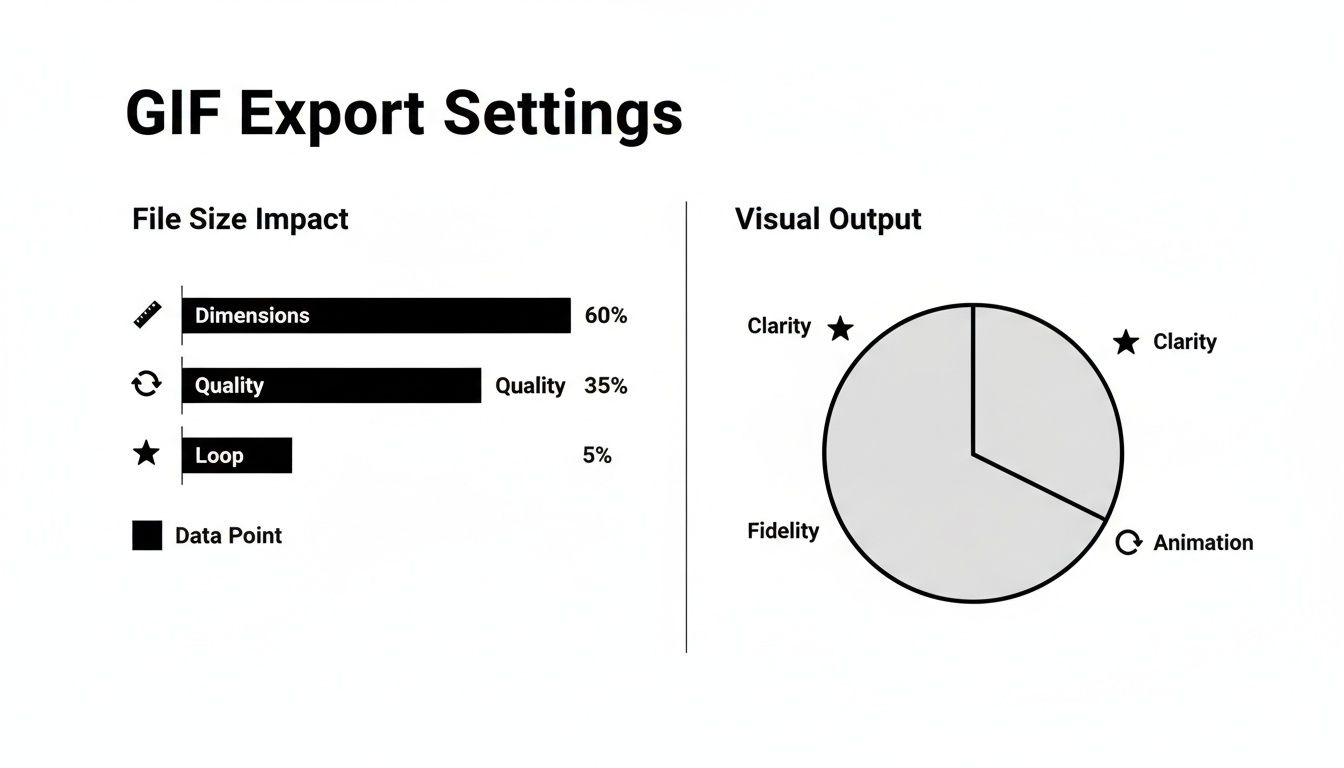
As you can see, the dimensions, quality, and loop settings are your primary tools for managing the trade-off between visual pop and file size.
The Power of Frame Rate
Frame rate, measured in frames per second (fps), is all about how smooth your animation looks. Most video is shot at 24 or 30fps for that fluid, cinematic feel, but GIFs absolutely do not need that level of detail. In fact, dropping the frame rate is one of the easiest and most effective ways to slash your file size without a huge hit to quality.
For most things on the web, a frame rate of 15fps is the sweet spot. It delivers motion that looks natural to the human eye while nearly cutting your file size in half compared to a 30fps version. You can often dip down to 10 or 12fps for simpler animations and barely notice the difference.
Frame Rate vs File Size: A Practical Comparison
To see just how much frame rate matters, take a look at this breakdown. We started with the same 5-second video clip and exported it as a 600px-wide GIF at different frame rates. The results speak for themselves.
| Frame Rate (FPS) | Animation Smoothness | Estimated File Size |
|---|---|---|
| 10 | Slightly choppy | ~1.2 MB |
| 15 | Smooth (Good balance) | ~1.8 MB |
| 24 | Very Smooth | ~2.9 MB |
| 30 | Cinematic (Overkill) | ~3.6 MB |
The difference is staggering. Pushing for that "cinematic" 30fps feel makes the file 3x larger than the perfectly acceptable 10fps version. For web use, sticking around 15fps usually gives you the best bang for your buck, balancing smooth motion with a reasonable file size.
Mastering Colors and Dithering
Here's another big one: the GIF format is old-school and can only display a maximum of 256 colors. Your original video, on the other hand, is swimming in millions of colors. This limitation is why poorly made GIFs can look blocky or have weird color bands, especially in gradients like a sunset or a softly lit room.
To get around this, good GIF converters use a clever trick called dithering. Dithering arranges pixels of different colors in a pattern to create the illusion of more colors than are actually there. It helps smooth out those gradients and makes the final GIF look much closer to the original video.
When you make a GIF, you'll usually see a couple of options for color and dithering:
- Color Count: You can often set the number of colors below the 256 max. For animations with simple, flat colors, you might only need 64 or even 32 colors, which will shrink your file size even more.
- Dithering Algorithm: Some advanced tools let you pick the dithering style. Honestly, the technical differences are for the experts—the most important thing is just making sure dithering is turned on for a high-quality result.
This is an area where a little tweaking pays off big time. If you really want to get into the weeds, check out our complete guide on how to reduce GIF file size for more advanced tips. By mastering these settings, you'll be creating GIFs that are not only eye-catching but also load lightning-fast on any device.
Streamlining Your GIF Creation Workflow
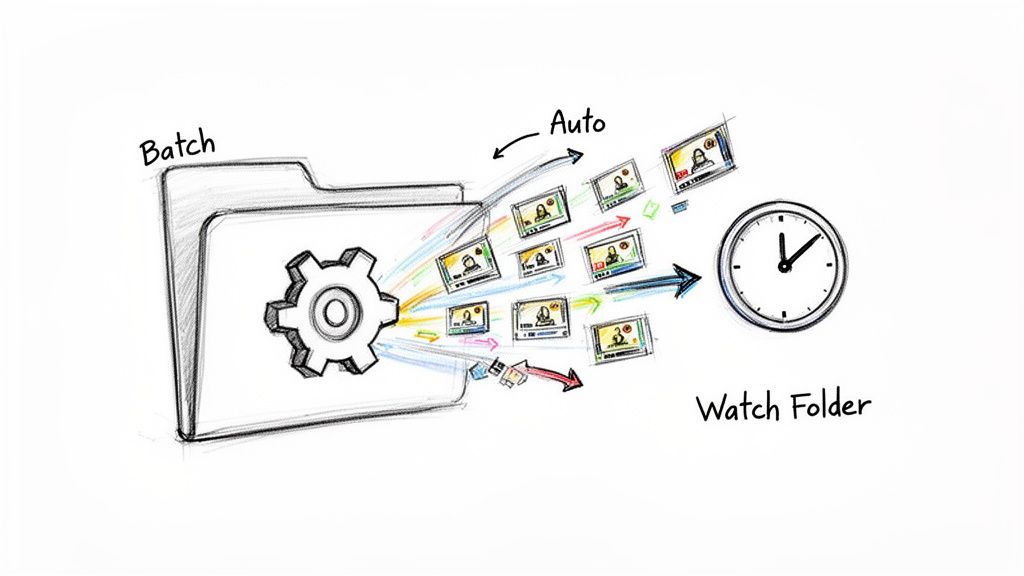
Making a single GIF is easy enough. But what about when you need to pump out dozens of them every week? For anyone in social media, marketing, or design, that kind of repetitive work is a real time-sink.
This is where you graduate from one-off conversions to building a smart, automated system. Instead of clicking through the same settings over and over, you can set up a workflow that runs in the background. The goal is to get the tedious part of your job—file conversion—out of your way so you can focus on the creative work that actually matters.
Harnessing the Power of Batch Processing
Picture this: you've just wrapped up a video shoot and now you have a folder with 20 different clips that need to become social media GIFs. Doing them one by one would be pure torture. This is exactly what batch processing was made for.
With a tool like Compresto, you can just grab that entire folder of videos and drag it straight into the app. Apply your go-to GIF settings—say, 600px wide at 15fps—to all of them at once. The app queues them up and churns through the whole list on its own.
This is a complete game-changer for anyone producing content at scale. A design team prepping animated assets for a new website can convert an entire library of source videos in one go, saving hours of mind-numbing work.
The real magic of batch processing is consistency. Every single GIF comes out with the exact same specs, ensuring a uniform look and feel across your campaign without you having to double-check anything.
Setting Up a Watched Folder for Full Automation
If you really want a hands-off experience, the next step is a watched folder. This brilliant feature lets you point your GIF converter at a specific folder on your Mac and tell it to monitor for any new files.
Once it's set up, any video file you drop into that folder gets automatically converted into a GIF using a preset you've already defined. You can even have the finished GIF pop out into a different "output" folder, keeping everything neat and tidy.
Think about a social media manager who gets clips from different team members all day long. They could create a simple, powerful workflow:
- All raw video clips get dropped into a folder named "Videos to Convert."
- Compresto keeps an eye on this folder, automatically grabbing any new video and starting the conversion.
- The finished, optimized GIFs land in a "Ready for Social" folder, good to go.
This creates a seamless production pipeline. New content is processed the second it comes in, ready for you to schedule without ever having to open the app or click a single button. It's the most efficient way to handle a steady stream of content, letting technology do the grunt work while you focus on strategy.
Exploring Quick Alternatives for Making GIFs
While a dedicated Mac app like Compresto gives you the best control and quality, sometimes you just need a GIF from a video right now. For those moments, you can't beat the convenience of an online converter.
These browser-based tools are perfect when you need a quick reaction GIF for a social media reply or you're on a device without your usual software. You just upload a video, make a few quick tweaks, and download the result. It's a fast solution for non-critical projects where speed is more important than perfection.
The Appeal of Online GIF Makers
Online converters like Adobe Express and Ezgif have gotten popular for a good reason. They offer a dead-simple way to handle common video formats without any cost or commitment.
These tools have made content creation more accessible, easily handling formats like MP4, MOV, and AVI for clips up to a minute long, often without slapping a watermark on your final GIF. For instance, Ezgif’s converter processes uploads almost instantly, letting you trim clips and set loop counts with almost no effort.
But all that convenience comes with some major trade-offs. You really need to be aware of them before you upload your files.
Online tools are great in a pinch, but they operate on a "what you see is what you get" basis. The lack of fine-tuned controls means you often have to accept lower quality or larger file sizes than you'd get with a local application.
Understanding the Limitations
The single biggest drawback of using an online service is privacy. Every video you upload gets sent to a third-party server. That can be a massive security risk if your content is sensitive, proprietary, or not ready for the public eye. For any kind of professional work, this risk is often a complete dealbreaker.
Beyond privacy, you'll probably run into a few other frustrations:
- Strict File Size Limits: Most free online converters cap your video upload size, often at around 100MB. This makes them totally unsuitable for high-resolution clips from a modern camera or phone.
- Slower Performance: Your internet connection dictates the upload and download speed. This can turn into a real slog compared to the instant processing you get with a local app.
- Potential for Watermarks: While some are watermark-free, many free services will stamp their logo all over your final GIF unless you pay to upgrade.
Ultimately, online tools have their place for quick, casual GIF creation. But for anyone who values security, quality control, and an efficient workflow, a secure, local app is the smarter and more reliable choice.
Got Questions About Making GIFs?
Even with the best tools, a few questions always pop up when you start turning videos into GIFs. It's totally normal. Here are some straightforward answers to the most common snags people hit.
What’s the Best Video Format to Convert to a GIF?
For the best possible results, you absolutely have to start with a high-quality source file. Your safest bets are MP4 or MOV files. These formats hold onto a ton of visual detail, which is critical because the GIF conversion process always loses some quality along the way.
Think of it like making a photocopy of a photocopy. A crisp, clean original gives you a much better copy than a blurry, faded one. Starting with a sharp video gives the software more information to work with, which means your final GIF will look much crisper and more professional.
How Long Should a GIF Be?
While there's no hard-and-fast technical limit, the most effective GIFs are almost always short and sweet. When you're making GIFs for social media, websites, or emails, a good rule of thumb is to keep your loop under 7 seconds.
The whole point is to capture a single idea or emotion in a quick, seamless loop. Anything longer usually balloons into a massive file that loads slowly, defeating the purpose of using a lightweight format in the first place.
Why Does My GIF Look Pixelated or Have Weird Colors?
This is a classic problem, and it all comes down to the GIF format's biggest weakness: it can only display a maximum of 256 colors. Your original video, on the other hand, contains millions of them. This massive color reduction is what causes those blocky patches or strange color banding, especially in smooth gradients like a sunset.
Good conversion tools fight this with a clever process called dithering. Dithering intelligently arranges the limited pixels to trick your eyes into seeing smoother gradients and more colors than are actually there. If your GIF looks off, dive into your software’s settings and make sure dithering is turned on.
A great source video is the foundation of a great GIF. If your original clip is low-resolution or poorly lit, no amount of conversion magic will fix it. Always start with the cleanest video possible.
Can I Make a GIF with a Transparent Background?
Yes, you can, but it definitely adds a layer of complexity. To pull it off, you need a source video with a solid, consistent background—like a green screen—that can be easily isolated and removed.
Some of the more advanced GIF creation tools have a "color key" or transparency option that lets you pick a color to make transparent. Just be warned, this technique works best for simple animations or screen recordings. Trying it on live-action video often leaves you with jagged, unprofessional-looking edges and can even make the final file size bigger.
Ready to create stunning, optimized GIFs in seconds? Compresto offers a powerful and intuitive drag-and-drop interface right on your Mac, with batch processing and automation features that streamline your entire workflow. Download it today at compresto.app.