How to Make a GIF Your Wallpaper on a Mac
So, you want to make a GIF your wallpaper on a Mac? I get it. A static desktop can feel a little... boring. The short answer is that macOS doesn’t natively support animated GIFs as desktop backgrounds. But don't worry, that's not the end of the story. You can absolutely get that dynamic look with a couple of clever workarounds, either by using a third-party app or by converting the GIF into a video file.
Why Animate Your Mac Desktop
If you're looking to inject some real personality into your Mac's desktop, an animated GIF is a fantastic way to do it. It can transform your workspace from a simple, static background into something dynamic and engaging that actually reflects your style—whether that’s a looping scene from a favorite movie or a mesmerizing abstract animation.
While macOS doesn't support this out of the box, we've got you covered. This guide will walk you through everything, from the simplest apps that do all the work for you to a more hands-on DIY method. We’ll show you exactly how to get your favorite GIF running smoothly without bogging down your computer.
Choosing Your Method
The path you take really depends on your comfort level with tech and how much time you want to put in. Are you looking for a one-click solution, or do you prefer a more manual approach that gives you total control?
This decision tree gives you a quick visual of the two main routes you can take.
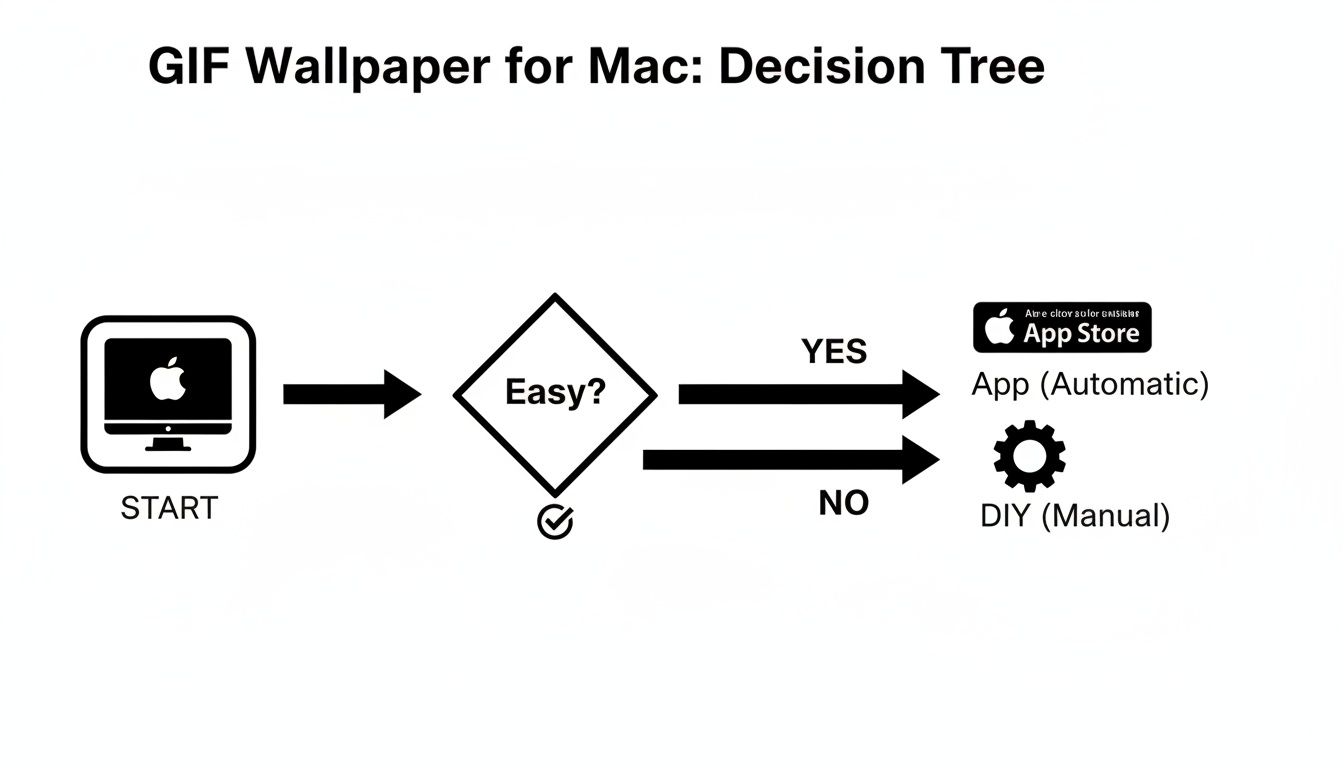
Ultimately, it comes down to a trade-off: the ease of an app versus the control of doing it yourself.
Here's a quick look at the different ways you can set an animated GIF as your wallpaper on macOS.
Comparing GIF Wallpaper Methods on Mac
| Method | Difficulty | Cost | Performance Impact |
|---|---|---|---|
| Third-Party Apps | Easy | Free to Paid | Low to Medium |
| DIY Conversion (GIF to Video) | Medium | Free | Low |
| DIY Conversion (GIF to Live Photo) | Medium | Free | Low |
Each method has its pros and cons, but they all lead to the same result: a much cooler-looking desktop.
One crucial step people often skip is optimization. A massive, uncompressed GIF can be a real resource hog, slowing your system down and draining your battery. This is especially true for animated GIFs, which are notoriously larger than static images. Think of it this way: the smoother you want your desktop to run, the more important it is to start with a lightweight file.
The secret to a great animated wallpaper isn't just the image itself, but how well it's optimized. A small, efficient file ensures your Mac stays fast while still looking fantastic.
Using a tool like Compresto can shrink your GIF's file size without wrecking the visual quality, ensuring your Mac stays responsive. Whether you're using a pre-made animation or learning how to make video GIFs yourself, starting with an optimized file is the key to a perfect animated desktop.
Alright, let's dive into the methods that make it happen.
Using Third-Party Apps for Instant Results
If you want a GIF as your wallpaper without all the manual fuss, third-party apps are your best friend. Since macOS doesn't support animated wallpapers out of the box, these tools step in to do the heavy lifting, letting you get an animated desktop up and running in just a few minutes. They're built specifically for this job and often pack in extra features you wouldn't get with a DIY workaround.
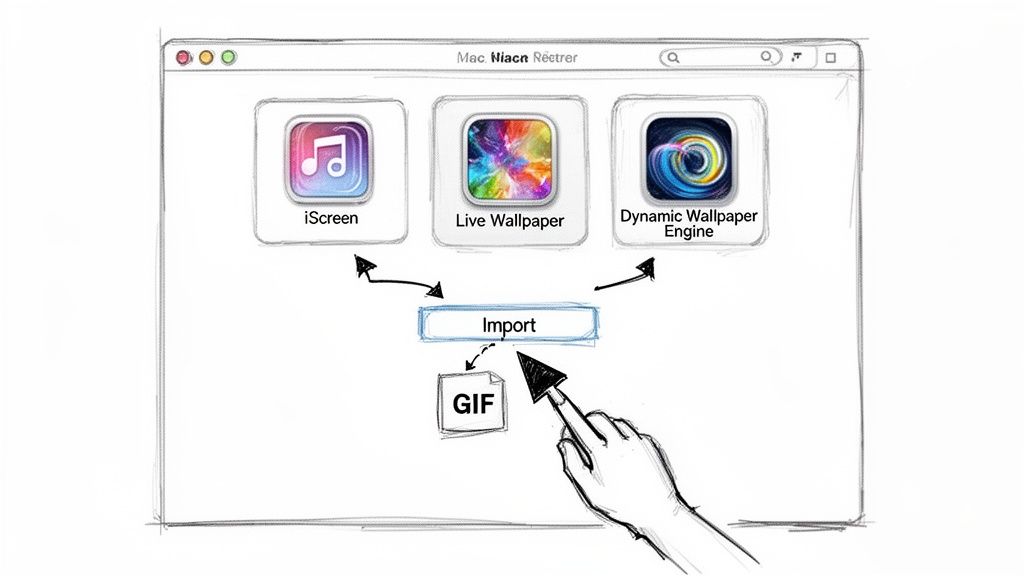
You can find plenty of these apps right in the Mac App Store, which makes installation a safe and simple process. Popular choices include iScreen, Live Wallpaper, and Dynamic Wallpaper Engine, each offering a slightly different flavor. Some are free with basic functions, while others might ask for a one-time purchase or subscription to unlock advanced goodies like wallpaper playlists, dynamic widgets, or finer control over the animation speed.
Finding the Right App for Your Needs
Picking the right app really boils down to what you're after: simplicity, deep customization, or just saving a few bucks. If your only goal is to get a single favorite GIF on your desktop, a free and simple tool is probably all you need. But if you're a power user who loves to cycle through different animations or add interactive elements to your desktop, then investing in a more feature-rich app is definitely worth it.
For instance, an app like iScreen goes beyond just wallpaper management and lets you integrate desktop widgets.
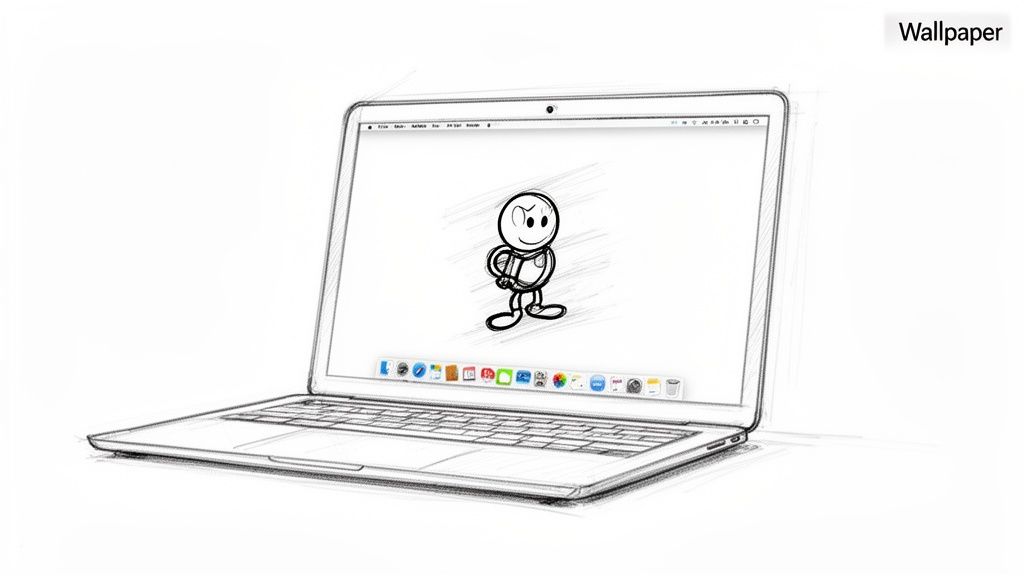
You can see how it lets you not only pick a dynamic wallpaper but also layer useful info like clocks and calendars right on top. This kind of integration is a major perk of using a dedicated app instead of a simple workaround.
Getting Your GIF on the Desktop
Once you've got an app installed, the whole process is usually dead simple. Most of them will add a small icon to your Mac’s menu bar for quick access. From there, you can pop open the app's preferences or main window to start managing your wallpapers.
The general workflow is pretty consistent across the board:
- Open the app's settings. Just click the menu bar icon or find it in your Applications folder.
- Import your GIF. Look for a button that says something like "Add Wallpaper," "Create New," or just a simple "+" icon. This will let you browse your computer and select the GIF file you want to use.
- Select and apply. After you import it, your GIF should show up in the app's library. All you have to do is select it and hit "Apply" or "Set as Desktop," and you're good to go.
That's it. The app takes care of all the looping and rendering in the background, instantly bringing your static desktop to life.
A quick word on performance: Keep in mind that while most of these apps are well-optimized, running a constant animation uses more CPU and memory than a static image. It's always a good idea to test an app and see how it affects your Mac's responsiveness and battery life.
A high-resolution, lengthy GIF will naturally be more demanding on your system. If you notice things starting to slow down, peek into the app's settings for any performance-related options, or consider using a shorter, more optimized GIF to lighten the load.
Converting Your GIF to a Video Wallpaper
If installing another app isn't really your style, there's a more hands-on approach: convert your GIF into a video file. This method cleverly taps into macOS’s much stronger native support for video, especially when used as a dynamic screen saver. It gives you far more control and avoids having yet another third-party app running in the background.
The process has two main parts. First, you’ll transform your animated GIF into a standard video format like MP4 or MOV. After that, you'll set that new video file as your screen saver and then use a neat little trick to display it as your permanent desktop background. This route is perfect for anyone who enjoys a bit of a DIY project and wants a resource-friendly solution.
Choosing Your Conversion Tool
You have several great options for turning a GIF into a video, and many of them are completely free. The best choice really just depends on whether you prefer a quick online tool or software you already have on your Mac.
A quick look at the options shows there's a tool for every comfort level, from simple web-based converters to more powerful dedicated apps.
Comparing GIF to Video Conversion Tools
| Tool | Platform | Key Features | Best For |
|---|---|---|---|
| Online Converters | Web-based | Upload, convert, download | Quick, one-off conversions without installing software. |
| QuickTime Player | macOS | Automatic conversion on open | A fast, reliable offline option already built into your Mac. |
| Compresto | macOS | High-quality output, optimization | Users who need top-notch quality and small file sizes. |
| Video Editors | macOS/Windows | Advanced control, editing | Customizing the GIF before conversion (e.g., trimming). |
Each tool gets the job done, but your specific needs—like whether you need to optimize the file or just do a quick conversion—will guide you to the right choice.
Here's a closer look at the most common paths:
- Online Converters: Websites like Ezgif or CloudConvert are incredibly straightforward. You just upload your GIF, select MP4 or MOV as the output, and download the result. They're fast, simple, and require zero installation.
- QuickTime Player: Believe it or not, your Mac's built-in media player can handle this. Just open your GIF with QuickTime, and it will often automatically prompt you to save it as a video file (usually an MOV). This is an excellent offline option that’s already on your machine.
- Dedicated Apps: For more advanced control over things like resolution and frame rate, a dedicated app is the way to go. If you need to convert a GIF to MP4, a tool designed for file optimization and conversion can give you much higher-quality results while keeping file sizes small.
For most people just trying to get a GIF on their wallpaper, a simple online converter or QuickTime Player is more than enough.
Pro Tip: The goal here is a seamless loop. When you're converting, make sure the video doesn't have any added intros, outros, or watermarks. Anything extra will interrupt the animation when it plays on your desktop.
Setting the Video as a Screen Saver
With your new MP4 or MOV file ready, the next step is to set it up as a screen saver.
Head over to System Settings > Screen Saver. In the list of options, you’ll see the video-based screen savers like "Aerial" or the new "Sonoma" landscapes.
Now, you won't find a direct "add your own video" button here—macOS keeps things locked down. This is where the workaround comes in. While some third-party screen saver engines let you use custom videos, the most practical path for most users is to leverage the existing video screen savers.
Once your video is set as the active screen saver, you can trigger it manually from the settings panel to see how it looks. This is a good time to check that the loop is smooth and the resolution looks crisp before taking the final step. The beauty of this DIY approach is that it avoids the constant resource drain of a live wallpaper app, potentially saving CPU cycles and battery life.
Optimizing Your GIF for Smooth Performance
Before you get too excited about setting that new animated wallpaper, there’s one crucial step that can make or break the whole experience: optimization.
A huge, high-resolution GIF with a long loop can be a real resource hog, quietly eating up your Mac's CPU cycles and draining the battery. This is where a dedicated tool like Compresto makes a world of difference.
An unoptimized GIF can easily be several megabytes, and when an app has to render it over and over, your Mac’s performance can take a noticeable nosedive. The secret to a slick animated desktop that doesn't slow you down is to get the file as lean as possible before you even set it.
Why File Size Matters
The impact of a large media file goes way beyond just taking up storage space. For an animated wallpaper, a bigger file means more data for your processor to crunch every single second. This can lead to sluggishness across your whole system, especially when you're also running other demanding apps.
This isn’t just a wallpaper thing, either. Lightweight animations are a big deal everywhere. For instance, data from Litmus's 2020 State of Email report showed that 51.28% of marketers use animated GIFs in their campaigns. One case study from Dell even showed that a GIF-based email led to a 103% increase in conversion rates—proof that well-optimized animations are both effective and engaging.
Using Compresto for Easy Optimization
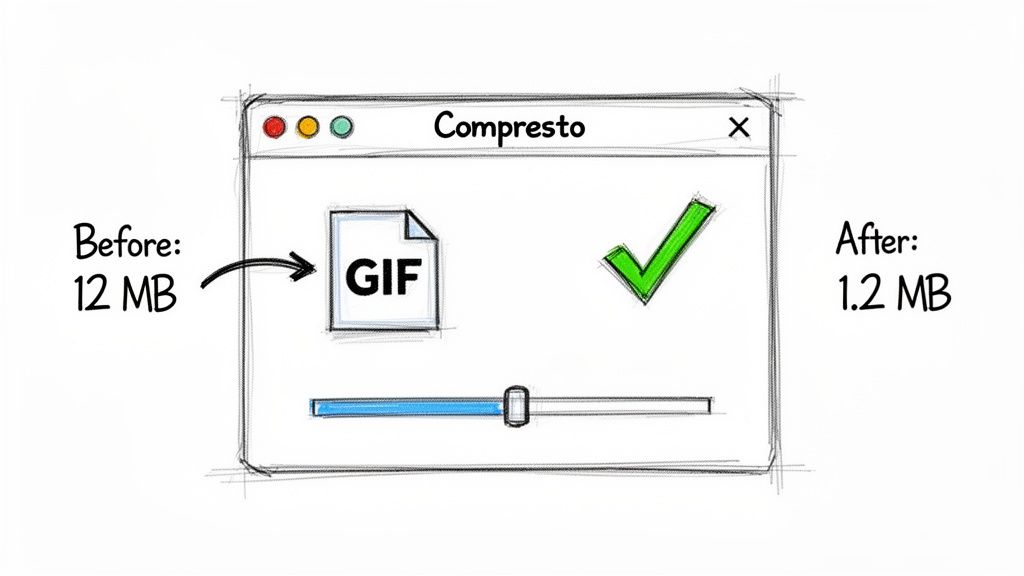
Shrinking your GIF’s file size without turning it into a pixelated mess is the goal here, and Compresto simplifies this into a simple drag-and-drop action. It intelligently cuts down the file size while preserving as much visual quality as it can.
Here's how straightforward it is inside the app:
You just drag your GIF into the Compresto window, pick a compression level, and let the app work its magic. The interface shows you the original and new file sizes right away, so you can see the savings instantly. This immediate feedback helps you strike the perfect balance between quality and performance.
A properly compressed GIF is the foundation of a smooth animated desktop experience. Aiming for the smallest possible file size without a noticeable drop in quality will ensure your Mac remains responsive and fast.
For those who want to dive deeper into the nitty-gritty, our guide on how to reduce GIF file size covers more advanced tips and techniques. This will help you get your final wallpaper perfectly tuned for your system.
Beyond just your wallpaper, learning how to track and manage large files on your Mac is a great habit for preventing system slowdowns. By keeping your files lean, you ensure a dynamic desktop that actually enhances your Mac experience instead of getting in the way. Taking a moment to compress your GIF is a small step that pays off big time in performance.
Solving Common Animated Wallpaper Problems
Even after you've found the perfect GIF and have it all set up, you might still hit a few snags. An animated wallpaper can sometimes introduce unexpected issues, from a sluggish Mac to visual glitches that just ruin the whole effect.
The good news is that most of these problems are pretty easy to fix with a little troubleshooting.
Whether your animation is frozen solid, your Mac feels slow, or the image looks pixelated, we've got you covered. These solutions will help you get your animated desktop looking and performing exactly how you envisioned.
Fixing a Stuttering or Frozen Animation
One of the most frequent complaints is a GIF that just refuses to play ball. It might be stuttering badly or, even worse, not playing at all. This is usually a sign that either the wallpaper app is struggling or the GIF file itself is the problem.
First, try the classic turn-it-off-and-on-again trick with the third-party app managing your wallpaper. Quitting and relaunching the program often clears up temporary glitches.
If that doesn't do it, the GIF file is the likely culprit. An enormous or poorly encoded file can easily choke the app, so your next best move is to re-optimize it. Still stuck? Dig into the app's settings for any performance-related options. Some tools let you adjust things like frame rate or rendering quality, which can help smooth out a choppy animation.
Addressing High CPU Usage and Battery Drain
Suddenly hearing your Mac's fans spin up like a jet engine? Or maybe you've noticed your battery life has taken a nosedive? An animated wallpaper is almost certainly the cause. Since these backgrounds are essentially just a video playing on a loop, they naturally demand more processing power than a static image.
Running an animated background will increase CPU usage and, on a laptop, drain your battery faster.
The single best way to combat high resource usage is to drastically reduce the GIF's file size. A smaller, more efficient file requires far less processing power to display, leading to a cooler, quieter Mac.
Here are a few quick fixes to lighten the load:
- Compress the GIF: This is your most effective weapon. Use a tool like Compresto to shrink the file size way down.
- Lower the Resolution: A 4K GIF is usually overkill for a wallpaper. Downscaling it to match your screen’s native resolution helps immensely.
- Shorten the Loop: A GIF with fewer frames and a shorter duration is much less demanding on your system.
Correcting Blurry or Stretched Wallpapers
If your animated wallpaper looks pixelated, blurry, or stretched out of shape, the problem almost always comes down to a resolution mismatch or the wrong display setting. You found a great GIF, but it just wasn't made for your screen size.
First, try to find a higher-resolution version of your GIF. A small animation is going to look blocky and awful when it's stretched across a big Retina display. Ideally, you want the GIF’s dimensions to be as close as possible to your screen’s resolution.
Next, dive into your wallpaper app’s display settings. Look for options like "Fit to Screen," "Fill Screen," or "Center."
- Fill Screen: This will stretch the image to cover every inch of your desktop, which can cause distortion if the aspect ratios don't line up.
- Fit to Screen: This scales the image to fit without cropping or stretching, but it might leave you with black bars on the sides or top and bottom.
- Center: This places the GIF in the middle of your screen at its original size. It's a great choice for smaller animations you don't want to be stretched.
Playing around with these settings is the best way to find the perfect visual presentation for your chosen GIF.
Common Questions About GIF Wallpapers
Thinking about setting up a dynamic wallpaper? You're not alone. When you start exploring how to make a GIF your wallpaper on a Mac, a few common questions usually pop up. Let's get them answered.
Can Any GIF Be Used as a Wallpaper?
Technically, yes. But for a desktop that looks great and doesn't just annoy you, not all GIFs are created equal. The best ones are high-resolution, loop seamlessly, and are optimized so they don't bog down your system. A low-quality, choppy GIF stretched across a big screen will just look pixelated and jarring.
When you're looking for the perfect animated background, consider exploring various methods of GIF creation, such as a GIF Photo Booth, which can give you some really unique, high-quality options. Ultimately, the better the source file, the better your desktop will look.
Will an Animated Wallpaper Drain My Battery?
It definitely will. An animated wallpaper uses more battery than a static image—there's just no way around it. Your Mac has to constantly render the animation, which takes more processing power and, in turn, drains the battery faster.
The actual impact depends on a few things:
- File Size: A big, uncompressed GIF makes your CPU work harder.
- Resolution: Higher-resolution animations are more demanding.
- Animation Complexity: A simple, slow-moving scene is much easier on your system than something fast-paced and complex.
If you're using a MacBook and need to squeeze every minute out of your battery, you might want to switch back to a static wallpaper. Alternatively, some third-party apps have a handy feature that automatically pauses the animation when you're running on battery power.
Do GIF Wallpapers Slow Down a Mac?
They absolutely can, particularly if the GIF isn't optimized properly. A large, high-frame-rate GIF can lead to noticeable slowdowns, high CPU usage, and even cause your Mac’s fans to kick into high gear. This happens because your computer is dedicating a chunk of its resources just to keep that animation running smoothly in the background.
The single most effective way to prevent performance hits is to compress your GIF. A lightweight file puts minimal strain on your system, keeping your Mac fast and responsive while you enjoy a more dynamic desktop.
Seriously, optimizing the file first is the most important step. A smaller file means less work for your computer, which prevents lag and keeps everything else running the way it should. Always prioritize optimization before you set your new wallpaper.
Ready to create stunning, lightweight animated wallpapers? Compresto makes it easy to compress and convert your GIFs, ensuring smooth performance and incredible quality on any Mac. Download Compresto and start optimizing today.