How to Copy a PDF on Mac A Complete Guide
Copying a PDF on a Mac can feel like a simple drag-and-drop, but the best way to do it really depends on what you're trying to accomplish. Are you just making a quick backup? Or do you need to pull a single page for a report, grab a chart from a scanned document, or create a smaller version to email?
Each of these tasks calls for a slightly different approach.
First, Figure Out Your Goal
Before you hit Command-C, take a second to think about why you're copying the file. For most of us, this isn't just about duplicating a file; it's about creating a new, optimized version for a specific purpose.
This guide will walk you through the most common situations you'll run into. We'll cover everything from basic file duplication to more nuanced workflows, so you can pick the right tool for the job every time.
To make it even clearer, this decision tree shows you exactly which path to take based on your end goal.
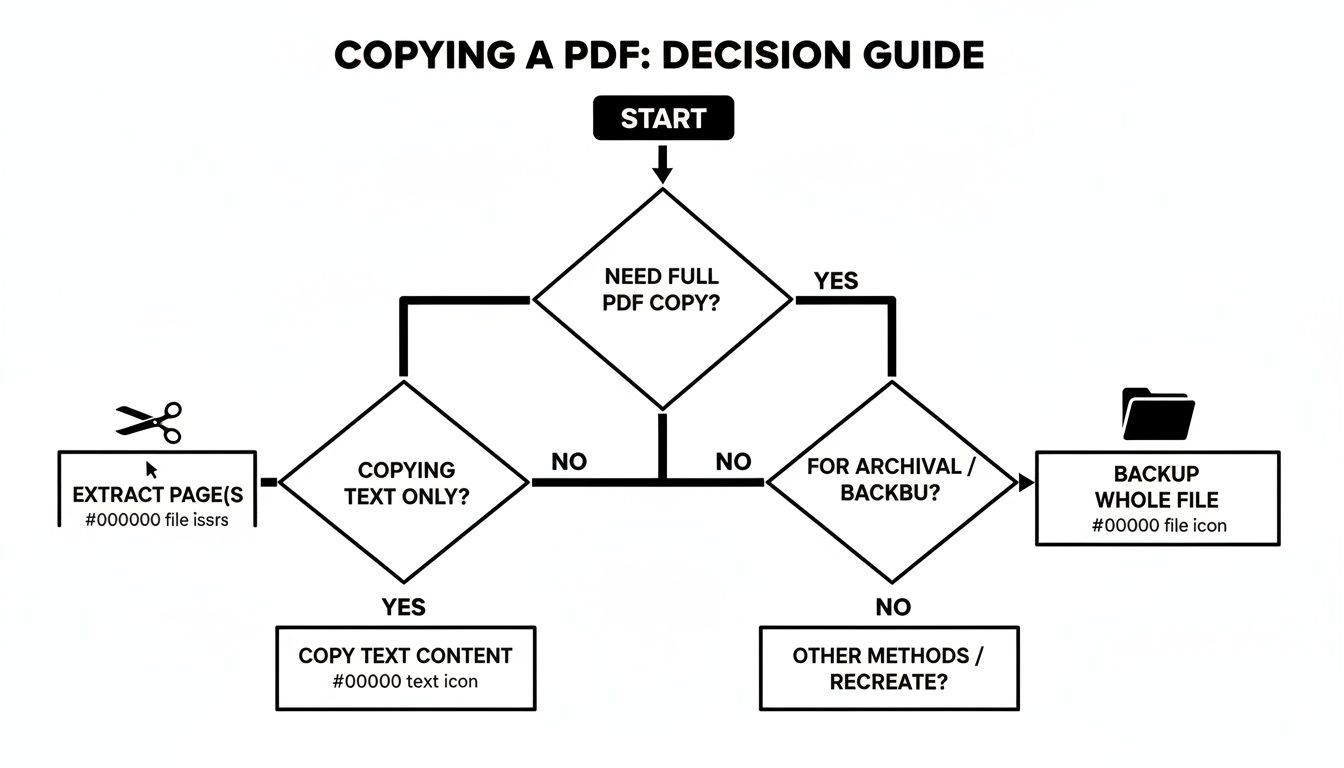
As you can see, whether you need to back up a file, extract a few pages, or copy specific content completely changes the method you should use.
While physical copier paper sales are still projected to hit $27 billion by 2035, the real efficiency for modern teams lies in smart digital workflows. This is especially true for the 90% of global businesses that are SMEs and can't afford to waste time on clunky processes.
Your goal should always be to create the most efficient version of the file for its intended purpose. A full-quality copy is great for an archive, but a compressed, smaller version is much better for an email attachment.
And, of course, before you can copy a PDF, you need to have one in the first place. If you're starting from scratch, check out our guide on how to create a PDF on a Mac.
Mastering Preview for Page Duplication and Extraction
Don't overlook your Mac’s built-in Preview app. It's surprisingly capable for managing PDF pages, and I often find it's more than enough, saving me from reaching for paid software. It’s perfect for those common situations where you need to send just a single page of a long report or pull key slides from different presentations into one new, focused document.
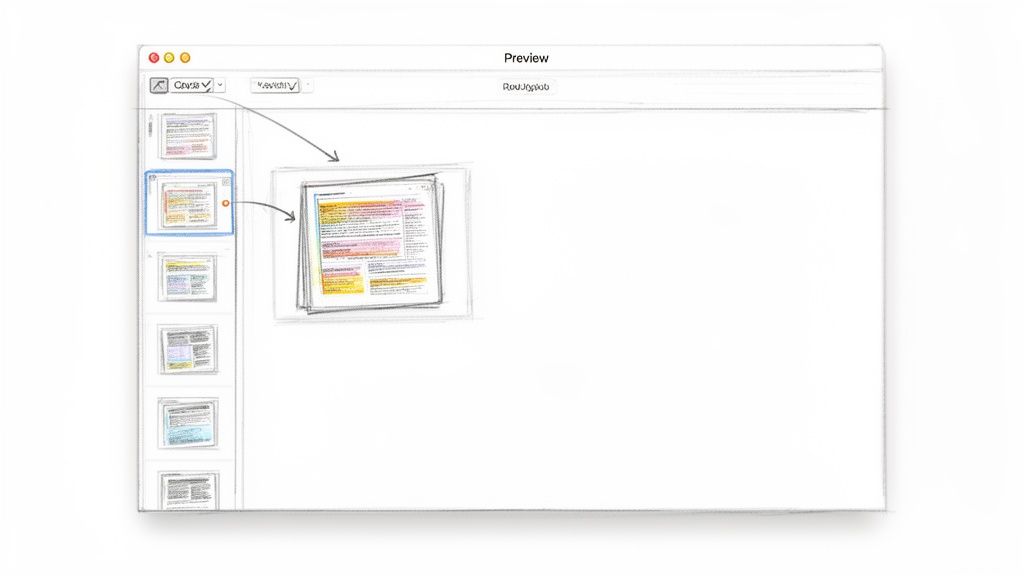
The secret weapon here is the thumbnail view. To get started, just open your PDF and navigate to View > Thumbnails. This pops open a sidebar showing a small image of every page, giving you a fantastic bird's-eye view of your document. From there, wrangling pages becomes a simple drag-and-drop affair.
How to Copy Pages from a PDF
With the thumbnail sidebar open, you have a few ways to pull pages out of a PDF into a new file. This workflow is ideal for isolating specific content without messing with your original document.
- To grab a single page: Just click on the page's thumbnail you want to copy. Drag it straight from the sidebar and drop it onto your desktop. That's it. Preview instantly creates a brand new, single-page PDF containing only that page.
- To copy multiple pages: For pages that aren't next to each other, hold down the Command (⌘) key and click on each thumbnail you want. If the pages are all in a row, just click the first one, hold the Shift key, and then click the last one to select the whole range.
- To create a new document from your selection: Once you've selected your pages, simply drag the whole group to your desktop. A new PDF will appear, containing only the pages you selected and in the order they were in.
This technique is a lifesaver for marketers creating focused campaign summaries or developers compiling specific sections of documentation.
A common mistake I see people make is editing their original file directly. Always work with copies to keep your source document safe. Dragging thumbnails to the desktop is a non-destructive way to copy pages, leaving the original file completely untouched.
After you've extracted the pages you need, you might want to add some notes or highlights. For a deeper look at that, learn more about how you can add comments to a PDF using Preview's other handy tools.
Extracting Text and Images from Any PDF
Pulling specific content out of a PDF can sometimes feel like a puzzle. On a standard PDF, grabbing text is usually no big deal. The real challenge pops up when you're dealing with a scanned document or a file that has copy restrictions baked in.
Essentially, you're not always working with text—sometimes you're just looking at a picture of a document.
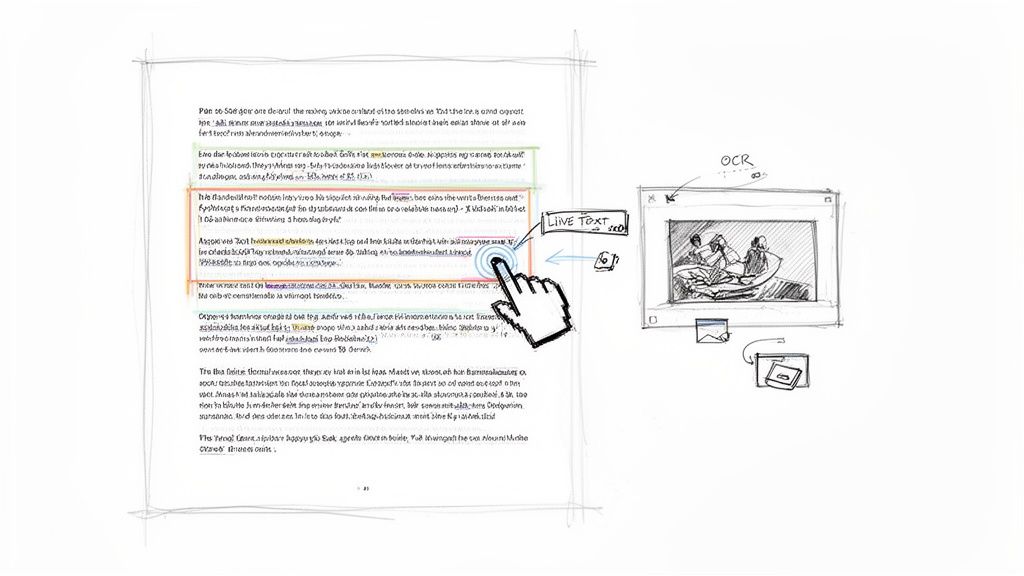
For a regular PDF, copying text is as simple as it gets. In Preview, just grab the Text Selection tool (it looks like a standard I-beam cursor) from the Markup Toolbar. Highlight what you need, hit Command (⌘) + C, and you're good to paste it anywhere else.
It's the same idea for images. I often use the Rectangular Selection tool to draw a box around a logo or graphic and copy it the same way. This is a go-to move for designers snagging a logo from a client brief or social media managers pulling assets for a post.
What About Scanned and Protected PDFs?
But what happens when you can't select anything? This is a dead giveaway that you're working with a scanned document. It’s basically just a flat image of text.
Luckily, your Mac has a clever trick up its sleeve called Live Text. Just hover your cursor over the text in the scanned PDF or image. If it transforms into the familiar text selection tool, you can highlight and copy the words just as if it were a normal document. It's surprisingly effective.
For more stubborn files or when you absolutely need every character to be perfect, a dedicated Optical Character Recognition (OCR) tool is the answer. OCR software is designed to analyze the image of the text and convert it back into actual, editable characters.
A lot of people don't realize that PDFs can be "locked" to prevent copying. If you can select the text but the copy command does nothing, the file almost certainly has permissions set to block content extraction. In these cases, OCR is your most reliable workaround for getting the info you need.
Ultimately, knowing how to copy a PDF comes down to understanding what kind of file you have. For standard documents, the built-in tools are fast and all you need. For the scanned or restricted ones, Live Text and OCR technology give you a powerful way to get at the content locked inside.
Automating PDF Workflows for Maximum Efficiency
Copying a few PDFs by hand is no big deal. But when you’re staring down a folder with dozens, or even hundreds, of files that all need the same treatment? That's when manual work becomes a massive time sink. This is exactly where you can use your Mac's built-in tools to automate the entire process.

Hidden in plain sight on your Mac is a powerful tool called Automator. It’s designed for exactly this kind of scenario, letting you build custom workflows to batch-process files without touching a single line of code. For instance, you could create a simple "hot folder." Any PDF you drag into it gets automatically duplicated, renamed with today's date, and then filed away into an archive folder.
Creating a Simple Batch Copy Workflow
Automator works with a simple drag-and-drop system, so you can build some surprisingly powerful sequences pretty quickly. A typical workflow to batch-copy PDFs might look something like this:
- Get Specified Finder Items: This is where you tell Automator what you're working with—either a specific folder to watch or a set of files you select.
- Copy Finder Items: Next, you'll add the action to duplicate those files and tell it exactly where you want the new copies to land.
- Rename Finder Items: Finally, this action lets you automatically add text (like a date or a project code) or replace text in the new filenames, keeping everything neat and organized.
This kind of setup can be a real game-changer, especially for teams that need to keep their file prep consistent. For a deeper dive, check out our guide on Mac workflow automation to see what’s possible.
The market for physical copiers is expected to hit USD 880.7 million by 2030, a number driven by high-volume demands. For Mac users, this trend has a digital parallel: massive storage needs. When you copy a PDF, especially in bulk, unchecked file sizes become the new bottleneck, mirroring the high-output needs of the physical world but with a modern focus on digital speed and storage. For more details, you can read the full research on the copying machine market.
You can take this even further with specialized apps that integrate compression directly into your workflow. Imagine a monitored folder that not only copies every PDF dropped into it but also automatically shrinks it down, saving a smaller, web-ready version to a separate output folder. This turns a multi-step manual process into a zero-click background task, saving you a serious amount of time and effort.
Solving Common PDF Copying Problems
There are few things more aggravating than highlighting a chunk of text in a PDF, hitting Command+C, and getting… nothing. Or, even worse, pasting a block of garbled, nonsensical characters. When you find you can’t copy from a PDF, it’s almost always due to one of a handful of common culprits.
The issue I see most often is simple: file permissions. Whoever created the PDF can set restrictions that prevent viewers from copying content. It’s a deliberate security feature, not a bug, and it's surprisingly common.
Checking PDF Permissions in Preview
Thankfully, you can diagnose this in seconds on your Mac.
Just open the PDF in Preview, head up to the Tools menu, and select Show Inspector. A small window will pop up—click the tab with the little lock icon (the Encryption tab). You'll see a list of what's allowed and what isn't. If "Content Copying" says Not Allowed, you've found your problem. The only way around this is with the owner's password.
Another frequent headache comes from fonts. If the original document used fonts that aren't embedded in the PDF or installed on your Mac, Preview might struggle to interpret the text correctly. This is often what leads to those scrambled, garbled copy-paste results.
Pro Tip: If you can't even select the text in the first place, your PDF is almost certainly a scan. You're basically looking at a picture of a document. No amount of copy-pasting will work because, to your Mac, there's no actual text data there. This is where you absolutely need to use your Mac’s built-in Live Text or another OCR tool to make the text selectable.
Finally, though it's less common, the document might just be corrupted. The digitization of physical documents is massive—the global copy paper market hit around USD 10 billion in 2023, and a huge chunk of that paper ends up as a PDF. This process, especially for the 90% of global businesses that are small to medium-sized, can sometimes create bloated or damaged PDFs. For these cases, you might need a dedicated app that can repair and compress problematic files. You can find more stats on digital document challenges at dataintelo.com.
Got Questions About Copying PDFs?
Working with PDFs on a Mac can bring up a few common questions. Let’s tackle the most frequent hurdles so you can get the content you need without the usual headaches.
Why Can’t I Copy Text From a PDF File?
If your cursor just won’t select text in a PDF, it’s almost always one of two things.
First, the file might have security permissions blocking you. The creator can disable content copying, and you can check this yourself in Preview. Just go to Tools > Show Inspector and click the little lock icon. If "Content Copying" is marked as disallowed, that's your answer.
The second, and more common reason, is that the PDF is just an image. Think of it as a scanned document or a screenshot—it looks like text, but it’s really just a picture of words. In this case, your Mac's built-in Live Text feature is your best friend. It uses Optical Character Recognition (OCR) to "read" the image and turn it into selectable, copyable text.
How Do I Copy Just One Page From a PDF?
Pulling a single page out of a long PDF is one of those surprisingly simple Mac tricks.
Just open your document in Preview and make sure you can see the thumbnail sidebar on the left (View > Thumbnails if it’s hidden). Now, just click and drag the thumbnail of the page you want right onto your desktop.
That's it. A new, single-page PDF is instantly created from that page, leaving your original document untouched.
This is hands-down the fastest way to grab a single invoice, a specific slide from a presentation, or a single chapter from an ebook. It’s a game-changer for anyone who deals with multi-page documents.
Can I Copy a PDF and Make It Smaller?
Absolutely, and it's a great habit for sharing files. When you duplicate a PDF with Command + D, you get an exact copy—same content, same file size. To make a smaller copy, you'll need to compress it.
Preview has a "Reduce File Size" option under its Export menu, but the results can be a bit of a gamble, often sacrificing too much quality. For better results, a dedicated compression app will create a much smaller copy for emailing or uploading, all while keeping the important visual details crisp and clear.
What Is the Fastest Way to Duplicate a PDF File?
When you just need an exact copy, keyboard shortcuts are your best bet.
In Finder, click the PDF you want to copy and press Command + D. Boom—a duplicate appears in the same folder with "copy" added to the name.
Another great trick is to hold down the Option key while you drag and drop the file. Instead of moving the original, this gesture creates a copy in the new location. It's perfect for quickly backing up a file to another folder or drive.
When you need to copy and compress PDFs without losing quality, Compresto makes it effortless. It’s a powerful macOS app that shrinks your files locally, ensuring your data stays private while making your documents easy to share. Get Compresto today and streamline your workflow.