Add Comments to PDF: Quick Mac Guide to add comments to pdf
Adding comments to a PDF is one of those simple skills that makes a huge difference. It’s the most direct way to give clear, contextual feedback right on the document itself.
Whether you're doing quick highlights in macOS Preview, managing a detailed team review in Adobe Acrobat, or just making notes on the fly with a browser tool, mastering how to add comments to a PDF is key. It cuts through the noise, prevents endless misunderstandings, and keeps every piece of feedback in one tidy, organized place.
Why Adding Comments to Pdfs Is Essential
We’ve all been there: buried in confusing email chains with vague instructions like "can you tweak the third paragraph?" or trying to make sense of a dozen messy screenshots. It’s a frustrating and inefficient way to work.
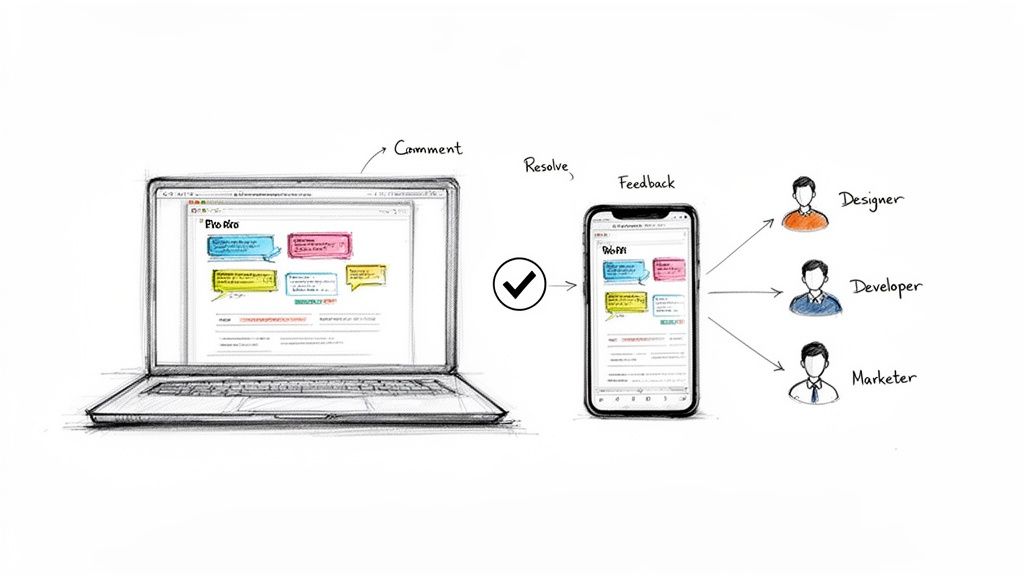
Adding comments directly to a PDF solves this problem instantly. It creates a single source of truth for all feedback and revisions, eliminating ambiguity and keeping your projects moving forward.
Streamlining Professional Workflows
Across different industries, clear annotations are what keep projects on track. Imagine a graphic designer getting feedback on a mockup. Instead of a vague email, the client can highlight an exact shade of blue and add a note saying, "Let's make this 10% lighter." That level of specificity is impossible to get wrong.
Or think about a developer reviewing technical documentation. They can pinpoint a typo in a code snippet or suggest clearer wording right where it matters, ensuring accuracy before anything goes public. For marketers finalizing a campaign brief, they can approve copy, question imagery, and confirm data points—all inside the same file.
By embedding feedback directly into the document, teams create a historical record of all changes and decisions. This transparency prevents miscommunication and ensures everyone is aligned, from initial draft to final approval.
This centralized approach brings some clear wins:
- Contextual Clarity: Feedback is placed exactly where it applies, so there’s no guesswork involved.
- Version Control: All suggestions are kept in one document, which means no more hunting through multiple feedback files.
- Time Savings: Direct annotation is simply faster than writing out long, descriptive emails or taking screenshots.
At the end of the day, learning to add comments to a PDF is less about the specific tool and more about improving how you communicate. It’s a fundamental skill for anyone involved in a review cycle. Taking it a step further, understanding how to implement document workflow automation can seriously boost your team’s productivity.
Using macOS Preview for PDF Comments
You might not need to download a single piece of software to comment on a PDF. Your Mac already has a surprisingly capable tool built right in: Preview. It’s easy to overlook, but for most day-to-day feedback and annotation tasks, it's more than powerful enough.
To get going, just open any PDF with Preview. If the annotation tools aren't visible, click the Markup Toolbar icon—it looks like a marker tip inside a circle—right next to the search bar. This simple click reveals a whole set of tools for highlighting, drawing, and dropping in text.
Making Your First Annotations
The Markup toolbar is your command center. Instead of just listing what each button does, let's look at how you'd actually use it when reviewing a document. Most feedback falls into a few common categories, and Preview has a tool for each.
- Highlighting: Grab the highlighter tool to draw attention to whole sentences or paragraphs. You can even color-code your feedback. For example, maybe you use yellow for typos and green for sections you’ve approved.
- Text Notes: When a simple highlight isn't enough context, the Note tool is perfect. Click it, then click anywhere on the PDF to drop a small note icon. This keeps your detailed comments tucked away neatly, preventing a cluttered look until your collaborator clicks to expand them.
- Shapes and Drawings: Need to circle a specific design element or draw an arrow connecting two ideas? The shape and drawing tools are made for visual feedback. The "Sketch" tool, in particular, is great for quick, freeform markups.
The real power of Preview is its simplicity. It’s not about cramming in dozens of features; it's about having the right ones, ready to go, so your feedback is clear and direct with zero learning curve.
Best Practices for Clear Feedback
How you structure your comments is just as important as what you say. A well-annotated PDF is easy to understand at a glance. Say you're giving feedback on a design mockup. Use the text tool to write a concise instruction like, "Reduce opacity by 20%," right next to the element you're talking about.
For longer documents like a report or article, try this pro-tip: go to View > Highlights and Notes. This opens a sidebar listing every single annotation you've made. Collaborators can click each item in the list to jump straight to that part of the document, turning your comments into an efficient, actionable checklist.
This kind of document feedback is distinct from the more complex field of data annotation used in machine learning, a market projected to grow at a staggering 33.2%. While fascinating, it's a completely different workflow. If you’re curious, you can explore the data annotation tools market to see the contrast.
Ultimately, getting good with Preview is all about building good habits. Once you’re comfortable with these tools, your ability to quickly mark up PDFs with clear, actionable feedback will improve dramatically. And if you need a refresher on the basics, our guide on how to create a PDF on a Mac pairs perfectly with these annotation skills.
Advanced Annotation with Adobe Acrobat Reader
While macOS Preview is fantastic for quick, personal markups, team projects often need a heavier-duty toolkit. This is where Adobe Acrobat Reader really steps up, offering a much deeper set of features built from the ground up for collaborative feedback. It turns the simple act of commenting on a PDF into a structured, manageable conversation.
Unlike Preview, Acrobat Reader is designed for dialogue. Its Sticky Note tool is perfect for dropping detailed feedback on specific parts of a document without cluttering up the actual page. For example, a project manager reviewing a marketing brief can place a note right on a headline and ask, "Can we test an alternative that's more action-oriented?"
This little flowchart can help you decide when a simple tool like Preview is enough and when it's time to fire up Acrobat.

The main takeaway here is pretty simple: the complexity of the feedback should drive your choice of tool. As your need for collaboration grows, you'll naturally move from basic highlights to threaded, detailed notes.
To help you decide which tool fits your immediate needs, here’s a quick side-by-side comparison.
PDF Commenting Tools: A Quick Comparison
| Feature | macOS Preview | Adobe Acrobat Reader |
|---|---|---|
| Basic Markup | Excellent (Highlight, Underline, Strikethrough) | Excellent (All basic tools included) |
| Adding Notes | Simple text boxes and notes | Robust sticky notes with threading |
| Comment Management | Basic view of annotations | Centralized, filterable Comments List |
| Collaboration | Limited to individual markups | Designed for multi-user feedback and replies |
| Stamps | None | Pre-made and custom stamps (Approved, etc.) |
| Cost | Free (built into macOS) | Free |
While Preview is a great default, you can see how Acrobat quickly pulls ahead once you start working with a team.
Managing Team Feedback Efficiently
One of Acrobat’s most powerful features is its Comments List. This sidebar organizes every single annotation—highlights, notes, drawings, you name it—into one clean, filterable feed. Imagine getting a design proof back from five different stakeholders. Instead of hunting through the document for every little piece of feedback, you can just:
- Filter comments by author: See all the notes from the lead designer at once.
- Sort by date or type: Quickly find the most recent feedback or review all text edits together.
- Use checkboxes as a to-do list: Mark comments as complete after you've addressed them.
This transforms what could be a chaotic mess into an organized, actionable task list.
Even better, Acrobat’s Stamps tool lets you apply clear status indicators like 'Approved,' 'Confidential,' or 'Revised.' This is a huge time-saver for managing document versions and communicating status at a glance without having to type a single word.
The real advantage of Acrobat Reader is its ability to centralize and track conversations. Each comment can become its own thread where team members reply, clarify, and resolve issues right inside the PDF. This creates a clear, permanent record of all the decisions that were made.
This structured approach is becoming more critical as professional workflows rely heavily on document collaboration. While specific stats on PDF annotation are still emerging, the broader trend shows a clear move toward tools that support detailed, in-context feedback. If you're curious about the bigger picture, you can read the full research on the data annotation tools market to see where the industry is headed.
Acrobat is a perfect example of a tool that meets this need, making it an essential upgrade for any team that's serious about efficient PDF collaboration.
Exploring Browser-Based and Third-Party Apps
Sometimes you're not at your main computer and just need to add a quick note to a PDF. This is where browser-based tools really save the day, offering a ton of flexibility without needing to download anything.
Most modern web browsers, including Google Chrome and Safari, come with their own built-in PDF viewers that have basic annotation tools. You can pop open a PDF right in a browser tab and immediately get to work highlighting text or dropping in simple notes. It’s perfect for those moments when you need to review a document from an email while you’re away from your Mac.
When to Look for Specialized Apps
As handy as they are, browser tools are designed to be simple. When your work demands more horsepower—like editing a PDF with your team in real-time or filling out complex forms—it’s time to call in a dedicated third-party Mac app. These specialized tools are built from the ground up to handle specific professional needs.
A dedicated app is probably the better move in a few key scenarios:
- Real-time Team Collaboration: Imagine multiple people annotating the same document at once, with everyone's changes appearing as they happen.
- Advanced Editing: Some apps let you go way beyond just comments, giving you the power to edit the original PDF text, swap out images, or even reorganize entire pages.
- Integration with Other Services: You can connect your PDF workflow directly to cloud storage like Dropbox or project management tools such as Asana.
Choosing the right third-party app usually boils down to your team’s specific workflow. I always recommend prioritizing security, ease of use, and any features that directly solve your most common bottlenecks. No matter how powerful a tool is, if it feels clunky, it’s just going to slow you down.
The market for these tools is pretty massive and can sometimes even overlap with industries like data annotation, which is all about labeling datasets for AI models. If you want a focused look at tools that can truly replace Adobe's offerings, checking out a solid Adobe PDF alternative will help you find an app that fits perfectly into your macOS setup.
Sharing Your Marked-Up PDFs Without the Headache
You’ve spent time carefully reviewing a document, highlighting key points and adding notes. You've got it just right. Then, you try to email it back to your team, and... denied. The file is too big.
It’s a surprisingly common problem. Every comment, highlight, and annotation you add to a PDF adds a new layer of data. All those small additions can quickly bloat the file size, making it a nightmare to share.
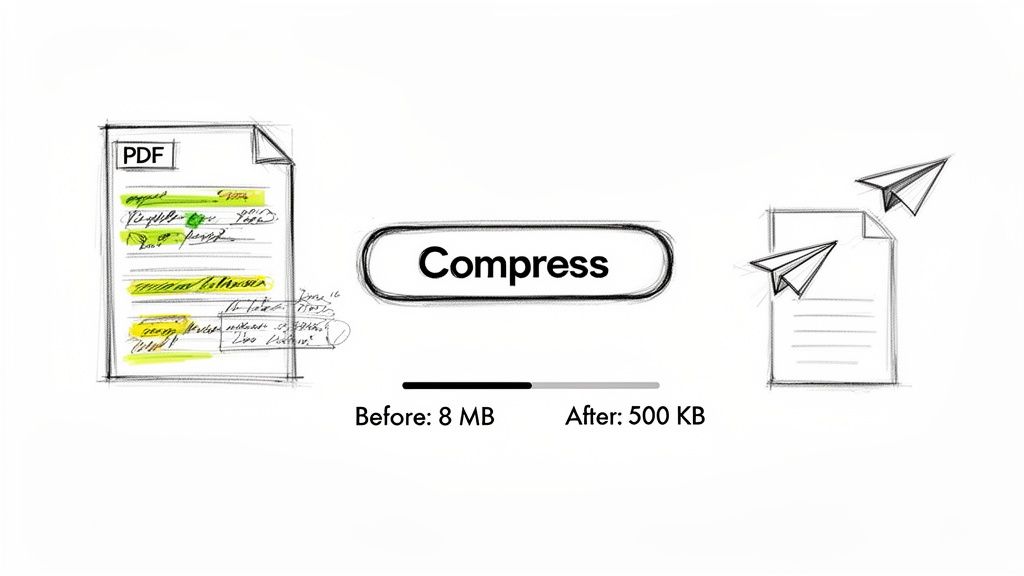
Suddenly, your efficient feedback loop grinds to a halt, all because of an attachment size limit. Sending huge files slows down projects and just plain frustrates everyone involved.
The Simple Final Step for Smooth Sharing
The trick is to make file optimization the very last step in your review process. Once all your feedback is in place, you need a way to shrink the PDF back down to a manageable size without undoing all your hard work.
Using a dedicated tool like Compresto is perfect for this. It lets you compress the file while keeping every single one of your annotations perfectly intact.
Smart compression doesn't touch your comments or highlights. Instead, it targets unnecessary image data and metadata, preserving the important content layers you've added. The visual quality stays sharp, but the file size can drop by up to 90%.
Taking a few seconds to do this ensures your reviewed documents can be sent instantly through email, Slack, or any other platform. It turns a potential roadblock into a smooth, professional handoff every single time. For a deeper dive into organizing your digital files, check out these document management best practices.
Got Questions About PDF Comments?
Even with the best tools, you’re bound to run into a few tricky situations when marking up a PDF. Let's tackle some of the most common questions that pop up.
Can I Edit or Remove Comments Someone Else Made?
Usually, yes. As long as the PDF isn’t locked or protected, you should be able to click on any highlight, note, or drawing in Preview or Adobe Acrobat and just hit the delete key.
Right-clicking an annotation often gives you more options, like editing the text inside a note or changing its color. The one big exception is if the comments have been "flattened" into the document. When that happens, they become a permanent part of the PDF’s image layer and can no longer be edited as individual items.
Will Compressing a PDF Delete My Comments?
Not if you use the right tool. Smart compression apps like Compresto are built to shrink file sizes by optimizing images and stripping out junk metadata, but they know to leave your actual content alone.
This means all your highlights, sticky notes, and drawings stay exactly where they are—fully intact and editable—even after you’ve shaved off a huge chunk of the file size. It's the perfect final step before you email a reviewed document.
How Can I See a List of All Comments at Once?
This is a lifesaver when you're dealing with a heavily marked-up document. Most decent PDF readers have a summary view that turns chaotic feedback into a clean, actionable list.
- In Adobe Acrobat Reader: Pop open the “Comments” pane from the right-hand menu. You’ll get a complete, searchable, and filterable list of every single annotation in the document.
- In macOS Preview: Head up to the "View" menu and select "Highlights and Notes." A sidebar will slide out, listing every comment and letting you click to jump right to its spot in the PDF.
This feature is great for quickly reviewing all the feedback you’ve received without having to hunt through every page.
Ready to streamline your workflow? With Compresto, you can compress your annotated PDFs in seconds, ensuring they’re easy to share without losing a single comment. Download it and see the difference.