Effortless Guide: how to compress pdf on mac Without Losing Quality
Ever wrestled with a massive PDF that refuses to send or just hogs your Mac's storage? We’ve all been there. The quickest fix is right inside the built-in Preview app: just open your file, head to File > Export, and pick "Reduce File Size" from the Quartz Filter menu.
Why Smart PDF Compression Is a Mac Workflow Essential
For anyone doing serious work, oversized PDFs are more than just a minor headache—they're a genuine workflow killer. That multi-megabyte design proof can jam an email server, a hefty report can take forever to upload, and a huge portfolio can easily overwhelm a client's inbox. Learning how to properly compress a PDF on a Mac isn't just some technical chore; it's about making your work easier to share and store.
This isn't a niche problem. It hits Mac users across all kinds of fields:
- Creative Professionals: Designers sending out high-resolution portfolios need to shrink file sizes without turning their vibrant work into a pixelated mess.
- Marketers: Teams sharing campaign analytics or content calendars need files small enough to fly through Slack or Teams without a hitch.
- Developers: Archiving technical docs or sharing schematics demands files that are both compact and perfectly readable.
The real point of compression isn’t just to make a file smaller. It’s about making it more usable—faster to send, easier to store, and quicker to open for the person on the other end.
This guide is designed to cut through the noise and show you how to shrink your PDFs the right way. We'll kick things off with the fast, built-in tools every Mac user already has, look at the trade-offs of using online services, and then dive into powerful desktop apps that give you complete control over the size-versus-quality balance. Once you get the hang of these methods, you'll know exactly which tool to grab for any situation.
Using Your Mac's Built-In Tools for Quick Compression
Every Mac comes with a hidden gem for shrinking files in a pinch: the Preview app. It’s hands-down the easiest way to compress a PDF on a Mac without downloading a single thing. The whole process is super straightforward and perfect for those everyday tasks where you just need to get a file's size down, fast.
First, pop your PDF open in Preview. From the menu bar, head to File > Export. Many people miss this, trying "Save As" instead, but the real compression magic is tucked away in the Export menu. A dialog box will appear, and you'll want to look for a dropdown menu labeled Quartz Filter.
The "Reduce File Size" Filter: A Double-Edged Sword
In that Quartz Filter menu, you'll see an option for Reduce File Size. This is the core of Preview's compression power. Go ahead and select it, give your new file a different name so you don't overwrite the original, and hit Save.
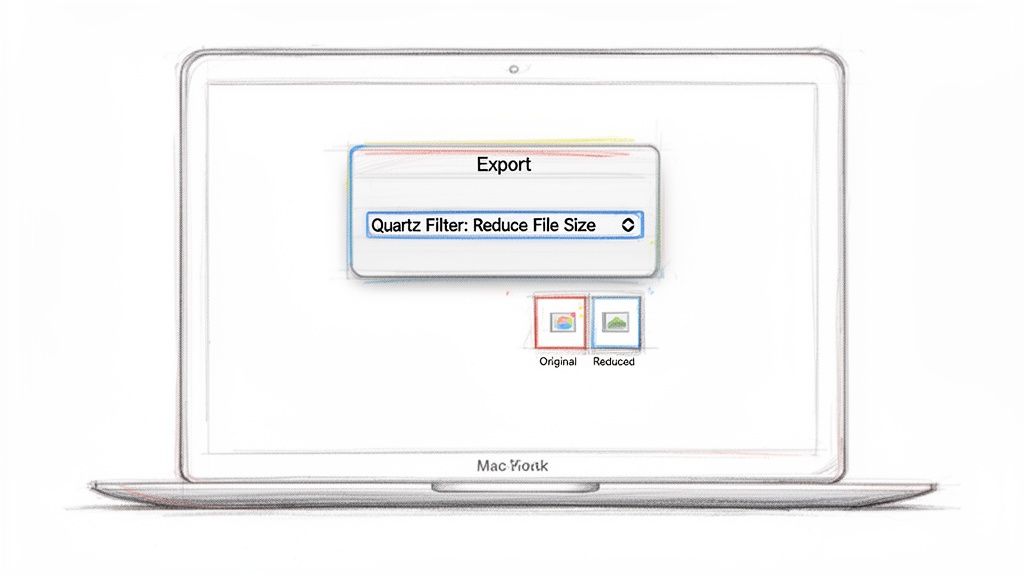
This one-click solution is incredibly convenient, but it comes with a major trade-off: you have absolutely no control over how much it compresses. The results can be… aggressive. It often heavily degrades images and can make text look fuzzy or less sharp.
For a simple text-heavy document you need to quickly email, it works great. But if you’re sending a designer's portfolio or a critical business report, the quality loss is often a dealbreaker. Nobody wants their client squinting at a proposal with blurry, unprofessional-looking images.
Key Takeaway: Think of Preview's "Reduce File Size" filter as a blunt instrument. It prioritizes shrinking the file above all else, often at the expense of visual quality. It's great for quick, informal jobs, but steer clear for professional or high-stakes documents.
This very limitation is a huge reason the global PDF software market is booming, projected to hit USD 765.63 million by 2032. People and businesses are demanding tools that offer more control without sacrificing quality, which can cut storage costs by up to 50%.
By the way, if your PDF was cobbled together from different sources, our guide on how to create a PDF on a Mac can help you standardize your documents before you even think about compressing them. Preview is a fantastic starting point, but knowing its limits is the key to producing consistently professional work.
Mac Built-in vs. Online vs. Dedicated App Compression
So, how does Preview stack up against other common methods? Here’s a quick breakdown of your main options for compressing PDFs on a Mac.
| Feature | macOS Built-in (Preview) | Online Compressors | Dedicated App (Compresto) |
|---|---|---|---|
| Best For | Quick, non-critical tasks | One-off compressions, accessibility | Professional use, batch processing |
| Quality Control | None (one-size-fits-all) | Limited (low, medium, high presets) | Granular control, quality preview |
| Security | High (file stays on your Mac) | Low (uploading to third-party servers) | High (local processing, no uploads) |
| Batch Processing | No (one file at a time) | Varies, often with limitations | Yes, designed for multiple files |
| Cost | Free (included with macOS) | Mostly free (with ads or limitations) | Paid (offers advanced features) |
| Convenience | Very high (already installed) | High (no install needed) | High (streamlined, automated workflow) |
As you can see, each method has its place. Preview is your go-to for a quick fix, online tools are useful when you're not on your own machine, but for serious work where quality and security matter, a dedicated app is the clear winner.
Navigating the Risks and Rewards of Online PDF Compressors
Web-based PDF compressors are undeniably convenient. Who hasn't been tempted to just drag, drop, and download a smaller file in seconds? No installation, no fuss. It’s a popular quick fix when you need to compress a PDF on your Mac right now.
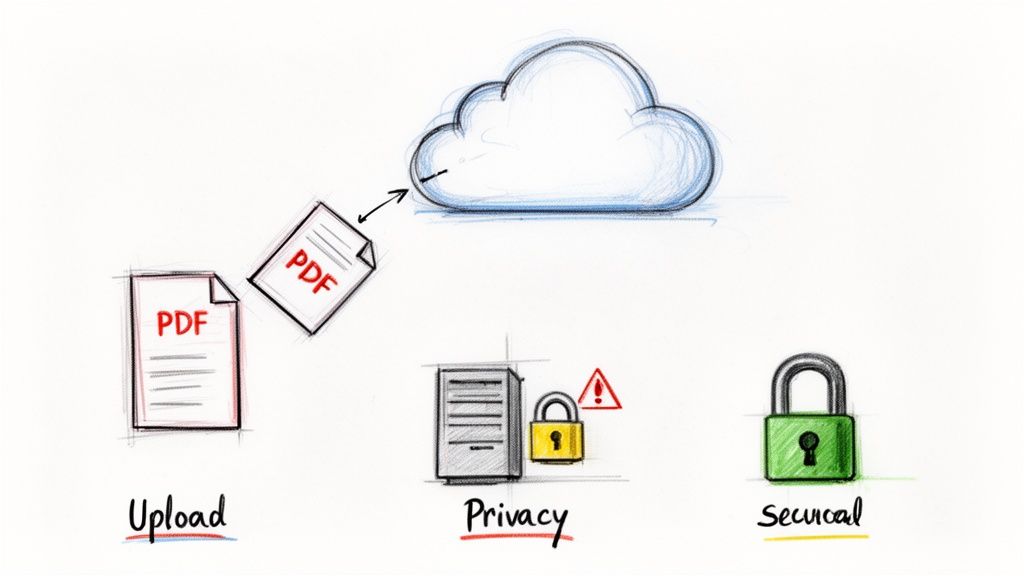
But that convenience comes at a cost, and the currency is your privacy. The moment you upload that document, you're sending your data to a third-party server you know nothing about. This should be a complete non-starter for anything confidential—think client proposals, internal financial reports, or personal records.
The core risk with online tools is surrendering control. Your file leaves your Mac, and you have no real way of knowing who has access to it or how long it’s stored on their servers.
Beyond the major security concerns, you often run into other headaches. Many "free" services will hit you with strict file size limits, bombard your screen with ads, or even slap an unprofessional-looking watermark on your finished file.
When to Use and When to Avoid Online Tools
So, are they ever okay to use? Sure. For a non-sensitive file, like a school paper you plan to make public or a general flyer for an event, an online tool can work just fine. The risks are low, and the convenience is high.
For anything else, though, the potential for a data breach just isn't worth it. The global data compression software market is expected to hit USD 2.714 million by 2035, a growth driven in part by a 25% jump in cloud solutions and the corresponding demand for secure, compliant workflows. In places with strict data laws like GDPR, processing files locally isn't just a good idea—it's often mandatory. You can read more about data compression market trends on marketresearchfuture.com.
Understanding the difference between processing files on your device versus in the cloud is key. We have a great breakdown on the cloud storage vs. local storage debate that dives deeper into why keeping sensitive data on your Mac is almost always the smarter move.
When you’re dealing with PDFs day in and day out, you quickly hit the ceiling with built-in tools and sketchy online services. For professionals, learning how to compress a PDF on a Mac isn’t just about a one-time fix; it’s about building a reliable, powerful process. This is exactly where dedicated desktop software becomes a game-changer.
Unlike those free online tools that make you upload sensitive files to who-knows-where, a local app like Compresto keeps everything on your Mac. The entire compression process happens right on your device. That means your client proposals, financial statements, and internal reports stay completely private from start to finish.
Automate Your Workflow for Maximum Efficiency
The real advantage of a dedicated tool kicks in when you need to handle work at scale. Forget compressing files one by one. You can tap into features designed for serious productivity.
Picture a marketing team that needs to shrink dozens of weekly reports for distribution. Instead of a soul-crushing manual task, they can use batch processing to compress every single file in one click.
You can push this automation even further with features like Folder Monitoring. Just designate a specific folder on your Mac, and any PDF you drop into it gets automatically compressed to your exact settings. It’s a genuine set-it-and-forget-it solution that frees up your time and kills off repetitive tasks. This push for smarter workflows is why the global PDF software market is expected to hit USD 3.9 billion by 2030. Powerful local compression, which can deliver up to 90% size reductions, is a huge part of this trend. You can dive deeper into these PDF software market trends on lucintel.com.
Compresto gives you a clear, visual way to manage your queue.
The drag-and-drop system makes it dead simple to add a bunch of files and see their progress, turning what used to be a chore into something intuitive.
Unlock Professional-Grade Features
Beyond just automation, a dedicated app gives you the fine-tuned control that professional work requires. You're no longer stuck with a single, overly aggressive compression setting that butchers your images. Instead, you get a whole suite of tools that respect the quality of your work.
- Custom Presets: Save your own compression settings for different jobs. Maybe one for web-optimized assets, another for email attachments, and a third for archival.
- Quality Previews: See exactly how your compressed file will look before you save it. This lets you dial in the perfect balance between file size and visual clarity.
- Multi-Format Support: Handle more than just PDFs. A solid tool can also compress images, videos, and GIFs, becoming a central hub for all your asset optimization.
When you invest in a dedicated app, you’re not just buying software; you’re adopting a professional standard for your documents. It guarantees that every file you send reflects the high quality of your work, free from the pixelation and blurriness that scream "I used a free online tool."
This mindset is common among Mac power users who demand more from their software. For a wider look at productivity tools, check out our guide on the top Mac file compression software. At the end of the day, a local app is about gaining complete control over your documents and, more importantly, your time.
Choosing the Right PDF Compression Method for You
So, what's the best way to compress a PDF on your Mac? Honestly, there's no single right answer. It's less about finding one perfect tool and more about matching the right tool to the job at hand. The method you use for a quick homework assignment is completely different from how you'd handle a high-stakes client proposal.
Think about it this way: if you’re a student who just needs to shrink a class presentation once a semester, Mac's built-in Preview app is probably all you need. It’s fast, free, and gets the job done when pristine quality isn't the top priority.
But for a freelance designer sending proofs to clients every day, the stakes are much higher. Every single pixel matters. Using a basic tool that leaves images looking blurry and artifacted could genuinely harm their professional reputation. In that scenario, a dedicated app like Compresto is a smart investment to protect the integrity of their work.
Your Personal Compression Checklist
To figure out what you really need, just ask yourself three simple questions:
- How crucial is image quality? If your PDF is packed with images, like a design portfolio or a product catalog, you need granular control to prevent it from looking like a blurry mess.
- Is my document confidential? For anything sensitive—think contracts, financial reports, or medical records—uploading to an online tool is a massive security risk. Sticking with a local, offline app is the only truly safe bet.
- Do I need to compress files in bulk? If you’re regularly wrestling with dozens of PDFs, doing them one by one will become a serious bottleneck. You'll want a tool built for batch processing.
This decision tree can help you visualize which path makes the most sense based on what you value most.
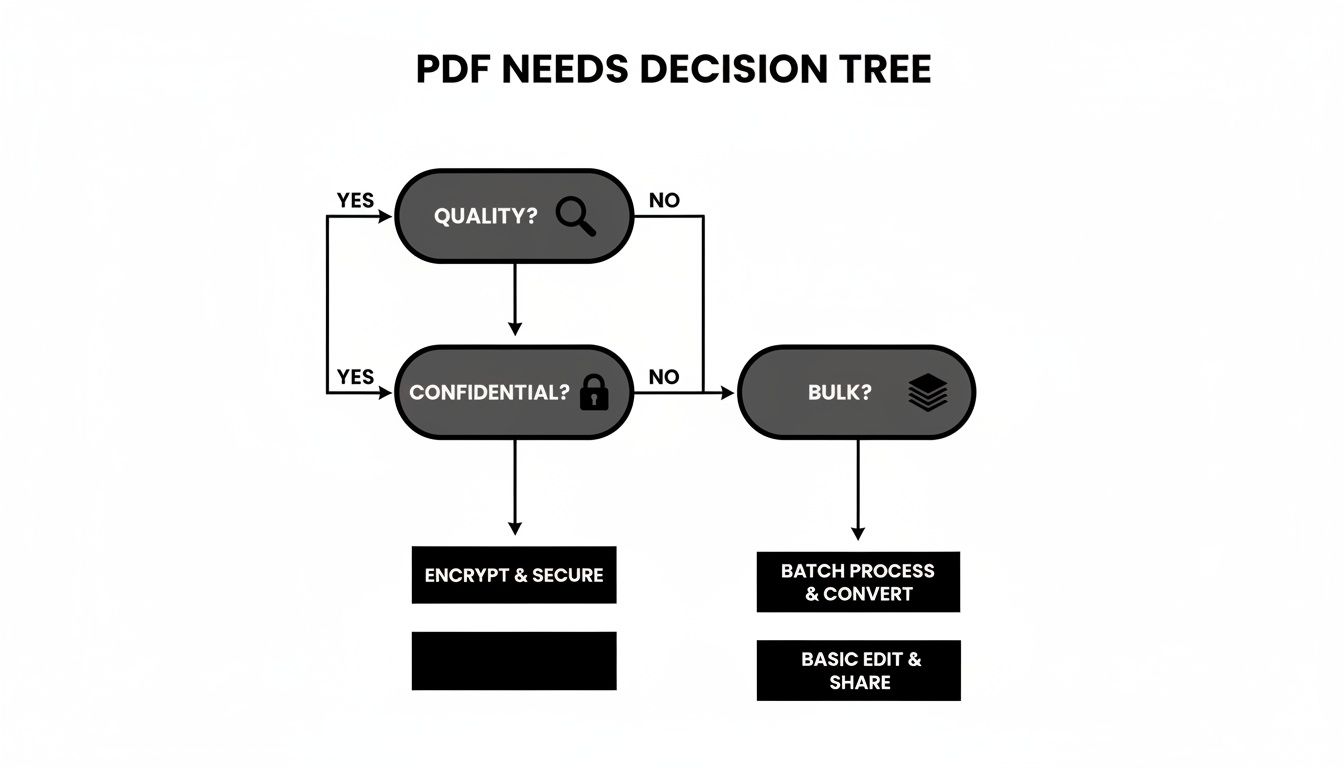
Your answers to these questions will point you directly to the most effective and appropriate tool for whatever you're working on.
Your Top PDF Compression Questions, Answered
Even when you have the tools, a few questions always seem to pop up when you're trying to shrink a PDF on your Mac. Getting these sorted out will help you sidestep common mistakes and get much better results.
Does Compressing a PDF Always Ruin the Quality?
Not always, but it really hinges on the method you're using. If you've ever used the built-in "Reduce File Size" filter in Mac's Preview app, you've probably seen how it can butcher images. That's because it’s a blunt instrument, applying a heavy-handed, one-size-fits-all compression that you have zero control over.
Better tools, on the other hand, use smarter algorithms. They can analyze the document to shrink the file size while keeping as much of the visual detail as possible, often giving you precise control over that trade-off between size and quality.
Is It Really Safe to Use Those Online PDF Compressors?
For any document with sensitive information—think contracts, financial records, or confidential client details—the short answer is no. The moment you upload that file, it's out of your hands and on someone else's server. That's a huge privacy gamble.
When it comes to anything you wouldn't want posted publicly, compressing locally on your own machine is the only truly secure route. Your files never leave your Mac, which completely removes the risk of a data breach on a third-party server.
What’s the Best Way to Compress a PDF for a Website?
Optimizing for the web is all about finding the sweet spot. You need the file small enough to load in a snap, but still crisp and clear enough to provide a good user experience. A dedicated compression tool is your best bet here, as many come with specific "web-ready" presets designed to strike this perfect balance for you automatically.
Stop wrestling with oversized files and start streamlining your workflow. Compresto offers powerful, secure, and automated compression right on your Mac. Try it today and see the difference.