how to compress large video files: quick tips to shrink size
Trying to send a quick video shouldn't feel like an impossible mission. But when you hit "send" and get that dreaded "file too large" error, you know something's up. The usual culprits are a trio of settings: resolution, bitrate, and frame rate. These three factors dictate just how much data gets packed into every single second of your video.
Once you get a handle on them, you can finally take control.
Why Your Video Files Are So Big
Ever shot a short 4K clip on your phone, only to find it eating up gigabytes of storage? You’re definitely not alone. The problem comes from the incredible amount of detail modern devices can capture. Just think of it this way: more detail equals more data. More data means a much, much bigger file.
It all boils down to three core elements that cause this file size explosion:
- Resolution: This is simply the number of pixels that create the image. A 4K video (3840x2160 pixels) has four times the pixel data of a standard 1080p video (1920x1080 pixels), which naturally leads to a significantly larger file.
- Bitrate: Measured in megabits per second (Mbps), bitrate is all about how much data is used to encode one second of video. The higher the bitrate, the better the quality... but you guessed it, the bigger the file.
- Frame Rate: This is the number of individual images, or frames, shown every second. A video filmed at 60 frames per second (fps) will be about twice the size of the same clip shot at 30 fps.
This isn't just a minor inconvenience; it's a challenge popping up everywhere. From broadcasting and healthcare to media and entertainment, the demand for smart video compression is growing to support everything from HD streaming to emerging 8K formats. You can find more insights on this growing market on 360iResearch.com.
This little diagram breaks down how these three parameters work together to determine your final file size.
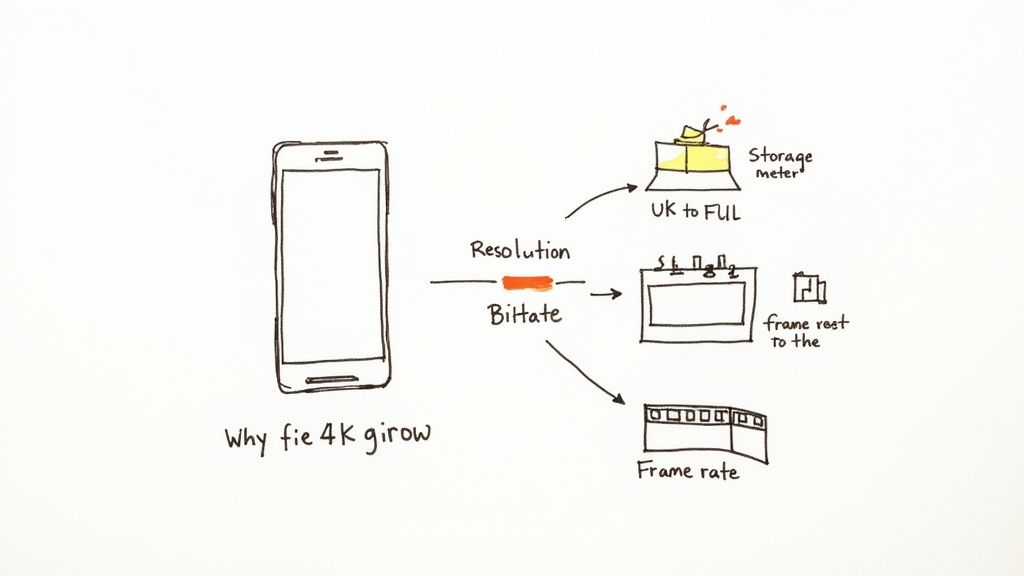
Getting a feel for this relationship is the first step. By smartly adjusting these settings with a tool like Compresto, you can shrink your files down dramatically without anyone noticing a drop in quality.
Understanding How Video Compression Works
To get a real handle on compressing large video files, you first need a peek under the hood at what’s actually happening. Think of it like packing a suitcase. You don’t just cram everything in; you fold and arrange things methodically so it all fits. Video compression is a lot like that, but it uses clever algorithms to shrink the file down.
At its heart, compression is all about ditching redundant data. A video is just a string of still images, or frames, flashing by in quick succession. From one frame to the next, a lot of the image stays exactly the same—maybe a person talking while the background remains static. Instead of saving that identical background information for every single frame, compression algorithms just say, "Hey, this part is the same as before." It’s a simple concept that saves a massive amount of space.
Key Terms You Should Know
The whole process relies on a few key pieces working together. Knowing what they are will help you make smarter choices when you're ready to compress your own files. For a deeper technical dive, you can also check out our guide on what is video encoding.
- Codec: This is the engine that does all the heavy lifting. It’s an algorithm that compresses (codes) the video for storage and decompresses (decodes) it for playback. H.264 (AVC) has been the workhorse for years, but its successor, H.265 (HEVC), is much more efficient.
- Container: This is simply the "box" that holds everything together—the compressed video, the audio track, subtitles, and other metadata. You’ll recognize containers by their file extensions, like .MP4, .MOV, or .MKV.
- Bitrate: This measures how much data is used for each second of video. A lower bitrate results in a smaller file, but if you drop it too low, you’ll start to see a drop in quality.
A codec is what shrinks your video, while a container is what holds the video, audio, and other parts together.
Common Video Codecs at a Glance
Choosing the right codec is a huge part of the compression game. Each one has its own strengths when it comes to balancing size and quality.
| Codec | Typical Compression Efficiency | Best For | Compatibility |
|---|---|---|---|
| H.264 (AVC) | Good | Streaming, web video, general use | Excellent (plays on almost any device) |
| H.265 (HEVC) | Excellent | 4K/8K video, archiving high-quality footage | Good (standard on modern devices) |
| AV1 | Superior | High-quality streaming (YouTube, Netflix) | Growing (supported by modern browsers) |
| VP9 | Very Good | Web video, YouTube content | Very Good (supported by most browsers) |
As you can see, newer codecs like H.265 and AV1 offer much better compression, but H.264 is still the king of compatibility. Your choice really depends on where the video will be played.
The real art of compression is finding that sweet spot between file size and visual quality. The goal is to shrink the file as much as possible without introducing ugly artifacts like pixelation or blurriness.
With 4K and even 8K video becoming more common, the pressure is on to make compression even more efficient. There's a constant tug-of-war between compression speed, final quality, and how small the file gets. You can find more data on these trends from industry reports like this one on the digital video content market on Technavio.com.
Ultimately, the best settings depend entirely on what you need the video for. Are you sending a quick preview to a client, uploading to social media, or archiving a master copy for later? Each of those jobs calls for a completely different compression strategy.
Getting Started: Your First Video Compression
Alright, let's get our hands dirty. It’s time to move from theory to a real-world example.
Imagine this: you just shot a gorgeous, 10-minute 4K video on your phone. The footage is crisp and vibrant, but there's a catch—the file is a massive 2GB. It's way too big to email to a client, and forget about sending it through WhatsApp. This is exactly the kind of job Compresto was built for. You can shrink that file down in seconds.
The best part about a tool like Compresto is its simplicity. You don't need a degree in video engineering to get great results. The whole process kicks off by just dragging that 2GB video file straight into the app window. No complicated import menus, no confusing dialog boxes. Your video is just there, ready to go.
Now you have a simple choice to make. Compresto comes with several presets built for the most common things people do with video. Since our goal is to make this 2GB file easy to share online with the smallest possible size, the Web Optimized preset is the perfect one-click solution. Selecting it tells the app to automatically apply a balanced set of tweaks to the bitrate, codec, and resolution for you.
Choosing the Right Preset
The preset you pick really just depends on what you need to do with the video. "Web Optimized" is a fantastic all-rounder, but the other options are tailored for different jobs:
- Email & Messaging: This one is even more aggressive on file size. It’s perfect when your absolute top priority is getting under strict limits, like Gmail's 25MB cap.
- High Quality: Use this when you need to save some space for archiving but want to keep as much visual detail as humanly possible.
- GIF Conversion: This does exactly what it says on the tin—it turns a piece of your video into an animated GIF, which is great for social media or dropping into an article.
For our scenario, we'll stick with "Web Optimized." Once you've selected it, you just hit the "Compress" button. Compresto gets to work right away, processing the file locally on your Mac. That’s an important detail: your data never leaves your device. The whole thing is surprisingly quick, often taking just a minute or two for a file this size. To see why this focused approach is so effective, check out our guide on choosing Compresto for compressing large digital files.
This diagram gives you a simple visual of what's happening under the hood as your file goes from a raw behemoth to a tidy, compressed video.
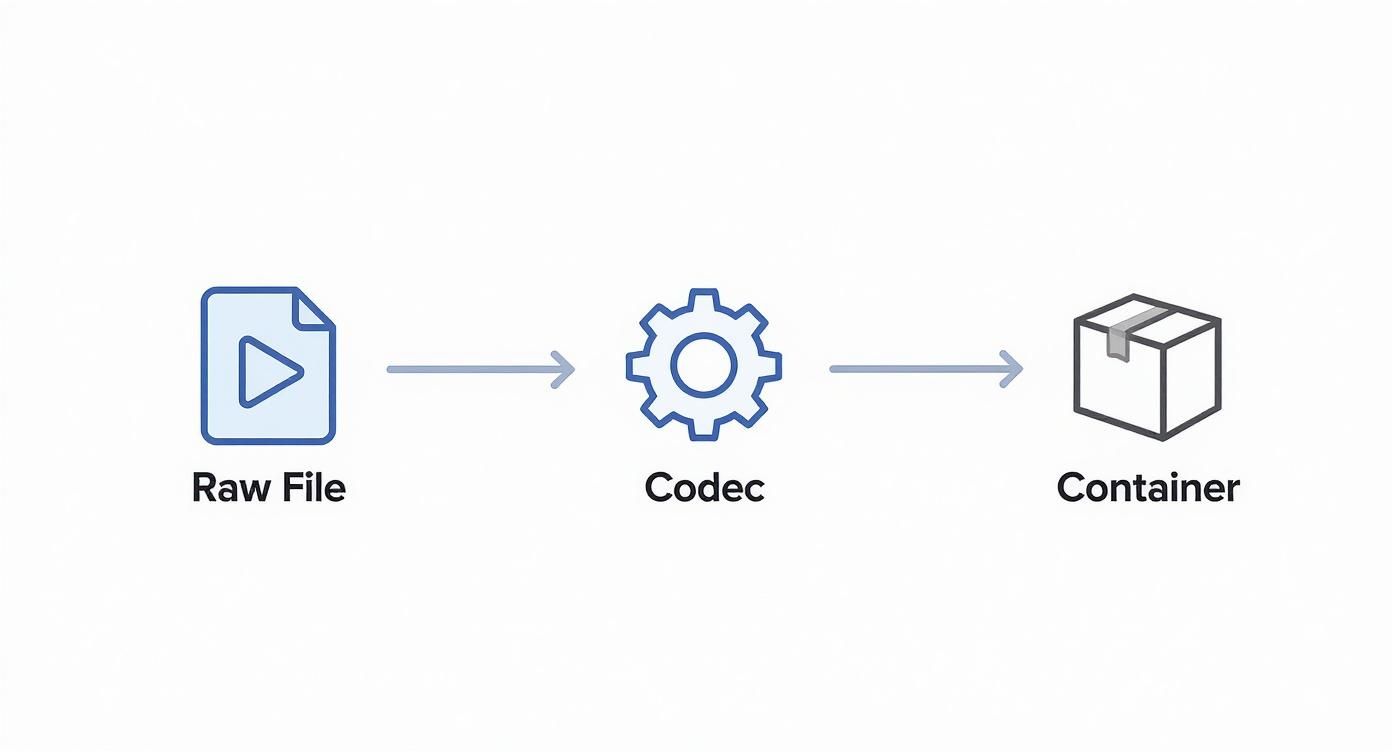
This process shows how a codec intelligently repackages your video data into a much more efficient container format.
The Final Result
Once Compresto is done, the results really speak for themselves. That original 2GB file is now a much more manageable 150MB. That's a size reduction of over 92%, and it only took a single click.
The most impressive part? When you place the original and compressed videos side-by-side, the difference in visual quality is nearly impossible to spot on most screens. The colors remain vibrant, the motion is smooth, and the details are still sharp.
This simple workflow—drag, pick a preset, and compress—is all it takes to solve one of the biggest headaches with modern video. You’ve successfully turned an unshareable file into a lightweight video that’s ready for any platform. It just goes to show you don't need to fiddle with complex settings to get professional-grade results. You're now equipped to handle any large video file that comes your way.
Advanced Techniques for Custom Compression
Moving beyond the one-click presets is where you unlock a whole new level of control over your video compression. Manual settings let you fine-tune the output for exactly what you need, whether that’s a high-fidelity portfolio piece or a tiny file for long-term storage. This is where the real magic happens.
One of the most powerful adjustments you can make is choosing the right bitrate encoding method. Think of bitrate as the data budget for your video—it's a critical decision that directly impacts both quality and final file size.
Mastering Bitrate and Encoding
When you dig into the settings, you'll usually find two main options for bitrate. Each serves a very different purpose, and knowing the difference is key to getting the result you want.
- Variable Bitrate (VBR): This one is the efficiency expert. VBR is smart—it allocates more data to complex, high-motion scenes and less to simple, static ones. This intelligent distribution gives you an optimized balance of quality and a smaller file size, making it the perfect choice for most general-purpose compression.
- Constant Bitrate (CBR): Just like the name suggests, CBR keeps the bitrate steady and unchanging throughout the entire video. While it's less efficient for saving space, that consistency is essential for streaming platforms that need a predictable data flow to prevent buffering for viewers.
For the absolute best quality with VBR, always look for a two-pass encoding option if it's available. The software does a first pass to analyze your video and identify the complex scenes, then uses that information on the second pass to apply the bitrate much more effectively. It takes a little longer, but the quality boost is often worth it.
Strategic Reductions Beyond Bitrate
While bitrate is a huge factor, you can shave off even more megabytes by tweaking other video and audio properties. A common and highly effective strategy is adjusting the resolution. Downscaling a 4K video to 1080p is one of the quickest ways to slash its size, especially if you know the final video will mostly be viewed on smaller screens like phones or laptops.
Along the same lines, take a look at the frame rate. A video shot at 60 frames per second (fps) can often be dropped to 30 fps with very little noticeable difference, depending on the content. Fast-action gaming footage might suffer, but a talking-head video will look just fine.
Don’t forget about the audio! Audio tracks can add a surprising amount of bulk to a file. Lowering the audio bitrate from a high-quality 320 kbps down to a more modest 128 kbps can significantly reduce the overall file size, often without any perceptible drop in sound quality for most listeners.
These advanced methods are powered by sophisticated algorithms that make it possible to squeeze massive raw videos into compact, manageable formats. On a global scale, these techniques can reduce file sizes by up to 50-70%, a capability that's become absolutely critical for modern streaming and content delivery. You can explore more about this explosive growth on OpenPR.com.
Common Video Compression Mistakes to Avoid
Knowing how to compress large video files is only half the battle. Honestly, knowing what not to do can save you from a world of frustration. I've seen it happen time and time again: people fall into a few common traps that completely tank their video quality, turning a crisp clip into a pixelated mess. Avoiding these pitfalls is the real secret to getting professional-looking results.

One of the biggest mistakes is simply over-compressing. It’s so tempting to drag that quality slider all the way down just to get the smallest possible file, but this is where you run into noticeable artifacts and blurriness. My advice? Compress in small steps and check the preview after each adjustment. It takes a few extra seconds but saves you from having to start over.
Another frequent issue is re-compressing an already compressed file. Think of it like making a photocopy of a photocopy. Every time you compress a video, you lose a little bit of data. Doing it repeatedly has a snowball effect that just crushes the quality.
Wrong Formats and Ignoring the Source
Choosing the wrong container format is another classic error. For example, trying to use a .MOV file for a web player that really wants an .MP4 can cause playback to fail entirely. Always think about the final destination and export a format that’s compatible with it.
Key Takeaway: Always, always start with the highest-quality source file you have. Compressing a high-resolution original will always give you a better result than trying to shrink a low-quality file even further. It's the golden rule of compression.
To get ahead of these issues, it helps to know what causes those weird visual glitches in the first place. A little foresight goes a long way. You can learn more by understanding and reducing video compression artifacts in our detailed guide on the topic.
Answering Your Top Compression Questions
Even after you get the hang of it, some questions always seem to pop up. Let's tackle the most common ones I hear to clear up any lingering confusion about compressing your big video files.
How Much Can I Actually Compress a Video?
While all compression is technically "lossy" (meaning some data is thrown out), modern tools are incredibly good at making sure you never notice. The real trick is finding the right balance.
As a rule of thumb, for a crisp 1080p video, aiming for a bitrate between 8-15 Mbps usually hits that sweet spot. You get a much smaller file without sacrificing the visual quality you worked hard to capture.
What’s the Best Format for Compressed Video?
This one almost always comes down to where your video is going to live.
For just about everything—the web, social media, mobile devices—MP4 with an H.264 or H.265 (HEVC) codec is the undisputed champion. It delivers the best mix of quality, file size, and universal support. You can’t go wrong with it.
Thinking about where to post your clips? It's worth understanding YouTube Shorts, a format that really benefits from optimized, compressed videos for quick viewing.
Is It Okay to Compress a 4K Video Down to 1080p?
Absolutely. In fact, downscaling the resolution like this is one of the single most effective ways to slash your file size.
It's the perfect move when you know the video will be watched on screens that don't even support 4K, like most smartphones and laptops. It’s also my go-to strategy when getting the absolute smallest file size is the main goal.
Ready to shrink your videos without the headache? Compresto makes it easy with powerful presets and advanced controls, all while keeping your files secure on your Mac. Download Compresto today and see how much space you can save.