Compress Video Files on Mac Without Losing Quality
That dreaded "Your startup disk is almost full" notification is a modern-day horror story for Mac users. If you’ve seen it, you know the panic. When it comes to taming those massive video files, your best bet is a dedicated app like Compresto. It can shrink them by up to 90% without any noticeable drop in visual quality, freeing up gigabytes of precious space in mere seconds.
Why You Need to Compress Videos on Your Mac
Look, we all have them. Massive video files from client projects, cherished family memories, or even just a bunch of screen recordings. They pile up fast, devouring your Mac's SSD space before you know it. But wrestling with these huge files isn't just about storage—it's about reclaiming your workflow and getting things done faster. Imagine sending off a client preview in minutes, not hours, or sharing a family video without ever worrying about email attachment limits again.
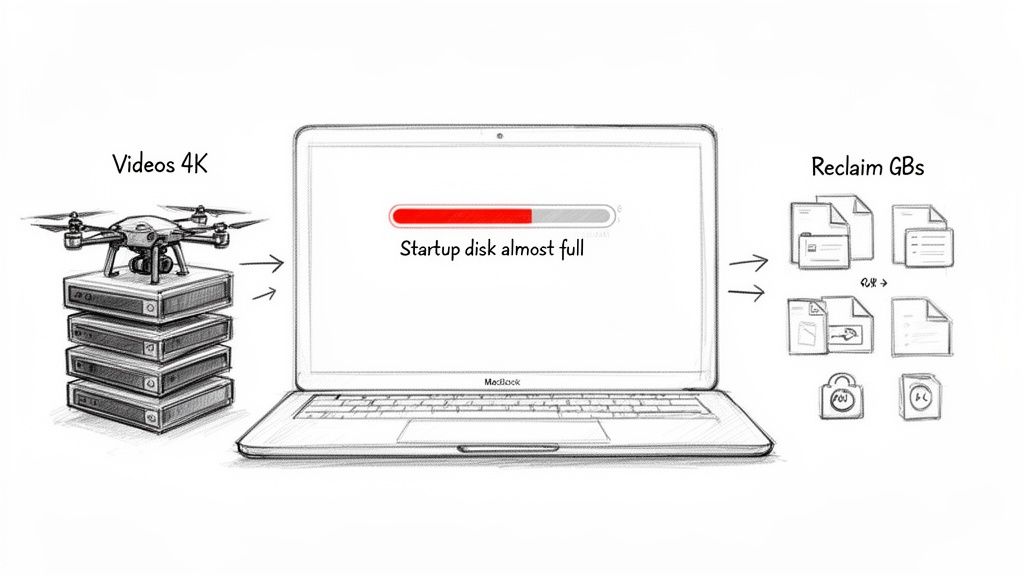
Reclaim Gigabytes and Boost Performance
Smart compression is a total game-changer. A good desktop tool can slash a typical 4K video file's size by 50% to 90%. That means your monster 20 GB master clip could suddenly become a lean 2 GB file.
Think about it this way: if you're a creative pro with a 1 TB MacBook and a 200 GB video library, compressing those files could instantly free up around 80 GB. That’s a ton of room for new projects.
This isn’t just about making space, either. It directly contributes to a faster, more responsive Mac. While hardware fixes like extending your MacBook Air's lifespan are great, actively managing your large files through compression is one of the best things you can do for your machine's day-to-day performance.
The core benefit is simple: a lighter digital footprint. Smaller files mean faster backups, quicker transfers, and a less cluttered system, letting you focus on creating instead of managing storage.
A Smarter Workflow Awaits
Ultimately, compressing your videos isn’t just a technical task; it's about adopting a more intelligent way of working. While your Mac has some built-in tools that can do basic compression, a dedicated app like Compresto is purpose-built for the job.
By streamlining how you handle your largest media files, you're not just saving space—you're unlocking huge time savings and making your entire process smoother. To get a better sense of all the advantages, you can dig deeper into the https://compresto.app/blog/benefits-of-file-compression in our detailed guide.
To see just how big of a difference this can make, let's look at some numbers.
Video Compression Impact at a Glance
This table shows the real-world impact of shrinking your video files. From a hefty 4K project to a simple screen recording, the savings in both space and time are substantial.
| Scenario | Original Size | Compressed Size (80% Reduction) | Estimated Upload Time Savings |
|---|---|---|---|
| 10-Min 4K Client Video | 15 GB | 3 GB | Saved 40-60 minutes |
| 30-Sec Social Media Clip | 500 MB | 100 MB | Saved 2-4 minutes |
| 1-Hour Tutorial Screen Record | 5 GB | 1 GB | Saved 15-20 minutes |
| Family Vacation Montage | 2 GB | 400 MB | Saved 5-8 minutes |
As you can see, the time saved on uploads alone is significant, especially for professionals who need to share files constantly. It's a simple change that makes your entire workflow more efficient.
Compressing Your First Video with Compresto
Getting started with Compresto is refreshingly simple. There are no confusing menus or technical hoops to jump through—just a clean, intuitive drag-and-drop workflow designed to get the job done quickly so you can get back to your creative work.
Let's walk through a common scenario. Imagine you've just finished a shoot and have a folder full of massive 4K drone clips. They look incredible, but they're a nightmare to share or archive.
With Compresto, you just drag that entire folder—or even a single video file—right onto the main window. That’s it. No complicated import process, no waiting around. The app gets to work instantly.
This is what you'll see the moment your files are added.
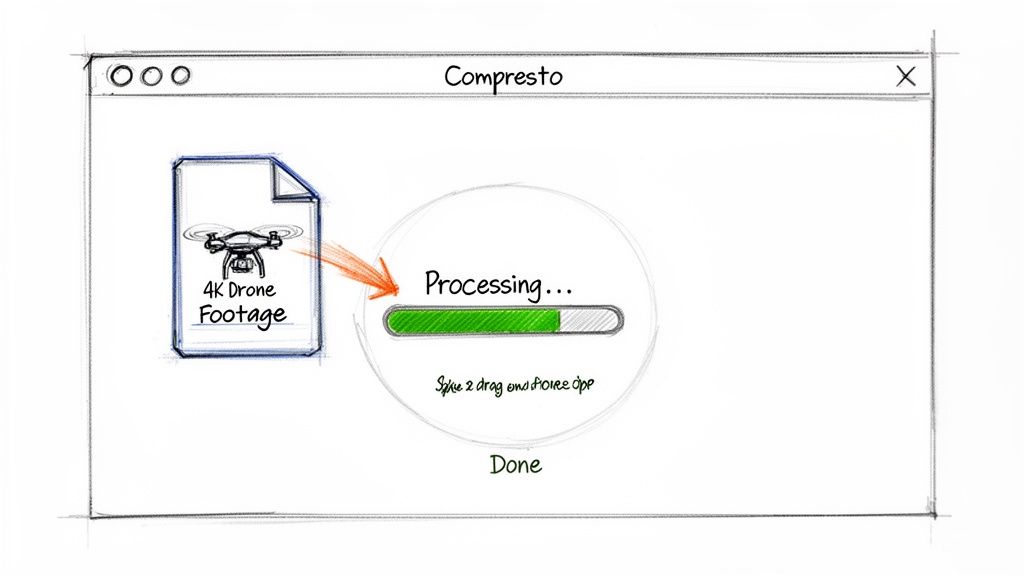
The interface immediately recognizes your files and gives you a clear overview of what's in the queue, ready for compression.
The Magic of Local Processing
As soon as you add your files, Compresto starts working its magic. A progress bar animates to give you a real-time peek at the compression process. The best part? None of this is happening on some far-off server. All the heavy lifting is done securely, right on your own Mac.
This local-first approach is a huge deal for a few key reasons:
- Your privacy is guaranteed. Your videos, whether they contain sensitive client work or personal family moments, never leave your computer.
- No internet bottlenecks. You aren't at the mercy of your Wi-Fi speed. The compression happens as fast as your Mac's hardware can handle it.
- Work from anywhere, completely offline. On a plane with no connection or in a cafe with spotty internet? No problem. You can keep your workflow moving.
Once that progress bar turns green, you're done. Your files are now dramatically smaller, but the visual quality remains practically identical to the original. That peace of mind is invaluable. For a deeper dive into why this matters, check out our guide on choosing Compresto for compressing large digital files.
The whole experience is designed to feel effortless. From the moment you drop a file to the second it's ready, the app handles all the complexity behind the scenes. It turns what used to be a tedious technical chore into a simple, satisfying part of your workflow.
Compresto’s ability to handle both individual clips and entire folders in one go makes it incredibly versatile. Whether you're trying to free up disk space, prep assets for the web, or archive a finished project, the process is always the same: drag, drop, and you're done.
Choosing the Right Compression Settings for Any Platform
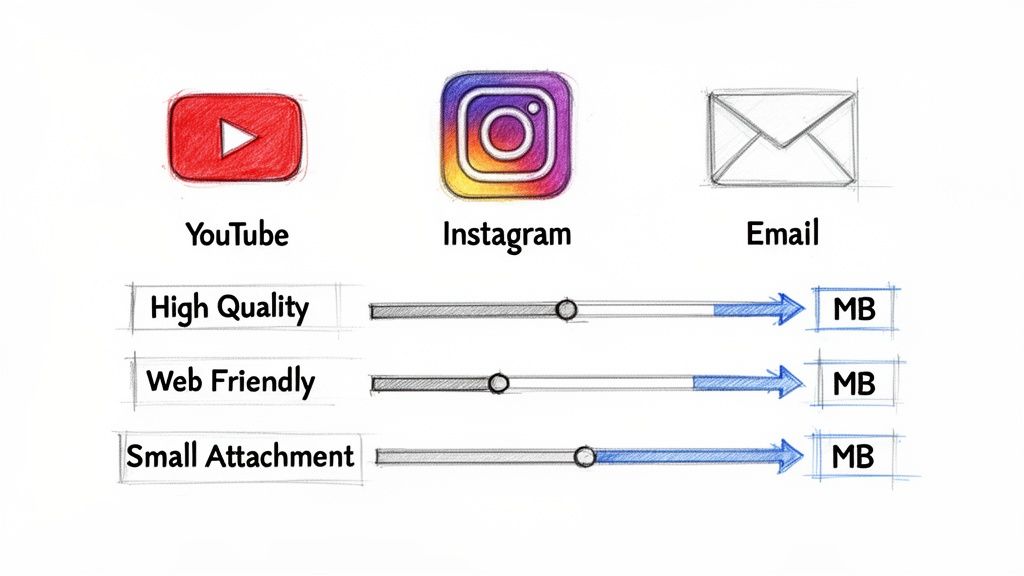
There’s no magic, one-size-fits-all setting for video compression. The file you create for a crisp 4K client archive is worlds apart from the tiny version you need to squeeze into an email attachment. If you get this wrong, you either end up with a file that’s way too big or one that looks like it was filmed on a potato.
This is where presets become your secret weapon. Instead of getting lost in the weeds of bitrates and resolutions, Compresto gives you optimized presets built for specific destinations. Think of them as expert-tuned recipes for the most common video scenarios.
For example, you can pick a high-quality preset for your YouTube upload to keep every detail sharp, then immediately re-compress that same source file with a "Web Friendly" setting for your portfolio site.
Matching Presets to Real-World Needs
Let's walk through a few practical examples of where these different settings come into play. Once you get the 'why' behind each choice, you'll be able to compress video files on Mac systems much more effectively.
- Client Previews & Archives: For this, you’ll want a high-quality preset like "ProRes" or a high-bitrate H.264. The goal is to minimize any visual loss, which is absolutely critical for review cycles or long-term storage. Quality is king here.
- Social Media & Web: Grab a "Web Optimized" or "Social Media" preset. These settings are all about balance—they shrink the file size for quick loading times but keep just enough quality to look great on smaller screens.
- Email Attachments: The "Smallest Size" preset is your go-to. It aggressively cuts down the file size to duck under common email attachment limits, like Gmail’s 25 MB cap.
The goal isn’t always to crush a file into the smallest possible size. It's about making it the right size for its destination. A video for Instagram doesn’t need 4K resolution, and an archival master shouldn’t be compressed into a tiny, pixelated mess.
Advanced Automation and Format Conversion
Compresto also packs in some clever workflow automations that go beyond standard video. One of my favorites is its ability to convert a screen recording directly into an animated GIF. It's perfect for dropping a quick tutorial into a blog post or a support doc without the baggage of a full video player.
Another huge time-saver is the Folder Monitoring feature. You can point Compresto at your Final Cut Pro export folder, and the second a new video render lands there, the app will automatically compress it using your chosen preset. It gets the file ready for the next step in your workflow before you even have to think about it.
If you want to go deeper into the technical side of things, you can learn more about what is video encoding and see how it all works under the hood.
Advanced Features That Actually Speed Up Your Work
When your workflow is a constant race against the clock, every saved click matters. For busy editors, designers, and other pros, moving past basic compression into smart, automated features isn't just a luxury—it's how you get back a huge chunk of your day. This is where Compresto's advanced toolset really shines on demanding projects.
Picture this: you’re a freelance editor staring down a folder of dailies from a full day's shoot. Instead of the soul-crushing task of processing each clip one by one, you can lean on batch processing to handle the whole folder at once. This isn't just a minor convenience; it's a genuine workflow upgrade that transforms hours of tedious work into a single, automated step.
Streamline Your Desktop Experience
For anyone who values pure, uninterrupted momentum, Compresto has a few tricks up its sleeve to cut out unnecessary steps.
- The Raycast Extension: Instantly trigger a compression command from anywhere on your Mac. You don't even have to touch your mouse.
- The Floating Drop Zone: Keep a small target right on your desktop for immediate drag-and-drop compression, completely bypassing the need to open the app first.
These tools are built to keep you in a state of flow, right in your creative zone.
For professionals, efficiency is everything. It’s not just about shrinking a file; it’s about shrinking the time it takes to get from raw footage to a finished, deliverable asset. Features like these directly solve that problem.
Tapping into modern hardware is also a huge piece of the puzzle. The performance gains you get from hardware-accelerated compression on today's Macs are massive, with some tests showing processing times slashed by 2–6× compared to older software methods. Apps that use native macOS technologies can chew through a 100-file shoot in under four hours—a task that could easily eat up an entire workday on CPU-only encoders. You can dig deeper into the impact of modern video compression platforms and how they make the most of today's hardware.
Built-in Mac Tools vs. a Dedicated App
Your Mac comes with a couple of free, built-in ways to shrink a video file, so you might be wondering why you'd even need a dedicated app like Compresto. It really boils down to two things: control and efficiency. While the built-in options are okay in a pinch, they come with some serious trade-offs that can really slow you down.
The most common method is using QuickTime Player. You just open a video, go to "Export As," and pick a lower resolution like 1080p or 720p. Easy enough. You can also right-click a video file in Finder and choose "Encode Selected Video Files." Both are fine for a single, quick task.
Where the Free Tools Fall Short
But the moment you need to compress more than one small clip, their limitations become glaringly obvious. Neither of Apple's built-in tools offers batch processing. That means you're stuck doing every single file one by one—a massive time-waster if you have a folder full of videos from a recent shoot.
You also get almost no control over the important stuff, like quality settings, output formats, or codecs. For anyone doing professional work, that’s a dealbreaker.
The core problem with the built-in tools is their one-size-fits-all approach. They're designed for a casual user who needs to compress a file once in a blue moon, not for workflows that demand precision, speed, and consistency.
This is especially true when working in a team. Being able to standardize your compressed videos can cut down on bandwidth and storage costs by a surprising 20–60%. Using presets to get predictable, consistent results means no more rework or re-uploading chunky files, a huge benefit you just can't get from the basic macOS tools.
For those who need more advanced features, this diagram shows how a more robust workflow can turn a manual chore into an automated process.
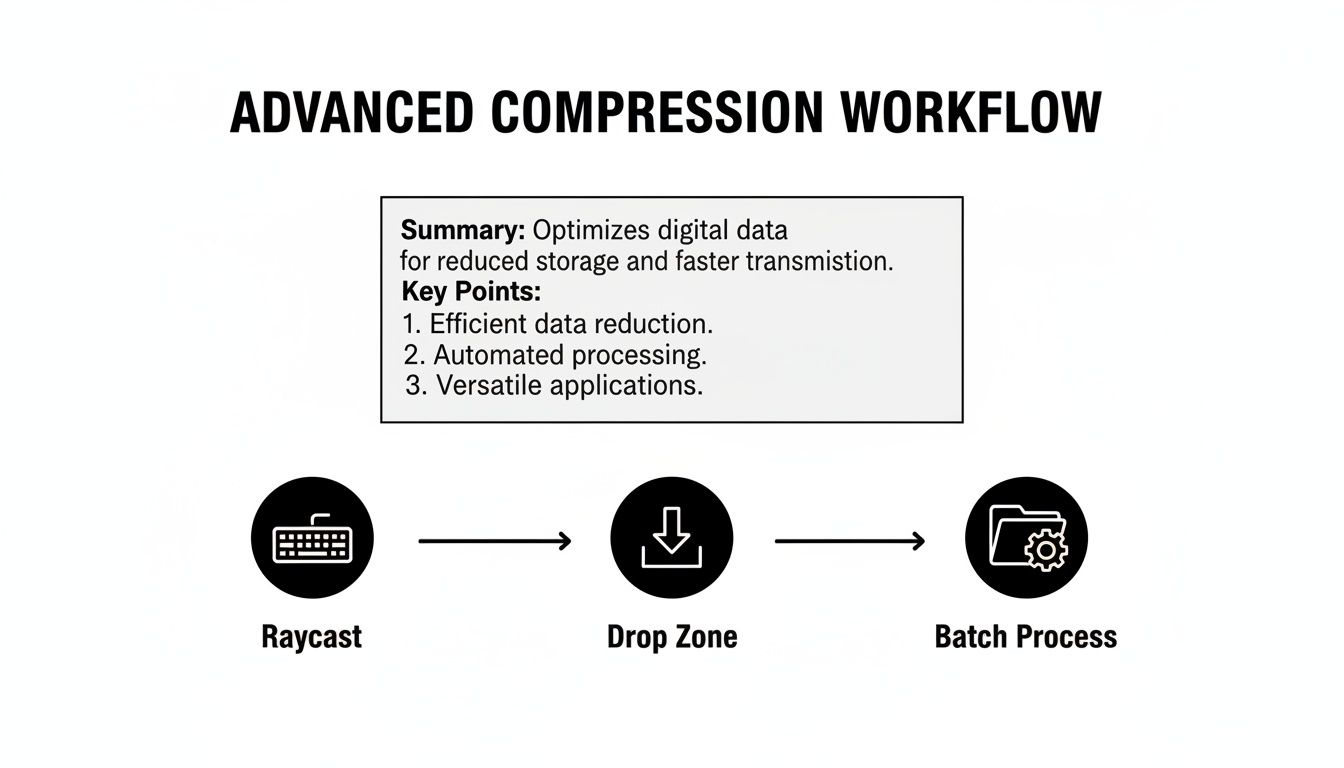
Things like keyboard shortcuts, a floating drop zone for files, and true batch processing are game-changers. And while the built-in tools are a starting point, exploring the best free video editing software can also open up new possibilities, as many of them come packed with powerful compression options.
Compresto vs. Built-in macOS Tools
To put it all in perspective, here’s a quick breakdown of how a specialized tool like Compresto stacks up against what Apple gives you for free.
| Feature | Compresto | QuickTime Player | Finder (Encode Action) |
|---|---|---|---|
| Batch Processing | Yes, process unlimited files at once | No, one file at a time | No, one file at a time |
| Quality Control | Fine-grained control over bitrate and quality | Limited to resolution presets (4K, 1080p, etc.) | Limited to resolution and "Greater Compatibility" vs. "Higher Quality" |
| Format & Codec Options | Multiple formats (MP4, MOV) & codecs (H.264, H.265) | Exports to MOV with H.264/HEVC | Exports to M4V with H.264/HEVC |
| Workflow Automation | Yes, via folder monitoring and presets | No | No |
| Speed | Optimized for modern Macs (Apple Silicon & Intel) | Slower, basic encoding | Slower, basic encoding |
| Ease of Use | Simple drag-and-drop interface for complex tasks | Simple, but very basic functionality | Simple, but hidden in a right-click menu |
As you can see, the difference is pretty stark. While the free tools can handle a one-off task, they simply can't compete when it comes to serious or repetitive compression workflows.
A Few Common Questions About Mac Video Compression
It’s totally normal to have a few questions floating around, even when the steps are clear. When you start compressing videos on a Mac, you’re basically making a trade-off between file size and visual quality, so it’s smart to know what you’re getting into. Let’s clear up a couple of the most common concerns I hear.
Will My Video Look Awful After Compressing It?
This is the big one. Will shrinking your video turn it into a blurry, pixelated mess? With modern tools, the answer is almost always no. Advanced video codecs are incredibly smart—they’re designed to toss out redundant data in a way the human eye won't even notice. It's not uncommon to see a file size reduction of 80-90% with no visible drop in quality.
Think of it like a high-res JPEG photo. The file is compressed, but it still looks crisp and clear. Today’s video compression works on similar principles, keeping the perceived quality high while making the file way smaller.
Another question I get is about alternatives. What if you can't compress it any more without it looking bad? You can always just trim a few seconds off the start or end. Sometimes, shortening a clip is all you need to do to sneak under a file size limit for an email or a social media post.
What Happens to My Original File?
People often worry about what happens to their source video. Good news: an app like Compresto never touches your original file. It creates a completely new, optimized copy, leaving your high-resolution master file safe and sound. For anyone doing professional work, this non-destructive process is a must.
This approach gives you the freedom to experiment. You can create different compressed versions for different platforms—one for YouTube, a smaller one for email—all from that same original file, without any risk. It’s all about having the flexibility you need while keeping your original work protected.
Ready to stop worrying about storage and start streamlining your workflow? Compresto makes it easy to compress video files on Mac with just a drag and a drop. Download your free trial of Compresto and see the difference for yourself.