Top compression software for videos: Best tools for 2025
In a world dominated by video content, file size is a constant bottleneck. Whether you're a content creator uploading to YouTube, a marketer sending email campaigns, or a developer optimizing web performance, large video files slow everything down. They consume valuable storage, increase hosting costs, and create frustrating experiences for your audience. But simply shrinking a video isn't enough; doing it without sacrificing visual clarity is the real challenge.
The right compression software for videos acts as a bridge, intelligently reducing file size while preserving the quality that makes your content effective. This guide cuts through the noise to help you find the perfect tool for your specific workflow. We’ll compare the top 12 options, from powerful desktop applications to convenient online converters, ensuring you find a solution that fits your needs, whether you're a professional video editor or a social media manager.
This comprehensive resource list provides a detailed analysis of each tool, including its key features, pricing, platform support, and ideal use cases. Each entry includes screenshots and direct links to get you started immediately. We evaluate everything from command-line utilities like FFmpeg to user-friendly platforms like VEED.io, so you can make an informed decision and start optimizing your video files today.
1. Compresto
Compresto stands out as a premier choice for macOS users seeking powerful, privacy-focused compression software for videos, images, and documents. Its core strength lies in its ability to deliver significant file size reductions, often up to 90%, without perceptible loss of visual quality. This is all achieved locally on your machine, ensuring your files are never uploaded to a server, a critical feature for anyone handling sensitive or proprietary content.
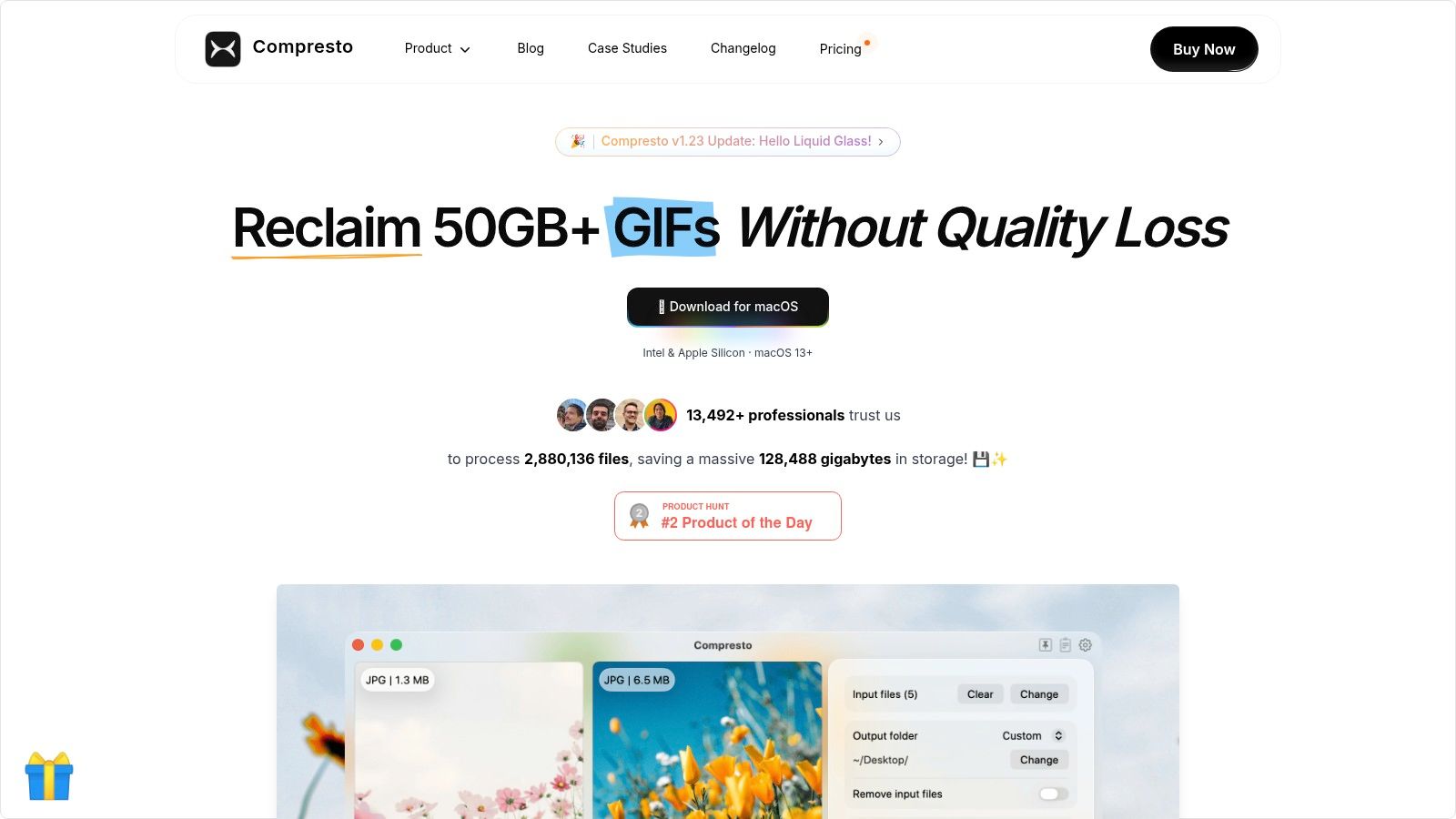
Designed as a native macOS application for both Intel and Apple Silicon systems (macOS 13+), Compresto offers a polished, intuitive drag-and-drop experience. It's built for real-world professional workflows, going far beyond basic compression.
Key Features and Use Cases
- Workflow Automation: Features like Folder Monitoring and a Drop Zone allow you to automate repetitive compression tasks. Simply designate a folder, and Compresto will automatically process any new files added to it, streamlining the preparation of assets for web or social media channels.
- Batch Processing at Scale: The app is engineered to handle hundreds of files simultaneously. Its intelligent queue and progress tracking system provides clear feedback, making it ideal for video editors or social media managers who need to process large volumes of content efficiently.
- Integrated Tooling: For creators, the built-in video-to-GIF converter is a significant time-saver, eliminating the need for separate tools. Further integration with apps like Raycast allows power users to incorporate compression directly into their established keyboard-driven workflows.
- Team Standardization: The ability to create and apply presets ensures consistent output quality and specifications across a team. This is invaluable for marketing and product teams needing to maintain brand standards for all published visuals.
Platform and Pricing
Platform: macOS 13+ (Apple Silicon & Intel)
While specific pricing tiers were not available in the scraped data, Compresto directs users to its website for the latest licensing information. Given its professional feature set and strong user base, which includes over 11,000 users and companies like Vercel, it is positioned as a premium, single-purchase application. Its main limitation is its macOS exclusivity, making it unsuitable for cross-platform teams.
Website: https://compresto.app
2. HandBrake
HandBrake is a legendary name in the world of video transcoding and stands as one of the best free options for powerful video compression software. It is an open-source tool that gives users granular control over the encoding process, making it a favorite for videographers, archivists, and anyone needing to balance file size with visual fidelity. Its strength lies in its advanced settings, particularly the Constant Rate Factor (CRF) option, which optimizes for quality rather than a strict bitrate.
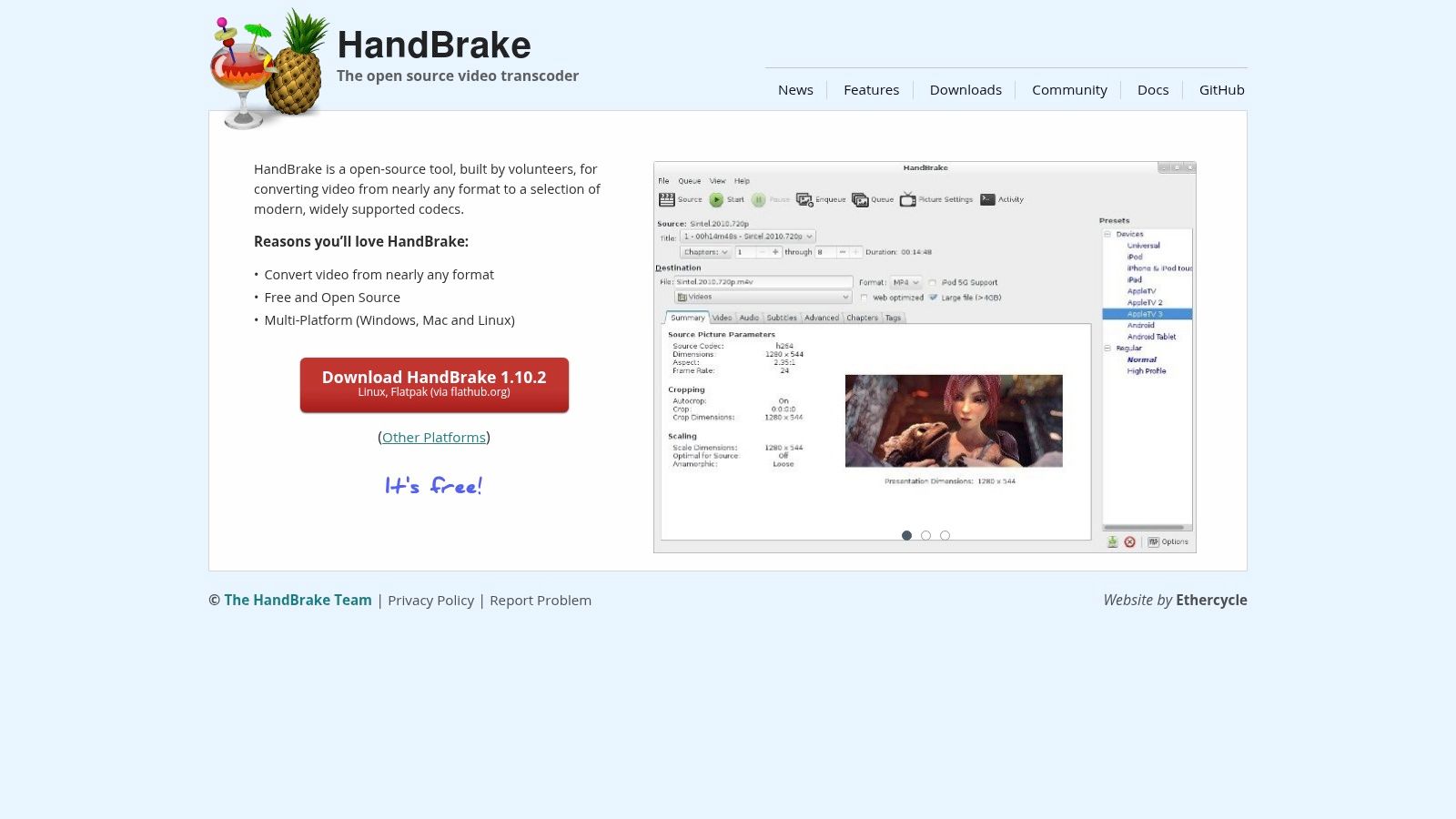
The interface, while functional, can be intimidating for beginners due to the sheer number of available options. However, its robust preset system for specific devices and web platforms provides an excellent starting point. Mastering its settings can take time, but the results are often superior to what simpler tools can achieve. For those willing to dive in, this guide to using HandBrake can help shorten the learning curve.
Key Features & Assessment
- Cost & Platform: Completely free (open-source). Available on Windows, macOS, and Linux.
- Core Strength: Provides unparalleled control over encoding parameters like CRF and bitrate, allowing for exceptional quality-to-size ratios.
- Primary Use Case: Ideal for technical users who need to perform batch encoding for archival purposes, prepare media for specific devices, or fine-tune compression for web delivery.
- Pros: Actively developed, completely free, and cross-platform compatibility.
- Cons: The interface has a steep learning curve, and it only supports open-source codecs, lacking support for proprietary formats like ProRes.
3. FFmpeg
FFmpeg is less a single piece of software and more the foundational engine that powers countless other video applications. This open-source, command-line tool provides direct, unfiltered access to a massive library of codecs and filters, making it the ultimate tool for developers and technical users. As a core piece of compression software for videos, it offers unparalleled control over every aspect of the encoding process, from bitrate and codec selection to complex filtergraphs for scaling and color correction.
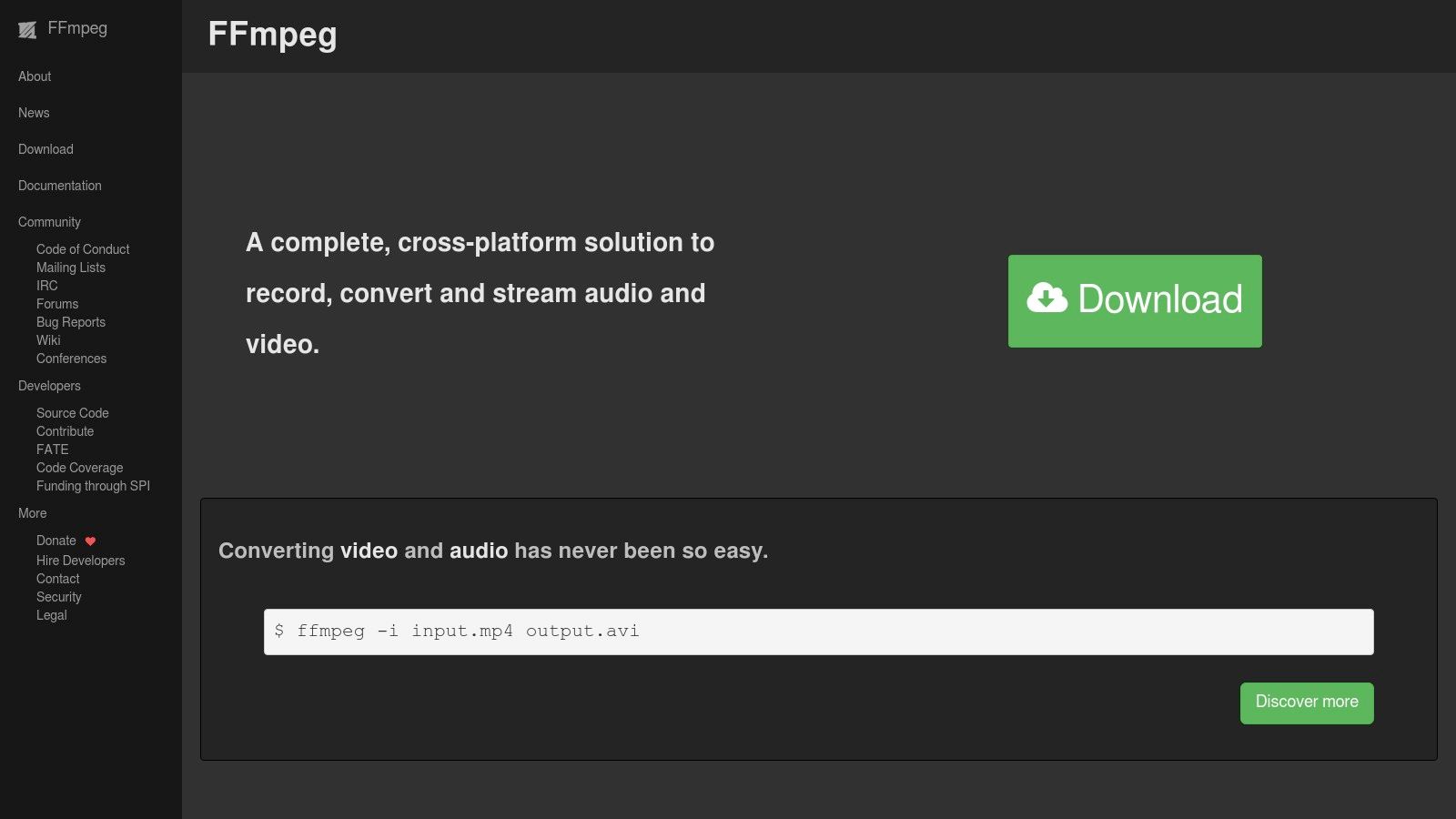
The primary barrier to entry is its complete reliance on the command line; there is no native graphical user interface (GUI). This makes it incredibly powerful for scripting and automation but intimidating for those accustomed to visual tools. For users ready to tackle its syntax, this guide to compressing with FFmpeg offers a solid starting point for mastering its capabilities and achieving professional-grade compression results.
Key Features & Assessment
- Cost & Platform: Completely free (open-source). Available on Windows, macOS, Linux, and more.
- Core Strength: Its command-line nature enables extreme flexibility, scriptability, and access to the latest codecs (like AV1) and hardware acceleration options (NVENC, VAAPI).
- Primary Use Case: Best for automated media workflows, backend video processing, and users who require precise, repeatable control over complex compression tasks.
- Pros: The industry standard for video processing, incredibly powerful, supports virtually every format, and is completely free.
- Cons: Has a very steep learning curve due to its command-line interface and lacks a native GUI, which can be a significant hurdle for many users.
4. Apple Compressor
For video professionals embedded in the Apple ecosystem, Compressor is the definitive companion to Final Cut Pro. It’s a powerful, dedicated encoding application that provides high-quality output and precise control over compression settings. Its primary advantage lies in its seamless integration, allowing editors to send projects directly from Final Cut Pro or Motion to Compressor for batch processing, distributed encoding across multiple Macs, and creating custom export presets for consistent delivery.
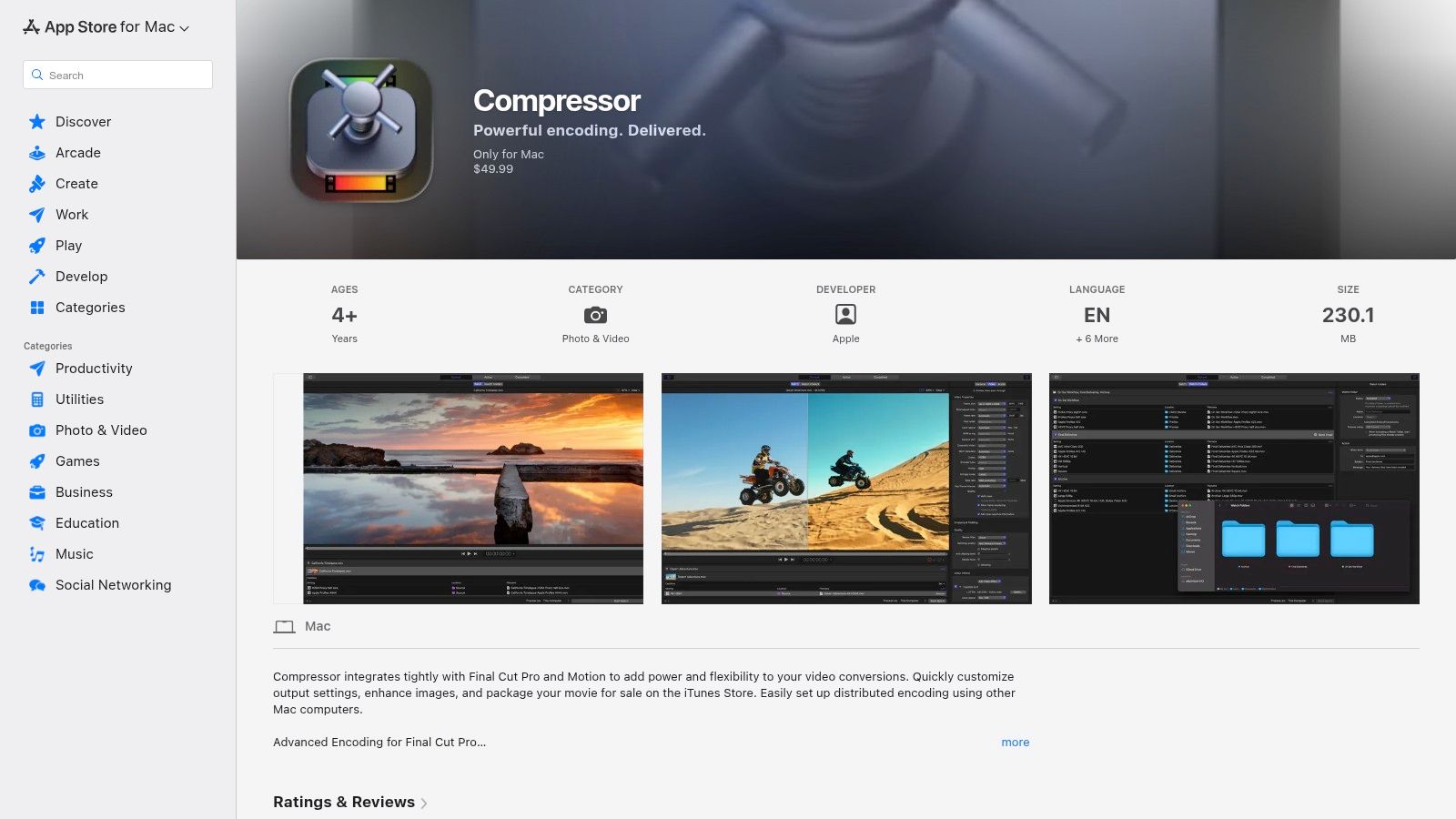
The application excels at professional workflows, offering features like watch folders that automatically encode files dropped into them and Droplets for drag-and-drop processing. While it provides deep customization for codecs like ProRes, HEVC, and H.264, it remains accessible through its well-organized library of presets for Apple devices, social media platforms, and broadcast standards. This makes it an indispensable tool for macOS-based production houses seeking reliable and efficient video compression software.
Key Features & Assessment
- Cost & Platform: Paid one-time purchase ($49.99). Available exclusively on macOS.
- Core Strength: Unmatched integration with Final Cut Pro and the Apple ecosystem, offering streamlined batch encoding and distributed processing for professional production environments.
- Primary Use Case: Best for Final Cut Pro editors who need to export multiple versions of a project, create custom presets for recurring jobs, or set up automated encoding workflows.
- Pros: Deep macOS and Final Cut Pro integration, reliable presets for the Apple professional ecosystem, and designed for production batch workflows.
- Cons: It is macOS-only with no Windows support, and it is a paid one-time purchase rather than a cross-platform solution.
5. Adobe Media Encoder
Adobe Media Encoder is the workhorse of professional video workflows, serving as a powerful, queue-based engine for rendering and compressing video files. As a core component of the Adobe Creative Cloud suite, it integrates seamlessly with applications like Premiere Pro and After Effects, allowing users to offload their exports and continue editing without interruption. Its primary strength is its ability to automate encoding tasks through presets and "watch folders," making it an industry standard for studios and content creators who need reliable, high-volume output.
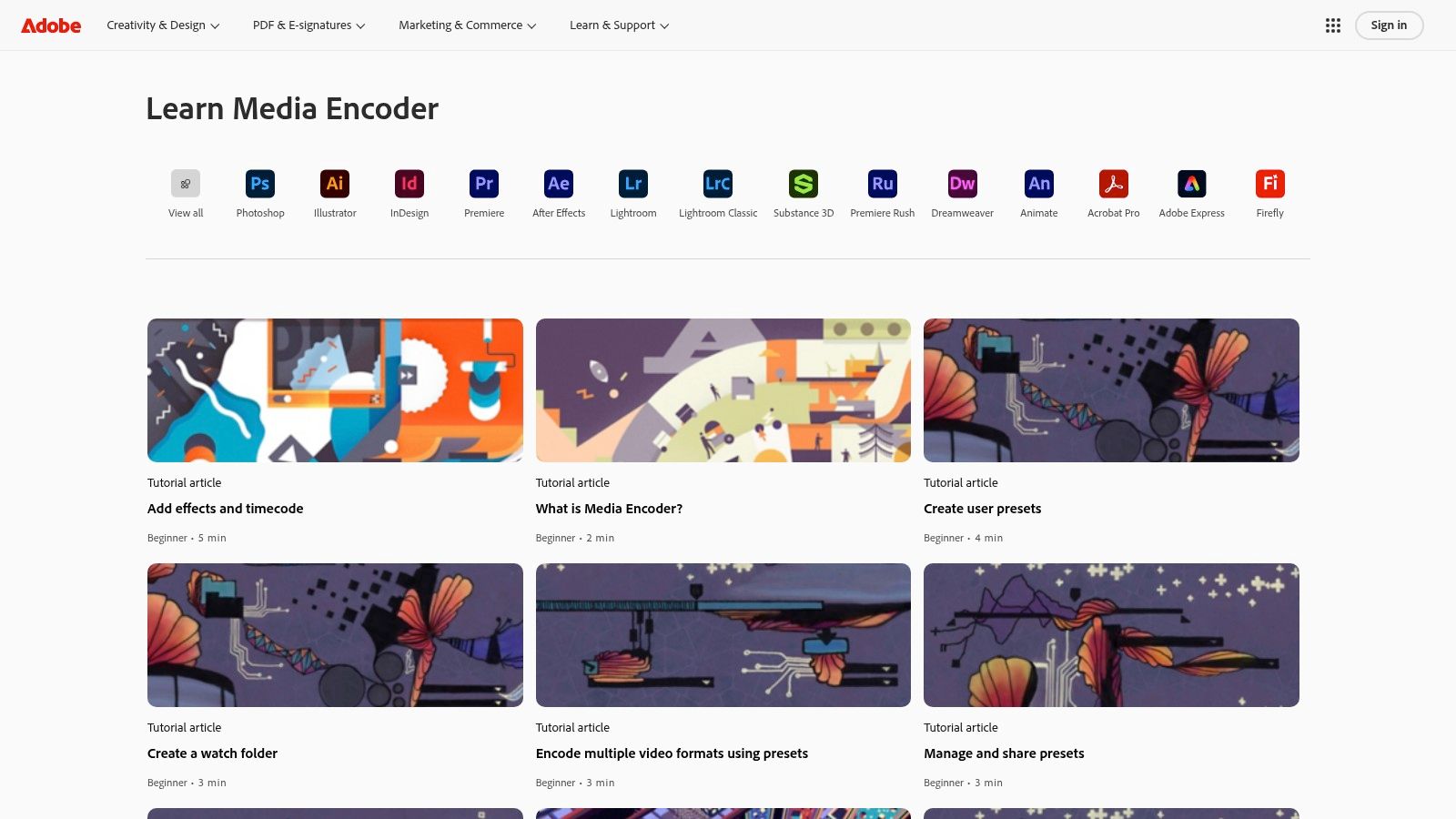
While its interface is straightforward for those familiar with Adobe products, its real power is unlocked when used as part of a larger post-production pipeline. For example, you can set up a watch folder to automatically compress any video dropped into it with specific settings. The ability to queue multiple exports from different projects into one batch process is a massive time-saver for anyone producing content regularly. More information on its features can be found on the official Adobe website.
Key Features & Assessment
- Cost & Platform: Bundled with Creative Cloud subscriptions (e.g., Premiere Pro plan starting at $22.99/month). Available on Windows and macOS.
- Core Strength: Unmatched integration with the Adobe ecosystem for a frictionless export and batch-processing experience.
- Primary Use Case: Perfect for video editors and motion graphics artists who need to manage multiple exports, automate their rendering workflow, and prepare files for various delivery platforms simultaneously.
- Pros: Seamless workflow with other Adobe apps, powerful watch folder automation, and extensive format support with frequent updates.
- Cons: Not available as a standalone purchase, requiring a Creative Cloud subscription, which can be costly for casual users.
6. Wondershare UniConverter
Wondershare UniConverter positions itself as an all-in-one desktop toolkit, making it excellent compression software for videos aimed at consumers and prosumers who value convenience. It wraps powerful conversion and compression features in a clean, user-friendly interface, removing the technical complexity found in more advanced tools. The software supports a vast array of formats, including 4K and 8K resolutions, and simplifies the process with presets optimized for specific devices and social media platforms.
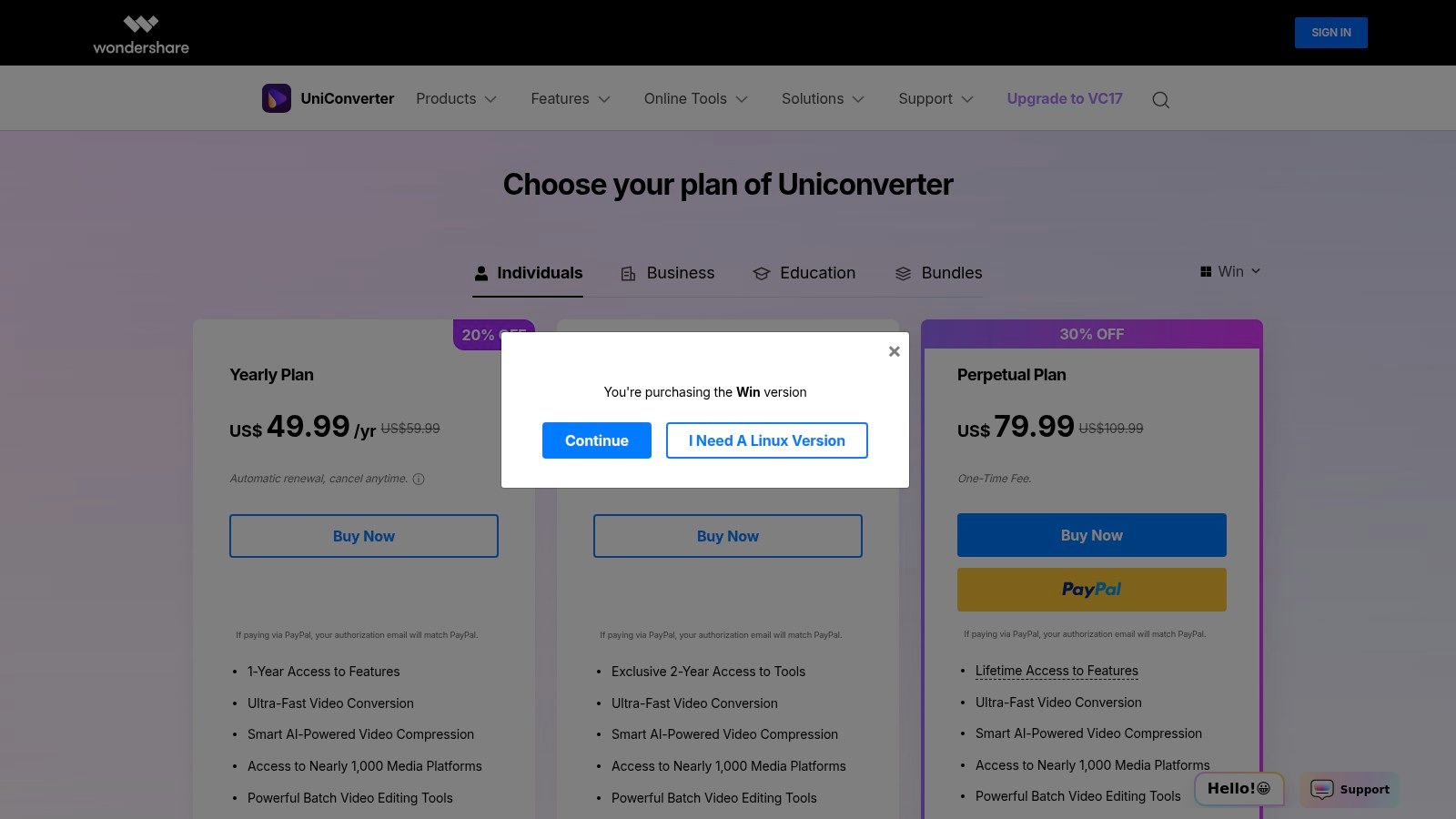
Its primary appeal is the combination of core compression functionality with a suite of extra tools, like a basic video editor, a screen recorder, and a video downloader. This makes it a versatile solution for users who need to perform multiple video-related tasks without switching between different applications. While it offers a free trial, the full feature set requires a subscription or a perpetual license.
Key Features & Assessment
- Cost & Platform: Paid software with subscription and perpetual license options (e.g., ~$49.99/year). Available on Windows and macOS.
- Core Strength: Provides a very intuitive graphical user interface (GUI) and batch processing capabilities, making it easy for non-technical users to compress multiple files quickly.
- Primary Use Case: Best for content creators, marketers, and casual users needing a simple, fast way to compress videos for social media, email, or web upload without a steep learning curve.
- Pros: Extremely easy to use, supports a wide range of formats, and includes useful bonus tools like an editor and downloader.
- Cons: The most advanced AI features are paywalled behind a credit system, and the various pricing tiers and upsells can be confusing for new users.
7. VideoProc Converter AI
VideoProc Converter AI positions itself as a powerful, user-friendly tool that combines robust video compression software with modern AI enhancements. It leverages full GPU hardware acceleration, making it one of the fastest options for converting and compressing large 4K files without sacrificing significant quality. Its strength lies in its simplicity, offering a straightforward workflow with numerous presets that cater to specific devices, social media platforms, and general web use.
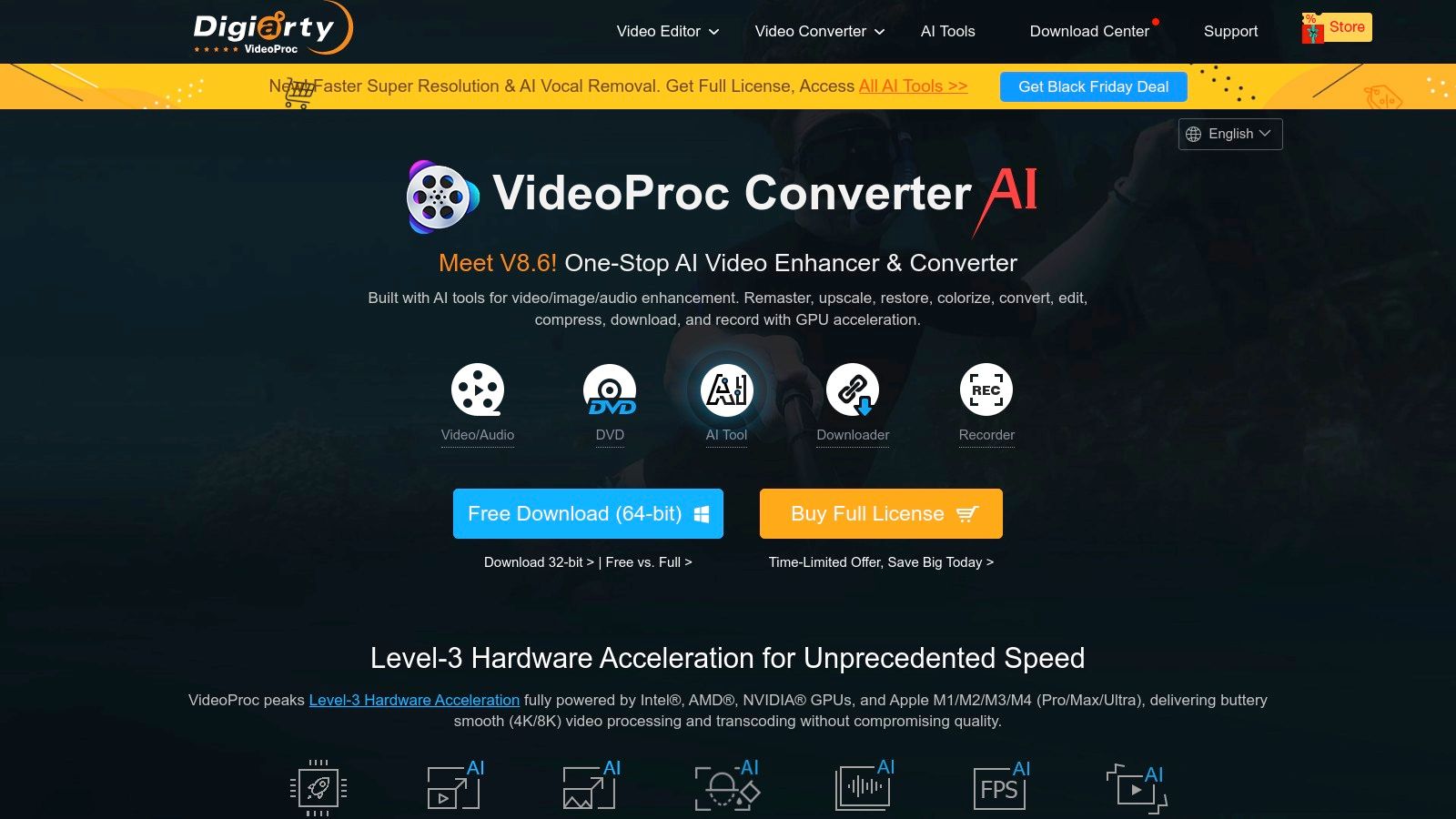
Unlike purely technical transcoders, VideoProc bundles AI-powered features like upscaling, stabilization, and noise reduction, making it an all-in-one suite for improving video quality while reducing file size. While the full feature set requires a paid license, the performance gains and added AI tools provide significant value for content creators and videographers who need speed and convenience. For those looking for a fast, feature-rich compressor, VideoProc Converter AI is a compelling choice.
Key Features & Assessment
- Cost & Platform: Paid software with a free trial. Available on Windows and macOS.
- Core Strength: Exceptional speed through Level-3 hardware acceleration and a simple, preset-driven workflow complemented by AI enhancement tools.
- Primary Use Case: Perfect for users needing to quickly batch-compress large 4K/HD videos for social media, web upload, or device playback, especially on mainstream PCs.
- Pros: Very fast performance with GPU acceleration, easy-to-use interface, and often available with discounted lifetime deals.
- Cons: The multiple editions and promotional offers can be confusing, and access to specific AI features may depend on the purchased version.
8. Shutter Encoder
Shutter Encoder is a powerful, donation-supported encoding tool built on the FFmpeg engine, earning a stellar reputation among video professionals. It excels by packaging an immense range of professional-grade features into a surprisingly accessible graphical interface. This tool is more than just a simple video compressor; it’s a complete post-production utility that handles everything from basic H.264 exports to complex broadcast-compliant codecs like ProRes and DNxHD, making it exceptional compression software for videos intended for professional pipelines.
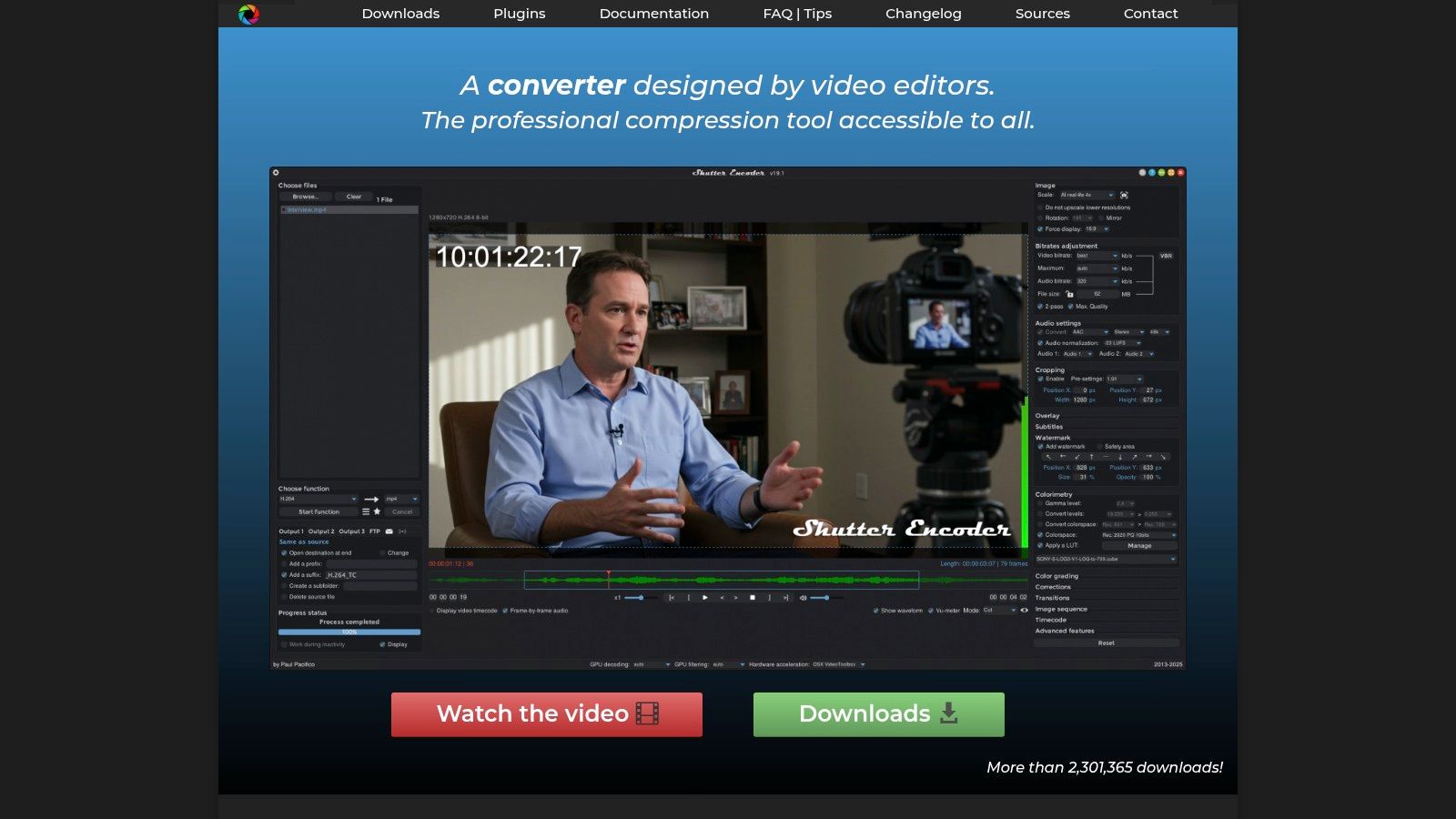
While the sheer number of functions can appear dense to newcomers, its logical layout and practical presets help ease the learning curve. Features like lossless trimming, burn-in subtitles, robust batch processing, and even integrated quality analysis tools (like VMAF) set it apart from typical converters. It’s a workhorse for editors who need reliable, high-quality outputs without the high cost of premium software. You can download it directly from the Shutter Encoder website.
Key Features & Assessment
- Cost & Platform: Free (donationware). Available on Windows, macOS, and Linux.
- Core Strength: Unmatched support for professional codecs and practical post-production utilities in a free, cross-platform package.
- Primary Use Case: Video editors and post-production professionals who need to convert, prepare, and deliver media in broadcast-standard or web-optimized formats.
- Pros: Supports a massive range of pro formats, completely free with no watermarks, and includes useful tools like lossless cutting and captioning.
- Cons: The power-user interface can be overwhelming for beginners, and it is a desktop-only application with no web or mobile versions.
9. VEED.io – Online Video Compressor
For those seeking a quick, browser-based solution, VEED.io offers a powerful online video compressor that is part of a larger suite of editing tools. It eliminates the need for any software installation, making it perfect for one-off compressions or users working on restricted systems. The tool provides a simple slider for adjusting quality but also includes advanced options to control resolution, bitrate, and even Constant Rate Factor (CRF) for more precise results.
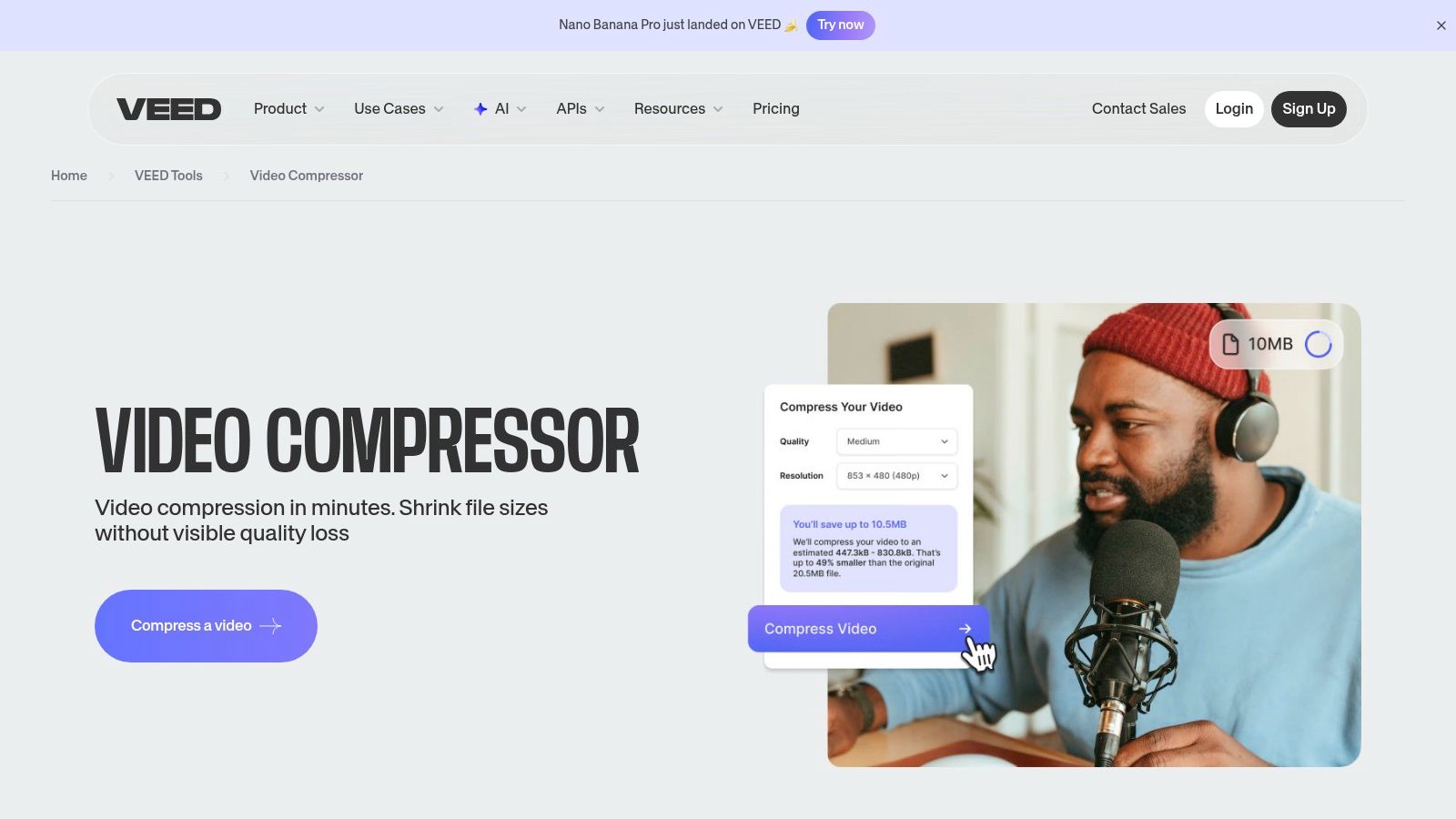
VEED.io’s main advantage is its accessibility and ease of use, providing a near-instant way to reduce file sizes for social media, email, or web embedding. The interface gives a helpful estimate of the final compressed size, allowing you to balance quality and file weight before committing. While the free plan is useful for small tasks, it comes with limitations on file size and adds a watermark, making a subscription necessary for professional or heavy use.
Key Features & Assessment
- Cost & Platform: Free plan with limitations. Paid tiers start at $12/month (billed annually). Fully browser-based, works on any OS.
- Core Strength: Exceptional convenience for quick, installation-free video compression with both simple and advanced controls available directly in the browser.
- Primary Use Case: Best for social media managers, marketers, and casual users needing to quickly compress a video from any device without downloading software.
- Pros: No installation required, accessible from any modern browser, and provides an estimated output size.
- Cons: The free version adds a watermark and has file size limits; removing these requires a recurring subscription.
10. Clideo – Online Video Compressor
Clideo is a user-friendly, web-based tool designed for individuals who need quick and straightforward video compression without installing any software. Its standout feature is the simplified compression workflow, offering three distinct levels: Basic, Strong, and Superb. This approach removes technical jargon and allows anyone to reduce their video file size with just a few clicks. The platform also integrates directly with Google Drive, Google Photos, and Dropbox, making it easy to import and export files from cloud storage.
While the web tool is optimized for simplicity, Clideo also offers an iOS app that provides more control, including options to adjust the codec and resolution for tailored results on the go. The platform is excellent for quickly preparing a video for an email attachment or a social media post, but professional users might find its lack of advanced settings limiting. The free version is functional but adds a watermark to all exported videos.
Key Features & Assessment
- Cost & Platform: Free (with watermark). Clideo Pro subscription starts at $9/month to remove watermarks and unlock higher processing speeds. Web-based and iOS.
- Core Strength: Exceptional ease of use with its three-tier compression system and seamless cloud integrations.
- Primary Use Case: Best for casual users, marketers, and social media managers who need a fast, hassle-free way to compress videos for online sharing or email.
- Pros: Very simple and quick workflow, no installation required, and convenient cloud storage access.
- Cons: Free exports are watermarked, and it lacks the granular control found in more advanced compression software for videos.
11. CloudConvert
CloudConvert is a long-standing and highly versatile cloud-based tool that excels at both file conversion and compression. It functions as a digital multi-tool, handling over 200 formats and providing granular control over output settings like resolution, codec, and bitrate, making it powerful compression software for videos. Its strength lies in its reliable, server-side processing, which offloads the work from your local machine and ensures consistent results regardless of your hardware.

The platform is particularly appealing to businesses and developers due to its robust API, which allows for automated compression workflows. For individuals, its flexible pricing model, offering both subscriptions and pay-as-you-go credits, makes it an accessible option for occasional and heavy users alike. As one of the best video compressors to reduce file size quickly, its web interface is straightforward, guiding users through the process of tuning their compression settings for optimal output.
Key Features & Assessment
- Cost & Platform: Free for limited daily use; offers pay-as-you-go credits and monthly subscriptions. Fully web-based.
- Core Strength: Provides reliable, cloud-based processing with a powerful API for automation and supports modern codecs like AV1 and HEVC.
- Primary Use Case: Ideal for developers integrating file compression into their applications, or for users who need to process large files without taxing their own computers.
- Pros: ISO 27001 certified, business-friendly API, and flexible pricing for different usage levels.
- Cons: Processing speed is dependent on server load and internet connection, and heavy usage can become costly.
12. Microsoft Clipchamp
As Microsoft's integrated video editor for Windows 11 and a web-based tool, Clipchamp offers a surprisingly convenient solution for basic video compression and editing. It is designed for simplicity, allowing users to quickly edit clips and export them to smaller, web-friendly MP4 files. Its strength lies in its seamless workflow, especially for users already within the Microsoft ecosystem, bridging the gap between a simple trimmer and more complex editing software.

The platform focuses on resolution-based export settings (480p, 720p, 1080p, 4K) rather than intricate bitrate or codec controls, making it an accessible choice for social media content creators and casual users. Integrations with OneDrive, YouTube, TikTok, and Dropbox streamline the sharing process, making it a practical tool for those who prioritize speed and convenience over granular control. Many features are available for free, with premium options included in some Microsoft 365 plans.
Key Features & Assessment
- Cost & Platform: Free tier with watermarks and limited features. Premium is available via subscription or included with some Microsoft 365 consumer plans. Works on Windows and web browsers.
- Core Strength: Exceptional ease of use and deep integration with Windows and Microsoft services for quick editing and social sharing.
- Primary Use Case: Ideal for Windows users needing to perform quick edits and compress videos for sharing on social media or cloud platforms without a steep learning curve.
- Pros: Included for many Windows 11 users, simple workflow for fast size reduction, and direct integrations with popular cloud and social services.
- Cons: Limited export control (fixed 30 fps, no bitrate settings), and users have reported variability in performance and export behavior.
Top 12 Video Compression Tools Comparison
| Product | Core features | Ease & Quality (★) | Price / Value (💰) | Target (👥) | Unique selling point (✨) |
|---|---|---|---|---|---|
| Compresto 🏆 | macOS local compression (video, images, GIF, PDF); batch, Folder Monitoring, presets, Raycast | ★★★★☆ — fast, preserves visual quality | 💰 Paid (check site) — strong ROI via space savings | 👥 Creators, editors, designers, marketing teams (macOS) | ✨ Local processing, up to ~90% reduction, workflow automations & reporting |
| HandBrake | Open-source video transcoder; presets, CRF/bitrate, batch queue | ★★★★☆ — high quality, learning curve | 💰 Free (open-source) | 👥 Power users, cross-platform editors | ✨ CRF control & proven presets |
| FFmpeg | CLI media framework; broad codec & hardware accel support | ★★★★★ — industry-grade, expert CLI | 💰 Free (open-source) | 👥 Engineers, studios, automation pipelines | ✨ Ultimate control & codec parity |
| Apple Compressor | macOS encoder with ProRes/HEVC, watch folders, distributed encoding | ★★★★☆ — pro-grade, tight FCP integration | 💰 Paid one-time (App Store) | 👥 Final Cut Pro users, post-production | ✨ Deep Final Cut/Motion integration; distributed jobs |
| Adobe Media Encoder | Queue-based encoder; watch folders, Premiere/AE integration, GPU accel | ★★★★☆ — studio standard for Adobe workflows | 💰 Subscription (Adobe CC) | 👥 Premiere/After Effects users, agencies | ✨ Seamless Adobe ecosystem exports & automation |
| Wondershare UniConverter | GUI converter/compressor; editor, downloader, AI tools | ★★★☆☆ — easy for non‑technical users | 💰 Paid with upsells/credits | 👥 Casual creators, consumers | ✨ Built-in editor/downloader & AI extras |
| VideoProc Converter AI | Converter + AI upscaling/denoise/stabilize; GPU accel | ★★★★☆ — fast, preset-driven | 💰 Paid (editions/promos) | 👥 Consumers needing speed & AI features | ✨ AI enhancement + hardware acceleration |
| Shutter Encoder | FFmpeg-based GUI; pro codecs, VMAF, captioning, queue | ★★★★☆ — pro features, denser UI | 💰 Donationware (free) | 👥 Broadcast editors, pro users | ✨ Pro presets, analysis tools, no watermarks |
| VEED.io – Online Video Compressor | Browser compressor with sliders, CRF/bitrate options; integrates with editor | ★★★☆☆ — convenient, limited for pro | 💰 Free tier (limits) / Paid plans | 👥 Casual users, quick one-off compressions | ✨ No-install web tool; cross‑device access |
| Clideo – Online Video Compressor | Web tool with Basic/Strong/Superb modes; cloud integrations & mobile app | ★★☆☆☆ — very simple, watermarks on free | 💰 Free w/ watermark / Pro subscription | 👥 Casual sharers, mobile users | ✨ Fast mobile/web workflow + cloud links |
| CloudConvert | Cloud conversion/compression; 200+ formats, API, GPU encoding | ★★★★☆ — reliable, granular controls | 💰 Pay-as-you-go credits & subscriptions | 👥 Businesses, developers, automation users | ✨ API + ISO27001, flexible pricing |
| Microsoft Clipchamp | Editor with export presets, OneDrive/TikTok integration, AI tools | ★★★☆☆ — simple exports, limited pro controls | 💰 Included with some plans / Paid tiers | 👥 Windows users, casual creators | ✨ Windows 11 integration & cloud publishing |
Choosing the Right Tool to Streamline Your Workflow
Navigating the landscape of compression software for videos can seem daunting, but as we've explored, the right tool is simply the one that best fits your unique workflow, technical expertise, and project demands. The journey from a raw, high-resolution video file to a perfectly optimized final product shouldn't be a bottleneck. Instead, it should be an efficient, almost invisible, part of your creative or development process.
Our deep dive into twelve distinct solutions reveals a clear spectrum of options. From command-line titans like FFmpeg that offer unparalleled control for developers, to user-friendly online tools like VEED.io and Clideo that provide quick fixes for social media managers, there is a solution tailored for every need. The key takeaway is that no single application is universally "the best"; its value is defined by your specific context.
Making Your Final Decision
To select the ideal software, move beyond feature lists and consider these critical factors:
- Workflow Integration: How seamlessly does the tool fit into your existing process? For professionals heavily invested in Adobe Creative Cloud or Apple's Final Cut Pro, the native integration of Media Encoder and Compressor is a massive advantage, saving time and reducing friction.
- Technical Proficiency: Be honest about your comfort level. While HandBrake and Shutter Encoder offer incredible depth for free, their extensive settings can be overwhelming. In contrast, tools like Compresto and VideoProc Converter AI prioritize a streamlined, intuitive experience that delivers excellent results with minimal configuration.
- Batch Processing Needs: If you regularly process dozens or hundreds of files, batch processing is a non-negotiable feature. Tools like Compresto, HandBrake, and Adobe Media Encoder excel here, automating repetitive tasks and freeing up your valuable time.
- Privacy and Security: For sensitive corporate or client projects, uploading files to an online service may not be an option. Desktop applications such as Compresto, FFmpeg, and Apple Compressor ensure your data remains local and secure.
Ultimately, choosing the right compression software for videos is an investment in efficiency. By automating this crucial step, you reclaim hours that can be better spent on creative ideation, editing, or strategic planning. The goal is to make compression a thoughtless final step, not a time-consuming hurdle. As you refine your entire production pipeline, it's also beneficial to look at emerging technologies. For instance, exploring a comprehensive AI Video Editing Guide can reveal how automation is revolutionizing everything from initial cuts to final delivery, further optimizing your creative output.
By carefully considering your primary use case, whether it's preparing web assets, archiving projects, or sharing dailies, you can confidently select a tool from this list that will not only reduce file sizes but also significantly enhance your productivity.
Ready to reclaim your time and streamline your creative workflow on macOS? Discover how Compresto combines powerful, high-quality compression with a beautifully simple drag-and-drop interface. Try Compresto today and make video compression the easiest part of your process.