7 Best File Management Software for Mac (2026)
While macOS Finder offers a solid foundation for file navigation, professionals like video editors, designers, and developers often hit its limitations. Juggling massive project files, managing complex folder structures, and ensuring assets are properly organized requires a more powerful solution. This is where dedicated file management software for Mac becomes essential, transforming a cluttered workflow into a streamlined, efficient process. If you find yourself spending more time searching for files than working on them, a specialized tool can reclaim countless hours.
This guide provides a comprehensive overview of the best file management software for Mac, helping you move beyond Finder's basic capabilities. We will explore top-tier applications, detailing their unique features, pricing models, and ideal use cases. For each option, you’ll find direct links and screenshots to see the software in action, making your decision-making process straightforward. Whether you're a new user just getting acquainted with the ecosystem or a seasoned pro, finding the right tools is key. For those new to the platform, even fundamentals like managing your Apple ID effectively are crucial for a secure and organized digital workspace. Our goal is to equip you with the information needed to select a file manager that directly addresses your workflow bottlenecks and enhances your productivity.
1. Mac App Store (Apple)
The Mac App Store is Apple's official, highly curated marketplace and often the first stop for Mac users seeking reliable software. While not a file manager itself, it's a secure and streamlined platform for discovering, purchasing, and managing some of the best file management software for Mac. Its deep integration with macOS ensures that every download is vetted for security, providing peace of mind.

The primary advantage is its simplicity and trust. Installation is a one-click affair, and updates are handled automatically in a centralized location, eliminating the need to visit multiple developer websites. For content creators managing multiple machines, apps purchased through the App Store can often be installed on all their devices under a single Apple ID.
Key Features & User Experience
The user interface is clean and intuitive, with editorial collections, user reviews, and detailed app descriptions helping you make an informed choice. You'll find popular dual-pane commanders like Commander One and other niche utilities designed to enhance your workflow. The entire experience, from browsing to billing, is seamless and integrated with your Apple ecosystem. Applying proven file management best practices becomes much simpler when you can trust the tools you download.
Pros and Cons
| Pros | Cons |
|---|---|
| ✅ High trust and safety for all downloads. | ❌ Sandboxing rules can limit app features. |
| ✅ Convenient one-click install and updates. | ❌ Niche or developer-focused tools may be absent. |
| ✅ Easy refunds and Family Sharing options. | ❌ Updates may lag behind direct-download versions. |
Practical Tip
Use the search function with specific keywords like "dual pane," "batch rename," or "metadata editor" to uncover powerful utilities that go beyond basic Finder replacements. Reading recent user reviews is also crucial, as they often highlight how an app performs with the latest version of macOS.
Website: https://apps.apple.com
2. Setapp (MacPaw)
Setapp is a revolutionary subscription service often described as the "Netflix for Mac apps." Instead of buying individual licenses, a single monthly fee grants you access to a curated catalog of over 240 premium applications. This makes it an incredibly powerful platform for discovering some of the best file management software for Mac, including popular choices like Path Finder, Commander One, and ForkLift, all under one unified subscription.

The primary advantage of Setapp is its exceptional value for power users. If you need more than just a file manager, such as a duplicate finder, a menu bar organizer, or a backup utility, the combined cost of individual apps would quickly exceed the Setapp fee. It provides a risk-free environment to experiment with different tools to find the perfect fit for your workflow without any upfront investment.
Key Features & User Experience
The Setapp desktop client provides a clean, App Store-like interface for browsing, installing, and updating applications with a single click. Apps are organized into logical categories, and a powerful search function helps you find solutions for specific tasks. This centralized management simplifies the software lifecycle, ensuring all your tools are always up to date. Pairing these tools with a solid strategy is key; you can explore the benefits of dedicated file organization software to build a more efficient system.
Pros and Cons
| Pros | Cons |
|---|---|
| ✅ Cost-effective access to a huge app library. | ❌ Ongoing subscription cost can add up over time. |
| ✅ One-click installation and automatic updates. | ❌ Your access is tied to the subscription's status. |
| ✅ Discover high-quality, curated utilities. | ❌ Specific apps may be removed from the catalog. |
Practical Tip
Use Setapp's "Collections" feature to find curated bundles of apps designed for specific tasks like "File Management" or "Developer Tools." This is a great way to discover complementary utilities you might not have known you needed, such as archivers or disk space analyzers, that can work alongside your primary file manager.
Website: https://setapp.com
3. Cocoatech (Path Finder official store)
Cocoatech is the official developer website and direct store for Path Finder, a legendary and powerful Finder replacement for macOS. For users seeking the absolute pinnacle of control and customization in their file management, this website is the destination. Purchasing directly from Cocoatech ensures you get the most feature-rich version of the software, immediate access to updates, and direct support from the development team.
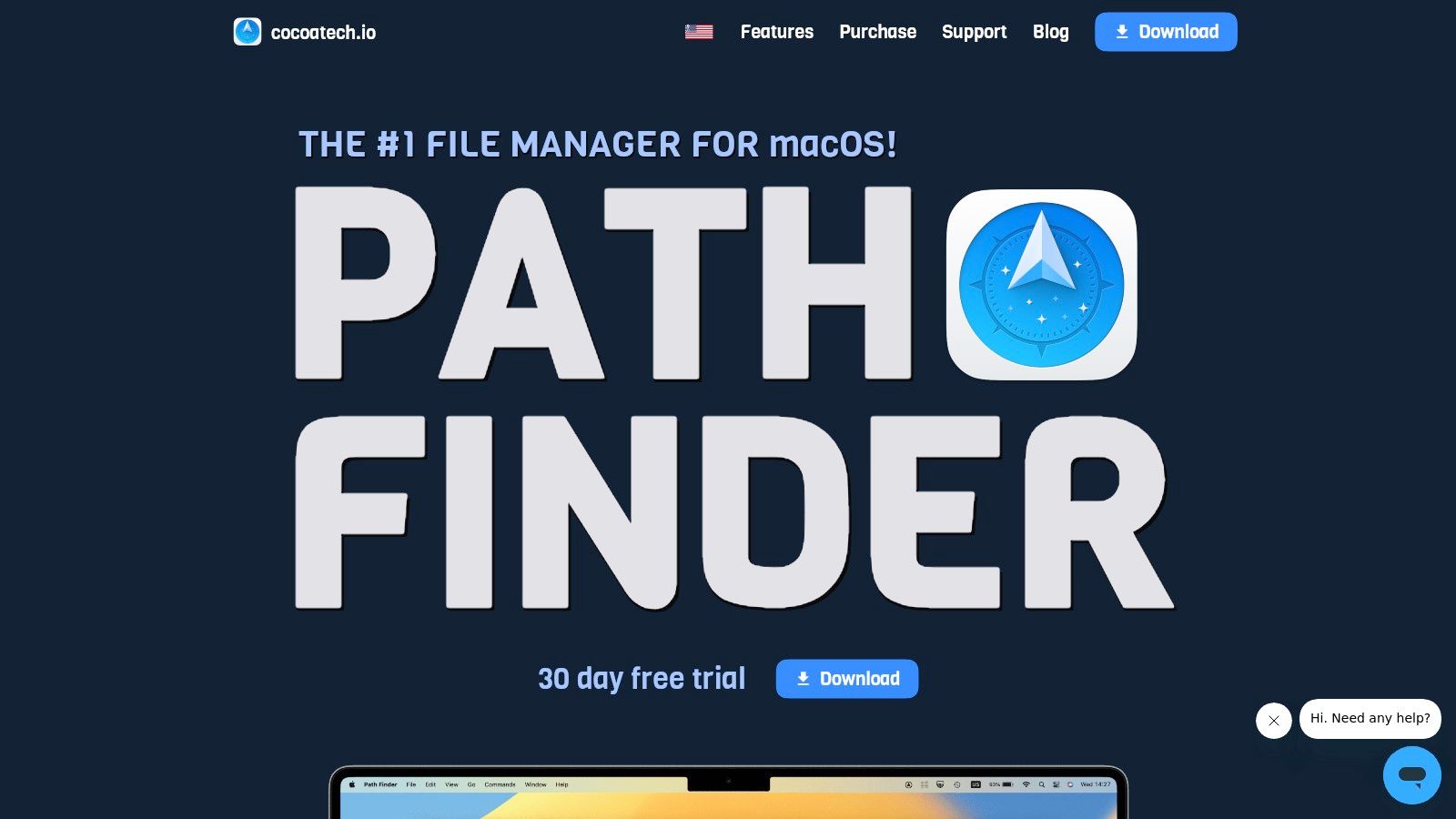
This platform is geared toward power users who find the standard macOS Finder too restrictive. Path Finder itself is renowned for its dual-pane navigation, a highly modular user interface, and a deep feature set that includes folder syncing, a drop stack for temporary file holding, and advanced filtering. The website offers clear, transparent licensing options, including single-user licenses and volume discounting for businesses, all managed directly.
Key Features & User Experience
The user experience on the Cocoatech site is straightforward, focusing on communicating the value of its flagship product. You can download a fully-functional 30-day trial directly before committing. Path Finder excels at complex workflows, such as comparing folder contents side-by-side, securely deleting files, or mounting network drives. Its modularity allows you to build a file manager that perfectly matches your needs, showing only the panels and tools you use most. It also integrates well with tools that compress files on Mac, making it a central hub for managing large projects.
Pros and Cons
| Pros | Cons |
|---|---|
| ✅ Unmatched power-user depth for complex workflows. | ❌ Steeper learning curve compared to Finder. |
| ✅ Transparent, direct-purchase license and update terms. | ❌ Requires managing licenses outside the App Store. |
| ✅ Fully modular interface for ultimate customization. | ❌ Single-app focus; not a marketplace. |
Practical Tip
Take full advantage of the 30-day free trial. Use this period to explore the modular interface by right-clicking the toolbar and adding or removing panels. Try setting up a custom workspace with dual panes, a preview window, and an info panel to see how it can accelerate your specific daily tasks before you purchase.
Website: https://cocoatech.io
4. BinaryNights (ForkLift official site)
BinaryNights is the official developer website for ForkLift, a highly regarded dual-pane file manager and file transfer client for macOS. This site is the primary source for purchasing and downloading one of the best file management software for Mac, especially for users who need robust remote connection capabilities. It caters to web developers, IT professionals, and power users who frequently move files between their Mac and various servers or cloud storage services.
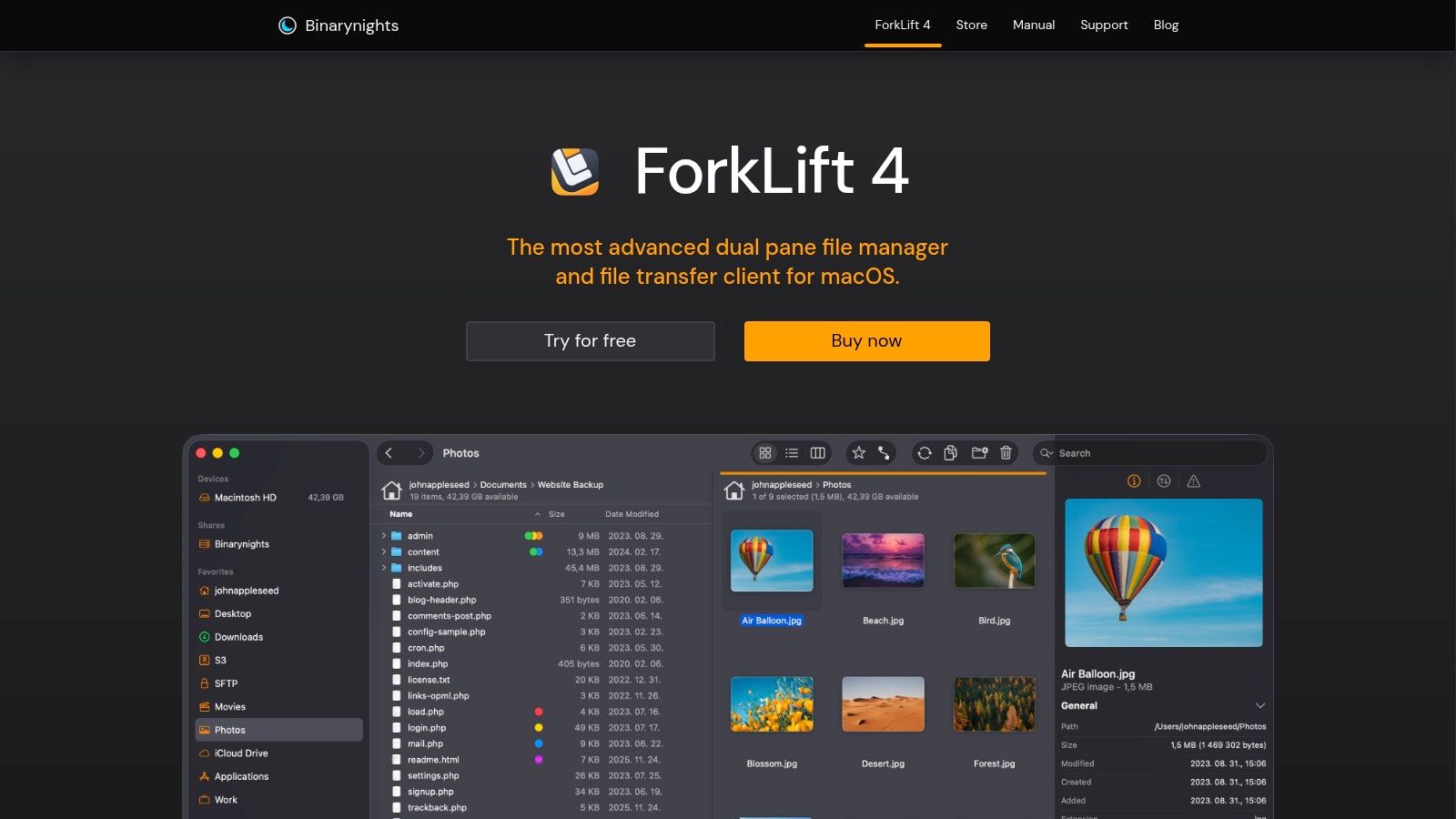
The website provides a direct-to-developer connection, offering a clear licensing model and immediate access to the latest versions, often before they appear on other platforms. ForkLift itself is known for being lightweight, fast, and fully optimized for Apple Silicon, providing a snappy and efficient user experience. It combines traditional file management with powerful remote connection tools, making it a versatile powerhouse for complex workflows.
Key Features & User Experience
The BinaryNights website offers a clean, straightforward purchasing experience with detailed feature lists, screenshots, and a direct download for a free trial. ForkLift excels with its dual-pane navigation, which allows for effortless drag-and-drop operations between local and remote directories. It integrates seamlessly with FTP, SFTP, WebDAV, and Amazon S3, among other protocols. Features like folder synchronization, batch renaming, and remote editing make it an indispensable tool for managing web servers or cloud archives directly from your desktop.
Pros and Cons
| Pros | Cons |
|---|---|
| ✅ Direct access to the latest, Apple Silicon-native version. | ❌ Major updates require a new license purchase after the included period. |
| ✅ Advanced dual-pane and remote connection tools in one app. | ❌ Some advanced FTP features may be less extensive than dedicated clients. |
| ✅ Clear, transparent licensing for individuals and businesses. | ❌ Not available through a subscription model like some alternatives. |
Practical Tip
Before committing to a purchase, download the fully-functional free trial directly from the BinaryNights website. Use this trial period to test its remote connection capabilities with your most-used servers (like SFTP or an S3 bucket). Set up a "Favorite" connection and experiment with the "Sync" feature to see how it can automate your backup or deployment workflows.
Website: https://binarynights.com
5. Electronic Team (Commander One official site)
Electronic Team is the developer behind Commander One, a powerful dual-pane file manager built natively in Swift for optimal macOS performance. Their official website serves as the central hub for the application, offering direct downloads that often bypass the sandboxing limitations found in the Mac App Store version, unlocking the software's full potential. It's the go-to source for users seeking one of the best file management software for Mac options that consolidates local, cloud, and network file access into a single, unified interface.
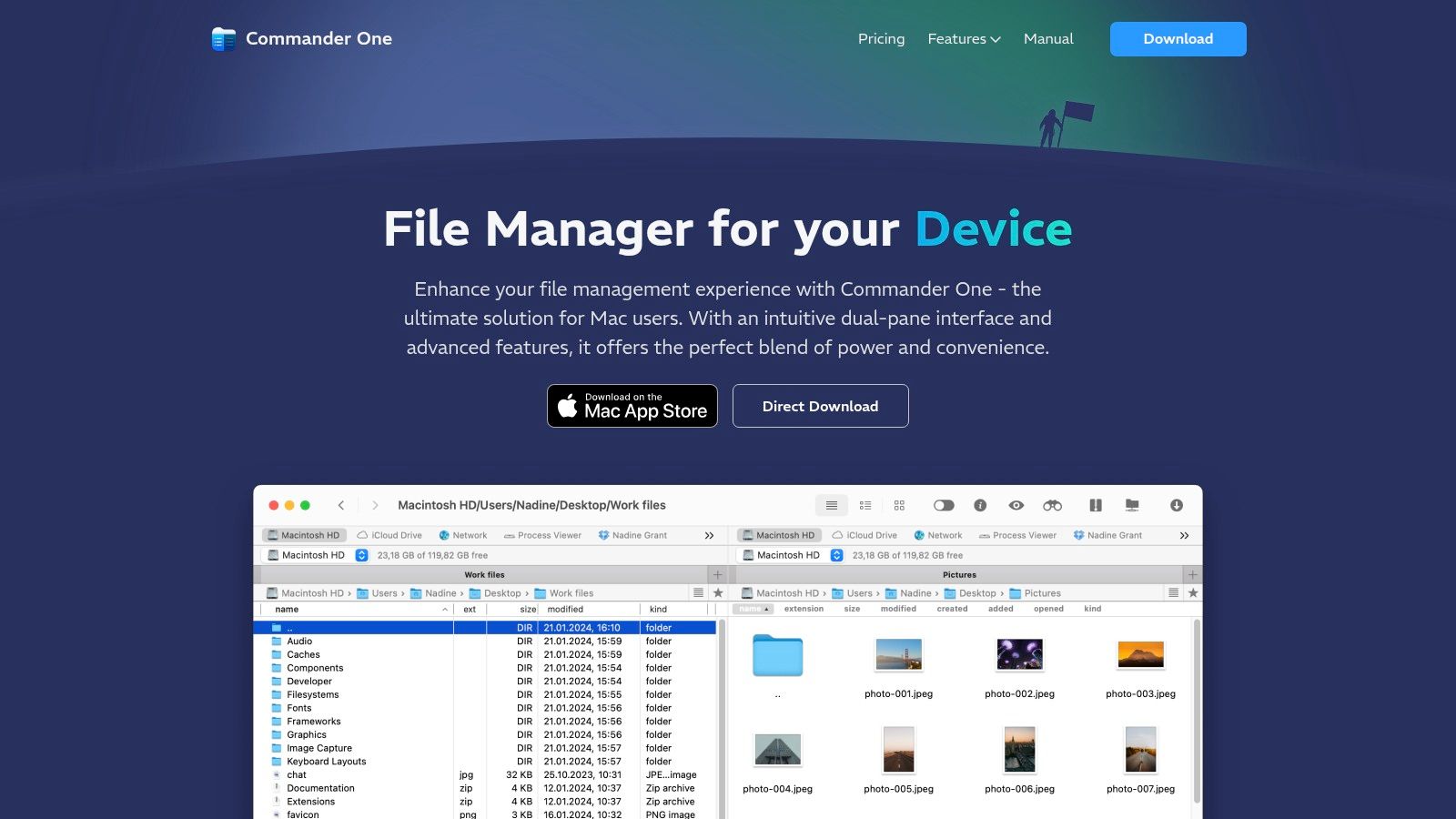
The primary advantage of visiting the official site is gaining access to the most feature-rich version of Commander One. This direct-download version provides deeper system integration, making it a favorite for power users, developers, and content creators who need to manage files across diverse storage locations. The site clearly outlines the differences between the free and Pro versions, allowing users to make an informed decision based on their needs.
Key Features & User Experience
The website provides extensive documentation, a detailed feature breakdown, and a direct line to support. The user experience is focused on showcasing Commander One's capabilities, from its classic dual-pane layout with unlimited tabs to its advanced search functions that use regular expressions. The Pro pack, available for purchase on the site, unlocks crucial integrations like mounting cloud storage (Dropbox, Google Drive, S3), connecting to remote servers (FTP/SFTP), and accessing MTP and iOS devices directly.
Pros and Cons
| Pros | Cons |
|---|---|
| ✅ Direct download avoids App Store sandboxing limits. | ❌ Core features like cloud mounting are in the paid Pro pack. |
| ✅ A versatile hub for local, network, and cloud files. | ❌ The dense interface can be intimidating for casual users. |
| ✅ Frequently updated with Apple silicon support. | ❌ Lacks the one-click update convenience of the App Store. |
Practical Tip
Before purchasing the Pro pack, download the free version directly from the website to test its core functionality and ensure the dual-pane workflow fits your style. The site often has the latest beta or release-candidate versions available, giving you early access to new features and improvements before they hit the Mac App Store.
Website: https://commander-one.com
6. Nimble Commander (magnumbytes)
Nimble Commander is a performance-focused, keyboard-centric dual-pane file manager designed for power users who demand speed and efficiency. Now available as free and open-source software, it provides a robust alternative to Finder, emphasizing direct keyboard control over mouse-driven actions. Its classic dual-pane layout is perfect for quickly moving, copying, and comparing files across different directories.
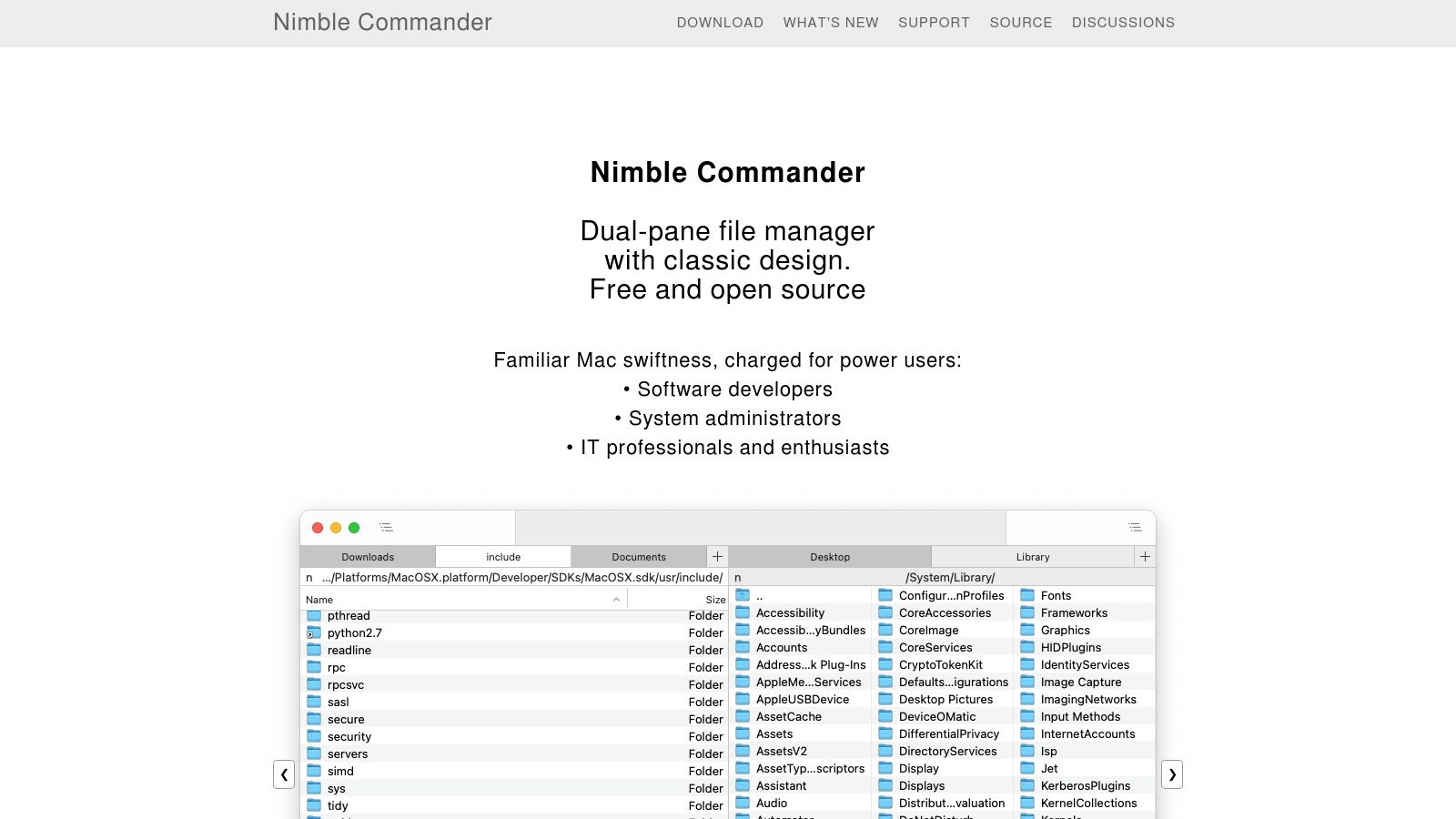
What sets Nimble Commander apart is its commitment to a native, responsive experience built on a C++ core. This makes it incredibly fast, even when browsing directories with thousands of files or handling complex remote connections. It appeals directly to developers, system administrators, and technical users who value functionality and speed over a highly stylized interface, making it one of the best file management software for Mac for those specific workflows.
Key Features & User Experience
The user experience is unapologetically utilitarian and customizable. Users can connect to SFTP, FTP, or WebDAV servers directly within the app, browse archive contents as if they were regular folders, and leverage an integrated terminal for command-line operations. Features like a hex viewer, extensive batch renaming with regex support, and administrator mode provide deep system control without leaving the application. Its open-source nature also allows for community-driven improvements and transparency.
Pros and Cons
| Pros | Cons |
|---|---|
| ✅ Free and open-source, with no cost barrier. | ❌ Minimalist UI can be intimidating for new users. |
| ✅ Extremely fast and responsive performance. | ❌ Development pace depends on community contributions. |
| ✅ Rich power-user features like a built-in terminal. | ❌ Less visually polished than some commercial alternatives. |
Practical Tip
Take full advantage of the extensive keyboard shortcut customization. Go to Preferences > Hotkeys to map common operations to your preferred key combinations. This is the fastest way to master the app and significantly accelerate your file management tasks, turning multi-step mouse actions into single keystrokes.
Website: https://magnumbytes.com
7. MacUpdate
MacUpdate has been a cornerstone of the Mac software community for decades, acting as a comprehensive directory and catalog for countless applications. Unlike a direct store, it serves as a discovery platform, aggregating download links, version histories, pricing, and user reviews for a vast array of software. For anyone seeking the best file management software for Mac, MacUpdate is an invaluable research tool for comparing both well-known and niche options side-by-side.

Its main strength lies in its breadth and depth of information. You can track an app's development through detailed changelogs, read unfiltered user comments that often highlight bugs or compatibility issues, and quickly access direct developer websites or App Store listings. This makes it an excellent resource for power users who want to make a truly informed decision before downloading or purchasing a new tool.
Key Features & User Experience
The platform allows you to browse categories like "File & Disk Management" to see a wide selection of utilities, from powerful dual-pane commanders to simple, single-purpose apps. Each listing provides essential details at a glance: the latest version number, release date, system requirements, and developer information. The user-generated reviews and ratings offer real-world insights that go beyond polished marketing copy, helping you gauge an app's stability and everyday performance.
Pros and Cons
| Pros | Cons |
|---|---|
| ✅ Quick comparative discovery across many apps. | ❌ Some listings may be outdated; verify the last update. |
| ✅ Community feedback can surface critical bugs. | ❌ Purchases often redirect to third-party stores. |
| ✅ Detailed changelogs and version histories. | ❌ Need to manually check for Apple silicon compatibility. |
Practical Tip
When evaluating an app on MacUpdate, always check the "Last updated" date and the user comments section. This is the fastest way to determine if the software is actively maintained and compatible with modern macOS versions and Apple silicon hardware. Cross-reference your findings with the developer's official website for the most accurate information.
Website: https://www.macupdate.com
Top 7 Mac File Managers Comparison
| Option | Implementation / Complexity 🔄 | Resource Needs ⚡ | Expected Outcomes ⭐ | Ideal Use Cases 📊 | Key Advantages / Tips 💡 |
|---|---|---|---|---|---|
| Mac App Store (Apple) | 🔄 Low — one‑click installs, sandbox limits | ⚡ Low — Apple ID & internet | ⭐ High — secure, centralized updates | 📊 Casual users, secure installs | 💡 High trust & refunds; may miss niche features |
| Setapp (MacPaw) | 🔄 Moderate — subscription management | ⚡ Medium — recurring fee, Setapp app | ⭐ High — broad access to many tools | 📊 Teams or users needing multiple utilities | 💡 Cost‑effective when using several apps; catalog can change |
| Cocoatech (Path Finder store) | 🔄 High — power‑user features, steeper learning | ⚡ Medium — one‑time license, dev support | ⭐ Very High — deep local & remote workflows | 📊 Power users and businesses with complex workflows | 💡 Full feature set and direct updates; manage licenses manually |
| BinaryNights (ForkLift) | 🔄 Moderate — configure transfers & connections | ⚡ Medium — one‑time license with update window | ⭐ High — fast transfers and robust connections | 📊 Heavy file transfers, server/cloud syncs | 💡 Lightweight and native; major updates may require repurchase |
| Electronic Team (Commander One) | 🔄 Moderate — feature‑rich, optional Pro pack | ⚡ Medium — free/basic + paid Pro for extras | ⭐ High — versatile local/network/cloud manager | 📊 Users needing cloud mounts and diverse integrations | 💡 Good cloud support; pay for Pro to unlock advanced integrations |
| Nimble Commander (magnumbytes) | 🔄 High — keyboard‑centric, minimalist UI | ⚡ Low — free & open‑source | ⭐ High — performance and deep customization | 📊 Power users, developers, OSS advocates | 💡 Free and extensible; UI and support pace are community‑driven |
| MacUpdate | 🔄 Low — browse and compare listings | ⚡ Low — web access, research time | ⭐ Medium — broad discovery and version info | 📊 Researching and comparing multiple apps | 💡 Great for discovery; verify last update and purchase sources |
Final Thoughts
Navigating the digital landscape of macOS doesn't have to be a battle against disorganized files and inefficient workflows. While the native Finder serves its purpose for basic tasks, the true power of your Mac is unlocked when you pair it with specialized software. This guide has showcased some of the best file management software for mac, each offering a unique approach to organizing, accessing, and manipulating your data.
From the dual-pane efficiency of Commander One and ForkLift to the unparalleled customization of Path Finder, the right tool can transform how you interact with your files. We've seen how these applications cater to different user needs, whether you're a developer requiring SFTP access, a video editor managing massive project files, or a marketer juggling countless digital assets.
How to Choose the Right File Manager for You
Selecting the perfect software from this list depends entirely on your specific workflow and pain points. To make the best decision, consider the following factors:
- Your Primary Tasks: Are you constantly connecting to remote servers? Do you need advanced batch renaming capabilities? Is your main goal simply a more organized, two-panel view? Answering these questions will narrow your options significantly. For instance, a developer would likely prioritize ForkLift or Commander One for their robust remote connection features.
- Level of Customization: If you want to meticulously craft every aspect of your file management experience, from custom keyboard shortcuts to integrated terminal commands, Path Finder is the undisputed champion. If you prefer a more straightforward, out-of-the-box solution, ForkLift or Nimble Commander might be a better fit.
- Integration with Other Tools: Think about how a new file manager will fit into your existing ecosystem. Do you need it to work seamlessly with cloud storage like Dropbox and Google Drive? Do you rely on specific compression formats? Ensure your chosen app supports the services and file types you use daily.
Ultimately, the best tool is the one that removes friction from your daily routine. Don't be afraid to take advantage of free trials to get a hands-on feel for which interface and feature set truly accelerates your work.
Beyond the Software: Implementing a System
Remember, even the most powerful software is only as effective as the system you build around it. Adopting a clear and consistent organizational methodology is just as crucial as the tool itself. Beyond choosing the right software, implementing an effective organizational methodology can significantly improve your file management. Consider exploring systems like the P.A.R.A. Folder Structure to further optimize your digital workflow. A structured approach ensures that no matter which application you use, you can always find what you need, when you need it.
Ready to supercharge your file management workflow? While a dedicated manager organizes your files, Compresto ensures they are perfectly optimized for sharing and storage. Streamline your process by compressing images, videos, and PDFs with best-in-class efficiency right from your desktop. Try Compresto today and experience the perfect companion to your new file management setup.