Difference Between MP4 and MOV Explained for Creators
The real difference between MP4 and MOV comes down to a simple question: are you editing your video, or are you sharing it?
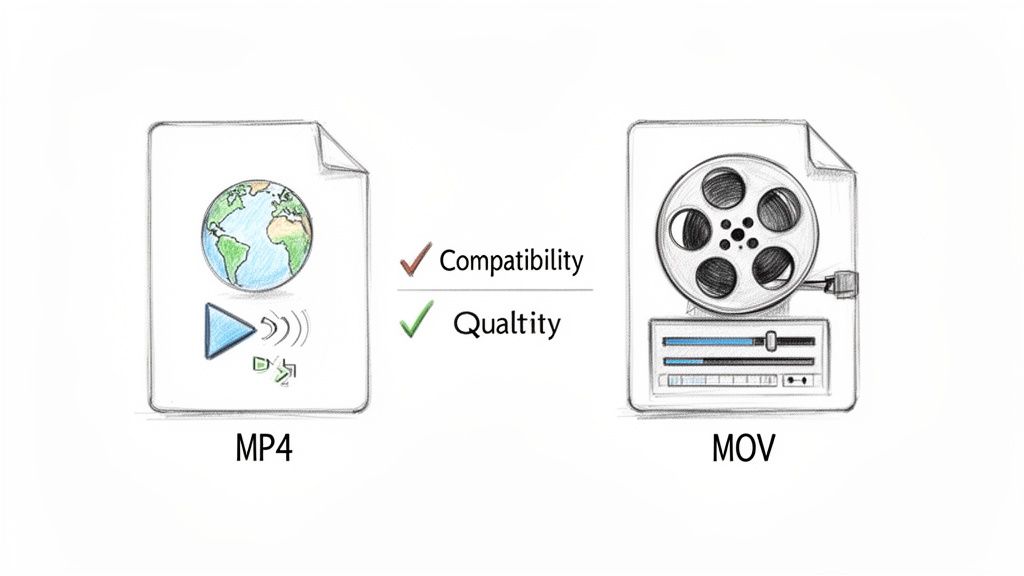
Think of MP4 as the universal standard for sharing and streaming. It's prized for its smart compression and works on just about any device you can imagine. On the other hand, MOV is Apple's high-quality container format, built for professional editing, especially if you're working in the macOS world.
MP4 vs MOV A Quick Comparison
It's easy to get lost in the technical weeds, but your choice between MP4 and MOV really depends on where you are in your workflow. Think of your MOV file as the high-fidelity "master tape" and the MP4 as the final version you send out for the world to see. One is designed for data-rich editing suites, while the other is optimized to play flawlessly anywhere.
Getting this right is a big deal for creators. Pick the wrong format, and you could be stuck with compatibility issues, giant files that are a pain to handle, or a noticeable drop in quality during post-production. Knowing their core differences helps you build a smarter, more professional video workflow from the very beginning.
Core Attributes and Use Cases
The main distinction between MP4 and MOV isn’t about which one is inherently "better" but what each one was built to do. MP4 was created to be an international standard, which is why it plays nice with Windows, Android, web browsers, and every social media site out there. It pulls this off with efficient compression that keeps file sizes small and easy to stream.
MOV, which Apple developed for its QuickTime framework, is the undisputed champ in professional editing software like Final Cut Pro. It’s capable of holding a wider range of high-bitrate codecs—like Apple ProRes—that keep more of the original image data intact. This makes MOV files the go-to for heavy-duty tasks like color grading or adding visual effects, where you need every last bit of detail.
Key Takeaway: Stick with MOV for the editing process when quality is non-negotiable and you're working in the Apple ecosystem. Switch to MP4 for your final export when you need maximum compatibility and a smaller file size.
To make the decision even clearer, here’s a quick rundown of the essential differences.
MP4 vs MOV At a Glance
This table breaks down the key characteristics of each format, helping you make a quick and informed choice based on your immediate needs.
| Attribute | MP4 (MPEG-4 Part 14) | MOV (QuickTime File Format) |
|---|---|---|
| Primary Use Case | Sharing, streaming, and web delivery | Professional video editing and archiving |
| Compatibility | Universal (Windows, macOS, Android, iOS, Web) | Best on Apple devices (macOS, iOS) |
| Compression | High, resulting in smaller file sizes | Lower, resulting in larger, higher-quality files |
| Editing Performance | Good for basic edits | Excellent for professional, high-bitrate editing |
| Best For | YouTube, social media, client previews | Final Cut Pro, master files, raw footage |
In short, your project's destination should guide your choice. If it's headed for the web or a wide audience, MP4 is your safest bet. If it's still in the creative phase on a Mac, MOV gives you the quality and flexibility you need.
Understanding Containers and Codecs
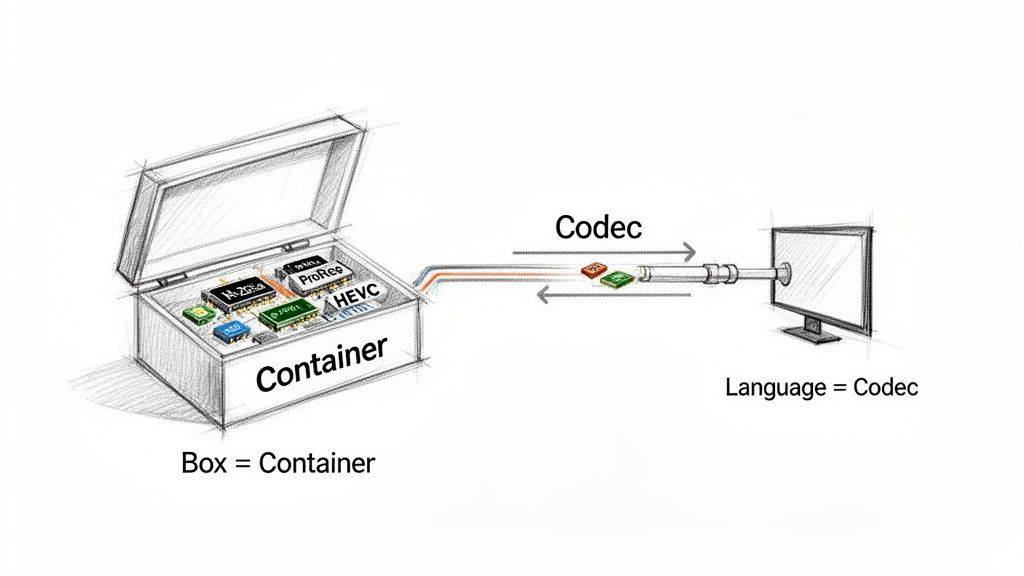
To really get the practical difference between MP4 and MOV, you first have to wrap your head around a core concept in digital video: the relationship between a container and a codec. It’s simpler than it sounds and is the key to making smart decisions about your video files.
Think of the container as a box. This box—the file format itself, like .mp4 or .mov—doesn't actually determine the quality of what's inside. Its job is to hold all the different parts of your video together in one neat package.
This package includes the video stream, the audio stream, subtitles, and metadata (like the creation date or camera settings). Both MP4 and MOV are just different types of boxes, each with its own set of rules for organizing the contents.
What Is a Codec
If the container is the box, the codec (short for coder-decoder) is the language used to write the information inside. It's a specific method for compressing and decompressing the video and audio data to make the file size manageable.
For example, a super common codec is H.264, known for its excellent balance of quality and small file size. On the other end of the spectrum is Apple ProRes, which uses much less compression to preserve incredible detail, making it a favorite for professional editing.
This is exactly why two .mp4 files can have wildly different file sizes and visual quality. One might use the efficient H.264 codec for streaming, while another could use a different codec that results in a larger, less compressed file. The container is the same, but the language inside is different. Grasping the various Mac video file formats can help clarify which combinations work best for your projects.
Key Insight: The container (MP4 or MOV) defines the file's compatibility and structure, while the codec inside (like H.264 or ProRes) determines the actual video quality and file size.
Why This Distinction Matters
The real choice often isn't just MP4 vs. MOV, but which container-and-codec combination is right for the job. A MOV container is prized in the editing world because it can reliably hold professional-grade codecs like ProRes, which contain immense amounts of data perfect for color grading and effects.
On the flip side, the MP4 container is the universal standard for distribution. It's designed to work flawlessly with web-friendly codecs like H.264 and HEVC/H.265, ensuring your video plays back on almost any device. To dig deeper, you might want to explore some essential video editing terminology that covers these concepts in more detail.
MP4 The Universal Standard for Compatibility
When your goal is to get a video in front of the widest possible audience, the whole MP4 vs. MOV debate pretty much ends before it starts. MP4 isn't just another format; it's the closest thing we have to a universal language for video. Its power comes down to one thing: compatibility.
Imagine you’re at a creative agency sending a final project to a client. You have no clue if they’ll open it on a Windows laptop, an Android phone, or their smart TV. Sending a MOV file is a gamble. But an MP4? That’s a guarantee. It will just work, no questions asked, because it was built from the ground up to be an international standard.
This is exactly why platforms like YouTube, Instagram, and TikTok built their empires on the MP4 format. They need a single, rock-solid container that works flawlessly for billions of users across every device imaginable.
Why MP4 Dominates Distribution
The secret to MP4's power is that it’s an open standard, not a proprietary technology locked down by one company. That single design choice is the reason it’s everywhere.
Compatibility is the game-changing difference between MP4 and MOV. MP4’s universal support across 99% of devices and platforms completely dwarfs MOV's Apple-centric world. Developed as an open ISO standard in 2003, MP4 plays nice on Windows, Android, smart TVs, web browsers, and streaming giants like Netflix and YouTube—which together serve 2.7 billion monthly users. In contrast, while MOV is king on macOS, it often needs to be converted or requires special software to play anywhere else.
This reliability makes MP4 the default choice for any video you’re sending out into the world. Its structure is also built for efficient streaming, which is what allows viewers to start watching a video online before the entire file has even finished downloading.
Practical Scenarios for Choosing MP4
The decision to use MP4 becomes a no-brainer in a few common situations. Thinking through these workflows helps clarify its role as a delivery format, which is very different from MOV's primary function as an editing container.
- Final Client Deliverables: When you send a finished video for review or final approval, MP4 ensures the client can watch it without any technical headaches.
- Social Media and Web Uploads: Every major platform is optimized for MP4. Uploading in this format guarantees the best possible processing and playback quality for your audience.
- Email Attachments and Cloud Sharing: Thanks to its excellent compression, an MP4 file is usually way smaller than a comparable MOV, making it much faster to upload, send, and download.
For anyone curious about the technical side, the most common and widely supported pairing in the world is the MP4 container combined with the H.264 codec. You can learn more about why MP4 (H.264) is the industry standard for video delivery.
The Bottom Line: If your video is leaving your computer to be watched by someone else, MP4 is almost always the right call. Its universal compatibility takes the guesswork out of sharing and guarantees a smooth viewing experience for everyone, everywhere. This makes it the undisputed king for sharing, streaming, and archiving finished projects.
MOV: The Professional's Choice for Quality Editing
While MP4 is the undisputed king of delivery, MOV is the champion of the editing suite. For anyone serious about video, especially those nested in the Apple ecosystem, MOV isn't just another format. It's the very foundation of a high-quality, flexible post-production workflow. Its secret weapon is the ability to house robust, data-rich codecs.
This is what truly sets it apart. MOV containers are built to preserve as much original image information as possible, which is absolutely critical for intensive tasks like color grading, visual effects, and detailed retouching. Without that deep well of data, you’re starting your edit with one hand tied behind your back.
The Power of High-Bitrate Codecs
The real difference between MP4 and MOV in a pro setting boils down to the codecs they typically carry. An MP4 file is almost always packaged with a highly efficient codec like H.264, optimized for small file sizes. But a MOV file is the native home for editing powerhouses like Apple ProRes.
ProRes codecs were specifically engineered to maintain incredible image fidelity through round after round of encoding and decoding. This means you can color grade, apply effects, and re-export a clip over and over without the nasty visual degradation you’d see with a more heavily compressed format.
Think of MOV as the digital "master tape" for your project. It holds the pristine, data-rich footage needed for creative freedom, while MP4 is the compressed, convenient copy you create for your audience.
This is exactly why high-end cameras from brands like Blackmagic and ARRI often record directly to ProRes within a MOV container. They are capturing footage destined for the editing room, not for a direct-to-YouTube upload.
File Size and Quality: A Necessary Tradeoff
Of course, this commitment to quality has a price: storage space. The sheer volume of data held in a professional MOV file means they are significantly larger than their MP4 counterparts.
This size difference is one of the most glaring distinctions between the two. A typical 10-minute video encoded in MOV using Apple ProRes can easily balloon to 15 GB. That same video, packaged as an MP4 with an H.264 codec, might weigh in at just 750 MB—a massive reduction that's great for sharing but a disaster for serious editing. For more insights on this file size gap, check out the breakdown from IceCream Apps.
But this size difference isn't a flaw; it's a feature. That larger MOV file contains the granular detail you need for precise, professional adjustments. Here’s when it truly matters:
- Color Grading: Pushing and pulling colors requires deep bit-depth information to avoid ugly banding and artifacts. A compressed MP4 simply doesn't have the data to withstand heavy grading.
- Visual Effects (VFX): Compositing, keying (like removing a green screen), and motion tracking all depend on clean, detailed frames for accurate results.
- Archiving: When you're storing a master project for the long haul, a high-quality MOV file ensures you have the best possible source for any future edits, remasters, or re-exports.
Ultimately, starting your edit with a high-quality MOV file is a strategic move. It gives you the creative latitude to craft a stunning final product, which you can then easily export as a universally compatible MP4 for the world to see.
Choosing the Right Format for Your Workflow
Understanding the nuts and bolts of MP4 vs. MOV is one thing, but knowing when to use each one is what really makes a workflow click. This isn't about which format is better overall—it's about picking the right tool for the job at hand. Get it right, and you’ll see smoother editing, faster file transfers, and a better final product.
For most creators, the choice boils down to a single question: Are you editing, or are you delivering?
Each stage has totally different needs for quality, file size, and compatibility. Answering that question right from the start helps you sidestep common headaches like codec errors, choppy client previews, or losing quality in post-production.
When to Use MOV for Editing and Archiving
MOV should be your go-to during the creative process, especially if you're working in the Apple ecosystem. Its real strength is its ability to hold high-bitrate, professional codecs like Apple ProRes, making it perfect for raw footage and master files. This ensures you’re working with the maximum amount of video data possible.
Think of it for these specific situations:
- Professional Post-Production: If you're in a program like Final Cut Pro or DaVinci Resolve, starting with a MOV file (like a ProRes 422) preserves all the detail you need for heavy-duty color grading and visual effects.
- Archiving Master Files: Once a project is wrapped, saving a high-quality MOV master is standard practice. This is your pristine, final version, ready for any future edits or exports without having to start over.
- Complex Audio Work: MOV containers handle multiple audio tracks more gracefully, which is a lifesaver for projects with intricate sound design or different language options.
This decision tree helps visualize the workflow. It shows how the purpose of your project—creative work versus final delivery—guides your format choice.
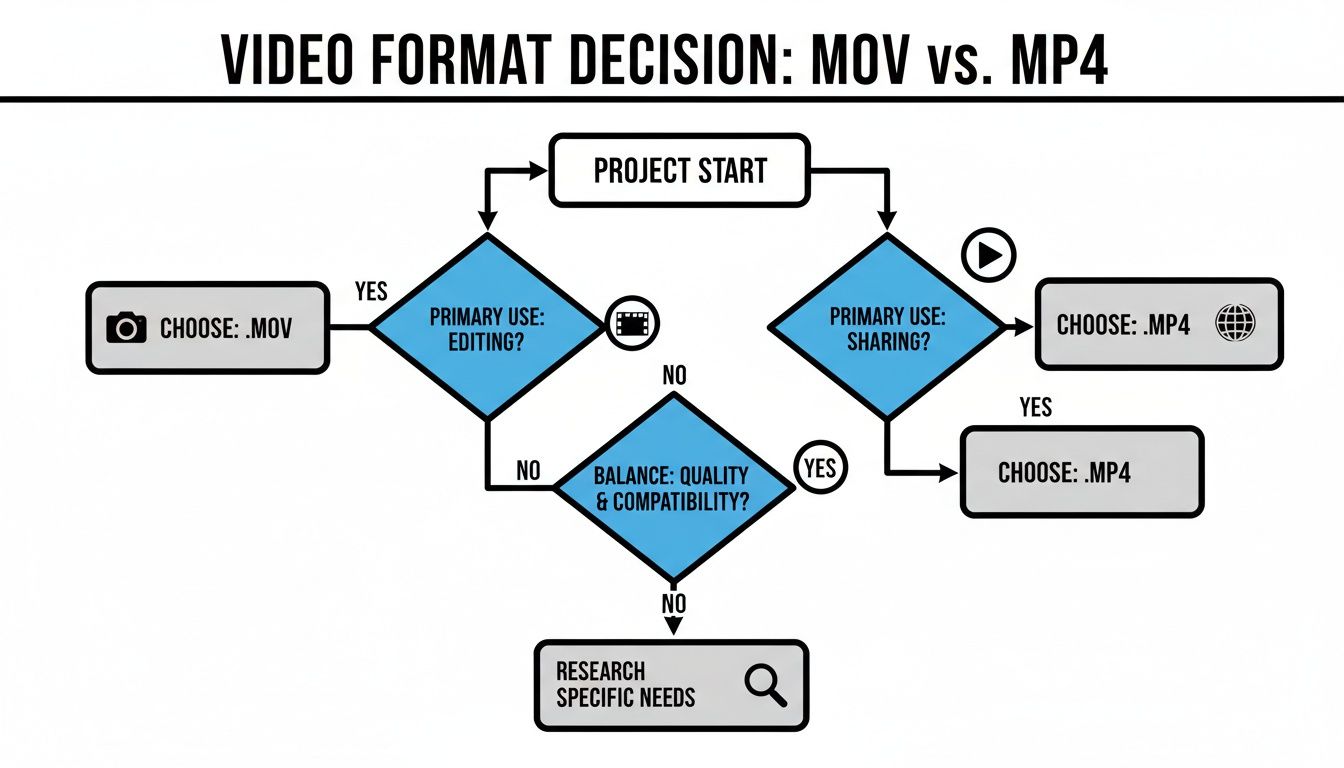
As the flowchart shows, the goal is the key. Start with editing in mind, and MOV is your best bet. If you’re just sharing, MP4 gets the job done.
When to Use MP4 for Sharing and Delivery
Once the creative work is done and your edit is locked, the priority shifts from preserving every last bit of quality to ensuring universal access. This is where MP4 takes center stage. Its brilliant compression and near-universal compatibility make it the undisputed champ for getting your video out into the world.
The Hybrid Workflow: Edit in a high-quality MOV format, then export the final cut to a compressed MP4 for delivery. This is the industry-standard approach for a reason—it gives you the best of both worlds: maximum creative flexibility and effortless distribution.
Lean on MP4 for these scenarios:
- Uploading to Web and Social Media: Platforms like YouTube, Instagram, and TikTok are all built around MP4.
- Sending Previews to Clients: An MP4 file guarantees your client can watch it on any device without needing to download special software.
- Embedding Video on a Website: MP4s offer a great balance of quality and small file size, which means faster page loads and smoother streaming for viewers.
Ultimately, smart creators don’t pick one format and stick with it; they use both strategically. They start with the data-rich MOV for total creative control and finish with the universally playable MP4 to make sure their work looks great and plays everywhere.
How to Convert and Compress Video on macOS
Now that you've got a handle on the real-world differences between MP4 and MOV, managing your video files on a Mac gets a whole lot easier. A common final step for many of us is taking a massive MOV master file and converting it into a much friendlier MP4 for sharing or delivery. Luckily, macOS has some simple, built-in tools that get the job done.
For those quick, one-off conversions, Apple's QuickTime Player is your best friend. It's already on your Mac and handles basic exports without any fuss.
- Open your MOV file in QuickTime Player.
- Head up to File > Export As in the menu bar.
- Pick a resolution—1080p is great for the web, while 4K is better for high-quality playback.
- QuickTime will automatically save the file as an MP4 (technically a .m4v, but it's functionally the same thing).
This method is perfect for a single file, but it quickly becomes a bottleneck when you're dealing with a bunch of videos at once.
Advanced Batch Processing with Compresto
When your workflow involves dozens of files or you need to apply consistent compression settings across the board, you need a dedicated tool. This is where applications like Compresto really shine. It’s built specifically for these bigger jobs, offering features that go way beyond a simple conversion. You can just drag and drop hundreds of files to be converted and compressed all at the same time.
The real game-changer with a dedicated app is automation. Compresto’s Folder Monitoring feature can automatically compress and convert any new video that lands in a specific folder, keeping all your outputs standardized without you having to lift a finger.
This screenshot gives you a sense of Compresto's no-nonsense interface—just drag your files in, and it gets to work.
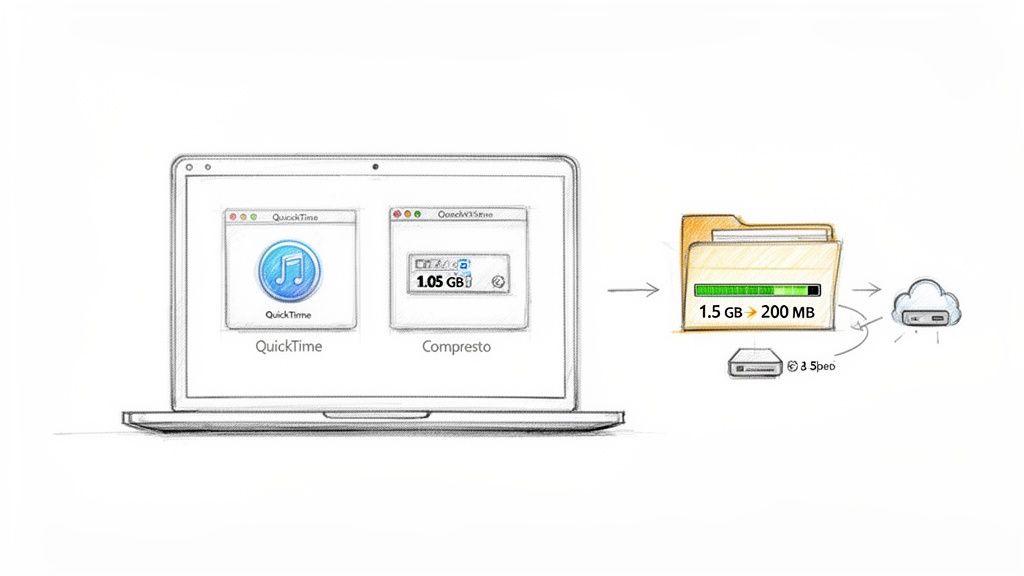
The kind of file size reduction you see here is a huge deal. It means faster uploads and reclaiming precious hard drive space. For a deeper dive, our guide on how to convert video file formats covers some more advanced techniques. Ultimately, this level of control and efficiency helps you manage your media library like a pro, turning those clunky MOVs into lightweight, shareable MP4s.
Got Questions? We’ve Got Answers
Diving into the world of video formats often brings up a few common questions. Here are some straightforward answers to help clear things up.
Is MOV Actually Higher Quality Than MP4?
Not really, no. Think of MP4 and MOV as just the shipping boxes (containers) for your video. What truly determines the quality is what's inside the box—the codec and the bitrate.
A MOV file using a beefy professional codec like Apple ProRes will absolutely look better (and be much larger) than a heavily compressed MP4. But you can also create a high-quality MP4 or a low-quality MOV. The key difference is that MOV is the container of choice for high-end editing codecs, while MP4 is the go-to for efficient delivery.
Can I Use MOV Files on a Windows PC?
Yes, but it can be a bit of a gamble. Modern media players like VLC will play just about any MOV file you throw at them. Native support in Windows, however, can be hit-or-miss, especially if the file uses an Apple-specific codec.
For reliable, headache-free playback on any non-Apple device, converting your MOV file to the universal MP4 format is always your safest bet. It's a small step that prevents big viewing problems for your audience.
Why Does My iPhone Record Videos in MOV?
Your iPhone defaults to the MOV container simply because it’s Apple's home turf. This ensures everything works flawlessly across the entire Apple ecosystem, from editing in iMovie or Final Cut Pro to sharing files via AirDrop.
If you'd rather have MP4 files, you can easily change this. Just head to Settings > Camera > Formats and switch from "High Efficiency" to "Most Compatible." This will tell your iPhone to save videos as MP4 (using the H.264 codec) instead of HEVC in a MOV container.
Ready to take control of your video files? Compresto makes it incredibly simple to convert, compress, and optimize your videos right on your Mac. Turn those massive MOVs into lightweight, shareable MP4s in just a few clicks. Reclaim your storage and streamline your workflow at https://compresto.app.