A Guide to Mac Video File Formats Explained
Jumping into the world of Mac video can feel like trying to order coffee in a foreign country. You hear words like MOV, MP4, and HEVC thrown around, and it's easy to get lost. But don't worry, it's simpler than it sounds.
The easiest way to get your head around Mac video file formats is to think of them like a lunchbox. Seriously. The file you see—the one ending in .mov or .mp4—is just the lunchbox itself. We call that the container. The real magic is what's inside and how it's packed. That's the codec.
The Foundation of Mac Video Files
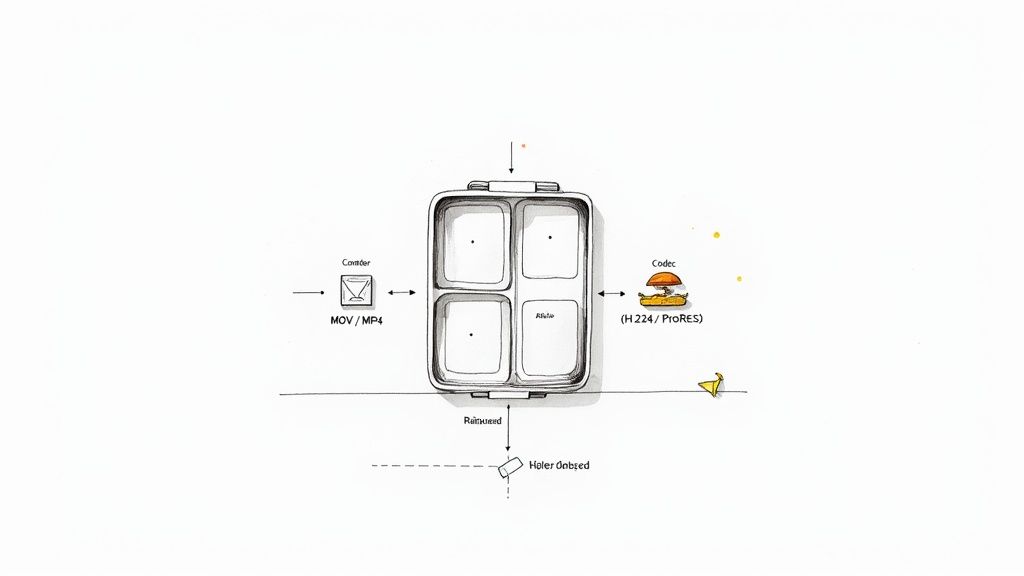
This whole lunchbox idea is the key to understanding why some videos play perfectly on your Mac while others stutter, lag, or just refuse to open at all. It's not just about the file extension. The relationship between the container (the lunchbox) and the codec (the food inside) is what really matters.
Imagine you have a fancy, high-tech lunchbox. That’s your container. Inside, you could pack a gourmet meal with every ingredient carefully separated to stay fresh—that’s like a high-quality, professional codec like ProRes. Or, you could just wrap a sandwich in plastic wrap to save as much space as possible. That’s a compressed codec like H.264. Both get the job done, but they serve completely different purposes.
Why This Analogy Matters
Once you grasp this distinction, you're halfway to mastering video on your Mac. It’s the core concept that explains the constant trade-off between file size, visual quality, and how well a video performs during editing. The format you choose directly impacts how smoothly it plays, how much space it eats up on your hard drive, and how easily you can upload it to YouTube or send it to a client.
Suddenly, those common questions start making sense:
- Why does the video from my iPhone take up so much storage?
- What's the best format for editing in Final Cut Pro?
- How do I shrink this video file so I can email it?
By seeing a video file as a combination of a container and its contents (the codec), you can start making informed decisions. This knowledge empowers you to choose the right format for any task, ensuring your videos look great and perform reliably.
Ultimately, getting this right turns all that technical jargon into a practical tool. You’ll stop guessing which settings to use when you export a project. Instead, you'll know exactly which "lunchbox" and packing method to choose, whether you're prepping a five-star meal for professional editing or just a quick snack for social media. This foundation is all you need before we dive into the specific Mac video formats you’ll see every day.
Containers and Codecs: The Building Blocks of Video
Ever tried to play a video file on your Mac, only to get a black screen or an error, even though it has a familiar .mov or .mp4 extension? This common headache comes down to understanding the two parts that make up every video file: the container and the codec.
Think of it like this: a container is the lunchbox, and the codec is the recipe used to prepare the food inside. You need both, and they have to work together. Getting a grip on this partnership is the key to mastering Mac video file formats.
The Container: The Box That Holds It All
The container is the digital wrapper for your video file. Its main job is to hold all the different data streams together in one tidy package. This isn't just the video itself—it also includes one or more audio tracks, subtitles, and even metadata like the camera settings or when the file was created.
Here are the containers you’ll see most often on a Mac:
- .MOV (QuickTime File Format): This is Apple’s own creation. It’s incredibly flexible and can hold multiple high-quality tracks, which is why it’s a long-time favorite for professional video editing.
- .MP4 (MPEG-4 Part 14): The undisputed universal standard for the web and mobile devices. It’s lightweight, supported almost everywhere, and perfect for streaming or sharing online.
- .AVI (Audio Video Interleave): An older container format from Microsoft. While you might still run into it, it can be a bit troublesome on macOS and often needs extra software to play correctly.
- .MKV (Matroska Video): A popular open-source container that’s a true powerhouse—it can hold a virtually unlimited number of tracks. The catch? QuickTime Player doesn’t support it natively.
The Codec: The Real Powerhouse Inside
While the container holds everything together, the codec does all the heavy lifting. The word "codec" is a mashup of coder and decoder. Its job is to compress (code) the enormous amount of raw data from a video camera into a file size that’s actually manageable, and then decompress (decode) it so you can watch it.
Without codecs, a single minute of uncompressed 4K video could easily hog over 25 gigabytes of space. A codec shrinks that data, often by cleverly removing visual information you wouldn't notice anyway. If you're curious about the magic behind this process, you can dive deeper into our guide on what video encoding is. The codec you choose directly impacts the final balance between file size and visual quality.
Key Takeaway: A file's container (like .mp4) doesn't tell you a thing about the video's quality. It’s the codec inside (like H.264 or ProRes) that truly dictates the compression and fidelity of the image.
To bring this concept to life, here's a quick look at how these two parts differ.
Container vs Codec at a Glance
| Concept | Role | Analogy | Common Examples |
|---|---|---|---|
| Container | A wrapper that bundles video, audio, and metadata into a single file. | A lunchbox holding different food items. | .MP4, .MOV, .MKV, .AVI |
| Codec | A program that compresses (encodes) and decompresses (decodes) video data. | The recipe used to prepare the food. | H.264 (AVC), H.265 (HEVC), Apple ProRes |
This table helps show that while they work together, their jobs are completely different.
Codecs Every Mac User Should Know
Here are the most important codecs you'll encounter:
- H.264 (AVC): This is the workhorse of modern video. It delivers excellent compression and is compatible with nearly every device on the planet, making it the go-to choice for web video.
- H.265 (HEVC): The successor to H.264, offering up to 50% better compression at the same level of quality. It’s perfect for 4K video and is the default codec for videos shot on newer iPhones.
- Apple ProRes: This isn't a single codec but a whole family of them, designed specifically for professional editing. ProRes uses very light compression to keep as much image detail as possible, resulting in large files that are easy for your Mac’s processor to handle during post-production.
At the end of the day, a video file will only play if your Mac understands both its container and its codec. A file with an MP4 container and an H.264 codec is a universal match. But a MOV container with an obscure, older codec might refuse to play—even though MOV is an Apple format. This is why video compatibility is always a two-part equation.
The Journey from QuickTime to Universal Formats
To really get Mac video formats, you have to appreciate their history. The story isn't just about file extensions; it's a tale of how technology has evolved to meet our changing needs, starting with Apple's very own powerhouse: the QuickTime File Format.
Back in 1991, Apple introduced QuickTime (.mov), a truly groundbreaking multimedia container. For years, it was the heart of all things video on the Mac, driving everything from simple movie playback to the most demanding professional editing workflows. If you used an application like Final Cut Pro, MOV was its native language, celebrated for its robust ability to juggle multiple high-quality audio and video tracks, timecodes, and other bits of metadata crucial for post-production.
The Rise of Universal Delivery
But then, the internet exploded. Suddenly, we had smartphones in our pockets that doubled as high-definition cameras, and sharing video online became the norm. While the professional-grade MOV container was powerful, the world desperately needed something lighter and more universal for streaming and mobile sharing.
This is where MP4 (MPEG-4 Part 14) stormed onto the scene, usually hand-in-hand with the brilliant H.264 video codec. This combination was a game-changer. It delivered an incredible balance of good visual quality and aggressive compression, creating files that were just a fraction of the size of their professional counterparts. That efficiency made MP4 the undisputed king of delivery.
The real reason for this shift was simple: accessibility. An MP4 file encoded with H.264 just works. It plays flawlessly on pretty much any device imaginable—macOS, iOS, Windows, Android, and every major web browser—making it the safest, most reliable choice for reaching the biggest audience.
This diagram helps break down the basic structure that both MOV and MP4 files share.
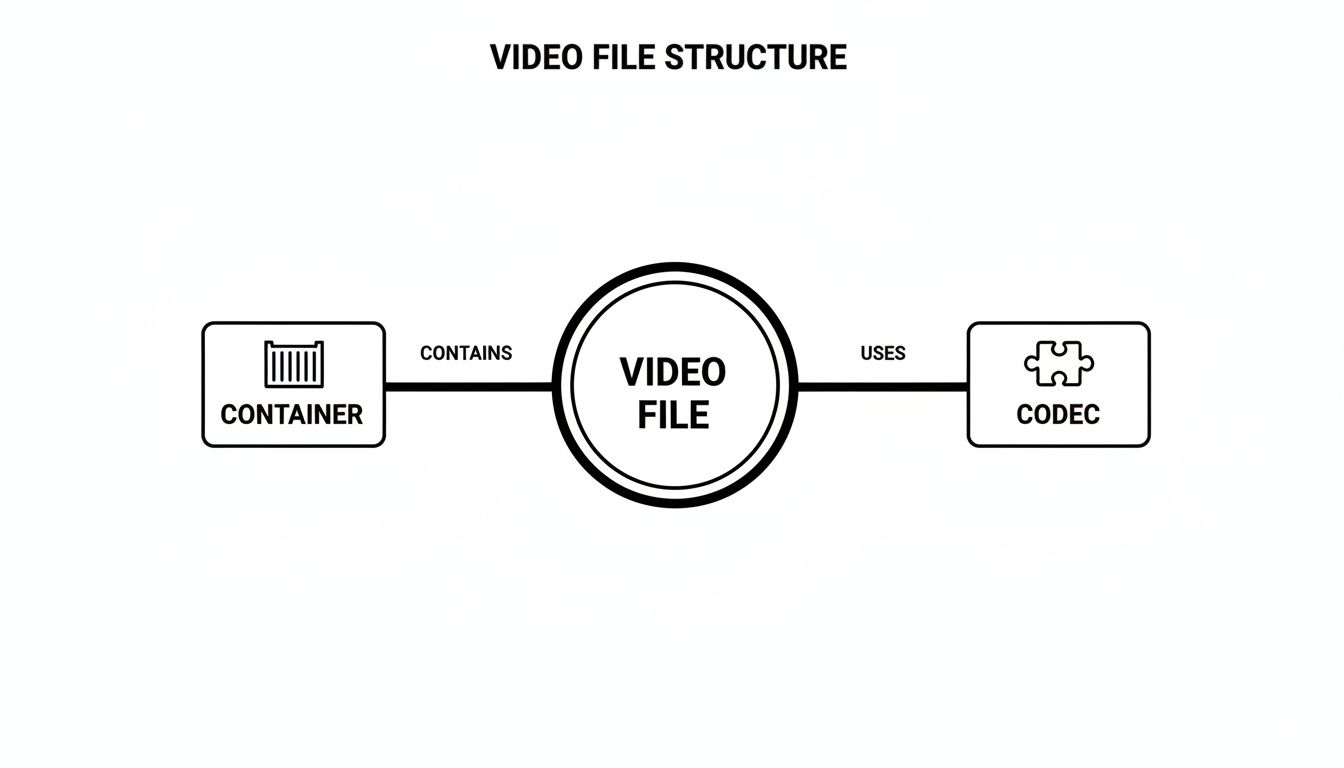
As you can see, every video file is built from these two fundamental parts: a container to hold all the data and a codec to manage it. Think of it as a lunchbox (the container) and the individual food items inside (the codec-compressed data).
A Dual-Format Reality
Even with MP4’s complete dominance for distribution, MOV containers haven't gone anywhere. In fact, in professional circles, they're more important than ever, especially when paired with Apple's own family of high-bitrate codecs, ProRes, which debuted in 2007.
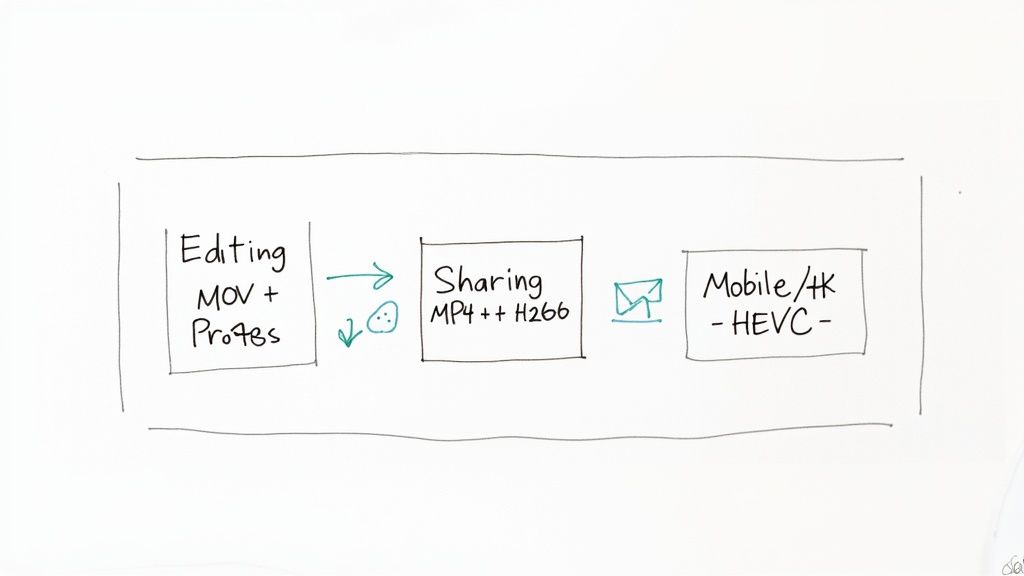
So, today's video professionals live in a dual-format world. A typical workflow looks something like this:
- Mastering: Editors work with massive, high-quality ProRes files tucked inside .mov containers. This preserves every last drop of image detail during the intense post-production process.
- Delivery: Once the final cut is locked in, they export compressed MP4 versions. These are for streaming, social media, and websites, where file-size reductions of 50–90% are not just nice, but necessary.
This two-pronged approach gives creatives the best of both worlds. They get to maintain the highest possible quality for archival and editing purposes, all while creating lightweight versions that are perfect for everyday viewing. You can learn more about how these Mac video file formats have adapted over time by checking out this guide on video file types. It’s a perfect illustration of a system that serves both the creator and the audience.
Choosing the Right Mac Video File Format for Your Task
Knowing the difference between a container and a codec is one thing, but the real magic happens when you know exactly which Mac video file format to pick for the job at hand. This choice isn't just a technical detail—it directly impacts your editing speed, final file size, and whether anyone can actually watch your video.
Your end goal is everything. Are you editing, archiving, or efficiently sharing and exporting video to the world? Each scenario calls for a different tool from the toolbox.
Let's walk through the most common situations you’ll run into and find the perfect format for each one.
For Professional Video Editing
When you're deep in a project with Final Cut Pro or Adobe Premiere Pro, your priorities are simple: performance and quality. File size is a distant concern. This is the domain of the MOV container paired with an Apple ProRes codec. It’s the undisputed champion of the editing timeline.
ProRes codecs are built from the ground up to be "edit-friendly." They use very light compression, which means your Mac's processor isn't wasting energy decoding complex video frames. The result is buttery-smooth playback, even when you’re stacking multiple 4K clips and effects. The massive file sizes are a trade-off you’ll gladly make for a creative process that just flows.
For Sharing and Streaming
Once your masterpiece is finally done, it’s time to get it out there. Whether you’re uploading to YouTube, posting on social media, or embedding it on a website, the game changes. Now, it’s all about maximum compatibility and a manageable file size.
The hands-down winner here is the MP4 container with the H.264 codec. Think of this combo as the universal language of web video. It strikes a fantastic balance between crisp quality and strong compression, ensuring it plays nicely on virtually any phone, tablet, or computer out there. We dive deeper into this powerhouse duo in our guide to the MP4 H.264 combination. It’s the safest bet for reaching the widest audience without a single compatibility headache.
For High-Efficiency 4K and Modern Devices
As we push into a world of 4K and 8K video, even the reliable H.264 starts to sweat, creating enormous files. This is where its successor, HEVC (H.265), steps onto the stage. It delivers roughly 50% better compression than H.264, giving you the same jaw-dropping quality at half the file size.
There’s a reason modern iPhones use this format by default. It's the perfect choice for:
- Archiving high-resolution footage without buying a new hard drive every month.
- Streaming 4K video over connections that aren't super fast.
- Recording long videos on your iPhone or other modern cameras.
The only catch? HEVC needs newer hardware for smooth playback. Older Macs without dedicated decoding support might struggle to keep up.
Choosing the right format is a strategic decision. You start with a high-quality, edit-friendly format like MOV/ProRes and finish with a universally compatible, compressed format like MP4/H.264 for delivery.
Dealing with Other Formats
Sooner or later, you're going to bump into other formats on your Mac. Two of the most common are MKV and AVI.
- MKV (Matroska): This is a powerful, open-source container that’s a favorite in digital media collections. It's incredibly flexible and can hold multiple audio and subtitle tracks in a single file. The downside? macOS doesn't support it out of the box. You'll need a trusty third-party player like VLC to watch MKV files.
- AVI (Audio Video Interleave): As an older Windows format, AVI is a bit of a wild card on a Mac. Some files might play just fine, but many use ancient codecs that QuickTime Player simply can't read, once again sending you in search of extra software.
To make these choices even clearer, here’s a quick-reference table to help you pick the right format every time.
Common Mac Video Formats and Their Best Uses
This table is a practical guide to choosing the right video format and codec for different tasks on a Mac, from editing to sharing.
| Format (Container/Codec) | Best For | Key Advantage | Potential Downside |
|---|---|---|---|
| MOV / ProRes | Professional video editing in FCP or Premiere Pro | Flawless, smooth playback during editing | Extremely large file sizes |
| MP4 / H.264 | Sharing online (YouTube, social media), streaming | Universal compatibility, great quality-to-size ratio | Not ideal for heavy, multi-layer editing |
| MP4 / HEVC (H.265) | 4K/8K video, archiving, modern mobile recording | 50% more efficient than H.264, smaller files for same quality | Requires newer hardware for smooth playback |
| MKV | Digital media libraries with multiple tracks | Highly flexible (holds many audio/subtitle tracks) | Not natively supported by macOS; needs a player like VLC |
| AVI | Older Windows-based video files | Still common for legacy content | Often has codec compatibility issues on Mac |
By understanding these core use cases, you can confidently look at any video file and know exactly what to do with it to get the best results.
How Codecs and Hardware Shape Your Mac Experience
Ever wondered why that 4K video you shot on your iPhone plays back like a dream, but another 4K file you downloaded turns your Mac into a stuttering mess? The secret isn't in the file’s container—it's buried deep in the relationship between video codecs and the chips inside your Mac.
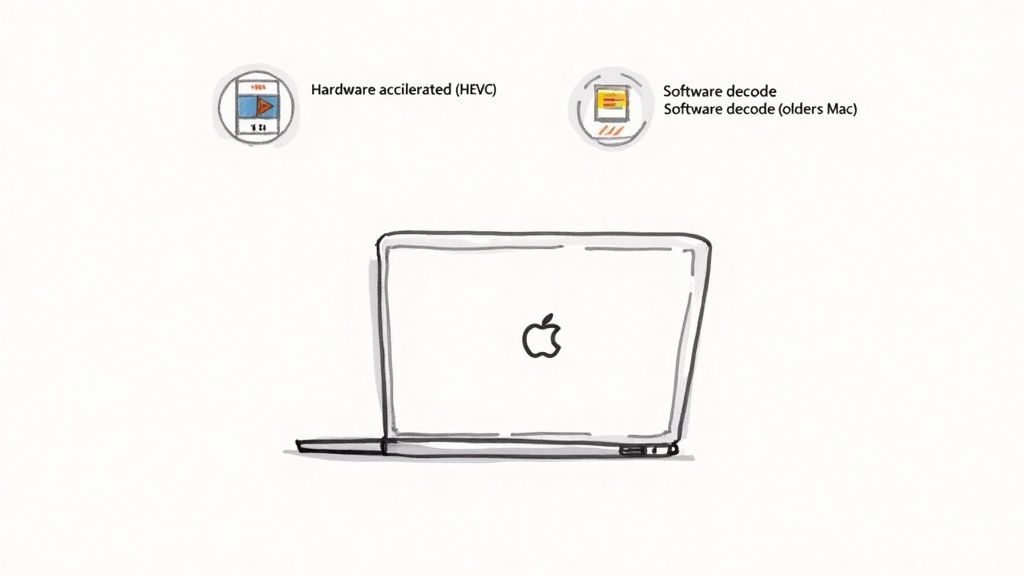
At the heart of it all is hardware acceleration. Think of it as a dedicated, super-fast assembly line built right into your Mac with just one job: decoding video. When a video uses a codec your Mac has a special chip for, playback is buttery smooth. The main processor (your CPU) barely has to lift a finger, freeing it up for everything else you're doing.
This is exactly why H.264 (AVC) became the undisputed king of web video for over a decade. Standardized way back in 2003, it won the format wars because nearly every Mac shipped since 2012 came with hardware decoders built-in. That meant smooth streaming for everyone, even as video quality improved.
The Shift to High-Efficiency Codecs
But as screen resolutions ballooned to 4K and beyond, we needed a more efficient way to squeeze all that data down. Enter HEVC (H.265), the successor to H.264. It’s a game-changer, offering roughly 25–50% bitrate savings for the same visual quality. Smaller files, less buffering—what's not to love?
Well, there’s a catch. HEVC’s more complex compression demands a lot more muscle to decode. Recognizing this, Apple started integrating hardware acceleration for HEVC in certain Mac models from 2017 onward. If your Mac is older than that, it has to decode HEVC using software, which hammers the CPU and often results in that dreaded choppy playback. We dive deeper into this in our H.264 vs H.265 comparison.
The takeaway is simple: your Mac’s manufacturing date directly influences its video playback capabilities. A newer Mac with dedicated HEVC hardware will handle modern 4K video effortlessly, while an older model might struggle with anything beyond H.264.
The Rise of Royalty-Free Alternatives
The video world never stands still. In recent years, royalty-free codecs like VP9 and AV1 have gained serious traction, pushed hard by giants like YouTube and Netflix to slash their bandwidth costs. These codecs offer compression efficiency that rivals or even beats HEVC.
Apple has started to get on board. Safari added support for VP9 on macOS 11.3, and iOS followed. This shift means that smooth web video on your Mac is no longer just an H.264 or HEVC story. As hardware support for these newer codecs becomes more common, the definition of the best Mac video file formats for streaming will keep evolving.
Got Questions About Mac Video Formats? We Have Answers.
Even after you get the hang of containers and codecs, you'll still run into specific questions when you’re in the middle of a project. Let's tackle some of the most common issues and points of confusion people face with Mac video file formats.
Think of this as the practical part of the guide—the "what if" and "why does this happen" scenarios you’ll actually encounter. We'll give you clear solutions to get you back to creating.
What Is the Best Video Format for Mac?
This is a classic question, but there's no single "best" format. It all comes down to what you’re trying to do.
- For editing in Final Cut Pro or Premiere Pro, your best friend is MOV with a ProRes codec. It’s the gold standard for a reason, offering incredible performance and quality that holds up under heavy editing.
- For sharing and streaming, you can't go wrong with MP4 with an H.264 codec. It's the universal language of online video, offering great compression and compatibility with just about every device and platform out there.
It's like choosing a vehicle. You wouldn't take a family sedan to a racetrack, and you wouldn't use a high-performance race car for your daily commute. ProRes is your race car for the track (editing), and H.264 is your reliable sedan for everyday driving (sharing).
Why Won't My Video File Play on My Mac?
This is almost always a codec problem. Your Mac's default player, QuickTime, might recognize the file's container (like .avi or .mkv), but it doesn't have the specific "recipe," or codec, needed to unpack and display the video data inside.
For instance, an AVI file is a container often used on Windows, and it might be packed with a codec that macOS just doesn't know how to read natively. The quickest fix is usually to grab a more versatile media player like VLC. It comes with a massive library of built-in codecs and can play nearly anything you throw at it.
Should I Use MOV or MP4?
Ah, the great debate for Mac users. While both are fantastic containers, your choice should be guided by where you are in your workflow.
Use MOV when you’re in the creative trenches—editing, color grading, or mastering your project. Its flexibility with high-quality, edit-friendly codecs like ProRes is simply unmatched.
Use MP4 when the masterpiece is finished and ready for the world. Its efficient compression and universal compatibility make it perfect for delivering to websites, social media, and just about any device.
How Can I Reduce a Video File's Size on Mac?
Shrinking a video file means re-compressing it, and the trick is to do it without turning your beautiful footage into a pixelated mess. The most effective way is to convert your video into an MP4 container using an H.264 or HEVC (H.265) codec.
HEVC is the newer kid on the block, offering up to 50% better compression than H.264. That means you can get the same visual quality at half the file size, which is a game-changer for massive 4K videos or for archiving large projects. Dedicated compression apps are built for exactly this, making it simple to shrink files down while keeping them looking sharp.
Going deeper: see HEVC codec explained for the codec side of the story, or best video format for a use-case-driven breakdown of which container + codec to pick for the web, email, social, and archive.
Ready to take control of your video files? Compresto is the ultimate tool for Mac users who need to compress videos, images, and other files quickly and easily. Reclaim gigabytes of disk space and make sharing a breeze with a simple drag-and-drop interface. Try it today and see how much space you can save. Learn more and download at https://compresto.app.