Extract 7z mac: Quick Guide to Opening 7z Archives on macOS
If you’ve ever downloaded a hefty project file on your Mac, you've probably run into a .7z archive. So, why are these files so popular instead of the good old ZIP?
The short answer is superior compression.
Why 7z Files Are So Common on macOS
The 7z format is a real workhorse for anyone dealing with large files, from creative professionals to developers. It uses a powerful compression algorithm that results in significantly smaller file sizes.
Smaller files mean faster downloads and less storage space used—a win-win. That efficiency is why it’s become a go-to for bundling things like:
- Large Media Projects: Think raw video footage, multi-track audio files, and all the associated assets.
- Design Assets: Massive libraries of high-resolution images, fonts, and vector files.
- Software and Code: Packaging application data or sprawling code repositories for distribution.
The 7z format has been around since 1999, introduced with the open-source 7-Zip archiver. It quickly proved its worth. Studies showed it could outperform ZIP by at least 17% across various file types, cementing its place as the standard for serious compression. If you want to dive deeper into the technicals, check out our detailed comparison of 7z vs ZIP.
Choosing Your Extraction Method
So, how should you open a 7z file on your Mac? It really comes down to your comfort level. Are you a point-and-click person, or do you live in the Terminal?
This quick decision tree should point you in the right direction.
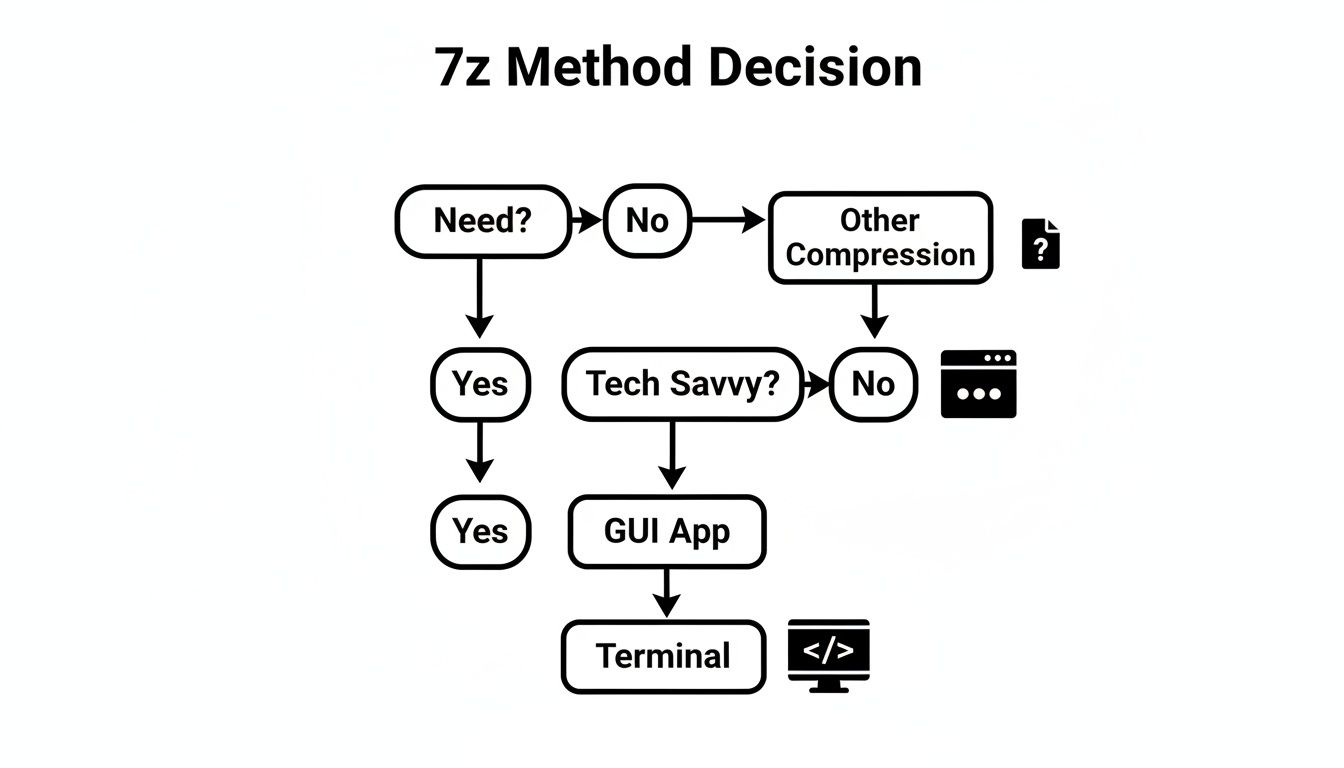
As you can see, it's mostly about your personal workflow. Most people will find a graphical app the easiest path, but if you're comfortable on the command line, Terminal-based tools offer a lot more power and automation potential.
To help you decide at a glance, here’s a quick breakdown of the most common methods.
Choosing Your 7z Extraction Method on macOS
| Method | Best For | Ease of Use | Key Feature |
|---|---|---|---|
| GUI App (e.g., The Unarchiver) | Everyday users, quick extractions | ★★★★★ (Very Easy) | Simple drag-and-drop or double-click functionality |
| Command Line (Homebrew) | Developers, power users, automation | ★★☆☆☆ (Requires Setup) | Scriptable for batch processing and complex tasks |
Ultimately, a good GUI app is the perfect fit for most users who just need to get files out of an archive quickly. For those who need to automate repetitive tasks or integrate extraction into a larger script, the command line is unbeatable.
Using Simple Apps Like Keka and The Unarchiver
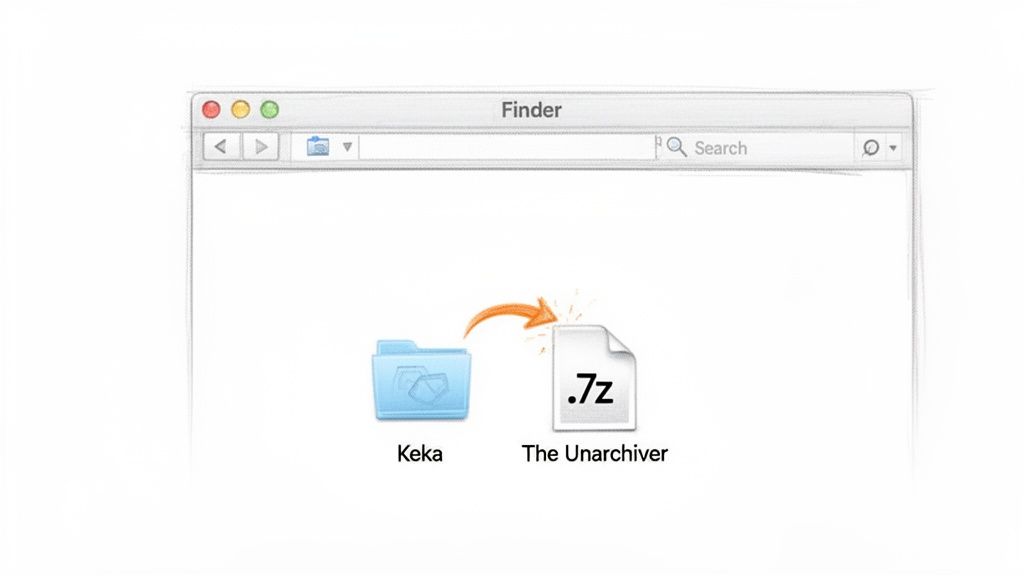
If the command line feels a bit much, you're in luck. The absolute easiest way to extract 7z Mac files is by grabbing a dedicated app. Two of the best are Keka and The Unarchiver, both legends in the Mac community for being simple, reliable, and just plain working. They turn what could be a confusing task into a simple double-click or drag-and-drop.
These apps weave themselves right into Finder. Once you install one, you can just right-click a .7z file and open it with your app of choice. Better yet, set it as the default, and from then on, opening a 7z archive feels exactly like opening a standard ZIP file.
Getting Started with Keka and The Unarchiver
Both apps are available directly from the Mac App Store, which is a great sign—it means they're vetted by Apple, safe to use, and built to run smoothly on macOS. Installation is a breeze, and once you launch either app, you can quickly tell it which archive types you want it to handle.
Here’s a quick rundown of why these two are so popular:
- Broad Format Support: They aren't just for 7z files. They’ll crack open dozens of other formats, including RAR, TAR, and even some obscure, older formats you might stumble upon.
- Password Handling: Got an encrypted 7z file? No problem. The app will simply pop up a window asking for the password before it gets to work.
- Multi-Part Archives: They’re smart enough to automatically find and stitch together split archives (the ones ending in
file.7z.001,file.7z.002, etc.). You only need to open the very first file in the sequence.
The 7z format itself has a long history of making these features possible. Key milestones, like adding AES-256 encryption back in 2001 and optimizing for faster archive opening by 2012, were critical for its growth. This evolution is why it's been downloaded over 428 million times and won awards for its killer speed and compression. Read more about 7-Zip's history and impact.
Practical Scenarios and Tips
Picture this: a client sends over a huge design project, but it’s split into five separate 7z files to get around email size limits. With Keka or The Unarchiver, all you need to do is make sure all five parts are sitting in the same folder. Double-clicking the first file (.7z.001) is all it takes for the app to intelligently find the rest and rebuild the complete project folder for you.
This same elegant simplicity applies to all sorts of workflows. Once you get the hang of extracting 7z files, you might find yourself looking for similar tools for opening other less common file formats like MKV on Mac, which just goes to show how powerful a good, dedicated app can be. For most daily tasks, these GUI tools are the perfect blend of power and ease of use.
Extracting Files with the Command Line
If you're a developer, a sysadmin, or just someone who prefers the raw power of the Terminal, the command-line approach offers a level of control that GUI apps can't match. While a graphical interface is perfect for the occasional one-off extraction, the command line is where the real magic happens for automation and scripting. The best way to get started is with Homebrew, the de facto package manager for macOS.
If you don't already have Homebrew, installing it is just a single command you can grab from their site. Once that’s set up, getting p7zip—the command-line version of 7-Zip—is just as straightforward.
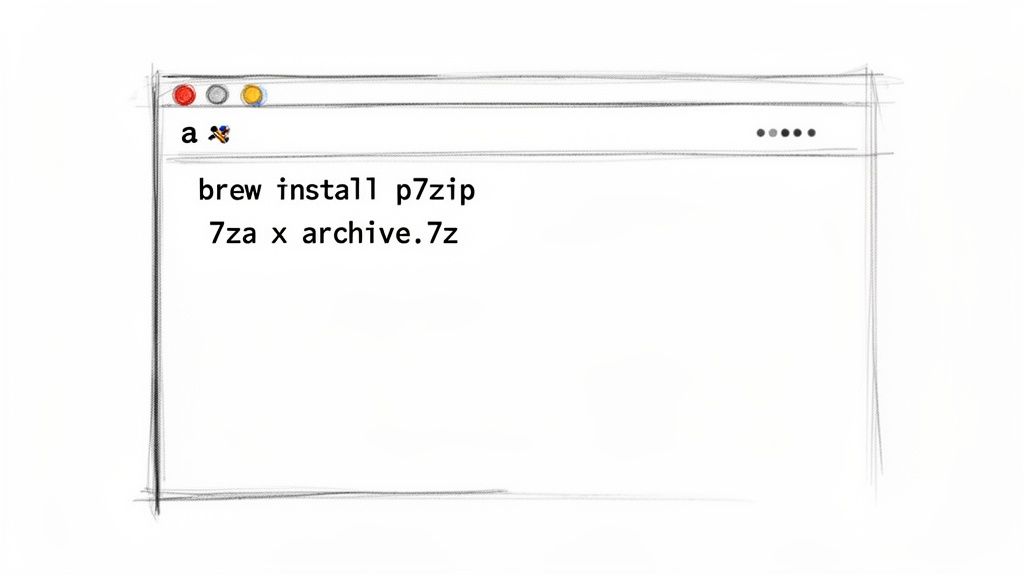
Fire up your Terminal and run:
brew install p7zip
This one line fetches and installs everything you need, giving you access to the 7za utility. Now you're ready to handle 7z archives like a pro, right from your Terminal.
Core Extraction Commands
The command you'll use most of the time is 7za x. This tells 7za to extract an archive while preserving the original folder structure inside it, which is almost always what you want.
Let's say you have an archive called Project-Assets.7z on your desktop. You’d just navigate there and run the command:
cd ~/Desktop
7za x Project-Assets.7z
That's it. The files will unpack into a new folder right there on your desktop. This simple command is your foundation. And once you're comfortable with it, you can start exploring how to script and even compress files on Mac with the same kind of efficiency.
A few other flags come in handy all the time:
- List Contents: Want to peek inside an archive before extracting? Use
7za l Project-Assets.7z. It’s perfect for a quick check to make sure you have the right file. - Encrypted Files: If you're dealing with a password-protected archive,
7zais smart enough to automatically prompt you for the password. No special commands needed. - Specific Destination: To unpack files into a different folder, just use the
-oflag. For example:7za x Project-Assets.7z -o/path/to/your/destination_folder.
Once you get the hang of these commands, you're doing more than just managing files. You can start writing scripts to automate backups, process dozens of archives at once, or build 7z handling right into your development workflow. It's a massive time-saver.
Troubleshooting Common 7z Extraction Problems
Even with the best tools, you're bound to hit a snag every now and then when trying to open a 7z archive on your Mac. The good news is that most of these errors are pretty straightforward to fix once you know what you’re looking for. Let’s walk through the most common roadblocks and how to get past them.
The most frequent culprit is simply a corrupted or incomplete download. If your app throws up a "corrupted archive" or "unexpected end of data" error, your first move should always be to re-download the file. Network glitches are a fact of life, and even a tiny missing piece of data can make the entire archive unusable.
Another classic issue pops up with multi-part archives. These are massive files that have been split into smaller chunks (you'll see names like archive.7z.001, archive.7z.002, and so on). For the extraction to work, all parts of the archive must be present in the same folder. If even one piece is missing or stashed somewhere else, the process will fail right away.
Handling Passwords and Permissions
Password problems are another major source of frustration. If you're absolutely sure you have the right password but it keeps getting rejected, double-check for simple mistakes. Is Caps Lock on? Did you accidentally copy an extra space at the beginning or end?
A great pro tip is to use a command-line tool like
p7zipto just list the archive's contents (7za l archive.7z). This command often confirms if the file is encrypted and password-protected without attempting a full extraction, which can save you a ton of time.
Sometimes the issue isn't the file itself but your Mac's own security settings. You might get hit with an "Operation not permitted" error, which is your Mac’s way of saying the app doesn’t have the right to save files to that specific folder. This is especially common if you're trying to extract directly into a protected location, like your main Applications folder.
Here’s how to fix it:
- Change the Destination: The easiest fix is to try extracting the files to a different folder where you know you have full permissions, like your Desktop or Documents folder.
- Check Folder Permissions: If you need to use a specific folder, right-click it and select "Get Info." At the bottom of the window, look for the "Sharing & Permissions" section. Make sure your user account is listed with "Read & Write" access.
If you’re running into more persistent issues, it might be worth looking into general Mac troubleshooting tips, as a broader system problem could be the cause. But honestly, these simple checks will solve the vast majority of extraction problems you'll encounter.
Advanced Tips for Managing Your 7z Workflow
Once you’ve nailed the basics, you can take your extract 7z Mac game to the next level. We're talking about moving from manual, one-off extractions to a seriously efficient, automated workflow. If you handle compressed files on the regular, these tricks will save you a surprising amount of time.
Let's start with batch processing. Got a folder with dozens, or even hundreds, of .7z archives? Unpacking them one by one is a soul-crushing waste of time. Instead, just highlight the whole group and drag them onto an app like Keka. It’ll queue them all up and chew through the entire batch without any more input from you.
Automating with Folder Actions
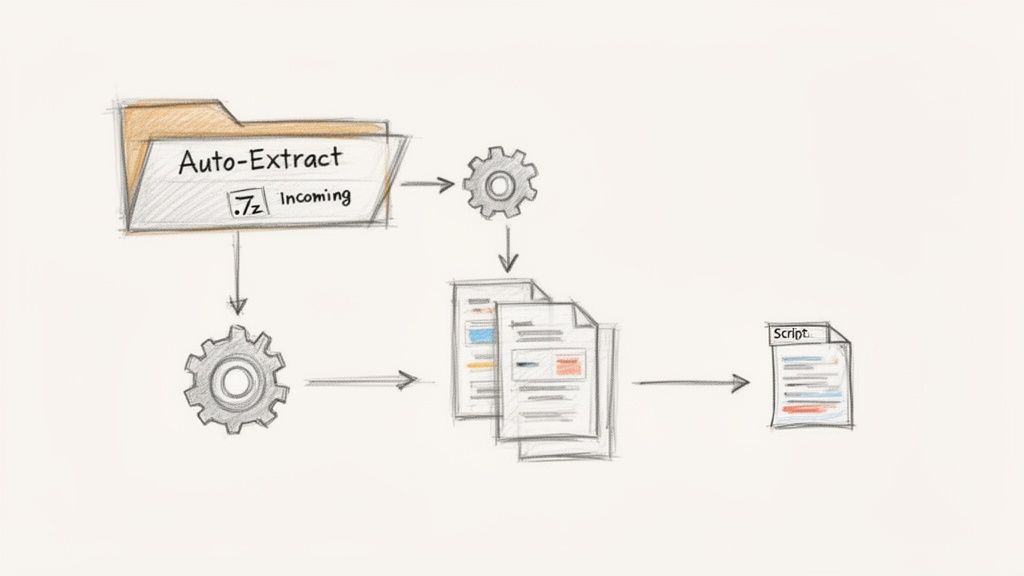
For a truly set-it-and-forget-it setup, macOS’s built-in Folder Actions are your secret weapon. You can set up a dedicated folder—let's say you name it "Auto-Extract"—and attach a script to it. From then on, any .7z file you drop into that folder gets unzipped automatically. It’s an incredibly slick way to build a hands-off workflow.
This is just scratching the surface, of course. You can explore some seriously powerful options for Mac workflow automation that go far beyond just unzipping files.
Here's another pro tip: think about your files before you even create an archive. If you're compressing large images or videos, run them through an optimization app like Compresto first. This can dramatically shrink their size, which means your final .7z archive will be even smaller and faster to create.
The 7z format was built to handle massive files right from the start. Since its debut back in 1999, its capabilities have grown to support file sizes up to an astronomical 16 exbibytes and path names over 260 characters. That's leagues beyond what old-school ZIP can manage, and it's a big reason why pros still trust it. Learn more about 7z's robust history.
Creating Archives from the Command Line
Don't forget that p7zip isn't just for extracting; it's a two-way street. You can easily create archives right from the command line. The command 7za a YourArchive.7z YourFolder/ will compress an entire folder into a brand new .7z file. You can even lock it down with a password directly from the Terminal. For the full command line cheat sheet, including split archives, see how to use 7-Zip.
- Create a basic archive:
7za a archive.7z files_to_add - Add a password:
7za a -pYourPassword archive.7z files_to_add
Getting comfortable with these techniques can genuinely change how you work with archives, turning a repetitive chore into a seamless, almost invisible part of your day.
Common Questions & Quick Fixes
Here's a quick reference for handling .7z files on a Mac and troubleshooting the little hiccups that can pop up. These are the concise answers and tips I've picked up over the years for smoother archive handling.
Is it safe to use third-party apps to extract .7z files on my Mac?
Absolutely. Popular tools like The Unarchiver and Keka are completely safe. They're well-regarded, open-source, vetted by Apple, and do all their work locally on your machine. Millions of Mac users trust them because your data never gets uploaded to some random server.
Can I extract a .7z file on a Mac without installing any software?
Yes, you can! macOS’s built-in Archive Utility can often open basic .7z archives with a simple double-click. However, I’ve seen it stumble frequently with encrypted or multi-part archives. For those, a dedicated app provides 100% consistency.
A good third-party tool will reliably:
- Prompt you for passwords on encrypted files.
- Seamlessly integrate with Finder for batch extractions.
- Handle complex split archives that confuse the native utility.
Troubleshooting Extraction Issues
What’s the real difference between 7z and ZIP?
The main distinction comes down to compression efficiency. The 7z format uses advanced LZMA algorithms that often produce file sizes 30–70% smaller than what you’d get with ZIP. It also supports heavy-duty AES-256 encryption, which is a huge plus for securing large or sensitive file transfers.
Why did my .7z file fail to extract?
This is a classic problem, and it usually boils down to one of three things: an incomplete download, the wrong password, or a missing piece of a multi-part archive.
Always double-check these first. Re-download the file to rule out corruption. Be meticulous when entering the password (caps lock, anyone?). And if it's a split archive, make sure all the parts—like .7z.001, .7z.002, etc.—are sitting together in the same folder before you try to extract.
"Always confirm you have the complete set of parts in the same folder to avoid multi-volume setbacks. It's the most common mistake I see." – Veteran Mac Developer
Here’s a quick cheat sheet for diagnosing the issue:
| Issue | Symptoms | Quick Fix |
|---|---|---|
| Corrupted Archive | You get an “Unexpected end of data” message. | Re-download the .7z file from the source. |
| Missing Volume | You see errors mentioning .7z.002 or .7z.003. | Gather all the split files into one directory. |
| Permission Denied | The error says “Operation not permitted.” | Try extracting the files to a different folder, like your Desktop or Downloads. |
| Encryption Failures | Your password keeps getting rejected. | Double-check for typos and re-enter the password carefully. |
Mac Archive Best Practices
Getting into a good routine can save you a ton of headaches down the line.
- Verify your downloads: Use checksums (like MD5 or SHA-256) to make sure large downloads aren't corrupted before you even try to extract them.
- Use the right tool for the job: For encrypted archives, always lean on a dedicated app to prevent errors and potential data loss.
- Automate your workflow: If you deal with archives regularly, look into setting up Folder Actions or simple shell scripts to automate extractions.
Adopting these habits can seriously cut down on the time you spend managing files.
My Pro Tip: I always store archives in clearly labeled folders to keep track of different versions and projects. It's a simple trick that prevents a world of clutter.
Finally, don't forget to do a periodic cleanup of old .7z files. It's amazing how much space they can hog over time.
Ready to reclaim storage and speed up your Mac workflow? Try Compresto now for fast, local compression and extraction with up to 90% size reduction. Explore features and get started at https://compresto.app