Convert Publisher File to PDF: Steps to convert publisher file to pdf on device
Let's be honest: sending someone a Publisher file is asking for trouble. It’s the simplest way to guarantee they can’t open it, especially if they’re on a Mac. That brilliant design you spent hours perfecting? It’s completely useless if the recipient doesn’t have Microsoft Publisher installed.
This simple step—converting your .pub file to a PDF—solves countless sharing headaches. It locks in your design, fonts, and images, creating a universally compatible document that looks exactly the same for everyone, everywhere.
Why Converting Publisher Files to PDF Is a Must
Microsoft Publisher is a fantastic tool for creating beautiful, print-ready documents like newsletters, brochures, and flyers. But its biggest weakness is its native .pub format. It’s a huge bottleneck when it comes to actually sharing your work.
Have you ever designed the perfect brochure, only to email it to a client who replies, "I can't open this"? It's a frustratingly common scenario. The core problem is that the .pub format is proprietary. It requires Publisher to be installed, which isn't part of the standard Office suite and doesn't even exist for macOS. This limitation walls off your work from a massive audience.
The Universal Language of Documents
This is where the PDF (Portable Document Format) saves the day. Think of a PDF as a perfect digital snapshot of your document. It preserves everything exactly as you designed it, locking it all into place.
- Fonts: Custom or unusual fonts are embedded, so your text looks correct on every single screen.
- Layout: All your carefully placed images, shapes, and text boxes stay exactly where you put them.
- Images: Graphics and photos retain their intended quality and position, with no weird shifting or compression issues.
When you convert your Publisher file to a PDF, you’re translating it into a universal language that any modern device can read. It removes the guesswork and guarantees a consistent, professional viewing experience for clients, colleagues, and print shops.
A PDF is more than just a file format; it's a guarantee. It guarantees that the brilliant layout you crafted in Publisher will arrive on your recipient's screen exactly as you intended, without any surprises or compatibility errors.
Beyond compatibility, PDFs are also inherently more secure. You can set permissions to restrict editing, password-protect sensitive information, or get a digital signature. For any document that needs to be final and unchangeable for archival purposes, PDF is the undisputed industry standard.
As a final touch for business workflows, learning how to add a watermark to a PDF is a crucial next step. This simple action can safeguard your intellectual property before you share your hard work with the world.
A Quick Guide to Your Best Conversion Options
So, you have a Publisher file but need it in PDF format. What's the best way to get there? The right method really boils down to what software you have and what computer you're using.
If you’re on a PC and already have Microsoft Publisher, you’re in luck. The built-in “Export” or “Save As” function is hands-down the most reliable option. It’s designed to keep every single element of your layout and fonts perfectly intact, giving you a flawless conversion every time.
But what if you don't have Publisher, or you're working on a Mac? Don't worry, you're not stuck. Online converters are a super quick fix for non-sensitive documents, and they work on any platform. For a more robust, free, and offline solution, installing a program like LibreOffice gives you powerful tools to handle the conversion on both Mac and PC.
This simple decision tree can help you find the quickest path forward based on your current setup.
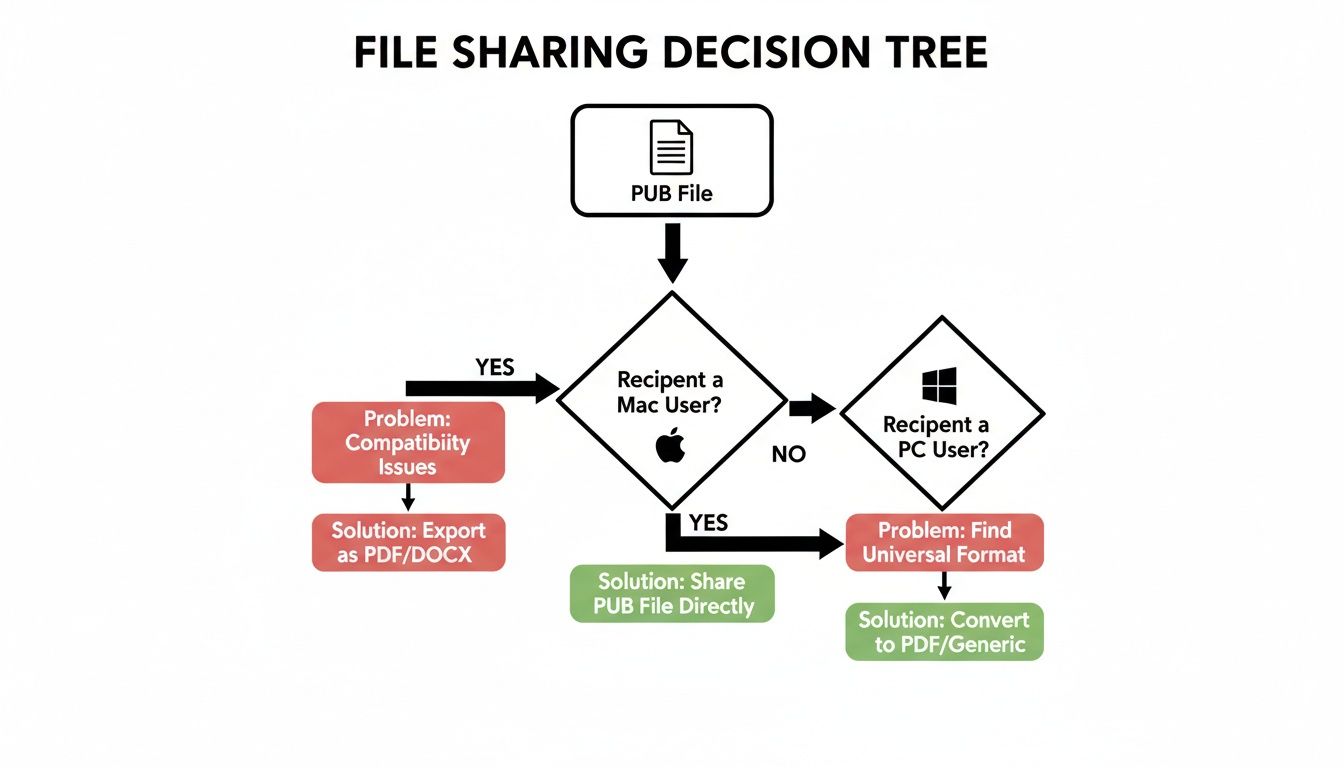
As you can see, PC users with Publisher have a direct line to a PDF. Mac users, on the other hand, will need to rely on a smart workaround, like an online tool or third-party software.
Choosing the Right Method
To make the choice even clearer, let's break down the most common ways to tackle this conversion. Find the right tool for your needs with this quick comparison of the top .pub conversion methods.
Comparing Publisher to PDF Conversion Methods
| Method | Best For | Platform | Cost | Fidelity |
|---|---|---|---|---|
| Microsoft Publisher | Perfect layout & font preservation | Windows | Paid | Excellent |
| LibreOffice Draw | A powerful, free offline alternative | Windows, macOS, Linux | Free | Good to Very Good |
| Online Converters | Quick, one-off conversions | Web-based (All) | Free (with limits) | Varies |
| Print to PDF | A universal workaround for any app | Windows, macOS | Free | Good |
Ultimately, the best method is the one that solves your immediate problem without creating new ones.
Prioritize Publisher's native export for guaranteed quality, lean on online tools when speed is all that matters, and turn to LibreOffice for a solid, free alternative you can use on any computer. Each path gets your Publisher file into a universally accessible PDF, which is the end goal.
The Gold Standard: Converting Directly in Microsoft Publisher
If you’ve got Microsoft Publisher installed on your Windows machine, you’re already holding the best tool for the job. Hands down, the most reliable way to turn a .pub file into a PDF is by using Publisher’s own built-in features. It's the gold standard because it ensures every font, image, and layout element stays exactly where you put it, avoiding the weird formatting hiccups that can happen with third-party converters.
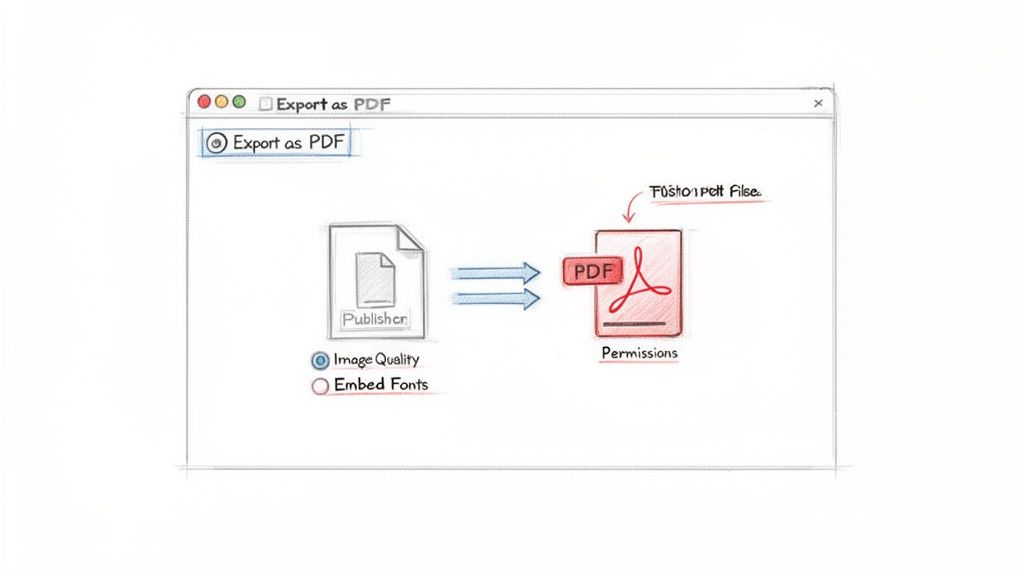
The process itself is simple, but the real magic is in the advanced options that give you total control over the final PDF. You can get there in two ways: through the classic ‘Save As’ command or the ‘Export’ feature. Both roads lead to the same place—a high-quality PDF built exactly for your needs.
Fine-Tuning Your PDF Output
Don't just hit "save" and call it a day. To get a truly professional result, you need to dive into the optimization settings. Before you finalize the conversion, hunt for the ‘Options’ button in the save dialog box. This is your command center for tailoring the PDF, whether it’s for a lightweight web-friendly version or a high-resolution print job.
Inside this menu, you can dial in some critical settings:
- Image Compression: This lets you choose between standard, high quality, or commercial press settings. For a company newsletter you're emailing out, standard is perfectly fine. But for a glossy brochure headed to the printers, you’ll want commercial press to keep those images sharp.
- Font Embedding: Always make sure the “Embed fonts in the file” box is checked. This is non-negotiable. It packages your specific fonts into the PDF, so you don't have to worry about the recipient’s computer swapping your carefully chosen typography for Times New Roman.
- Document Permissions: If you're working with sensitive information, you can add a layer of security. Set a password to prevent others from opening or editing the document without permission.
Publisher's native 'Save as PDF' feature has come a long way, handling complex layouts without breaking a sweat. In a world where 78% of digital agreements are now finalized as PDFs, a perfect conversion isn't just nice—it's essential. This highlights just how critical it is to get flawless results from proprietary formats like .pub. You can learn more about the rise of PDF usage and its impact on modern workflows.
Think of it this way: if you’re exporting a multi-page product catalog, using those commercial press settings ensures your product photos look crisp and professional. On the flip side, for a single-page flyer meant for an email blast, choosing a smaller file size with standard compression makes it download instantly for your audience. Mastering these small tweaks is what separates an okay PDF from a perfect one.
Using Free Online Converters on Any Platform
What do you do when you don't have Microsoft Publisher handy, or you're working exclusively on a Mac? This is exactly where free online tools save the day. They offer a quick, no-install-required method to get your Publisher file into a PDF format, which is perfect when you just need a fast conversion for a non-sensitive document.
The process is almost always the same, no matter which site you use. You typically upload your .pub file, pick PDF as the output, and hit the "convert" button. After a moment or two, you're given a download link for your brand-new PDF. It’s a beautifully simple solution that works on any computer with a web browser.
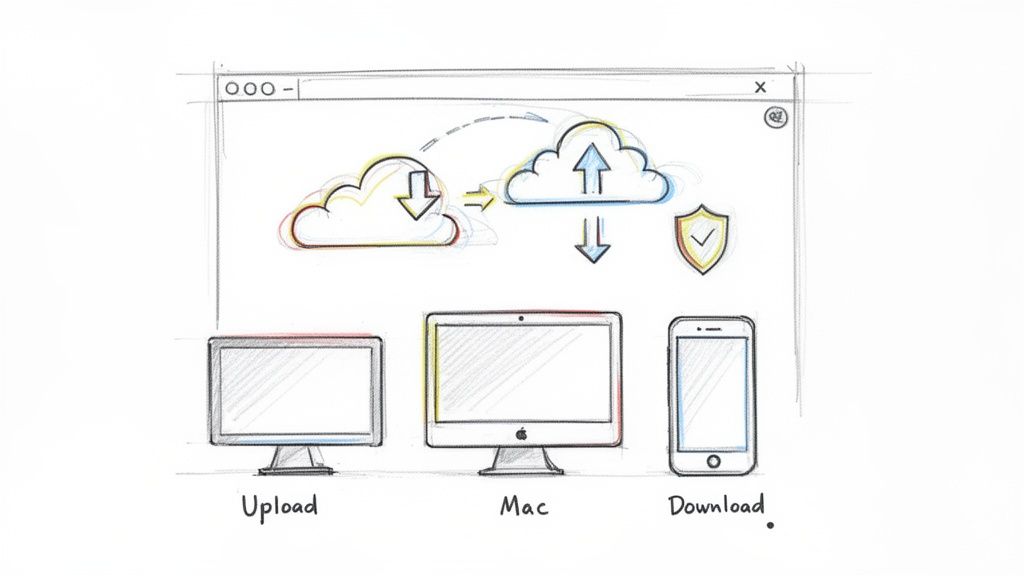
This kind of straightforward, user-friendly interface is what makes these web-based tools so appealing for quick, one-off jobs where you just need to get it done.
Navigating Privacy and Quality Concerns
As convenient as these tools are, you have to be careful. When you upload a file, you're sending your data to someone else's server, which naturally brings up privacy and security questions. For any document with confidential or proprietary information, an offline method is always the smarter, safer bet.
Before using any online converter, ask yourself: "Would I be comfortable if this document was made public?" If the answer is no, avoid uploading it. Stick to offline methods for sensitive files.
On top of that, free services often have a few strings attached that you should be aware of:
- File Size Limits: Many platforms put a cap on how big your uploaded file can be. This can be a real roadblock for larger Publisher files packed with high-resolution images.
- Watermarks: Some free converters will slap their logo or a watermark onto your final PDF, which pretty much makes it unusable for any professional purpose.
- Conversion Quality: The final output can be a bit of a gamble. Fonts might get swapped out for something similar but not quite right, and complex layouts can get jumbled during the conversion.
The demand for online converters has exploded alongside the general shift to digital documents. In fact, PDF creation has been growing by about 12% every year since 2020, with major platforms now handling billions of file conversions annually. You can discover more statistics about PDF market growth to get a sense of just how massive this trend is.
When you're picking a service, take a minute to look for a clear privacy policy that explains what happens to your files. The good ones will state that your files are automatically deleted from their servers after a few hours. That one small check can make a big difference in protecting your work.
The LibreOffice Workaround for Mac and Linux
If you’re on a Mac or Linux machine, the lack of Microsoft Publisher can feel like a major roadblock when you get sent a .pub file. Don't worry, there's a fantastic offline solution.
Enter LibreOffice, a powerful and completely free open-source office suite. Its built-in graphics editor, LibreOffice Draw, does a surprisingly good job of opening and interpreting Publisher files, giving you a reliable way to handle them without uploading your documents to a random website.
The process is incredibly simple. Just install the LibreOffice suite, open your .pub file directly in Draw, and use the built-in export function to create a PDF. This keeps everything on your local machine, avoiding the privacy risks that come with online converters. You’re in full control from start to finish.
This is the LibreOffice Draw interface, where you can preview and adjust your .pub file before saving it as a PDF.
Having a full-featured graphics editor to make small tweaks is the real advantage here, ensuring the final PDF looks exactly how you want it.
Handling Potential Layout Shifts
While LibreOffice is a lifesaver, it’s not a perfect clone of Publisher. You might run into a few small hiccups, especially if the original file has a complex layout or uses specific fonts.
Here’s what to look out for:
- Font Substitutions: If you don’t have the original fonts from the
.pubfile installed on your system, LibreOffice will swap them for the closest match it can find. For the best results, try to install the necessary fonts on your Mac or Linux machine first. - Minor Spacing Issues: Sometimes, text boxes or images can shift a tiny bit. Before you export, take a moment to scan the document in Draw and drag any rogue elements back into place.
A quick visual check in Draw before exporting allows you to catch and correct over 90% of potential formatting errors. This little step can save you from the embarrassment of sending out a flawed document.
For Publisher files, which are often used for flyers, brochures, and other marketing materials, getting the look right is non-negotiable. The ability to export natively to PDF has been a huge deal for cross-OS collaboration, especially in a global market where millions of users access PDFs daily across the U.S., India, and Brazil. You can dive deeper into the global PDF software market to see just how fast it's growing.
Once your document looks perfect in Draw, just head to File > Export As > Export as PDF. You’ll get a dialog box with plenty of options to control image quality and file size, giving you solid control over the final output.
And for Mac users who want to explore more native options, our guide on how to create a PDF on a Mac has you covered.
Fine-Tuning Your PDF After Conversion
You’ve successfully converted your Publisher file to a PDF. That’s the hard part done, right? Almost. Now it’s time to make sure your document is actually shareable.
A massive, high-resolution PDF can be a real headache. It gets bounced by email servers and forces your recipients to sit through painfully slow downloads. Nobody wants that.
Making Sure Your PDF is Ready to Share
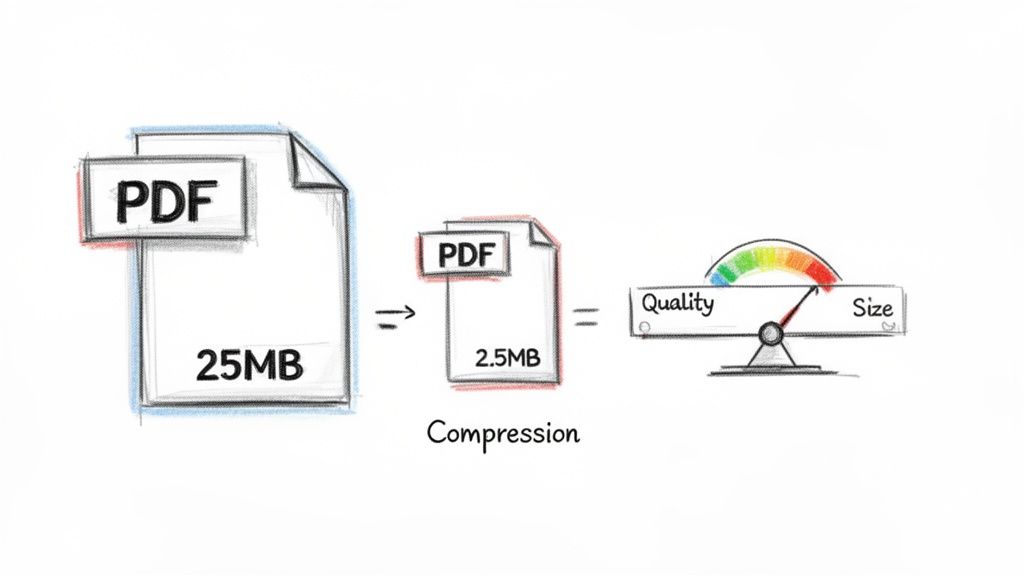
Imagine you just finished a stunning 25MB Publisher brochure. The PDF version looks perfect, but it’s far too clunky to send out. This is where optimization becomes your best friend. The final step is to compress the file, shrinking its size without any noticeable drop in quality. It's about making sure your professionally designed document is also professionally delivered.
The goal is to hit that sweet spot between file size and visual clarity. With modern tools, you can take that 25MB brochure and slim it down to a much more manageable 2.5MB in just a few seconds.
And if you’re sending this off for professional printing, you’ll also want to make sure your colors are spot-on. Getting a handle on concepts like Mastering Color Management in Printing is crucial for getting the results you expect.
Don't let a huge file size sabotage all your hard work. A well-optimized PDF is small enough to email without a second thought but still sharp enough to impress. It's the final touch that shows you care about the entire process, from creation to delivery.
If you want to dive deeper into the techniques, our guide on how to reduce PDF size without losing quality has all the actionable steps you need. This quick final tweak saves everyone time and hassle, making your documents easy to share and open anywhere.
Got Questions About PUB to PDF?
You've seen the methods, but a few questions always pop up when converting Publisher files. Let's clear the air and tackle those common concerns head-on.
Will My Layout or Fonts Get Messed Up?
This is the big one. Your safest bet for keeping everything exactly as you designed it is to use Microsoft Publisher’s built-in "Export" feature. It's specifically built to embed your fonts and lock in the layout, so what you see is what you get.
When you venture into online converters or even LibreOffice, there's a small chance of things shifting around. This is especially true if your design is complex or uses unique, custom fonts. The golden rule? Always preview the final PDF before you send it anywhere.
Can I Make an Editable PDF from a Publisher File?
In short, not directly. A standard PDF is like a digital printout—it’s a snapshot of your final document, not a work-in-progress. All the methods we've covered will create a flat, non-editable PDF.
While some heavy-duty software like Adobe Acrobat Pro can convert PDFs into fillable forms, the initial conversion from a .pub file creates a static, view-only document.
Think of the PDF as the final, printed version of your work. It's designed for viewing and sharing, not for further edits. This ensures your design stays locked and professional.
What Is the Best Method for Mac Users?
Since Publisher is a no-show on macOS, you have two solid workarounds.
For a quick, one-off conversion, a trusted online converter gets the job done fast. But if you handle .pub files more than once in a blue moon, installing LibreOffice is the way to go. It’s a free, powerful, and offline solution that gives you far more control, making it the best long-term strategy for Mac users.
Once your file is converted, you'll want to make sure it’s ready to share. Compresto is a slick macOS app that shrinks PDFs and other files in seconds without killing the quality. It’s perfect for getting your documents ready for email or web uploads. Learn more and get started at https://compresto.app.