How to Convert MP4 to MPG on a Mac The Easy Way
Sometimes, progress creates its own set of problems. You’ve got a beautiful, high-quality MP4 video, but the gear you need to play it on is stuck in the past. This is often where the need to convert an MP4 to MPG comes into play—it's a classic case of ensuring compatibility with older hardware.
For tasks like authoring a standard-definition DVD or prepping content for a digital sign that's been running for a decade, the MPG format (specifically using an MPEG-2 codec) isn't just an option; it's a hard requirement.
Why You Still Need to Convert MP4 to MPG
In a world completely dominated by the MP4 format, it’s easy to assume older video types are irrelevant. Yet, the need to convert an MP4 file into an MPG pops up more often than you'd think, both in professional workflows and for personal projects. This isn’t about which format is better overall. It's about having the right tool for a specific job.
The single biggest driver for this conversion is backward compatibility. Your brand-new iPhone shoots video in a super-efficient MP4 container, but the device it needs to play on might be from 2005. A lot of hardware was built around the MPG standard and, simply put, was never updated to handle anything newer.
To help you decide when a conversion is the right move, here’s a quick breakdown of how these two formats stack up against each other.
MP4 vs MPG At a Glance
| Feature | MP4 (MPEG-4 Part 14) | MPG (MPEG-1/MPEG-2) |
|---|---|---|
| Primary Use Case | Web streaming, modern devices, online video | DVD authoring, broadcast TV, older hardware |
| Compression | High efficiency (H.264/H.265), smaller file sizes | Lower efficiency, larger file sizes |
| Quality | Excellent quality at lower bitrates | Good quality, but requires higher bitrates |
| Compatibility | Universal on modern devices and web browsers | Universal on DVD players and legacy systems |
| Flexibility | Supports video, audio, text, and images | Primarily supports video and audio streams |
This table makes it clear: MP4 is built for the modern, connected world, while MPG remains the gold standard for specific, established playback systems. The conversion from one to the other is really about bridging that technological gap.
Real-World Scenarios Demanding MPG
You'll find that MPG is non-negotiable in several key areas. Once you know where it’s required, the reason for keeping this conversion skill in your back pocket becomes obvious.
- DVD Authoring: If you're burning a standard video DVD that needs to work in any standalone player, the video files must be encoded as MPEG-2 video inside an MPG container. The official DVD-Video specification was built on this format, and players are hardwired to look for it.
- Broadcast Television: Many television broadcasting systems have incredibly strict technical delivery specs. These workflows often rely on MPEG-2 streams (within an MPG or a similar transport stream) because of their rock-solid reliability. Sending them an MP4 will almost certainly get your submission kicked back.
- Legacy Digital Signage: Think about the screens you see in older shopping malls, airports, or train stations. Many of these players were installed years ago and are programmed to only accept a handful of formats, with MPG being one of the most common.
- Archival and Institutional Use: Some libraries, museums, and government bodies standardized on MPG for long-term video archiving. They chose it for its established nature and because it's less computationally intensive to decode than modern, complex codecs.
A lot of the time, converting MP4 to MPG is about making sure your video plays nice with specific audio visual equipment at professional events. The projectors, media servers, and playback decks at a venue may have strict format limitations to guarantee a flawless show.
Understanding the Technical Divide
The history here is pretty interesting. MPG, born from the MPEG-1 standard in 1992 and supercharged by MPEG-2 in 1995, was the engine behind the DVD revolution. By 2010, over 5 billion DVD players had been sold worldwide, cementing MPG's status with broadcasters and Hollywood.
Meanwhile, MP4 took over the internet, capturing 75% of all web video traffic by that same year thanks to its superior efficiency. This incredible success is what created the very compatibility headaches we're solving today. You can dive deeper into the technical details in our guide to Mac video file formats.
The core takeaway is simple: MP4 excels at efficient compression for online streaming and modern devices, while MPG provides broad compatibility for physical media and established broadcast systems. Knowing when to convert is key to avoiding playback failures.
Ultimately, the decision to convert MP4 to MPG is a practical one. It ensures your video actually plays where it needs to, bridging the gap between modern creation tools and legacy playback hardware. It’s how you guarantee your message gets seen and heard, exactly as you intended.
The Easiest Drag-and-Drop Conversion Method
When you're trying to convert an MP4 file to MPG on a Mac, the last thing you want is a clunky, multi-step headache. While command-line tools and complex software have their place, sometimes you just need to get the job done fast. The most straightforward path is almost always a dedicated local app built for one thing: simplicity. For anyone on macOS, a tool like Compresto turns a technical chore into a simple drag-and-drop action.
This approach cuts right through the noise. Instead of getting tangled up in codecs, bitrates, and container settings, you can lean on optimized presets that do the heavy lifting for you. It's a huge time-saver, especially when you're on a deadline and just need a reliable MPG file without a crash course in video encoding.
A Simple Workflow for Single Files
Let’s say you have a single MP4 video—maybe a client testimonial or a quick product demo—and it needs to go on a legacy digital signage player. The catch? The player only takes MPG files, and you need it converted now. With a drag-and-drop converter, this is dead simple.
You just find your MP4 in Finder, drag it into the application window, and drop it. From there, you pick a pre-configured "MPG" preset. These presets are already dialed in to balance quality and compatibility, so the final file will play smoothly on older hardware. One last click on "convert," and you're done.
This workflow is perfect for those one-off tasks where speed is everything. No uploading to a random cloud server, no waiting in a queue, and no worrying about your internet connection dying mid-conversion. It all happens securely and privately, right on your machine.
Handling Large Projects with Batch Conversion
Now, picture a bigger job. You're an archivist at a marketing agency, tasked with converting an entire year's worth of social media videos—hundreds of little MP4s—into MPG for long-term storage on a physical media server. Tackling those one by one would be a colossal waste of time.
This is where batch processing is a total lifesaver. Instead of dragging individual files, you can grab the whole folder of MP4s and drop it into the app. The software instantly queues up every single video inside.
Once they're loaded, you can apply the MPG preset to all the files at once. A single click kicks off the process, and the application churns through the entire batch, converting each MP4 to MPG in sequence. You can see the progress, and because it’s all happening locally, it's way faster than any online batch converter could ever be.
This diagram shows a typical journey an MP4 file might take, where a conversion to MPG becomes necessary for broadcast, physical media, or digital signage systems.
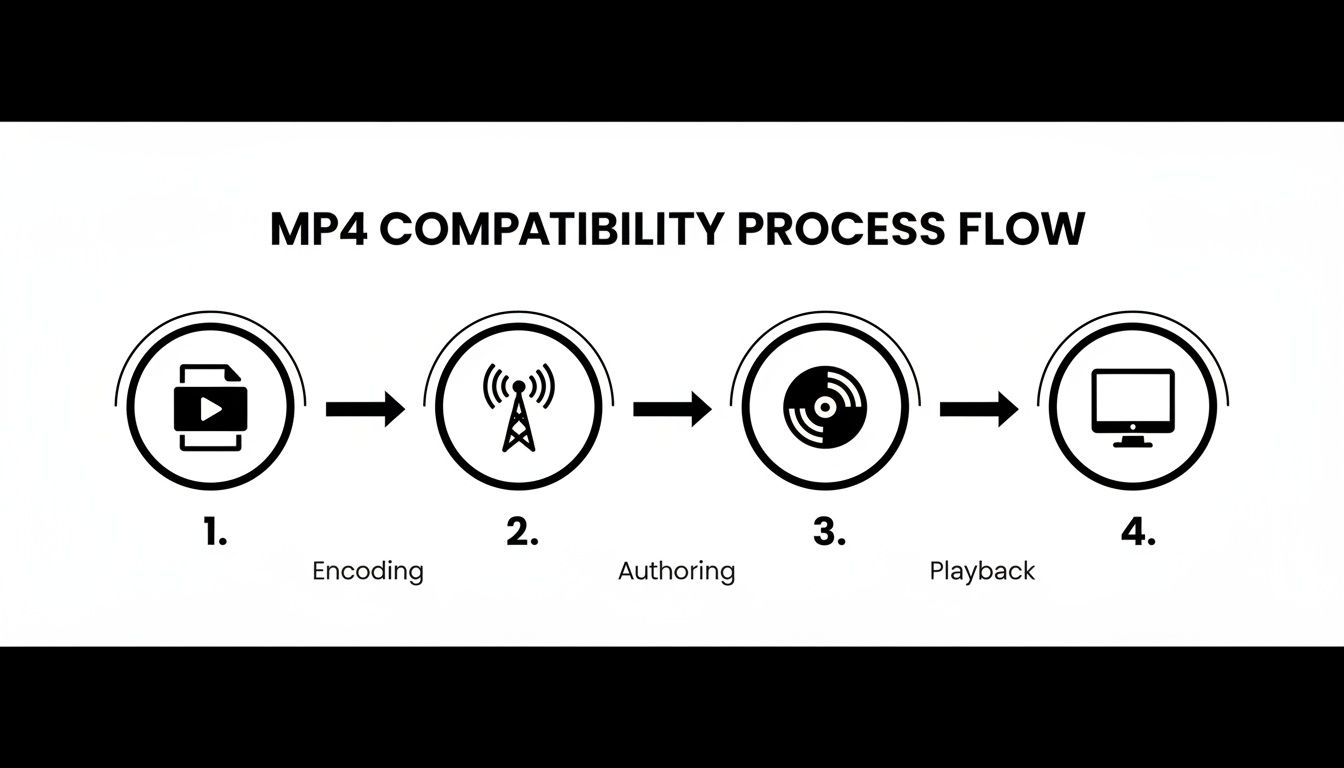 The flow highlights that while MP4 is a common starting point, the destination often dictates the format, forcing creators to convert files for specific legacy hardware.
Automating Your Workflow with Folder Monitoring
For a truly hands-off setup, advanced tools offer a feature often called "watch folders" or Folder Monitoring. This is a game-changer for anyone with a recurring need to convert MP4 to MPG. You can basically tell your Mac to watch a specific folder and automatically handle conversions for you.
Here’s how that works in the real world:
- Set Up the Watch Folder: Inside an app like Compresto, you pick a folder—let's call it "MP4 to Convert"—and assign a rule to it. The rule is simple: "convert any new file to high-quality MPG."
- Drop Your Files: Now, anytime you or a teammate saves an MP4 file into that designated folder, the application spots it instantly.
- Automatic Conversion: Without you lifting a finger, the software grabs the new file, converts it to MPG using your preset, and saves the finished video in a separate output folder.
This creates a completely automated pipeline. Your video editors can drop their finished MP4s into a shared network folder, and the conversion just happens in the background, ready for whatever comes next.
This level of automation is more than just a convenience; it's a huge productivity boost. It kills repetitive manual tasks, cuts down on human error, and keeps all your converted files consistent.
The value of local, dedicated software really clicks when you see how much time is wasted on manual format tweaks. Research from a recent Wrike survey of 2,500 professionals found that video editors waste 15-20 hours a week on this stuff, often fighting with clunky software. That's where tools like Compresto shine for Mac users on Intel or Apple Silicon (Ventura 13+), compressing and converting MP4 to MPG at blistering speeds—up to 60x faster than online batch rivals. It does this with zero internet dependency, preserving every frame's quality.
While free tools are out there, they often come with a steeper learning curve or serious performance limits. If you're exploring different options, our guide on using HandBrake offers a good comparison for a more manual, GUI-based approach.
At the end of the day, for Mac users who value their time and need a reliable, secure way to get from MP4 to MPG, a dedicated drag-and-drop application is the clear winner. It simplifies single-file jobs, streamlines massive batch projects, and offers powerful automation that can completely overhaul your video workflow.
Free Alternatives for Converting Your Videos
While a dedicated app gives you a polished, automated experience, sometimes you just need a free tool or prefer getting your hands dirty. For anyone comfortable with a bit of tinkering, there are several powerful, no-cost options available to convert MP4 to MPG.
These alternatives are built for different types of users. You've got command-line tools for the tech-savvy, classic GUI apps for those who like a visual workflow, and browser-based converters for quick, one-off jobs.
Just remember that "free" usually comes with a trade-off. You might be swapping the convenience of a purpose-built app for a steeper learning curve, slower performance, or even some privacy concerns. Let's break down the most popular choices so you can find the right fit.
Mastering Conversions with FFmpeg
If you live and breathe in the macOS Terminal, FFmpeg is the undisputed king of video manipulation. It’s an incredibly powerful, open-source command-line tool that can handle pretty much any media task you can imagine. It has no graphical user interface (GUI), but its real strength is its precision and raw power.
First, you'll need to get it installed, which is easily done with a package manager like Homebrew. Once that's set up, a basic conversion is just a single line of code.
Let's say you have a file named promo-video.mp4 sitting on your desktop. To turn it into an MPG, you'd just open your Terminal and type this:
ffmpeg -i ~/Desktop/promo-video.mp4 ~/Desktop/promo-video.mpg
That simple command tells FFmpeg to use your video as the input (-i) and convert it to the output file you specified. It's smart enough to pick the right codecs for the MPG container automatically. The real magic, though, is how you can add flags to control everything—video codec, bitrate, audio quality, you name it. This is exactly why developers and video pros swear by it.
Using a GUI Tool Like HandBrake
If the command line isn't your thing, a visual tool like HandBrake is an excellent free alternative. It's a legendary open-source video transcoder that has been a staple for years. While it's famous for ripping DVDs, it's also a fantastic converter.
HandBrake strikes a nice balance—it's more hands-on than a simple drag-and-drop app but far less intimidating than the command line. After you install and open it, the process is pretty straightforward:
- Load Your File: First, you'll select your source MP4 file.
- Set the Format: Head to the "Summary" tab and make sure the Format is set to "MP4 File." Then, in the "Video" tab, you'll need to select MPEG-2 as the video encoder. This is the standard for most MPG use cases, especially for creating DVDs.
- Tweak the Settings: You can dive into the other tabs to adjust things like video quality (bitrate), frame rate, and audio tracks.
- Start the Conversion: Finally, pick where you want to save the new file and hit the "Start" button.
It definitely requires more manual setup than an app with built-in presets, but HandBrake gives you a ton of control without ever making you touch the Terminal. For a closer look at how it stacks up against other tools, check out our guide on the best free any-format video converter software.
The Pitfalls of Online Converters
A quick Google search will turn up dozens of websites promising to convert MP4 to MPG for free, right in your browser. The convenience is tempting; after all, there's no software to install. But these services come with some serious downsides you need to be aware of.
The history here is pretty interesting. Back in 2006, as platforms like YouTube took off, a site called Zamzar pioneered free online file conversion, processing over 510 million files since. This trend highlights a classic problem: MP4 is modern and efficient, but MPG is the old reliable format needed for legacy devices. Even though an MP4 can be 50-70% smaller than an MPG of similar quality, MPG's universal playback keeps it relevant. You can read more about this trend on zamzar.com.
Despite their appeal, online converters have some major limitations:
- Privacy and Security: When you use one of these sites, you're uploading your video to some unknown third-party server. If your content is confidential or sensitive in any way, this is a huge security risk.
- File Size and Speed Limits: Most free services cap your file size at something small, like 50MB or 100MB. The whole process also depends on your internet connection and their server traffic, which can make converting larger files painfully slow.
- Lack of Control: You get almost no say in the conversion settings. The final quality is often a gamble and might not look as good as you'd hope.
- Ads and Watermarks: To pay the bills, many of these sites are loaded with aggressive ads. Some will even slap a watermark on your finished video unless you upgrade to a paid plan.
For a tiny, non-sensitive file you need converted in a pinch, an online tool can work. But for any important project, the privacy risks and lack of quality control make them a poor choice for professional results.
At the end of the day, free tools can absolutely get the job done. Just make sure you understand what you're giving up in exchange for not paying a dime.
How to Keep Your Video Quality Sharp During Conversion
Switching a video from a modern format like MP4 to an older one like MPG doesn't have to mean your quality takes a nosedive. The trick is to remember that every conversion is essentially making a copy of a copy. But with the right approach, you can make that "copy" look just as good as the original.
This isn't just a technical exercise; it's a practical necessity. We're swimming in video content—it's projected to make up 82% of all consumer internet traffic. While MP4 is king for new content, MPG still runs the show for about 30% of digital signage networks and countless older systems. Bridging that gap without losing quality is a common challenge. You can find more details about this digital divide at mp4.to.
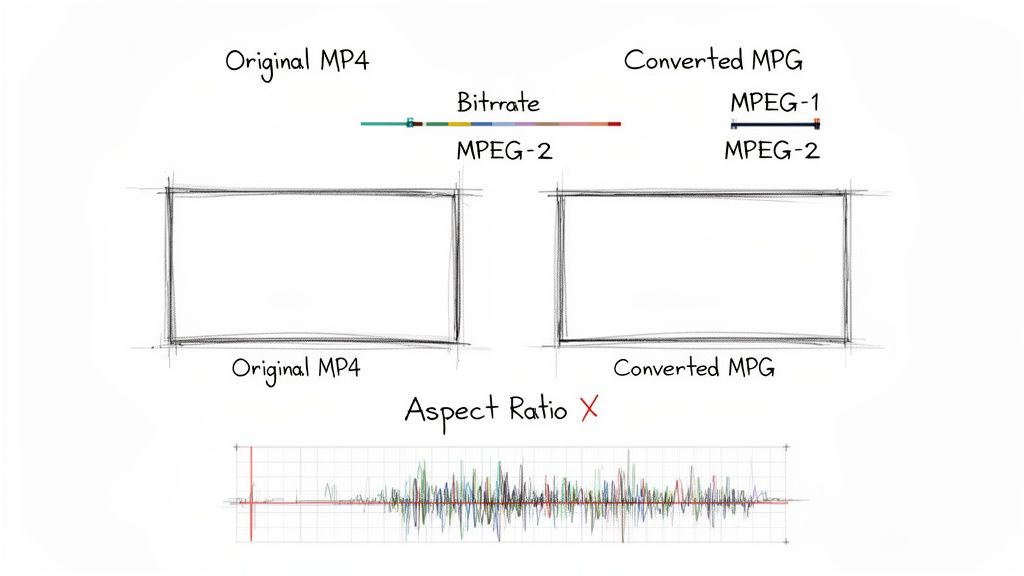
When you're dialing in your settings, it's easy to get lost in the weeds. The table below breaks down the most critical settings, explaining what they do and offering some real-world recommendations for common scenarios like burning a DVD or archiving footage.
Key Conversion Settings and Their Impact
| Setting | What It Controls | Recommendation for Quality | Recommendation for File Size |
|---|---|---|---|
| Bitrate (kbps) | The amount of data used per second of video. Higher means more detail. | Match or slightly exceed the original MP4's bitrate. 5,000-8,000 kbps is a good target for DVD. | Use a lower bitrate (1,500-3,000 kbps). Experiment to find the lowest acceptable quality. |
| Codec | The algorithm used to compress and decompress the video data. | MPEG-2. It's the standard for DVDs and broadcast, offering the best quality for the MPG container. | MPEG-1 if you need maximum compatibility with very old devices, but quality will be much lower. |
| Resolution | The dimensions of the video (e.g., 1920x1080). | Keep the resolution the same as the source file to avoid unnecessary scaling. | Lower the resolution (e.g., from 1080p to 720p or 480p) for a significant size reduction. |
| Frame Rate (fps) | The number of still images shown per second to create motion. | Always match the source file's frame rate (e.g., 29.97 or 25 fps) to prevent audio sync issues. | Frame rate doesn't significantly impact file size, so always match the source for smooth playback. |
| Audio Bitrate (kbps) | The amount of data used per second for audio. | 192 kbps or higher for clear, crisp audio. Use 320 kbps for high-fidelity sound. | 128 kbps is usually the lowest you'd want to go for acceptable audio quality. |
Getting these settings right is the difference between a professional-looking result and a pixelated mess. Use these recommendations as a starting point and tweak them based on your specific project's needs.
Understanding Bitrate: The Foundation of Quality
If there's one setting you absolutely need to get right, it's bitrate. This number tells the converter how much data to use for each second of video. Think of it like the thread count in a sheet—a higher bitrate weaves a denser, more detailed image.
When you convert MP4 to MPG, your main job is to set an output bitrate that’s at least the same as, or a little higher than, your source file's. If you go too low, the software starts throwing away visual data to shrink the file, and you end up with those ugly, blocky artifacts that scream "bad conversion."
Pro Tip: Don't fall into the trap of trying to "fix" a low-quality MP4 by cranking the MPG bitrate way up. You can't magically create detail that wasn't there in the first place. All you'll get is a gigantic file that still looks blurry.
Choosing the Right MPEG Codec
The MPG container format can use a couple of different video "codecs," which are the engines that do the compressing. Your choice here really comes down to where the final video is going.
- MPEG-1: This is the old-timer. It was designed for Video CDs (VCDs) and is best suited for situations where you need something to play on ancient hardware. The quality is pretty similar to an old VHS tape.
- MPEG-2: This is the one you’ll be using 99% of the time. It’s the standard for DVD-Video and was used for digital television broadcasts for years. It looks much better than MPEG-1 and is the clear choice for any professional or archival job.
Seriously, unless someone has specifically asked you for an MPEG-1 file for a very old system, just stick with MPEG-2. It strikes the perfect balance between quality and broad compatibility for the MPG format.
Avoiding Common Quality Pitfalls
Bitrate and codec are the big two, but a few other details can trip you up and spoil an otherwise perfect conversion.
A classic mistake is a mismatched aspect ratio, which leaves your video looking stretched or squashed. Double-check that your output settings match the source video's ratio, whether that’s widescreen (16:9) or the older standard (4:3). Most good converters handle this automatically, but it never hurts to verify.
Another major headache is when the audio goes out of sync. This usually happens when the source and output frame rates don't match up. The easiest fix is to just keep the frame rate the same as the original MP4 (like 29.97 fps or 25 fps). Trying to force a change can cause the audio to slowly drift away from the video.
Finally, don't forget the audio quality itself! A high-quality video with muddy, compressed audio feels cheap. Set your audio bitrate to at least 192 kbps to make sure it sounds as good as it looks.
Troubleshooting Common Conversion Errors
Even with the best tools, video conversion can sometimes hit a snag. That quick MP4 to MPG conversion you started can turn into a head-scratching puzzle when the output isn't quite right. The good news is that most of these errors are pretty common and, thankfully, have straightforward fixes.
We've all been there—the audio is out of sync, or the video looks like it’s been stretched in a funhouse mirror. Don't worry. The trick is simply knowing what to look for and which setting to adjust. Let's walk through the usual suspects and get your conversion back on track.

Fixing Audio Sync Problems
There's nothing more distracting than audio and video drifting apart. You see an actor's lips move, but the words trail a second behind. Nine times out of ten, this is a frame rate mismatch.
Your source MP4 file was shot at a specific frame rate, maybe 29.97 frames per second (fps). If you tell the converter to output the MPG at a different rate, like 25 fps, the software has to improvise by dropping or duplicating frames to make it work. This completely messes up the timing, and your audio track gets left behind.
- The Fix: This one's easy. Always double-check your output settings and make sure the frame rate is set to match the source file. Any decent converter will have an "Auto" or "Same as source" option. Just use that.
Correcting Distorted or Stretched Video
Another classic problem is getting a final video that looks squashed, stretched, or just plain weird. This is almost always an aspect ratio issue. It happens when you convert a widescreen (16:9) video but your output settings are mistakenly set for a standard (4:3) screen, or the other way around.
The converter is essentially trying to force a rectangular peg into a square hole, distorting the entire picture in the process.
Always ensure your output aspect ratio matches the original MP4. If your source is 16:9, your MPG output should also be 16:9 to preserve the original framing and prevent visual distortion.
Dealing with Failed Conversions
Sometimes, the process just quits on you. You click "Convert," and a moment later, you get a vague "Error" message with no helpful clues. It's frustrating, but it usually points to one of a few things.
- Corrupted Source File: The original MP4 might have a tiny data error that the converter can't process. Try playing the source file all the way through to see if it stutters or glitches at any point.
- Unsupported Codec: It's rare, but your MP4 might use a video or audio codec that your conversion tool doesn't recognize.
- Permissions Issues: On a Mac, make sure the software has permission to read from the source folder and write to the destination folder.
This is an area where offline converters really shine over their online counterparts. A recent study revealed that 64% of professionals are hesitant to use cloud converters because of security vulnerabilities. An offline app like Compresto keeps everything local on your machine, eliminating data breach fears and giving you far more control. You can dig into these security concerns and offline solutions from the Companionlink study.
If a conversion fails, the first thing to do is just try again—maybe with a different tool or after checking the source file for issues. Often, a simple restart of the app or your computer can clear up temporary glitches. By methodically working through these common problem areas, you can solve just about any issue and get that perfect MPG file.
Got Questions About Converting MP4 to MPG?
When you're jumping into video conversion, a few questions always pop up. It's totally normal. Getting the right answers upfront saves you from headaches and guesswork, ensuring your conversion goes off without a hitch.
Will I Lose Quality When I Convert MP4 to MPG?
This is the big one, right? The short answer is: not if you do it right.
Anytime you re-encode video, you're technically processing the data again, which creates the potential for quality loss. But with modern tools, this loss can be so minimal it's completely invisible. The trick is to use a high bitrate for your MPG output that matches—or even slightly exceeds—the bitrate of your original MP4.
High-quality conversion apps use smart presets designed to hang on to every last bit of detail. Unless your main goal is to drastically shrink the file size, you can easily get an MPG that looks just as crisp as the original.
A well-executed conversion shouldn't cause any noticeable drop in quality. Just keep an eye on your bitrate settings, and you'll be golden.
Is MPG the Same as MPEG?
They're related, but they aren't the same thing. It's a classic case of blueprint vs. building.
MPEG stands for the Moving Picture Experts Group. They're the organization that creates the standards for video and audio compression—the blueprints.
An MPG file, on the other hand, is the actual video file that uses one of those standards, specifically the older MPEG-1 or MPEG-2 codecs. So, an .mpg file is the house built from the MPEG plan. Every MPG is a type of MPEG file, but you wouldn't use the terms interchangeably.
Can I Use QuickTime Player to Convert to MPG?
Unfortunately, no. The native QuickTime Player on modern Macs just can't export directly to the MPG format. Its export options are really geared toward Apple's own ecosystem, focusing on formats like MOV and MP4.
To create a proper MPG file on a Mac, you’ll need a dedicated third-party app. A tool like Compresto is built for exactly this kind of task, offering simple presets for MPG output. For the more technically adventurous, command-line software like FFmpeg is another option.
Which Is Better for DVDs: MP4 or MPG?
When it comes to making a standard DVD that’ll play in any old DVD player, there's no contest: MPG is the required format. Specifically, you need video encoded with the MPEG-2 codec.
The official DVD-Video specification was built around MPEG-2 from day one. Your camera might shoot in MP4, and you might edit in MP4, but that file must be converted into the proper MPG format before it can be authored onto a playable DVD. It's a non-negotiable part of the process.
Ready to convert your files without the hassle? Compresto makes it easy to convert MP4 to MPG with a simple drag-and-drop on your Mac, ensuring perfect quality and compatibility every time. Try it today and see how fast your workflow can be: https://compresto.app