The 12 Best Tools for Web Designers in 2026
The right software doesn't just bring ideas to life; it streamlines workflows, enhances collaboration, and ultimately determines the quality and performance of the final product. Navigating the crowded market of design, prototyping, and optimization tools can be overwhelming, making it difficult to assemble a truly effective toolkit. This guide cuts through the noise to provide a comprehensive breakdown of the best tools for web designers available today, moving beyond simple feature lists to offer practical, real-world insights.
This resource is designed for a wide range of professionals, including designers preparing web-optimized assets, developers sharing visuals in documentation, and social media managers needing quick, reliable compression. We provide an actionable analysis of each platform's specific use cases, its unique strengths, and its potential limitations. You will find out not just what each tool does, but how it fits into a professional workflow to help you build faster, more beautiful, and highly performant websites.
Inside, you will discover a curated selection of essential applications covering everything from initial design and prototyping with tools like Figma and Framer, to asset sourcing from platforms such as Envato Elements, and final optimization using services like Compresto. Each entry includes detailed analysis, screenshots for context, and direct links, helping you make informed decisions without wading through marketing jargon. Our goal is to equip you with the knowledge to select the perfect combination of tools for your specific needs, whether you are a freelancer, part of a large agency, or an indie creator. Let's dive into the definitive list.
1. Compresto
Best for: High-speed, automated asset optimization on macOS.
Compresto stands out as a premier tool for web designers who prioritize performance and workflow efficiency. It’s a powerful, privacy-first macOS application engineered to drastically reduce the file sizes of videos, images, GIFs, and PDFs without compromising visual quality. For designers creating performant websites, this tool is indispensable for shrinking heavy assets that would otherwise slow down page load times, a critical factor for both user experience and SEO. Its core strength lies in its simplicity and raw power, capable of achieving up to 90% size reduction in seconds through a clean drag-and-drop interface.
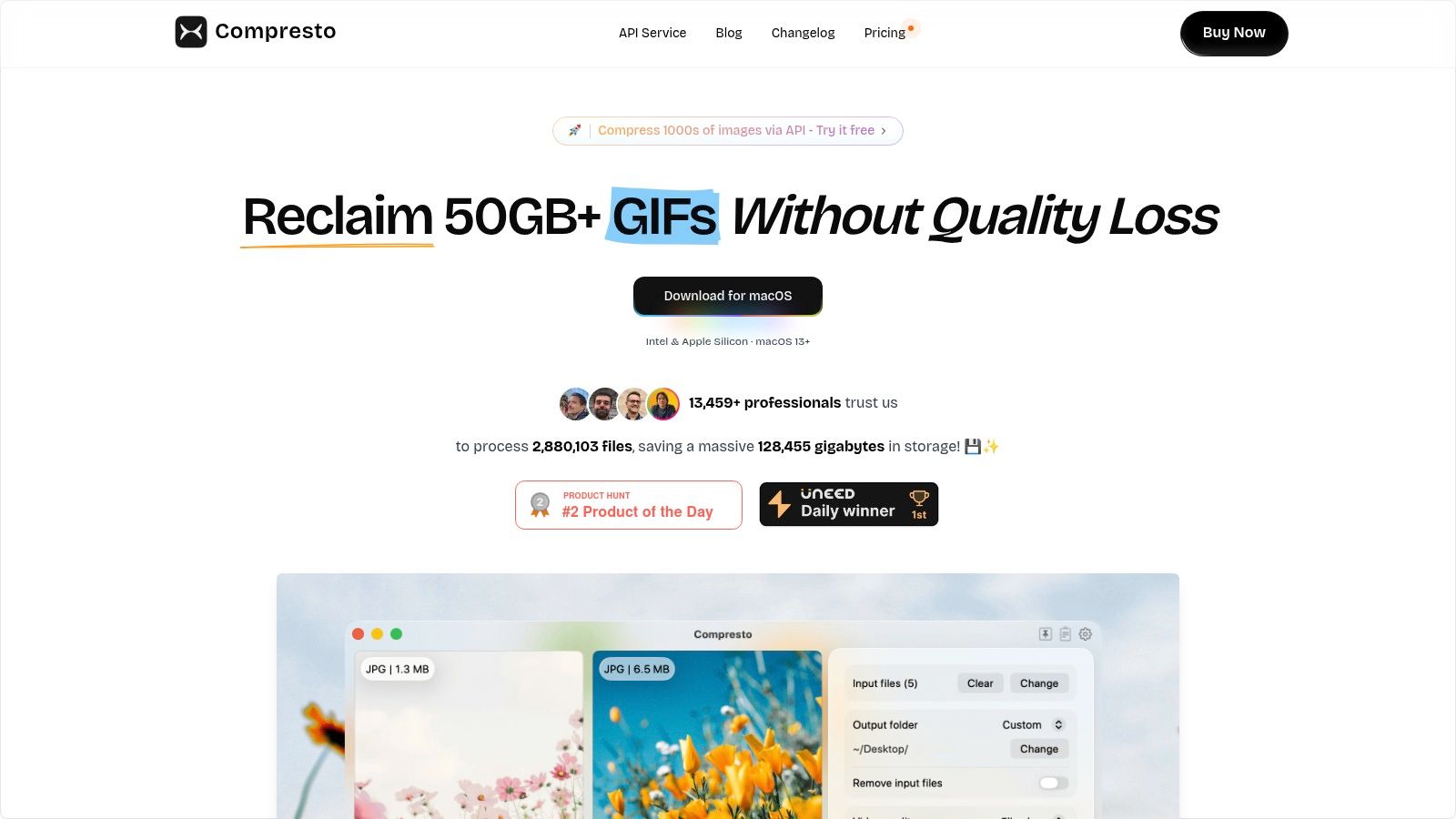
Unlike cumbersome, multi-step export processes in tools like Photoshop or Handbrake, Compresto is built for real-world design workflows. It replaces clunky routines with intelligent automation. Features like Folder Monitoring automatically compress new files added to a designated folder, making it a true set-it-and-forget-it solution for projects with recurring asset exports. The Drop Zone and a Raycast extension further integrate compression directly into a designer’s daily tasks, removing friction and saving valuable time.
Why It’s a Top Choice for Web Designers
What elevates Compresto is its focus on solving a core web design challenge, asset optimization, with unmatched speed and reliability. All processing is done locally on your Mac, ensuring client files and proprietary designs never leave your device. This privacy-first approach is a significant advantage over web-based compressors that require uploads. The ability to create and save custom presets ensures that all team members produce consistently optimized assets for web, social, or email deliverables. For a deeper dive into best practices, the team offers a great guide on image optimization for web performance.
Practical Use Cases:
- Web Performance: Compressing a hero video from 50MB to 5MB to ensure it loads instantly on a landing page.
- Portfolio Sites: Batch-processing an entire gallery of high-resolution images to create a fast, lightweight online portfolio.
- Client Deliverables: Quickly shrinking a large PDF design proposal for easy emailing without hitting attachment size limits.
Key Features:
- Multi-Format Compression: Handles video (MP4, MOV), images (JPG, PNG), GIFs, and PDFs in a single app.
- Workflow Automation: Includes Folder Monitoring, a persistent Drop Zone, and batch processing queues.
- Privacy-First: All compression happens locally on your machine; no cloud uploads are required.
- Consistent Outputs: Save custom presets to standardize compression settings across a team or project.
Limitations:
- The primary limitation is its platform exclusivity; it is only available for macOS (13+), making it unsuitable for Windows or Linux-based teams.
Pricing: Compresto is available via a one-time purchase, with pricing details available on its website. An API is also offered for developers needing high-volume, automated image compression.
Website: https://compresto.app
2. Figma
Figma has become the industry standard for collaborative interface design, consolidating the entire UI/UX workflow into a single, browser-based platform. It excels in real-time multiplayer editing, allowing entire teams of designers, developers, and product managers to work simultaneously on a single file. This live collaboration eliminates the version control headaches common with older, file-based design tools, making it one of the best tools for web designers on distributed teams.
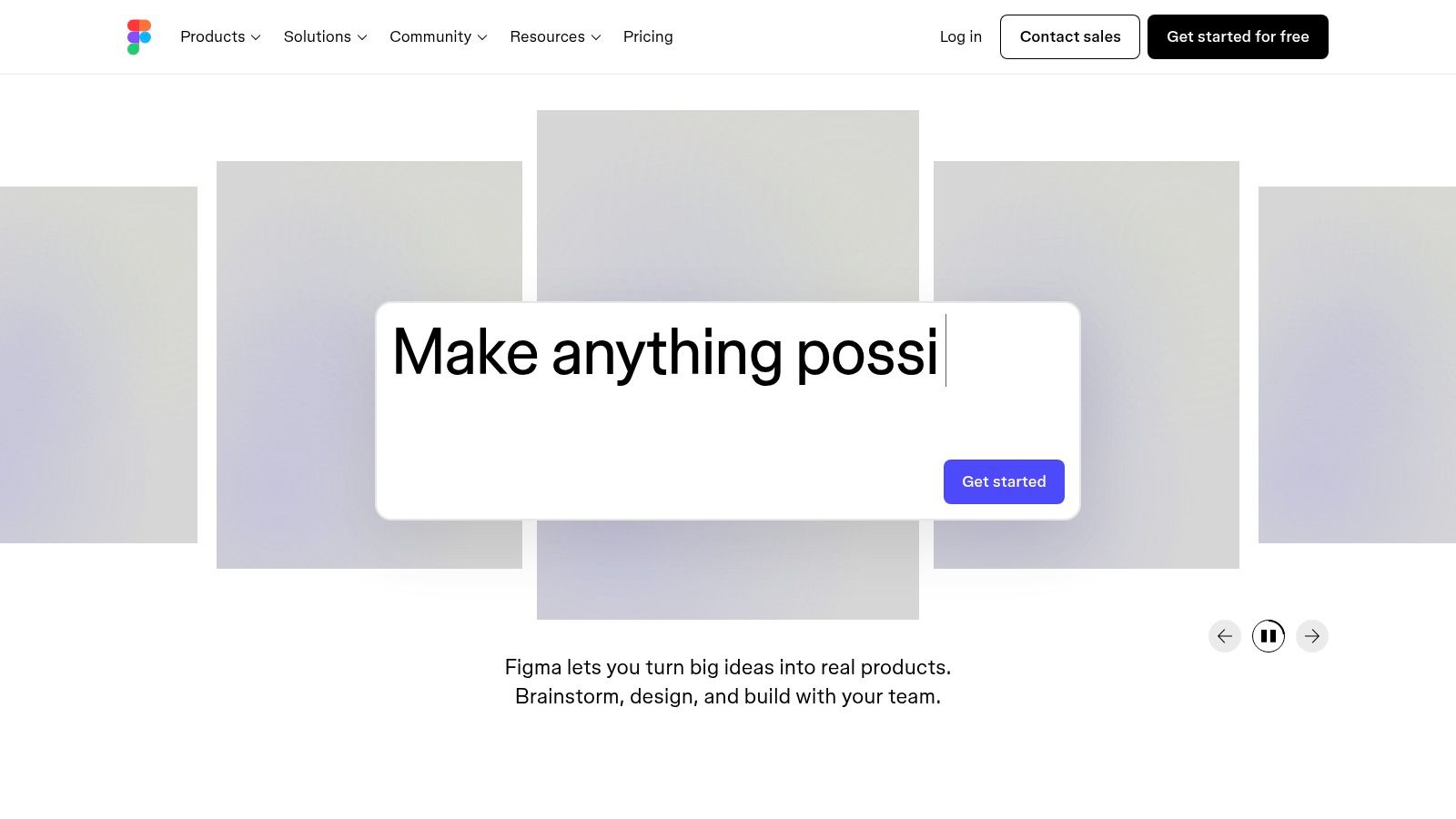
Its comprehensive feature set supports everything from initial wireframing and high-fidelity mockups to interactive prototyping and developer handoff via its Dev Mode. The platform’s component-based architecture is ideal for building and maintaining scalable design systems, ensuring consistency across large-scale projects. Figma also includes FigJam, a digital whiteboard for brainstorming and mapping user flows.
Key Features & Use Cases
- Real-Time Collaboration: Perfect for pair designing sessions, live feedback reviews, and developer handoff meetings directly within the design file.
- Prototyping: Build interactive, clickable prototypes to simulate user flows without writing a single line of code, ideal for user testing and stakeholder presentations.
- Design Systems: Create reusable components and team libraries to maintain brand consistency and accelerate the design process for large products.
- Extensibility with Plugins: The vast plugin ecosystem automates tedious tasks, from managing content to checking accessibility standards. To further enhance your Figma experience and leverage the power of artificial intelligence, you might want to explore the best AI tools that plug into Figma for tasks like generating UI copy or creating unique assets.
| Feature | Use Case |
|---|---|
| Dev Mode | Streamlines design-to-code handoff. |
| Multiplayer Editing | Live design sessions and team reviews. |
| FigJam Whiteboard | Brainstorming and early-stage ideation. |
- Pros: Cross-platform (web, macOS, Windows), industry-leading collaboration, extensive plugin library.
- Cons: Requires a constant internet connection for the best experience; some advanced features are behind a paywall.
- Pricing: Offers a generous free tier; paid plans start at $12 per editor/month.
- Website: https://www.figma.com
3. Adobe Creative Cloud
Adobe Creative Cloud remains the undisputed heavyweight champion for professional-grade asset creation and manipulation. While newer tools focus on UI/UX, Creative Cloud provides an unparalleled suite of applications like Photoshop, Illustrator, and After Effects for crafting the custom graphics, icons, illustrations, and motion elements that define a brand's visual identity. It is an essential part of the toolkit for any designer needing to perform deep raster or vector editing, making it one of the best tools for web designers who manage cross-media brand work.
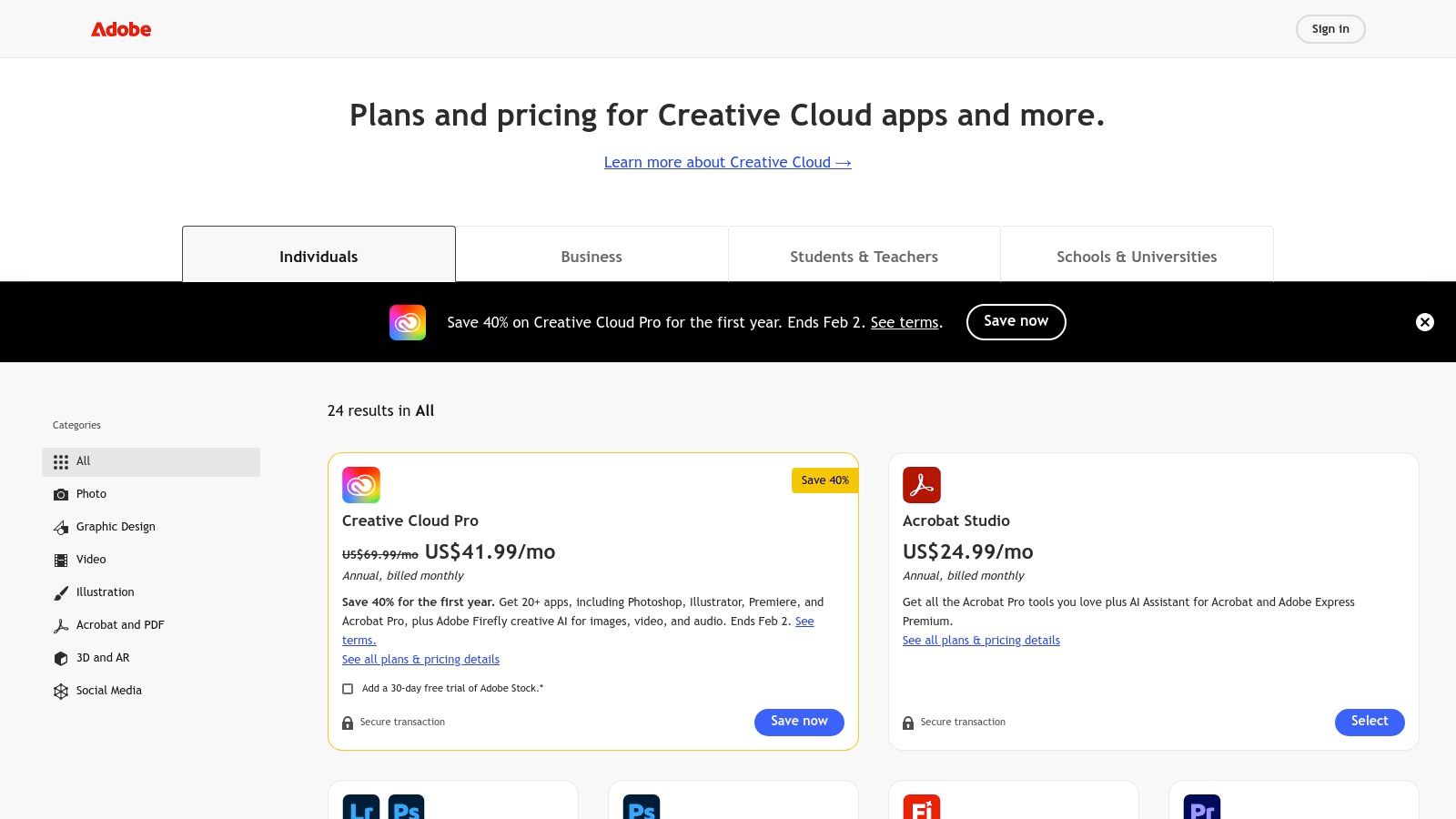
The ecosystem is built for integration, allowing seamless workflows between its 20+ apps, from editing a photo in Photoshop to animating it in After Effects. With the recent integration of Firefly AI, designers can now generate assets and extend images using generative credits. This deep feature set, extensive file format support, and a massive plugin ecosystem ensure that no creative task is out of reach, solidifying its place as a foundational platform for digital creation.
Key Features & Use Cases
- Advanced Image Editing: Use Photoshop for complex photo manipulation, color correction, and creating detailed visual assets. Mastering foundational techniques is key; for instance, you can learn how to add a drop shadow in Photoshop to give UI elements depth and realism.
- Vector Graphics & Illustration: Illustrator is the go-to for creating scalable logos, icons, and complex illustrations that render perfectly at any size on the web.
- Motion Graphics & Video: After Effects and Premiere Pro are used to create engaging micro-interactions, promotional videos, and animated elements for websites and social media.
- Integrated Asset Management: Creative Cloud Libraries allow teams to share colors, character styles, logos, and other assets across all Adobe apps, ensuring brand consistency.
| Feature | Use Case |
|---|---|
| Photoshop | Detailed raster image editing and asset creation. |
| Illustrator | Scalable vector graphics (SVG) for icons and logos. |
| Creative Cloud Libraries | Centralized asset management for brand consistency. |
- Pros: Best-in-class tools for raster, vector, and video tasks; extensive learning resources and third-party integrations.
- Cons: Higher subscription cost and complex plan structure; promotions change frequently, so pricing can vary.
- Pricing: Various individual app and all-app plans are available, typically starting around $22.99/month per app.
- Website: https://www.adobe.com/creativecloud/plans
4. Sketch
Sketch was one of the original pioneers of vector-based UI design, offering a powerful and lightweight native macOS application that set the standard for digital product design. It remains a top choice for Mac-first design teams and freelancers who prioritize fast, native performance and the ability to work offline without interruption. While it now includes a web app for viewing, sharing, and developer handoff, its core strength lies in its polished and responsive desktop editor.
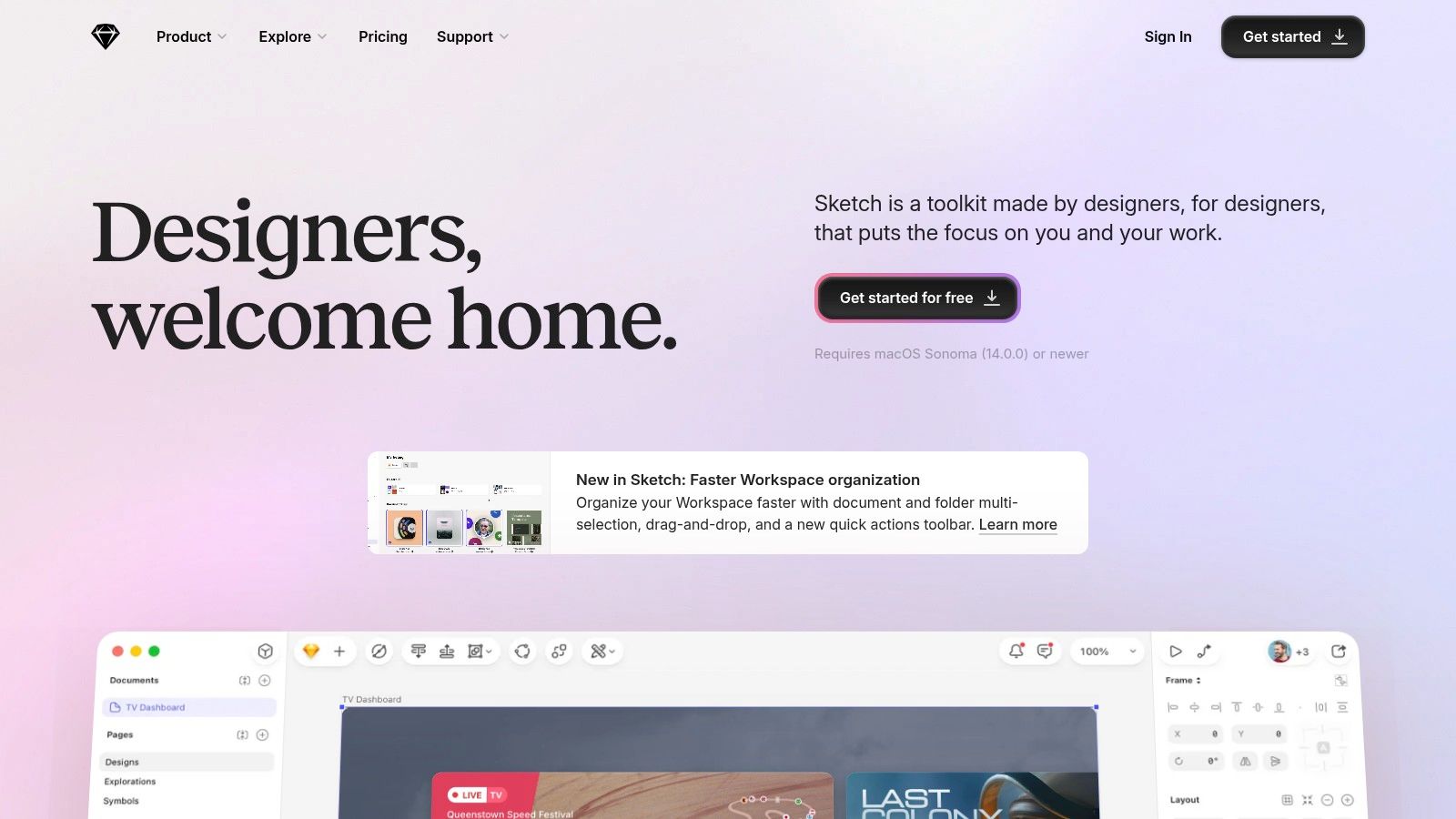
The platform provides a focused environment for creating high-fidelity interfaces, prototypes, and design systems with precision. Its real-time collaboration features allow multiple designers to work together in the Mac app, while unlimited free viewers can access, inspect, and download assets from any web browser. This blend of native power and web-based accessibility makes Sketch one of the best tools for web designers who are primarily on macOS but need to collaborate with a wider team.
Key Features & Use Cases
- Native macOS Performance: Ideal for designers who need a fast, responsive, and reliable tool that integrates seamlessly with their Apple ecosystem and works perfectly offline.
- Prototyping and Sharing: Create interactive prototypes directly within Sketch and share them via a web link for stakeholder feedback, user testing, and presentations.
- Developer Handoff: The web inspector tool provides developers with all the necessary specs, measurements, and asset downloads, streamlining the transition from design to code.
- Flexible Licensing: Sketch offers both a standard subscription and a Mac-only perpetual license option, providing flexibility for freelancers and businesses with different budget models.
| Feature | Use Case |
|---|---|
| Native Mac Editor | High-performance, offline-first UI and vector design. |
| Web Inspector | Lets developers inspect designs and export assets via a browser. |
| Real-time Collaboration | Team design sessions for macOS-based team members. |
- Pros: Fast macOS performance and offline-friendly workflows; clear pricing including a one-time license path.
- Cons: The editor is macOS-only, limiting non-Apple collaborators; some feature differences exist between the Mac App Store version and the direct download.
- Pricing: Standard subscription starts at $10 per editor/month (billed annually); a Mac-only perpetual license is available for $120.
- Website: https://www.sketch.com
5. Webflow
Webflow bridges the gap between design and development, empowering designers to build production-grade, responsive websites visually. It translates design decisions directly into clean, semantic code, offering a powerful alternative to traditional hand-coding for marketing sites, blogs, and ecommerce stores. This visual-first approach makes it one of the best tools for web designers who want full control over the final product without deep coding expertise.
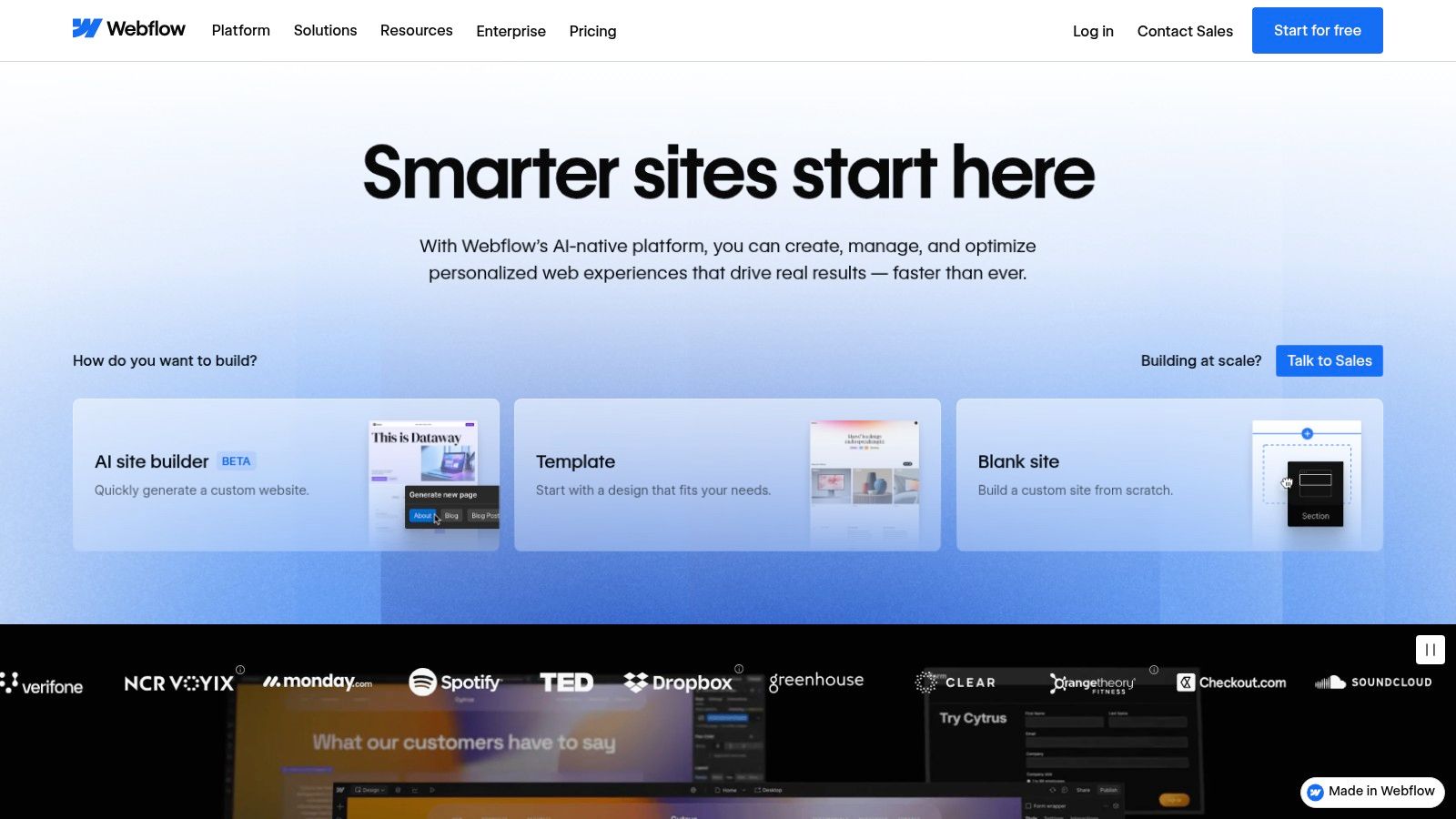
The platform is an all-in-one solution, bundling a visual canvas with a powerful CMS, ecommerce functionality, and high-performance managed hosting. Designers can create complex interactions and animations that would typically require JavaScript, all through an intuitive interface. Webflow also includes localization features and recently added AI tools to assist with content generation and design tasks, streamlining the entire build-and-publish workflow.
Key Features & Use Cases
- Visual Web Design: Build complex layouts, interactions, and responsive designs visually, which Webflow automatically converts to production-ready HTML, CSS, and JavaScript.
- Integrated CMS: Perfect for creating and managing dynamic content like blogs, portfolios, or team member directories without needing external plugins or a separate backend.
- Client-Friendly Editor: Provide clients with a simple editor interface to update text and images on the live site without giving them access to the core design tools.
- Performance Optimization: While Webflow provides a fast hosting infrastructure, designers must still optimize assets. For expert tips on this, read this guide on speeding up Webflow sites with Comprèsto.
| Feature | Use Case |
|---|---|
| Interactions 2.0 | Creating rich, scroll-based, and timed animations. |
| Integrated Hosting | Publishing and managing a live site without a separate host. |
| Webflow CMS | Powering blogs, case studies, and other dynamic content. |
- Pros: Complete design-to-hosting pipeline, powerful CMS for marketing sites, eliminates plugin maintenance.
- Cons: Per-site pricing can become expensive; plan limitations for features like code export can be complex.
- Pricing: Free plan available to learn and build; paid site plans start at $14/month (billed annually).
- Website: https://www.webflow.com
6. Framer
Framer has carved out a unique space by bridging the gap between design tool and no-code website builder, positioning itself as a powerful platform for creating production-ready, interactive websites. It allows designers to go from initial concept to a fully functional, live site without writing code, effectively combining the creative freedom of a design tool with the power of a web host and CMS. This integrated workflow makes it one of the best tools for web designers focused on rapidly building and shipping marketing sites and landing pages.
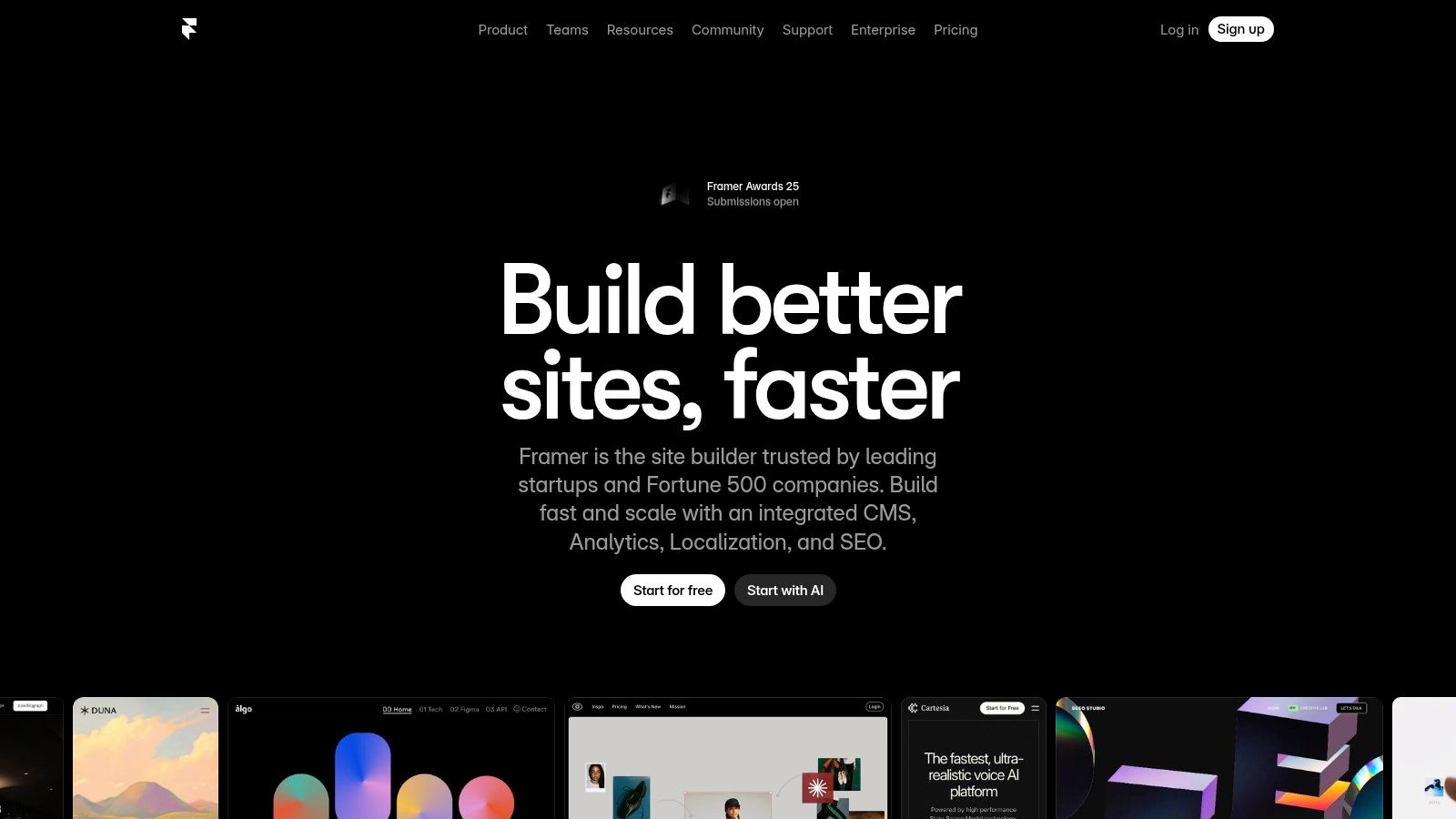
Unlike traditional design tools where the output is a static prototype, Framer's output is a real website with fast hosting, built-in analytics, and CMS capabilities. Its AI-assisted design features and extensive template library accelerate the creation process, while add-ons for localization and A/B testing provide advanced functionality typically reserved for more complex development stacks.
Key Features & Use Cases
- Visual Site Building: Design and launch fully responsive marketing websites and landing pages with a drag-and-drop canvas that feels familiar to design tool users.
- Integrated CMS: Manage dynamic content like blog posts, case studies, or team members directly within Framer, allowing for easy updates without developer intervention.
- AI-Assisted Design: Leverage AI to generate entire page layouts, write copy, or translate content, dramatically speeding up the initial design and content population phases.
- Rapid Iteration: Use built-in features like staging and rollback to safely test changes and manage versions, ensuring a stable and professional deployment process.
| Feature | Use Case |
|---|---|
| Integrated Hosting | Launching high-performance websites without a dev team. |
| Built-in Analytics | Tracking site performance directly from the dashboard. |
| Add-ons & Integrations | Extending site functionality with A/B testing or forms. |
- Pros: All-in-one platform for design and launch, rapid iteration with live previews, excellent performance and SEO features out of the box.
- Cons: Usage-based costs on higher-tier plans can be unpredictable; fewer deep developer hooks compared to code-first frameworks.
- Pricing: Free plan available for hobby projects; paid plans start at $5 per site/month (billed yearly) for the Mini plan.
- Website: https://www.framer.com
7. Envato Elements
Envato Elements is an all-in-one subscription service that grants web designers unlimited access to a massive library of over 26 million creative assets. It serves as a comprehensive toolkit for sourcing everything from UI kits and fonts to stock photos, video templates, and sound effects, all under a simple commercial license. This makes it one of the best tools for web designers who need to rapidly prototype concepts, populate mockups with high-quality content, or standardize visuals across multiple projects without managing numerous individual licenses.
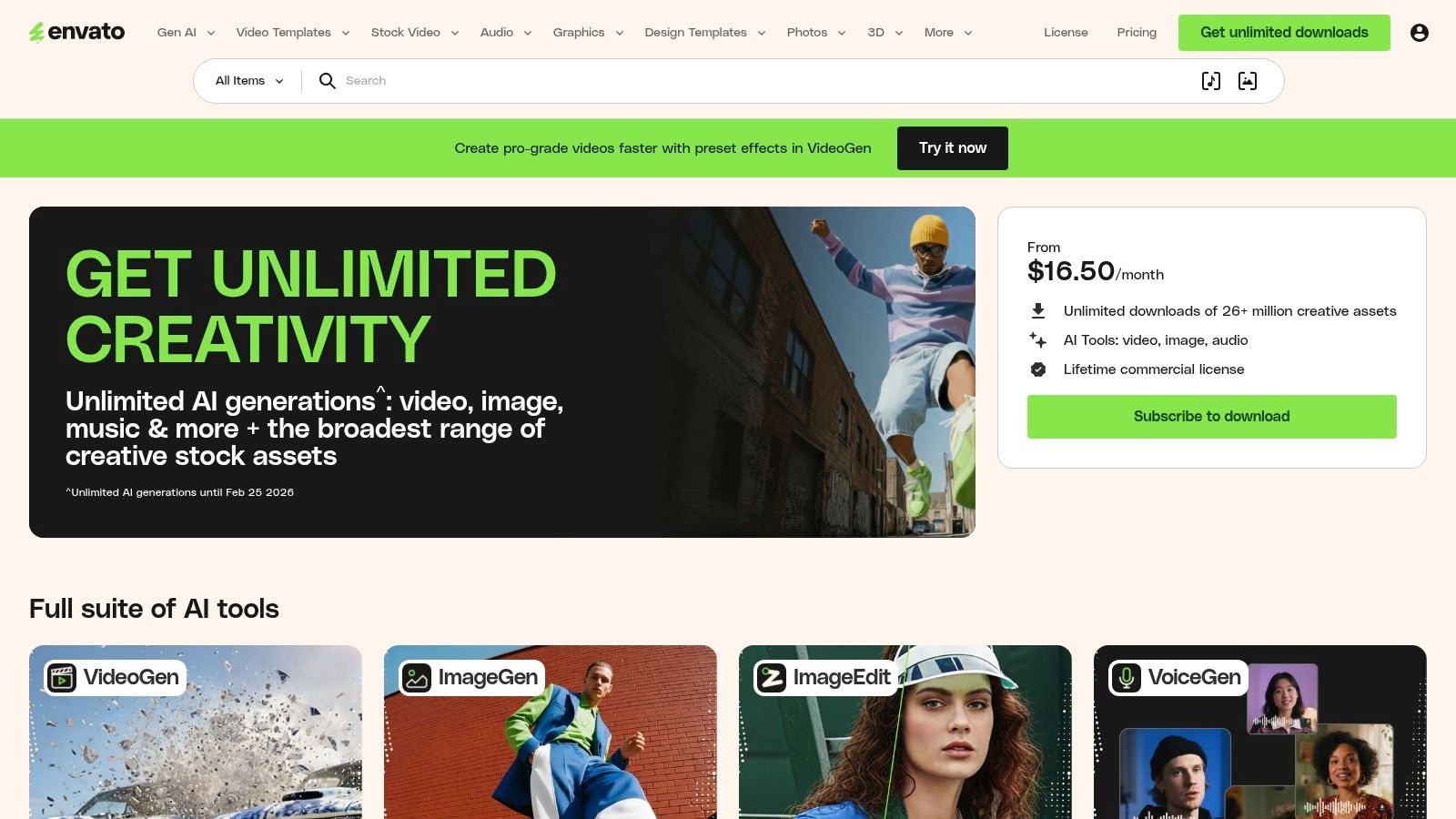
The platform’s core value lies in its breadth and simplicity. Instead of purchasing assets on a per-item basis, a single subscription unlocks the entire catalog. This model is particularly beneficial for freelancers and agencies handling a high volume of client work, as it streamlines the asset acquisition process and significantly reduces costs. Every item downloaded comes with a lifetime commercial license for the specific project it was registered for, providing peace of mind even after a subscription ends.
Key Features & Use Cases
- Massive Asset Library: Quickly find presentation templates, WordPress themes, UI kits, and stock video to build out comprehensive client deliverables without starting from scratch.
- Simple Licensing: Use any downloaded asset in a commercial project by simply registering it upon download, eliminating complex licensing concerns.
- Prototyping & Mockups: Source high-quality photos, illustrations, and icons to create realistic, visually compelling mockups for stakeholder presentations and user testing.
- AI Tools: The platform includes AI-powered tools for generating images and other creative tasks, offering another layer of utility, though usage is subject to quotas.
| Feature | Use Case |
|---|---|
| Unlimited Downloads | Sourcing diverse assets for multiple client projects. |
| Lifetime Commercial License | Securing legal usage rights for client handoffs. |
| UI & Web Kits | Accelerating wireframing and high-fidelity design work. |
- Pros: One subscription covers an extremely wide range of asset needs, accelerates prototyping and standardizes visual assets.
- Cons: Asset quality can be inconsistent, requiring careful curation; AI generation quotas on Individual and Team plans are limited.
- Pricing: Individual plans start at $16.50/month; Team and Enterprise plans are also available.
- Website: https://elements.envato.com
8. Creative Market
Creative Market serves as a massive digital marketplace where designers can source high-quality, ready-made assets directly from independent creators. Unlike subscription services, its pay-per-item model is perfect for freelancers and agencies needing specific resources for a project, such as a unique font, a comprehensive UI kit, or a specific set of icons. This approach makes it one of the best tools for web designers looking to acquire specialized assets without committing to recurring fees.
The platform is a treasure trove of design elements that can dramatically speed up the web design workflow. Whether you need a WordPress theme to kickstart a client project, professional stock photos to flesh out a mockup, or illustrative graphics to add personality to a landing page, Creative Market provides a direct-to-creator channel with transparent licensing options.
Key Features & Use Cases
- Vast Asset Library: Ideal for finding niche design elements like handcrafted fonts, specific industry icon sets, or website themes that fit a unique brand identity.
- Flexible Licensing: Purchase assets with Personal, Commercial, or Extended Commercial licenses, making it easy to manage legal requirements for client work and commercial products.
- Pay-Per-Item Model: A cost-effective solution for acquiring one-off assets without a monthly subscription, perfect for designers with fluctuating project needs.
- Direct Creator Support: Purchases directly support independent artists and designers, fostering a vibrant creative community.
| Feature | Use Case |
|---|---|
| UI Kits & Themes | Rapidly prototype or build websites with pre-designed systems. |
| Fonts & Graphics | Enhance brand identity with unique typography and visuals. |
| Pay-Per-Item Model | Acquire specific assets for individual projects affordably. |
- Pros: Pay-per-item flexibility offers great cost control; vast selection from a global community of independent creators; licenses are clearly defined for commercial use.
- Cons: Quality and pricing can vary significantly between sellers; a platform fee is added to each transaction; asset updates are dependent on the original creator.
- Pricing: Varies per item; assets are purchased individually.
- Website: https://creativemarket.com
9. The Noun Project
The Noun Project is an indispensable resource for web designers seeking high-quality, art-directed icons and photos. Its vast library offers millions of royalty-free assets, making it an essential tool for quickly finding consistent and cohesive iconography for user interfaces, presentations, and marketing materials. The platform streamlines the design workflow by providing direct integrations with major design software.
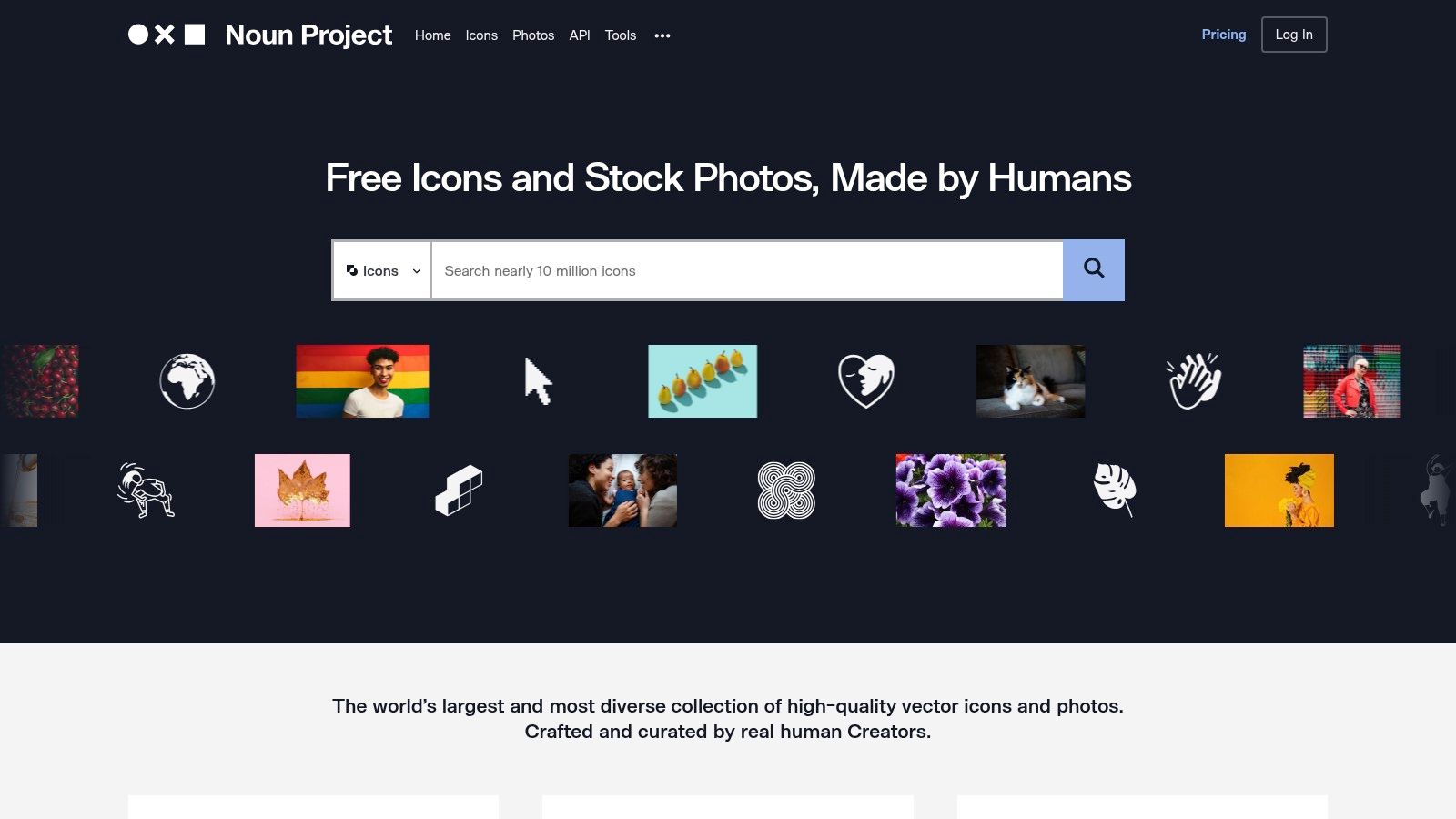
What sets The Noun Project apart is its commitment to visual consistency and ease of use. Designers can find icons for virtually any concept, customize their color and size, and insert them directly into their projects via plugins for Figma, Adobe Creative Cloud, and Google Suite. This integration makes it one of the best tools for web designers who need to maintain a rapid pace without sacrificing quality.
Key Features & Use Cases
- Extensive Icon Library: Quickly find and deploy icons for UI elements like navigation bars, buttons, and feature descriptions, ensuring a clear and intuitive user experience.
- Powerful Integrations: Use the dedicated plugins for Figma, Sketch, and Adobe XD to drag and drop icons directly into your designs, significantly speeding up wireframing and mockup phases.
- Consistent Licensing: Simplify asset management with clear, straightforward licensing options, including royalty-free usage with a Pro subscription, eliminating legal ambiguity.
- Team Collaboration: Utilize team plans for centralized billing and asset sharing, ensuring brand consistency across all projects and designers within an organization.
| Feature | Use Case |
|---|---|
| Direct Integrations | Sourcing and inserting icons directly into design software. |
| Icon Customization | Adjusting icon color and size to match brand guidelines. |
| Team & EDU Plans | Centralized asset management for agencies and institutions. |
- Pros: Fast icon sourcing with consistent licensing, strong integrations across common design workflows, and extensive library.
- Cons: Premium photos can be costly when licensed a-la-carte; the focus is on icons and photos rather than full illustration libraries.
- Pricing: Free with attribution; NounPro Unlimited Icons plan starts at $39.99/year.
- Website: https://thenounproject.com
10. IconScout
IconScout serves as a massive asset library tailored for modern web design, offering access to over 13 million icons, illustrations, 3D graphics, and Lottie animations. It distinguishes itself by providing not just static assets but also dynamic, motion-rich resources that are essential for creating engaging user interfaces. The platform is built for designers who need a constant supply of high-quality, diverse visual elements for various projects.
Its integration capabilities make it a powerful addition to any designer's toolkit, with plugins available for Figma, Adobe XD, Canva, Webflow, and more. This seamless workflow allows designers to search for and insert assets directly into their design files, significantly speeding up the creative process. The platform also includes built-in editors for color, Lottie animations, and 3D assets, providing a level of customization that reduces reliance on other software.
Key Features & Use Cases
- Vast Asset Library: Access a comprehensive collection of icons, illustrations, Lottie animations, and 3D graphics to fit any project aesthetic, from minimalist to highly detailed.
- Built-in Editors: Quickly customize asset colors or edit Lottie animations directly on the platform, ensuring visuals perfectly match brand guidelines without leaving the browser.
- Seamless Integrations: Utilize plugins for major design tools like Figma and Webflow to find and place assets directly into your projects, streamlining your workflow.
- Team Collaboration: Use team-focused features like shared collections and unified billing to manage asset usage across an entire design department.
| Feature | Use Case |
|---|---|
| Lottie Animations | Add engaging micro-interactions and loading animations. |
| 3D Graphics & Icons | Create modern, visually rich interfaces and marketing assets. |
| Figma/Webflow Plugins | Accelerate design by accessing assets within your workspace. |
- Pros: Excellent coverage of motion assets (Lottie) and 3D icon sets, robust team features for collaboration, extensive plugin support.
- Cons: Licensing details may require careful review depending on the project; AI credits for asset generation are an additional cost.
- Pricing: Free assets are available; paid plans with unlimited downloads start at $14.99 per user/month.
- Website: https://iconscout.com
11. Google Fonts
Google Fonts is an indispensable resource for web typography, offering a vast library of open-source fonts that are free for commercial use. It provides a simple, robust API for embedding fonts directly into websites, making beautiful and performant typography accessible to everyone. The platform is crucial for designers aiming to create legible, aesthetically pleasing, and brand-aligned digital experiences without the high cost of licensed typefaces, securing its spot among the best tools for web designers.
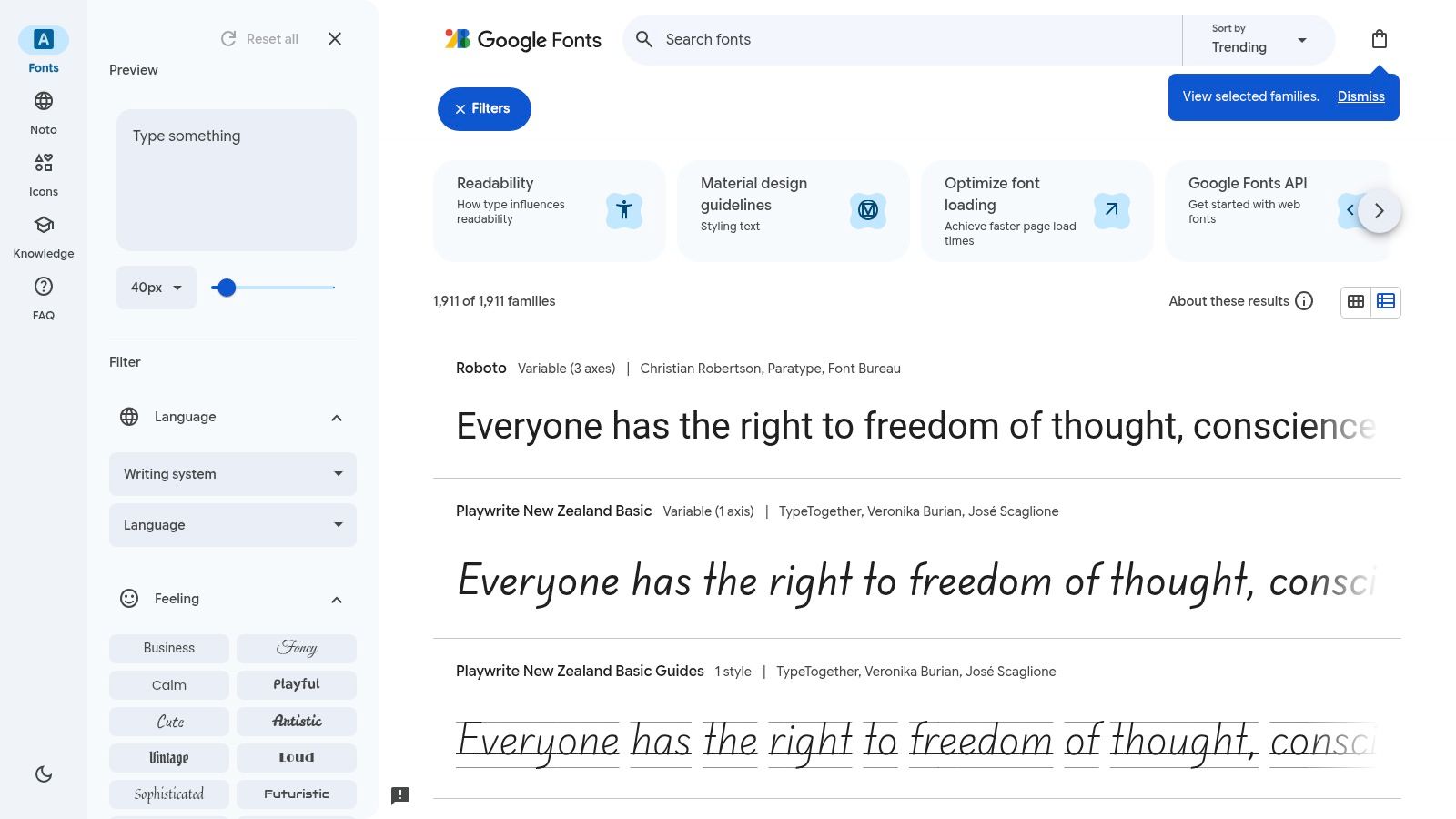
Its clean interface allows designers to easily browse, filter, and test font families, including advanced variable fonts that offer granular control over weight, width, and other axes in a single file. Beyond its ease of use, Google Fonts prioritizes web performance by allowing users to select only the specific styles and character subsets they need, reducing file sizes and load times. It also offers the option to download font families for local design work or self-hosting.
Key Features & Use Cases
- Extensive Font Library: Access hundreds of open-license font families to find the perfect typeface for any project, from professional sans-serifs like Roboto to expressive display fonts.
- Web Performance Optimization: Use the API's subsetting and
font-displaycontrols to load fonts efficiently, preventing layout shifts and ensuring a fast user experience. - Variable Fonts: Implement modern variable fonts to achieve a wide range of typographic styles with a single, highly-optimized font file, ideal for responsive design.
- Multi-Script Support: Leverage comprehensive font families like Noto to ensure consistent and accessible typography for global websites with international audiences.
| Feature | Use Case |
|---|---|
| Simple CSS API | Quickly embed web fonts into any project with one line of HTML. |
| Variable Font Support | Create fluid, responsive typography with a single font file. |
| Multi-Script Coverage | Design for a global audience with extensive language support. |
- Pros: Completely free for commercial use, easy to integrate via CDN or self-hosting, improves site performance with subsetting.
- Cons: CDN dependency can be a point of failure unless self-hosting, library is extensive but lacks the exclusive options of paid foundries.
- Pricing: Completely free.
- Website: https://fonts.google.com
12. Setapp
Setapp is a unique subscription service that offers a curated suite of over 230 macOS and iOS applications for a single monthly fee. Instead of being a standalone design tool, it acts as a comprehensive toolbox, providing designers with a vast array of utilities that enhance their core workflow. For web designers operating on Apple hardware, this makes it one of the best tools for web designers by consolidating costs and simplifying software management.
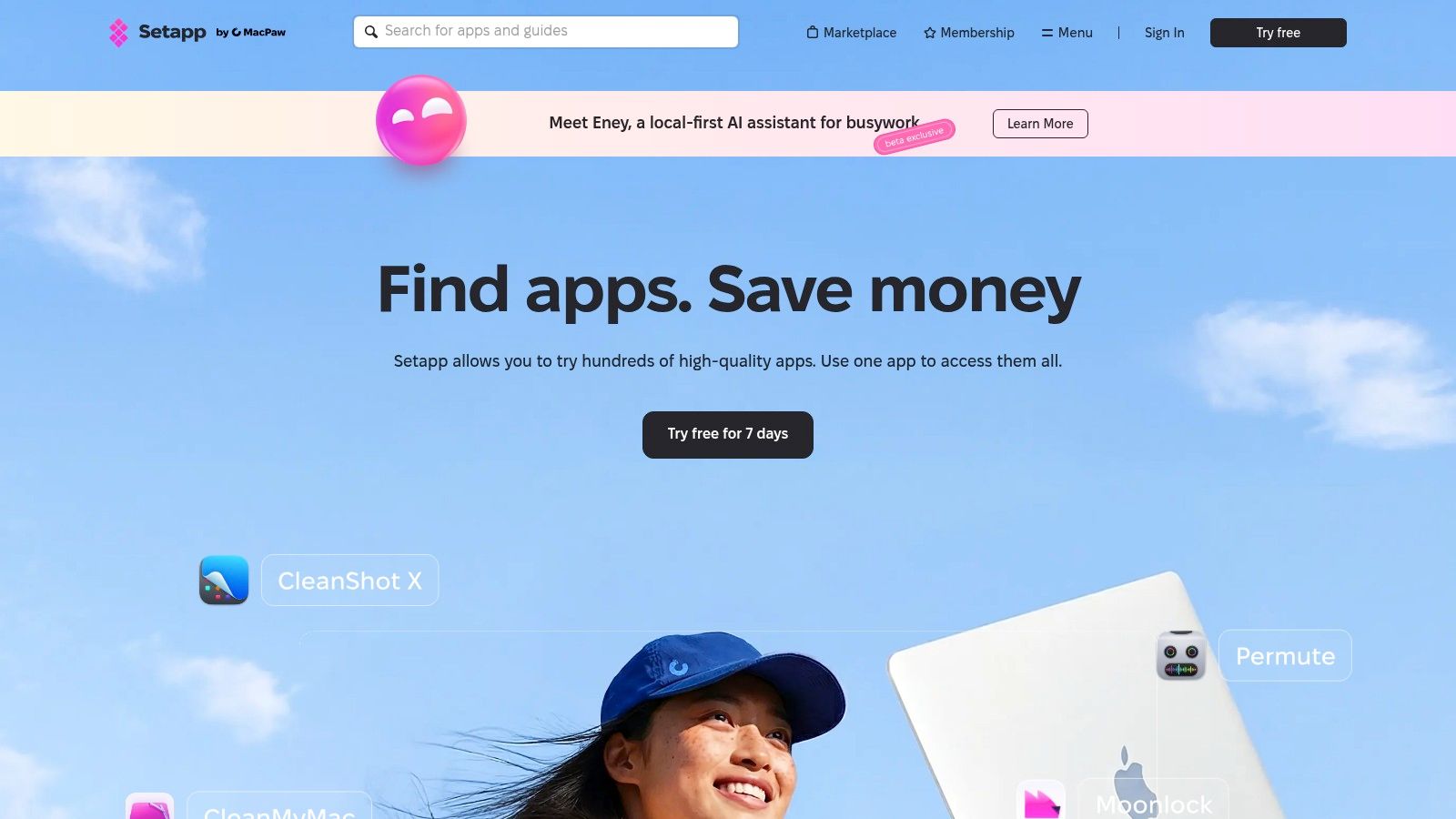
The platform includes apps for everything from advanced screen capture and annotation (CleanShot X) to powerful file management (ForkLift) and menu bar organization (Bartender). This model allows designers to access premium, specialized tools for tasks like image optimization, project management, and writing without purchasing dozens of individual licenses. The centralized billing and automatic updates streamline the process of keeping your software arsenal current.
Key Features & Use Cases
- Curated App Collection: Access a handpicked selection of high-quality Mac apps covering design, productivity, coding, and system utilities, all through one interface.
- Workflow Enhancement: Use specialized tools to fill gaps in your primary software. For example, use a color picker app for grabbing hex codes, a GIF creator for quick animations, or a project timer for tracking billable hours.
- Cost-Effective Software Access: Instead of buying multiple expensive licenses, a single subscription provides access to a broad range of premium software, which is ideal for freelancers and small teams.
- Simplified Management: All apps are updated automatically through the Setapp client, eliminating the need to manage individual licenses, subscriptions, and update cycles.
| Feature | Use Case |
|---|---|
| Unified Subscription | Accessing 230+ premium Mac apps for one monthly fee. |
| Centralized Billing | Simplifies software expense management for teams. |
| App Discovery | Finding and trying new, high-quality productivity tools. |
- Pros: Highly cost-effective for accessing many premium apps, centralized management and updates, discovers useful new tools.
- Cons: The app lineup can change, and the mobile offering for iOS in the EU is being discontinued (desktop version is unaffected).
- Pricing: Free 7-day trial; plans start at $9.99/month for one Mac.
- Website: https://setapp.com
Top 12 Web Design Tools: Feature Comparison
| Product | Core features ✨ | Quality ★ | Value 💰 | Target 👥 |
|---|---|---|---|---|
| Compresto 🏆 | ✨ Local macOS compression (video/image/GIF/PDF), batch queue, Folder Monitor, presets | ★★★★★ — up to ~90% reduction, preserves quality | 💰 High ROI — big storage & bandwidth savings (see site for plans) | 👥 Mac users, creators & teams needing fast asset prep |
| Figma | ✨ Browser + desktop design, real‑time collaboration, prototyping, design systems | ★★★★★ — best for team collaboration | 💰 Freemium; paid seats for advanced team features | 👥 Product teams, cross‑platform designers |
| Adobe Creative Cloud | ✨ 20+ pro apps (Photoshop/Pr/AE/Acrobat), cloud + AI tools | ★★★★★ — industry‑standard depth | 💰 High subscription cost; bundles vary | 👥 Creative professionals, studios, agencies |
| Sketch | ✨ Native macOS editor, prototyping, version history, handoff | ★★★★☆ — fast native performance | 💰 Perpetual license option or subscription | 👥 Mac‑first designers & freelancers |
| Webflow | ✨ Visual site builder + hosting, CMS, ecommerce, localization | ★★★★☆ — production‑grade publish pipeline | 💰 Per‑site pricing can add up with CMS/traffic | 👥 Designers building marketing/content sites |
| Framer | ✨ Visual builder, fast hosting, CMS, analytics, AI templates | ★★★★ — rapid iteration & templates | 💰 Page/CMS/bandwidth limits; usage costs at scale | 👥 Landing page & marketing teams |
| Envato Elements | ✨ 26M+ assets (photos, templates, fonts, video) with commercial license | ★★★★ — broad but variable quality | 💰 Subscription — unlimited downloads | 👥 Teams prototyping and standardizing visuals |
| Creative Market | ✨ Marketplace for UI kits, themes, fonts — pay per item | ★★★★ — high‑quality one‑offs | 💰 Pay‑per‑item; flexible licensing tiers | 👥 Designers needing specific, licensed assets |
| The Noun Project | ✨ Large icon/photo library, plugins (Figma/Adobe/Office), Mac app | ★★★★ — consistent iconography & workflow plugins | 💰 Pro/team plans or a‑la‑carte licensing | 👥 UI designers, educators, teams needing icons |
| IconScout | ✨ Icons, 3D assets, Lottie, editors, Figma/Adobe/Webflow plugins | ★★★★ — strong motion & 3D asset coverage | 💰 Subscription + add‑ons (AI credits) | 👥 Motion designers & modern design systems |
| Google Fonts | ✨ Open‑source font library, variable fonts, performant API | ★★★★★ — essential, fast & free | 💰 Free for commercial use; self‑host option | 👥 Web developers & designers, global sites |
| Setapp | ✨ Catalog of 230+ Mac/iOS apps, centralized billing & updates | ★★★★ — curated productivity toolkit | 💰 Subscription — cost‑effective vs many single apps | 👥 macOS power users & small teams |
Building Your Ultimate Web Design Stack
Navigating the expansive landscape of digital tools can feel overwhelming, but building a powerful, personalized web design stack is one of the most impactful investments you can make in your career. We've explored a curated selection of industry-leading software, from the collaborative design powerhouse Figma and the all-encompassing Adobe Creative Cloud to innovative no-code platforms like Webflow and Framer. Each tool offers a unique set of capabilities designed to solve specific challenges in the modern design workflow.
The core takeaway is that there is no single "perfect" toolkit. The best tools for web designers are those that align with your specific role, project complexity, team size, and budget. A freelance designer might prioritize the versatility of a Setapp subscription and the vast asset library of Envato Elements, while a large agency team may standardize on Figma for its real-time collaboration and robust versioning features. The key is to think of your toolkit not as a static list, but as an evolving ecosystem.
How to Choose Your Ideal Tools
Your journey to a more efficient workflow begins with a clear assessment of your needs. Before committing to a new subscription or platform, ask yourself these critical questions:
- What is my primary role? Are you a UI/UX designer focused on prototyping, a visual designer creating stunning graphics, or a web developer bridging the gap between design and code? Your primary function will dictate your core software needs.
- What is my budget? While premium tools often provide unmatched power, there are incredible free and budget-friendly options available. Google Fonts is a testament to high-quality free resources, and many platforms offer generous free tiers for individual users.
- How important is collaboration? If you work with a team, prioritize tools with strong real-time collaboration, commenting, and handoff features. This is where platforms like Figma truly excel.
- What is the learning curve? Consider how much time you can invest in mastering a new tool. Platforms like Sketch are known for their intuitive interfaces, while a suite like Adobe Creative Cloud offers immense depth that requires a longer-term commitment to learn.
Integrating Your Stack for Maximum Efficiency
The true power of your toolkit is unlocked when your chosen applications work together seamlessly. Your design process should flow logically from one stage to the next. For example, you might source icons from The Noun Project, design a high-fidelity mockup in Figma, and then optimize all your final image and video assets with a dedicated tool like Compresto before handoff. This ensures that every step, from ideation to implementation, is streamlined and efficient.
Furthermore, don't forget the small utilities that fill the gaps in your workflow. When curating your ultimate web design stack, don't overlook browser extensions; they can dramatically enhance your workflow. Discover some essential Chrome extensions for web developers that streamline debugging and design tasks directly in your browser. Integrating these smaller, specialized tools creates a more cohesive and productive environment.
Ultimately, the goal is to assemble a stack that removes friction and empowers you to focus on creative problem-solving. The digital design landscape will continue to evolve, with new tools and technologies emerging constantly. By adopting a mindset of continuous learning and being open to adapting your toolkit, you will not only stay relevant but also position yourself to create your best work yet.
Ready to supercharge your website's performance? Don't let unoptimized assets slow you down. Compresto is the essential final step in any professional web design workflow, ensuring your images and videos are lightning-fast without sacrificing quality. Try Compresto today and see the difference a truly optimized site can make.
Figma vs Adobe XD vs Sketch vs Canva vs Framer: Which to Pick?
Choosing the right design tool depends on your workflow, team size, and budget:
| Tool | Best For | Platform | Price | Collaboration |
|---|---|---|---|---|
| Figma | Team UI/UX design | Browser + Desktop | Free–$15/mo | Real-time multiplayer |
| Sketch | Solo Mac designers | Mac only | $10/mo | Limited (via cloud) |
| Adobe XD | Adobe ecosystem users | Mac + Windows | Discontinued (use Figma) | Good |
| Canva | Non-designers, social media | Browser | Free–$13/mo | Basic sharing |
| Framer | Interactive prototypes + live sites | Browser | Free–$20/mo | Real-time |
Our recommendation: Start with Figma — it covers 90% of web design needs, works on any platform, and has the strongest free tier. Add Framer if you want to publish interactive sites without code. Use Canva for quick social media graphics and marketing assets.
For web designers who need to optimize images for production, Compresto batch-compresses PNGs, JPGs, and SVGs to web-ready sizes without visible quality loss.