How to Send Long Videos Through Text Without Losing Quality
Ever tried to text a video of a perfect moment—a baby's first step, a hilarious pet antic—only to be met with that dreaded "File too large to send" error? It’s a uniquely modern frustration, but it’s not your phone’s fault. The real culprit is the ancient technology propping up our text messaging systems.
Mobile messaging was born in a different era. The original SMS (Short Message Service) was designed for just 160 characters of plain text. That's it. No pictures, no videos. To catch up, the industry gave us MMS (Multimedia Messaging Service), but it was a clumsy solution with its own set of frustratingly small limits.
For decades, we’ve been stuck with these technical handcuffs. Carriers historically capped MMS sizes at a minuscule 300 KB to 1 MB. Back then, that was barely enough for a grainy, seconds-long clip.
The Massive Gap Between File Size and Carrier Limits
Today, the problem has ballooned. A single minute of 1080p HD video from your phone can easily hit 50-100 MB. Shoot in 4K, and you're looking at hundreds of megabytes. Meanwhile, those carrier MMS limits have barely budged, still hovering around just 1-3 MB for most networks. The gap between what we create and what we can actually send is massive.
This infographic paints a pretty clear picture of just how outmatched MMS is.

To put this in perspective, let’s look at the numbers side-by-side.
Typical Video File Size vs Carrier MMS Limits
| Video Type (1 Minute) | Typical File Size | Average Carrier MMS Limit | Can It Be Sent Directly |
|---|---|---|---|
| 720p HD Video | 40-60 MB | 1-3 MB | No |
| 1080p HD Video | 60-130 MB | 1-3 MB | No |
| 4K UHD Video | 350-400 MB | 1-3 MB | No |
As the table shows, even a basic HD video is often hundreds of times larger than what an MMS message can handle. A direct send is simply off the table.
So when you try to send a long video, your phone has two choices: give up and fail the send, or butcher the file to make it fit. This aggressive, automatic compression is exactly why videos sent between an iPhone and an Android often arrive as a blurry, pixelated mess. It’s not a bug; it’s a limitation of the system itself.
The core takeaway is this: MMS was never built for the high-quality video we create today. Once you understand that, you can stop fighting the system and start looking for a better way to share your clips without sacrificing quality.
This problem isn't unique to texting. Email providers impose similar restrictions, a topic we explore in our guide on email attachment size limits. The only real solution is to bypass the outdated MMS system entirely.
The Best Methods for Sharing High-Quality Videos
Knowing why your videos fail to send is half the battle. The other half is picking the right tool for the job. Instead of fighting against carrier limits, you can sidestep them entirely.
There are several really effective ways to share your long, high-quality videos without turning them into a pixelated mess. The core idea is simple: stop trying to force a massive file through a tiny digital doorway. It's time to use smarter, more modern methods built for the kind of media-rich content we all create every day.
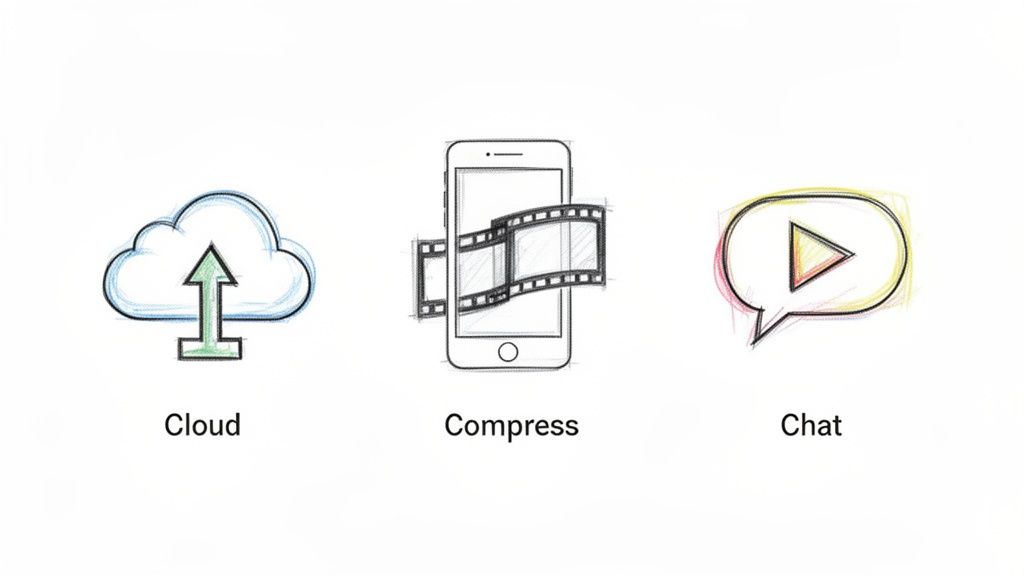
Three main approaches stand out for their reliability and ability to preserve quality. Each one works best in slightly different situations, from sending a quick family clip to a polished professional project. We'll get into the details of each one.
Your Toolkit for Flawless Video Sharing
The best options for sending long videos through text involve changing how you send the file, not just squashing the file itself. The great thing is, these methods work universally across both iPhone and Android, finally putting an end to that cross-platform quality drop.
Here are the strategies we’re going to walk through:
- Cloud Storage Links: Upload your video to a service like Google Drive or iCloud, then just text a simple, clickable link. This is fantastic for preserving the original, uncompressed quality.
- Third-Party Compression Apps: A specialized tool like Compresto can shrink the video file size right on your device before you send it. This is perfect when you want the other person to have the actual file saved on their phone.
- Data-Based Messaging Platforms: Just switch to an app like WhatsApp or Telegram. They use your internet connection to send files, completely bypassing those restrictive MMS limits.
The most practical approach is often a hybrid: start the conversation in a text message, but deliver the video via a cloud link or a dedicated messaging app. This gives you the convenience of a text while respecting the reality that carrier MMS was never designed for modern video files.
Understanding the Tradeoffs
The numbers tell the whole story. A single minute of 1080p video can be anywhere from 50 MB to 150 MB, and 4K footage can easily be several hundred megs. Trying to cram that into an MMS cap of 3–5 MB would require so much compression the video would be unwatchable. It’s just not going to work.
Another powerful option, especially for content creators or anyone sharing widely, is to upload your video to a dedicated platform. Using platforms like YouTube and then sharing the link is a perfect way to maintain maximum quality and length without ever worrying about file size.
Ultimately, choosing the right method comes down to your specific needs. Who are you sending it to? What device do they have? Do they need to download the file or just view it? The next sections will give you step-by-step instructions for each of these solutions, so you can share your videos flawlessly every single time.
Use Cloud Services to Send a Sharable Link
 Honestly, the most reliable and universal way to send a long video through text is to sidestep sending the actual file entirely. Instead, you just send a simple, clickable web link.
This move completely bypasses carrier limitations, keeps your video's original quality pristine, and works flawlessly across every single device—iPhone to Android, Android to iPhone, it doesn't matter.
The process is refreshingly straightforward: upload your video to a cloud storage service, and then share the link. Most of us already have access to these services, and they often come with pretty generous free storage.
Popular Cloud Services for Video Sharing
Just about any cloud platform will get the job done, but a few are especially convenient because they’re probably already part of your phone's ecosystem.
- Google Drive: An excellent choice for everyone, offering a solid 15 GB of free storage. It’s a breeze to use on both Android and iOS.
- Apple iCloud: The go-to for iPhone users. If you have iCloud Photos enabled, chances are your videos are already backed up and ready to share.
- Dropbox: A long-time favorite for a reason. Dropbox provides 2 GB of free storage and is known for its incredibly user-friendly interface on all platforms.
The real beauty here is how simple it is for the person receiving the video. They don't need the same app or service. They just tap the link, and the video plays right in their web browser. Plus, they have the option to download the full-quality file directly to their own device.
How to Generate and Share a Cloud Link
Let's walk through a real-world example using Google Drive. The steps are almost identical for Dropbox or iCloud.
Imagine you just shot a five-minute 4K video of your daughter’s soccer game. That's a massive file, probably clocking in around 1.5 GB.
- Get the Video Uploaded: Pop open the Google Drive app on your phone, tap the big "+" icon, and hit "Upload." Find that soccer game video in your gallery and let it do its thing.
- Set the Right Sharing Permissions: This part is critical, so don't skip it. Once the video is uploaded, find it in Drive, tap the three-dot menu, and choose "Share." By default, it’s set to "Restricted." You absolutely have to change this to "Anyone with the link" and set their role to "Viewer." If you forget, your friends will get a frustrating "access denied" error.
- Copy and Send the Link: With the permissions set correctly, just tap "Copy link." Now head over to your messaging app, paste that link into a text, and hit send. Done.
My personal tip is to create a dedicated folder in my cloud drive called "Videos to Share." It keeps my main storage from getting cluttered and makes finding the link for a recent clip way faster.
This method separates the file's location from how it's accessed, a key difference you can dig into in our comparison of cloud storage vs local storage. It’s an elegant solution that gets the job done without compromise.
Compress Videos Directly on Your Phone
Sometimes, sending a link just doesn't cut it. You might want your friend to be able to save that clip of your dog's antics directly to their camera roll, or maybe you just prefer sending the actual file instead of a link. When that’s the case, video compression becomes your best friend.
Instead of letting your phone’s automatic, quality-crushing compression take over, you can get ahead of the problem with a dedicated app. Modern tools can shrink a video's file size dramatically while keeping the visuals surprisingly sharp. It’s a simple, proactive step that ensures your video is ready to send before you even hit the share button.
Taking Control with a Compression App
Using an app like Compresto puts you back in the driver’s seat, letting you find that perfect sweet spot between file size and video quality. The whole process happens right on your device, so your private files never have to leave your Mac.
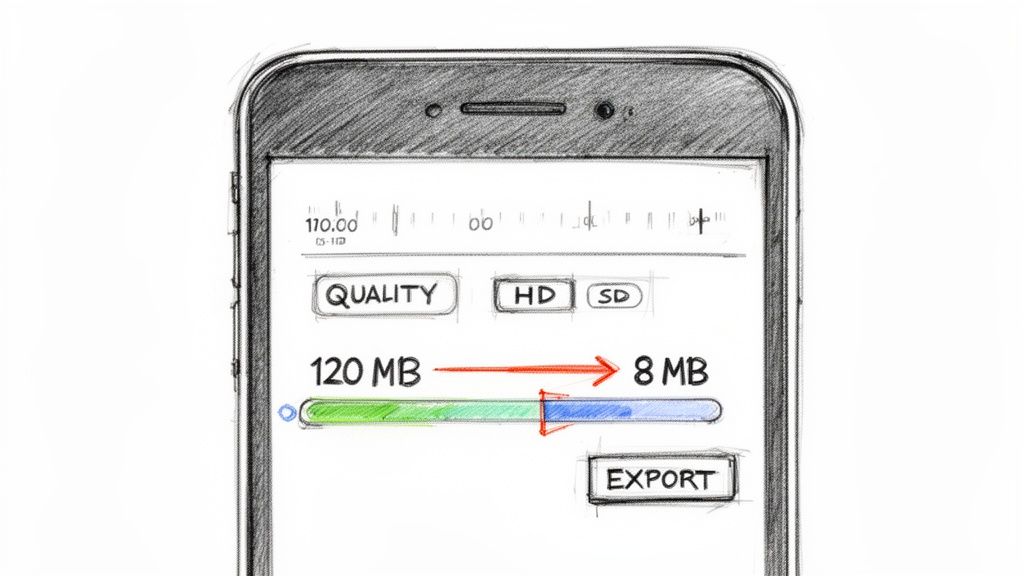
The workflow is incredibly straightforward. You start by importing your original, high-resolution video into the app. From there, you get a clear set of options to dial in the final output.
- Pick a Preset: Most apps have simple presets like "High Quality" or "Web Optimized." These are fantastic starting points that remove all the guesswork.
- Tweak the Key Settings: If you want more control, you can usually adjust the resolution (like dropping from 4K to 1080p) and bitrate, which has a huge impact on file size.
- Preview the Outcome: Before you commit, you’ll see an estimate of the final file size, so you know for sure if it’s small enough to text.
This approach is so valuable because it tackles the main reason MMS became obsolete for video sharing. With mobile video consumption exploding, it was projected that by 2025, video would account for 82% of all internet traffic—most of it watched on phones. The tiny sub-MB caps on MMS just couldn't keep up with how we actually use and share video today.
Key Takeaway: By compressing a video before sending, you're creating a file that’s already optimized for messaging. This stops your phone from doing its own destructive, last-minute compression and ensures the video arrives looking crisp and clear.
Understanding Bitrate and Resolution
When you're digging into compression settings, you'll run into two critical terms: resolution and bitrate.
Think of resolution (e.g., 1080p, 720p) as the size of the canvas—fewer pixels mean a smaller file. Bitrate is the amount of data used to create each second of video; a lower bitrate saves a ton of space but can reduce detail if you go too low.
The good news? For a video that’s just going to be watched on a small phone screen, you can often lower both without anyone noticing a drop in quality. Bumping a 4K video down to 1080p can slash its size by 75% or more with almost no visible difference. And for those really massive files, you can check out our guide on finding a reliable free online movie compressor. This method gives you complete control over the end result.
Choose a Messaging App Built for Large Files
Your phone’s built-in texting app probably isn't your best friend when it comes to sending a decent-sized video. In fact, for anything longer than a few seconds, it’s usually the worst option available. The good news is, the fix is incredibly simple: switch the conversation to an app that was actually designed for sharing media.
Modern messaging apps like WhatsApp, Telegram, and Signal don’t use the old, clunky MMS system. Instead, they send files over your internet connection—Wi-Fi or mobile data—which means they get to skip right past your carrier’s tiny file size limits.
This one change makes a world of difference. You can send a long clip from a concert or a two-minute video of your dog doing something hilarious, and it will arrive looking just as sharp as it does on your screen. As long as you and your friend both have the app, the whole process is seamless.
Comparing the Best Apps for Video Sharing
Of course, not all messaging apps are created equal. Some are far more generous with their file size limits than others, which can be the deciding factor depending on what you’re trying to send. Knowing the difference helps you pick the right tool for the job.
Here’s a quick look at the top contenders:
- Telegram: This one is the undisputed king of file sharing. It lets you send videos—and any other file, for that matter—up to a massive 2 GB. If you’re a creator or just someone who shoots in high resolution, this is your go-to.
- WhatsApp: As one of the most popular apps on the planet, WhatsApp is a reliable choice. It handles video files up to 100 MB, which is plenty for most everyday clips. They also added an HD video option recently, giving your shares a nice quality boost.
- Signal: Best known for its hardcore privacy features, Signal is also a solid performer for media. It matches WhatsApp with a 100 MB file size limit, making it a great, secure alternative for sharing personal moments.
By simply agreeing to use one of these apps with a friend or family member, you create a direct, high-quality channel for sharing media. It completely solves the "file too large" problem without needing cloud links or manual compression.
Making the Switch for Better Sharing
I ran into this exact problem last month. I tried to send a two-minute video I took at a local festival to a friend via text. What they received was a blurry, pixelated mess. I told them to download Telegram, sent the exact same 95 MB file, and it showed up instantly in its original quality. The difference was night and day.
Let's take a side-by-side look at how different messaging apps handle large video files, including their limits and key features.
How Popular Messaging Apps Handle Video Sharing
| App | Maximum File Size | Compression Level | Best For |
|---|---|---|---|
| Telegram | Up to 2 GB | Minimal (optional) | Sending high-res, lengthy videos without quality loss. |
| 100 MB | Moderate (HD option available) | Everyday video clips and reliable sharing with most contacts. | |
| Signal | 100 MB | Moderate | Securely sharing personal videos with a focus on privacy. |
| iMessage | Varies (up to 100 MB) | Heavy | Quick, compressed clips between Apple device users. |
| Facebook Messenger | 25 MB | Heavy | Short, casual video messages that don't need high quality. |
As you can see, choosing the right app can completely change the game. This approach fits into a broader strategy of moving away from old-school tech that wasn't built for the kind of rich media we create today. For example, many people now learn how to post Facebook Reels instead of texting videos to multiple people, because the platform is designed for it. It all comes down to using the right tool for the task at hand.
Still Have Questions About Sending Videos?
Even with the best tools, you’re bound to hit a few snags when you're trying to send a big video file. That’s perfectly normal. Let's walk through some of the most common questions that pop up when you're trying to share clips without all the hassle.
Think of this as your quick-start troubleshooting guide. We'll cover the real-world stuff—from fears about quality loss to the age-old drama of sending videos from an iPhone to an Android.
Will Compressing My Video Make It Look Awful?
Not if you use the right approach. It’s true that over-compressing a video will eventually make it look like a pixelated mess, but modern compression tools are incredibly sophisticated. They use smart algorithms to shrink the file size way down while keeping as much visual detail as possible.
Honestly, you can often knock a video's file size down by 80% or more with very little noticeable difference, especially since most people will be watching it on a small phone screen anyway. The trick is finding that sweet spot. A good app will have simple presets like "High Quality" or "Medium File Size" that handle all the complex settings for you.
Is It Really Safe to Send a Video Using a Cloud Link?
Yes, this is a super safe way to share files, but the security is all in how you manage the sharing settings.
Services like Google Drive and Dropbox give you total control over who gets to see your video. You can set the link to be "view only," which stops anyone from downloading or messing with your original file. If you're sharing something sensitive, never use a "public on the web" setting. Stick to sharing with specific people or using a private link. Some services even let you add a password or an expiration date for another layer of protection.
The most common pitfall isn't some major security breach; it's a simple user error. Always, always double-check that your permissions are set to "Anyone with the link can view" before you hit send. If you don't, your friend will just get a frustrating "access denied" screen.
Why Do My Videos Look So Blurry When I Send Them to an Android User?
Ah, the classic green bubble vs. blue bubble problem. This all comes down to the ancient technology underpinning text messaging between different types of phones.
When an iPhone sends a video to another iPhone, it uses iMessage. This system works over the internet and can easily handle large, high-quality files. But when that same iPhone sends a video to an Android phone, it has to default back to the old, clunky MMS standard. MMS has laughably small file size limits, forcing your iPhone to automatically and aggressively crush the video down to fit. That brutal, on-the-fly compression is exactly why it looks so blurry and pixelated on their end.
Your best bet is to sidestep MMS entirely. Here are a few ways to do that:
- Send a cloud link: A link from Google Drive or Dropbox works flawlessly on any device.
- Use a different app: Just switch the conversation over to a cross-platform app like WhatsApp or Telegram.
- Compress it yourself first: Use a dedicated app to shrink the video file on your own terms before sending it.
Ready to finally take control of your video sharing? With Compresto, you can compress large videos right on your Mac, shrinking their file size without wrecking the quality. It's time to stop fighting with carrier limits and start sharing your memories effortlessly. Try it out and see for yourself. Learn more at https://compresto.app.