The 10 Best Tools for Professional Content Creators in 2026: YouTubers, Podcasters & Streamers
Professional content creation — long-form YouTube videos, podcasts, live streams — is powered by efficient workflows, not just talent. This guide is built specifically for YouTubers, podcasters, and live streamers who need a robust, integrated production pipeline. We cover the video editing powerhouses, remote recording platforms, streaming software, and hardware that the most successful long-form creators rely on day to day.
Building for social-media-first content instead? If your focus is Instagram, TikTok, LinkedIn, or short-form video, see our companion guide to social media content creation tools — it covers schedulers, vertical-video editors, and design platforms tailored to social media managers.
Our focus is on real-world use cases, macOS compatibility, and an honest assessment of limitations. For each tool, we’ll dive into crucial features like privacy, local-processing benefits, batch processing capabilities, and automation. You'll find direct links and screenshots to help you evaluate each option quickly. We cover everything from professional video suites like Adobe Creative Cloud and Final Cut Pro to specialized platforms like Descript for audio/video editing and Riverside for remote multi-track recording.
Whether you're editing a weekly YouTube video, capturing podcast interviews, or running a Twitch channel, this curated list will help you build a more streamlined and powerful creative pipeline. This comprehensive roundup is designed to help you discover, compare, and implement the software that will truly elevate your professional content creation workflow.
1. Compresto
Best For: Privacy-first, high-volume asset compression on macOS.
Compresto stands out as a foundational tool for content creators, establishing itself as a premier solution for asset optimization. It's a powerful macOS-native application that dramatically reduces the file size of videos, images, GIFs, and PDFs without compromising visual quality. Its core strength lies in its privacy-first, local-only processing, ensuring sensitive project files never leave your machine. This makes it an indispensable utility for professionals handling proprietary or client content.
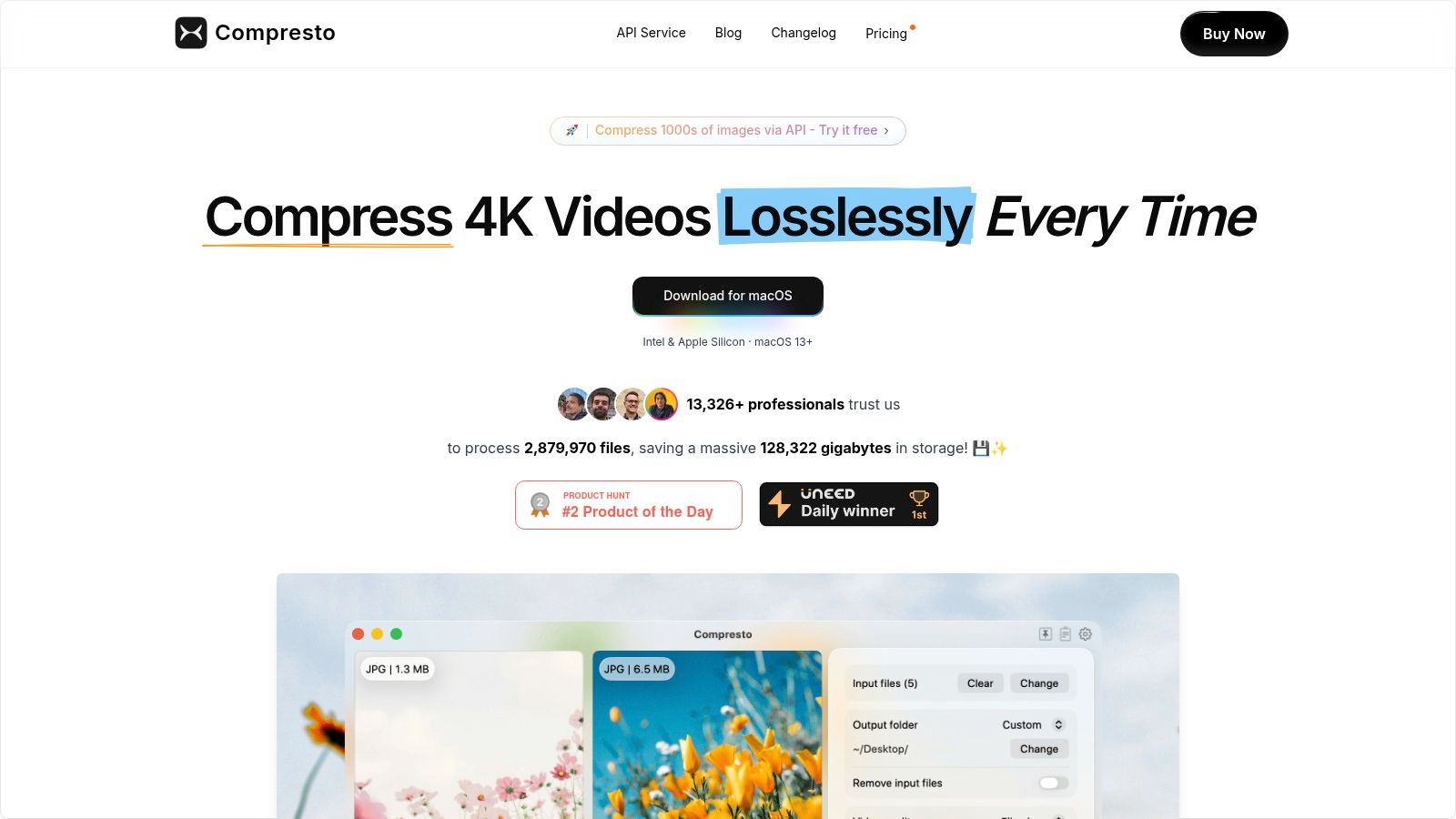
What truly elevates Compresto among the best tools for content creators are its pro-level automation features. Beyond a simple drag-and-drop interface, it offers Folder Monitoring to automatically compress new files added to a designated folder. The Drop Zone provides a persistent, on-screen target for quick compressions, while its Raycast extension and API unlock enterprise-grade, high-volume workflows. This comprehensive feature set transforms a typically tedious task into a seamless, background process.
Core Features & Use Cases
- Batch Processing: Queue hundreds of files at once, from high-resolution videos to a folder of web images, and let Compresto optimize them in a single operation.
- Workflow Automation: Use Folder Monitoring to create a "compression hot folder" on your desktop. Any file you save there is automatically processed, perfect for streamlining export pipelines from apps like Final Cut Pro or Figma.
- Channel-Specific Presets: Create and save custom compression settings for different platforms. For example, you can have a "YouTube 4K" video preset and a "Website Hero Image" preset to ensure consistent, optimized outputs every time.
- Privacy and Security: Because all processing happens locally on your Mac (natively on both Intel and Apple Silicon), you can confidently compress confidential client work, unreleased product demos, or internal documents without security risks.
Pricing & Platform Details
| Feature | Details |
|---|---|
| Platform | macOS (requires macOS 13 or newer) |
| Pricing | Specific tiers are available on the website's purchase page. An API trial is also offered for developers looking to integrate the technology. |
| File Support | Video (MP4, MOV), Images (PNG, JPG), Animated GIFs, and PDFs. |
| Key Benefit | Drastically reduces file sizes by up to 90%, saving significant storage space and speeding up file transfers, uploads, and website loading times. |
Practical Tip: Integrate Compresto's Drop Zone into your daily workflow. Place it in a corner of your screen to have an always-on utility for quickly shrinking screenshots, screen recordings, or assets downloaded from the web before sharing them with your team on Slack or a project management tool.
2. Adobe Creative Cloud
Adobe Creative Cloud is less a single tool and more a complete ecosystem for professional content creators who need an integrated, end-to-end production workflow. Its key advantage is the seamless interoperability between its 20+ applications. A creator can edit a raw photo in Lightroom, refine it in Photoshop, animate it in After Effects, and then drop the entire project into a Premiere Pro video timeline without constant exporting and re-importing. This deep integration makes it one of the best tools for content creators managing complex, multi-format projects.
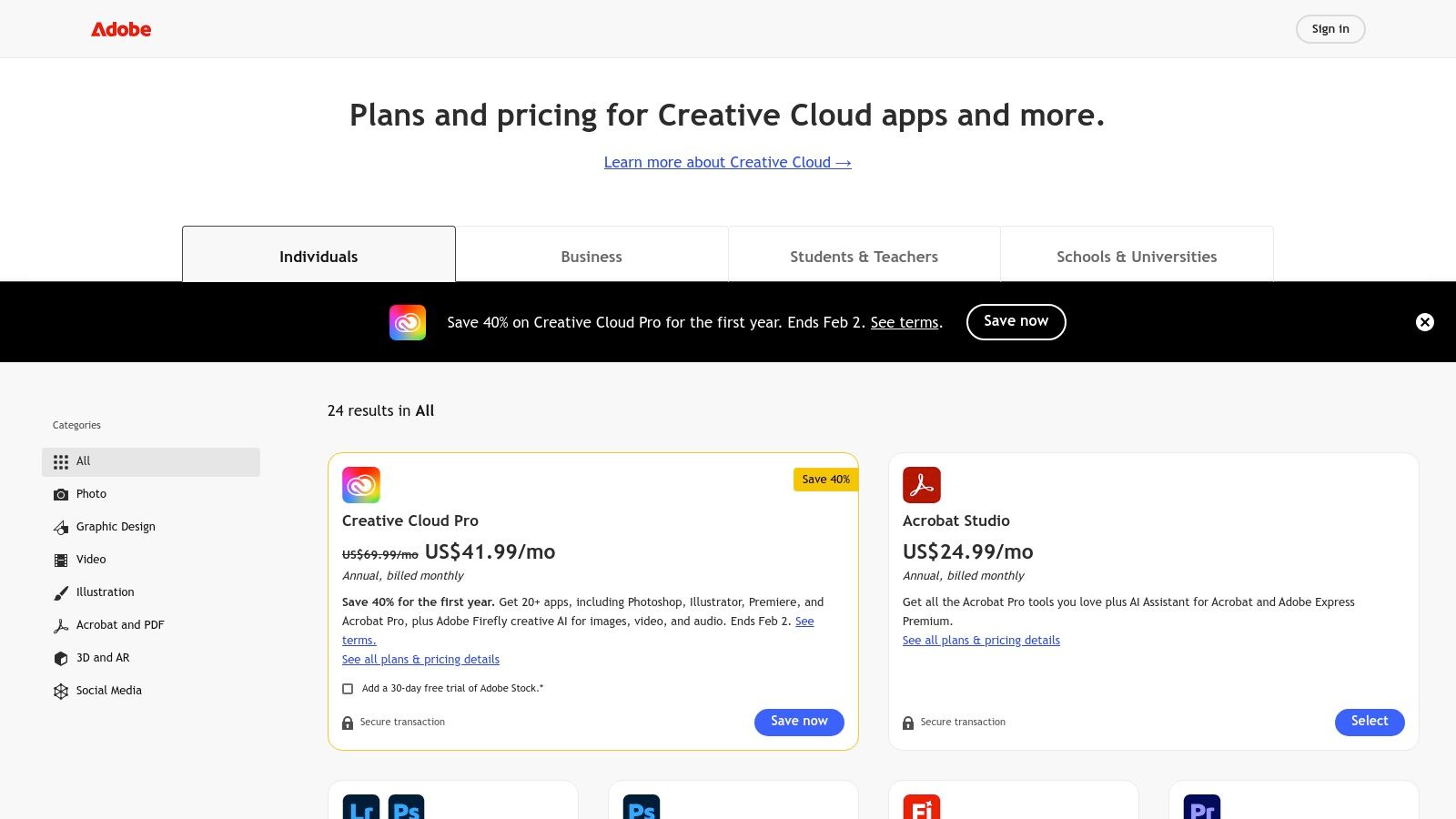
The suite excels in video production, where the combination of Premiere Pro (editing), After Effects (motion graphics), and Audition (audio mixing) remains an industry standard. The recent integration of Adobe Firefly brings powerful generative AI directly into apps like Photoshop and Illustrator, speeding up asset creation and ideation.
Key Details & Pricing
- Core Use Cases: Professional video editing, photo retouching, graphic design, motion graphics, UI/UX design, and document creation.
- macOS Compatibility: Fully native support for all major applications, optimized for Apple silicon (M1/M2/M3).
- Pros: Industry-standard tools with a deep feature set, powerful integration between apps, and extensive learning resources.
- Cons: High ongoing subscription cost, steep learning curve for advanced applications, and complex plan structures can be confusing.
- Pricing: Subscription-based, with plans for individuals starting at $59.99/month for the "All Apps" package. Single-app plans and student discounts are also available.
Practical Tip: Leverage Adobe Express, included with most Creative Cloud plans, for quickly resizing and repurposing assets created in Photoshop or Illustrator for social media channels. It uses templates and presets to streamline content distribution without leaving the Adobe ecosystem.
3. Final Cut Pro (Mac App Store)
Final Cut Pro is Apple’s professional non-linear video editor built exclusively for macOS, making it a powerhouse for creators deep in the Apple ecosystem. Its primary advantage is its exceptional performance and stability, specifically optimized for Apple Silicon (M1/M2/M3). This tight hardware and software integration allows for incredibly fast rendering, smooth multicam editing, and real-time playback of complex effects, positioning it as one of the best tools for content creators who prioritize speed and efficiency on a Mac.
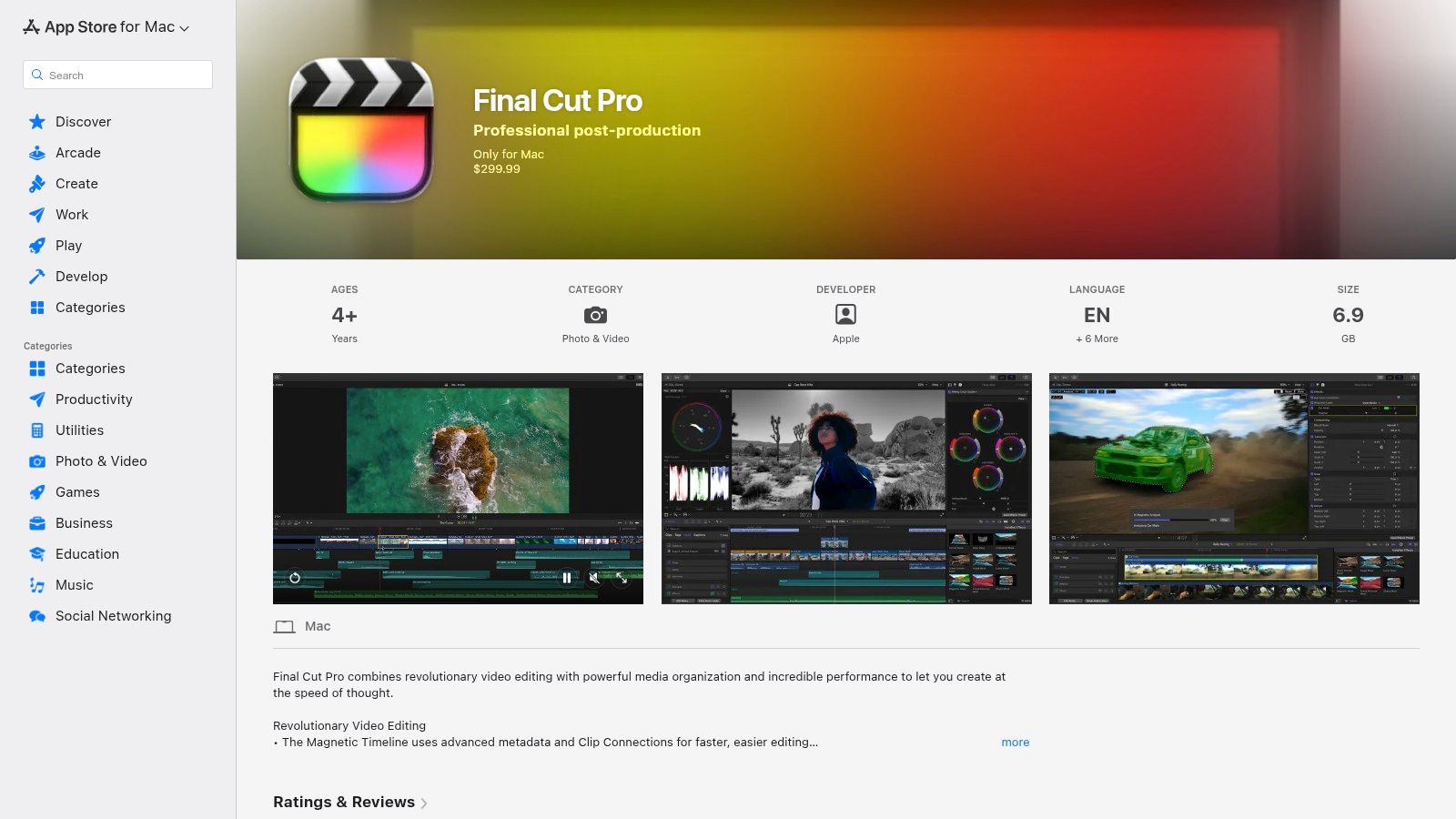
The software excels with its Magnetic Timeline, which simplifies editing by preventing clip collisions and gaps. Recent updates have introduced powerful AI features like Voice Isolation to clean up audio and Smart Conform to automatically reframe videos for different social media aspect ratios. Its broad codec support, including native ProRes and ProRes RAW, ensures a high-quality pipeline from camera to final export.
Key Details & Pricing
- Core Use Cases: Professional video editing, color grading, motion graphics (with Motion), and video compression/export (with Compressor).
- macOS Compatibility: Fully native and optimized for macOS and Apple silicon. Not available on other platforms.
- Pros: One-time purchase model (no recurring subscription), outstanding performance and stability on Mac hardware, and an intuitive, modern interface.
- Cons: Strictly macOS-only, limiting cross-platform collaboration, and has fewer built-in team features compared to cloud-based suites.
- Pricing: A one-time purchase of $299.99 from the Mac App Store, which includes all future updates.
Practical Tip: After finalizing your edit, it’s crucial to optimize the file for web delivery. To learn the best settings for balancing quality and file size, you can find a complete guide on how to export video from Final Cut Pro before publishing to platforms like YouTube or Vimeo.
Visit Final Cut Pro (Mac App Store)
4. Blackmagic DaVinci Resolve
Blackmagic DaVinci Resolve has evolved from a Hollywood-grade color correction tool into a complete, all-in-one post-production suite. Its primary advantage is combining professional editing, color grading, visual effects (Fusion), and audio post-production (Fairlight) into a single application. This unified workflow eliminates the need for round-tripping between different programs, creating a highly efficient process for creators who handle every aspect of their video production. Its powerful free version makes it one of the best tools for content creators starting out, while the Studio version rivals industry giants.
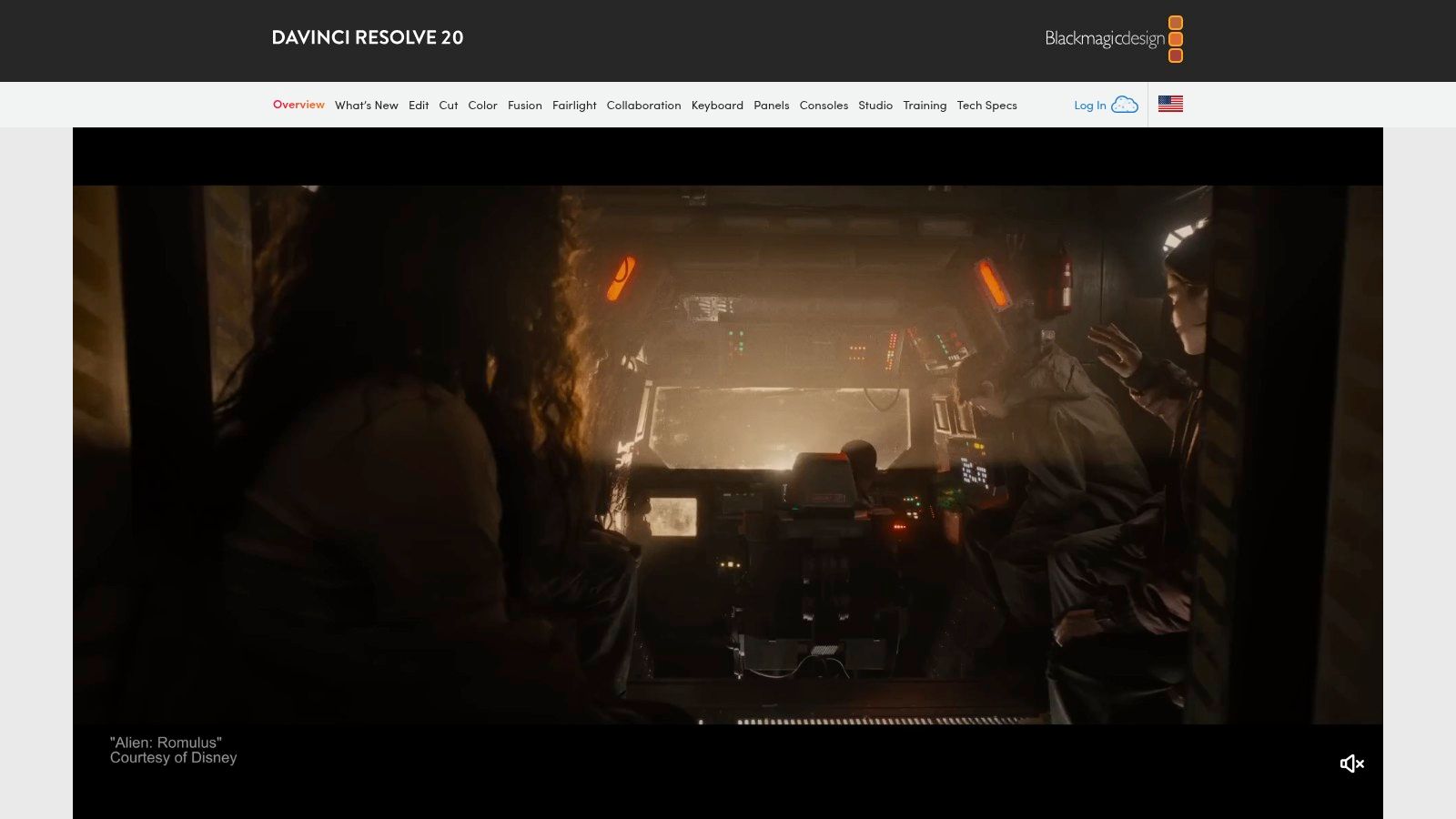
The software is particularly renowned for its color grading capabilities, which remain a benchmark in the film and television industry. The Studio version unlocks the DaVinci Neural Engine, introducing AI-powered features like Magic Mask for automated object isolation, voice isolation for clean audio, and intelligent reframing for social media formats. This makes advanced, time-consuming tasks accessible to individual creators and small teams.
Key Details & Pricing
- Core Use Cases: Professional video editing, advanced color correction and grading, audio mixing, and visual effects compositing.
- macOS Compatibility: Fully native application, highly optimized for Apple silicon (M1/M2/M3) with excellent performance.
- Pros: Extremely powerful free version that is sufficient for many professional projects, one-time purchase for the Studio version (perpetual license), and an integrated workflow that speeds up production.
- Cons: A steep learning curve, particularly for the advanced Color and Fusion pages, and achieving maximum efficiency often requires investing in specialized hardware control panels.
- Pricing: A comprehensive free version is available. DaVinci Resolve Studio is a one-time purchase of $295.
Practical Tip: Use the "Render Cache" feature when working with performance-intensive clips or effects. By right-clicking a clip and selecting "Render Cache Color Output," you can pre-render sections of your timeline for smooth, real-time playback, which is especially useful on less powerful Mac systems.
Visit Blackmagic DaVinci Resolve
5. Descript
Descript revolutionizes audio and video editing by transforming media into a text document. Instead of manipulating waveforms or timelines, creators edit spoken-word content by simply editing the auto-generated transcript. Deleting a word from the text removes it from the audio or video, and moving a sentence rearranges the clip accordingly. This text-based workflow makes editing podcasts, interviews, and talking-head videos as intuitive as editing a Google Doc, dramatically speeding up post-production for dialogue-heavy content.
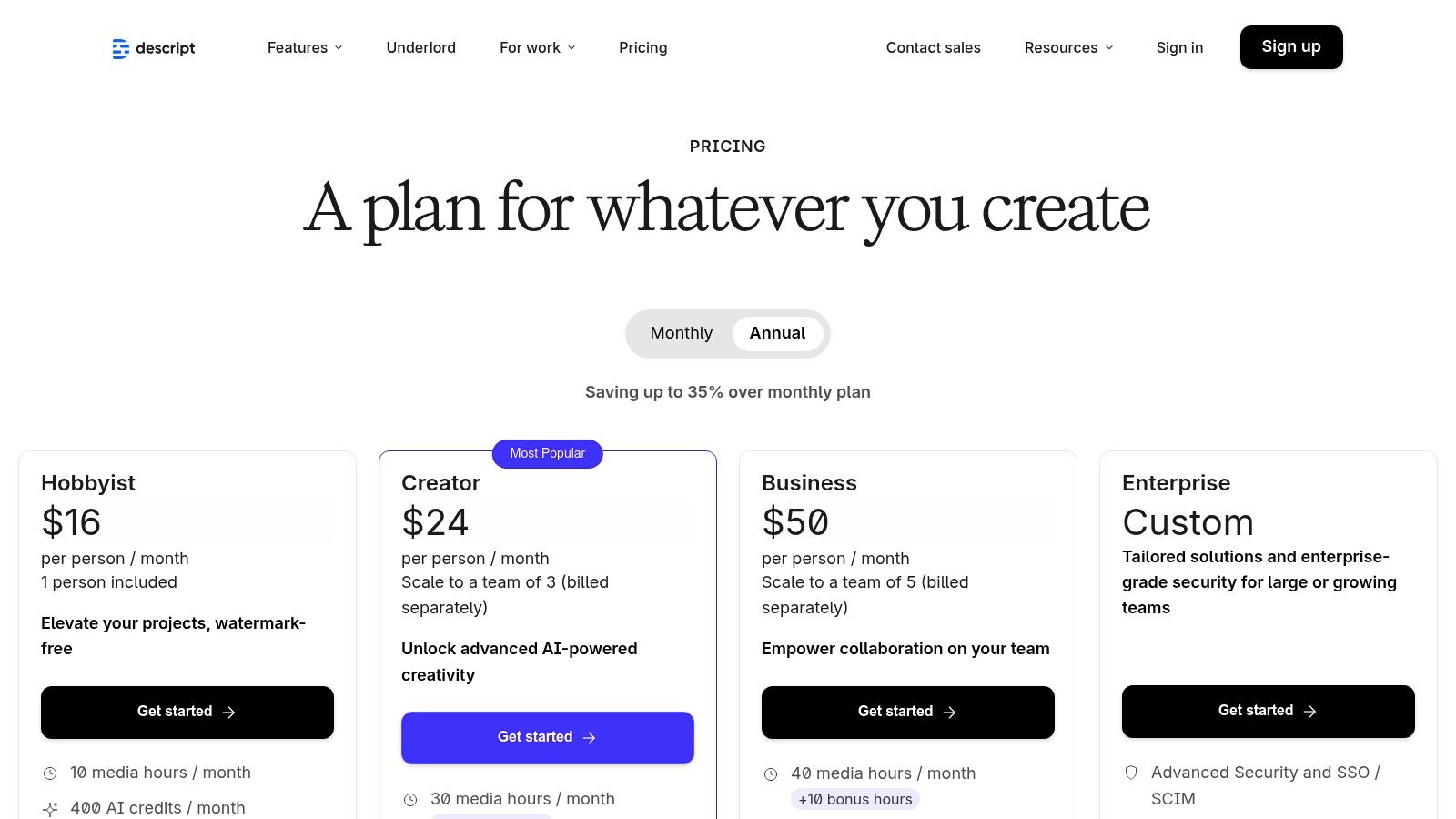
The platform is an all-in-one solution, bundling screen recording, AI-powered voice cloning (Overdub), and remarkable audio cleanup (Studio Sound) into a single application. Features like automatic filler word removal ("um," "uh") and easy clip repurposing make it one of the best tools for content creators focused on efficiency. It streamlines the entire process from initial recording and editing to adding captions and publishing, eliminating the need to jump between multiple specialized apps.
Key Details & Pricing
- Core Use Cases: Podcast editing, video interviews, screen recordings, creating social media clips from long-form content, and transcription services.
- macOS Compatibility: Fully native application available for macOS, with optimizations for both Intel and Apple silicon processors.
- Pros: Extremely fast and intuitive text-based editing workflow, powerful AI features like Studio Sound and Overdub, and an all-in-one design for recording, editing, and publishing.
- Cons: Performance can slow down with very long, multi-track projects, and core features like transcription and AI tools are limited by monthly plan quotas.
- Pricing: Offers a free plan with limited features. Paid plans start with the "Creator" tier at $12/month (billed annually) for more transcription hours and watermark-free exports.
Practical Tip: Use the "Find good clips" feature to quickly identify and export compelling highlights from a long recording. Descript's AI can suggest engaging segments, which you can then instantly reformat into vertical videos with animated captions, perfect for TikTok, Reels, or Shorts.
6. Riverside
Riverside is a specialized platform designed to solve one of the biggest challenges for podcasters and video creators: capturing studio-quality audio and video from remote guests. Its standout feature is local multi-track recording, which captures each participant's feed directly on their device in up to 4K resolution before uploading to the cloud. This process bypasses internet connection issues, eliminating the pixelated video and choppy audio common in other remote recording tools and making it one of the best tools for content creators focused on interview-style content.
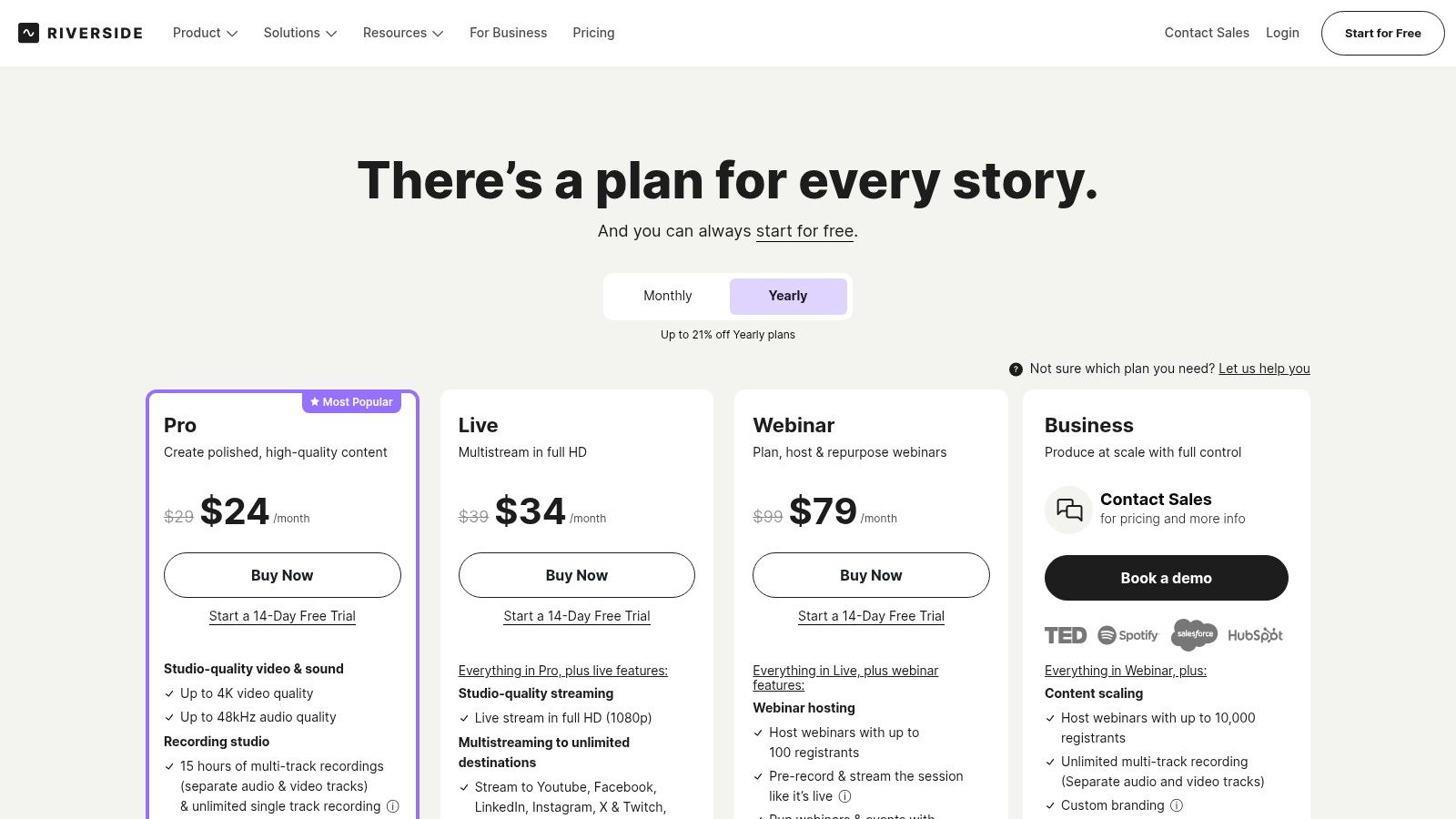
The platform has evolved into an end-to-end production suite, incorporating powerful AI features. Magic Clips automatically identifies key moments and formats them for social media, while automated transcription and show notes drastically cut down on post-production time. With integrated editing, live streaming, and hosting, Riverside aims to be the central hub for creators producing interview-based shows.
Key Details & Pricing
- Core Use Cases: High-quality remote podcasting, video interviews, webinar hosting, and live streaming.
- macOS Compatibility: Fully supported via web browser (Chrome recommended for best performance); no native desktop application required for recording.
- Pros: Delivers exceptionally high-quality remote recordings, integrated AI tools streamline content repurposing, and the guest experience is simple and browser-based.
- Cons: Key features like AI tools, live streaming, and recording hours are gated by plan level, and reliance on guest's local hardware can still introduce variables.
- Pricing: A free plan with limited features is available. Paid plans start at $15/month (billed annually) for the Standard tier, with Pro and Business plans offering more hours and advanced features.
Practical Tip: Before a recording session, send guests the Riverside link ahead of time and ask them to run the built-in system check. This ensures their microphone and camera are correctly configured and minimizes technical delays when it's time to go live.
7. OBS Studio
OBS Studio is the definitive free, open-source application for live streaming and high-quality screen recording, making it one of the best tools for content creators focused on live events, tutorials, or gameplay. Its power lies in its modularity; users can compose unlimited "scenes" from various sources like webcams, screen captures, images, and browser windows, and seamlessly transition between them. This level of control allows for professional-grade productions without the cost of premium software.
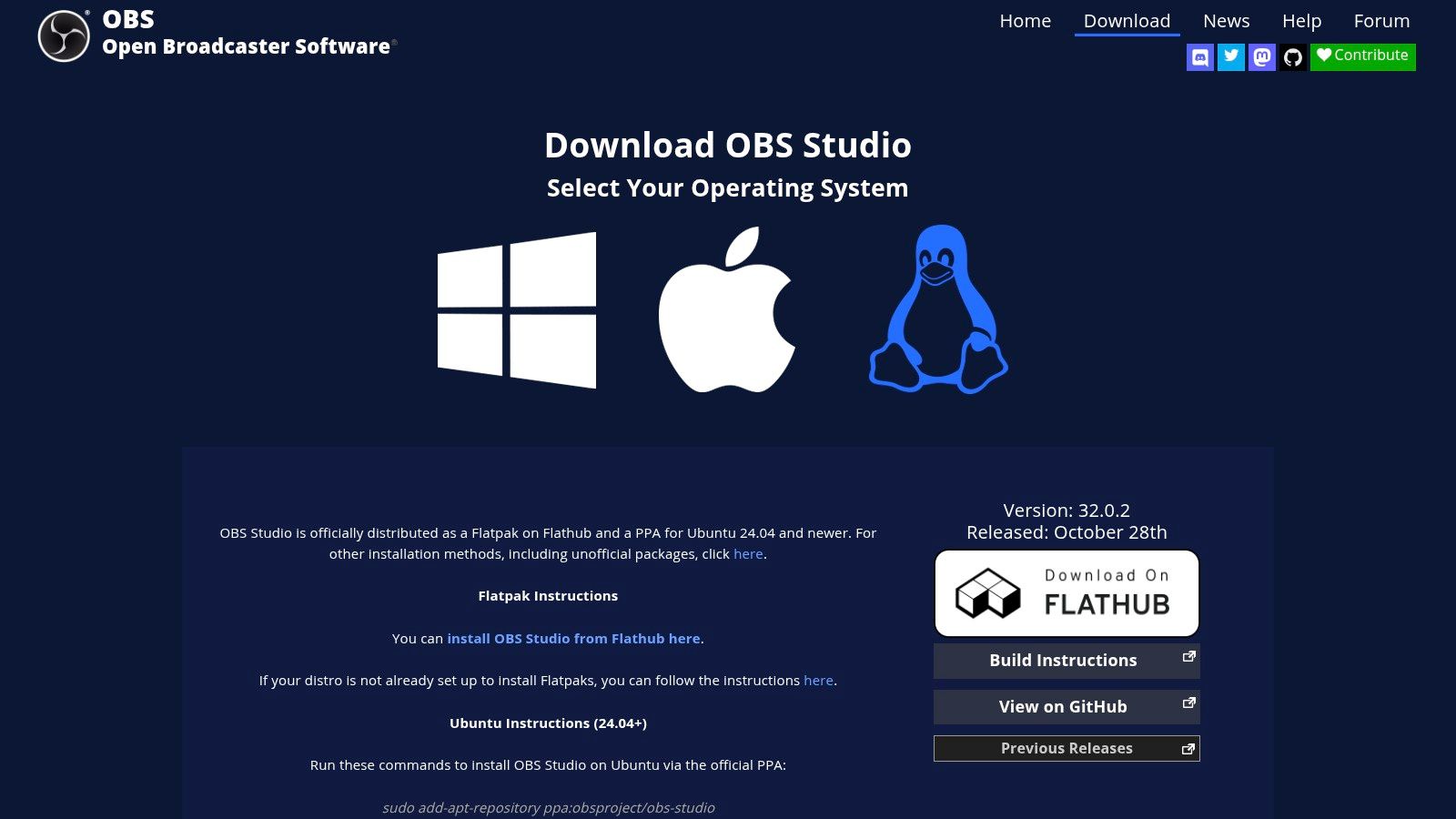
The software excels in its deep customization options, from granular control over encoding settings for streaming and recording to a robust audio mixer with support for VST plugins. An extensive community-developed plugin ecosystem further expands its capabilities, adding features like advanced scene switchers, custom transitions, and integrations with services like Twitch and YouTube. Its cross-platform nature ensures a consistent workflow for creators on any operating system.
Key Details & Pricing
- Core Use Cases: Live streaming to platforms like Twitch and YouTube, screen recording for tutorials and gameplay, and virtual camera output for video conferencing.
- macOS Compatibility: Fully native support, including versions optimized for both Intel and Apple silicon (M1/M2/M3) for maximum performance.
- Pros: Completely free and open-source, highly configurable for complex productions, strong community support with an extensive plugin ecosystem.
- Cons: Requires more initial setup and has a steeper learning curve than simpler streaming tools, users must be careful to download only from the official website to avoid malware.
- Pricing: Completely free.
Practical Tip: Use the "Studio Mode" to preview and edit a scene before it goes live. This feature provides a "Preview" and "Program" window, allowing you to make adjustments to your next scene without your audience seeing the changes until you hit the transition button.
8. Elgato
Elgato has become the go-to provider for hardware and software that bridges the gap between amateur and professional streaming setups. Its core strength lies in its ecosystem of products, from Stream Deck controllers and Wave microphones to capture cards and lighting, all designed to work in harmony. This interconnected system empowers creators to manage complex live productions with broadcast-level quality and automation, making it one of the best tools for content creators focused on live video, podcasts, and polished recordings.
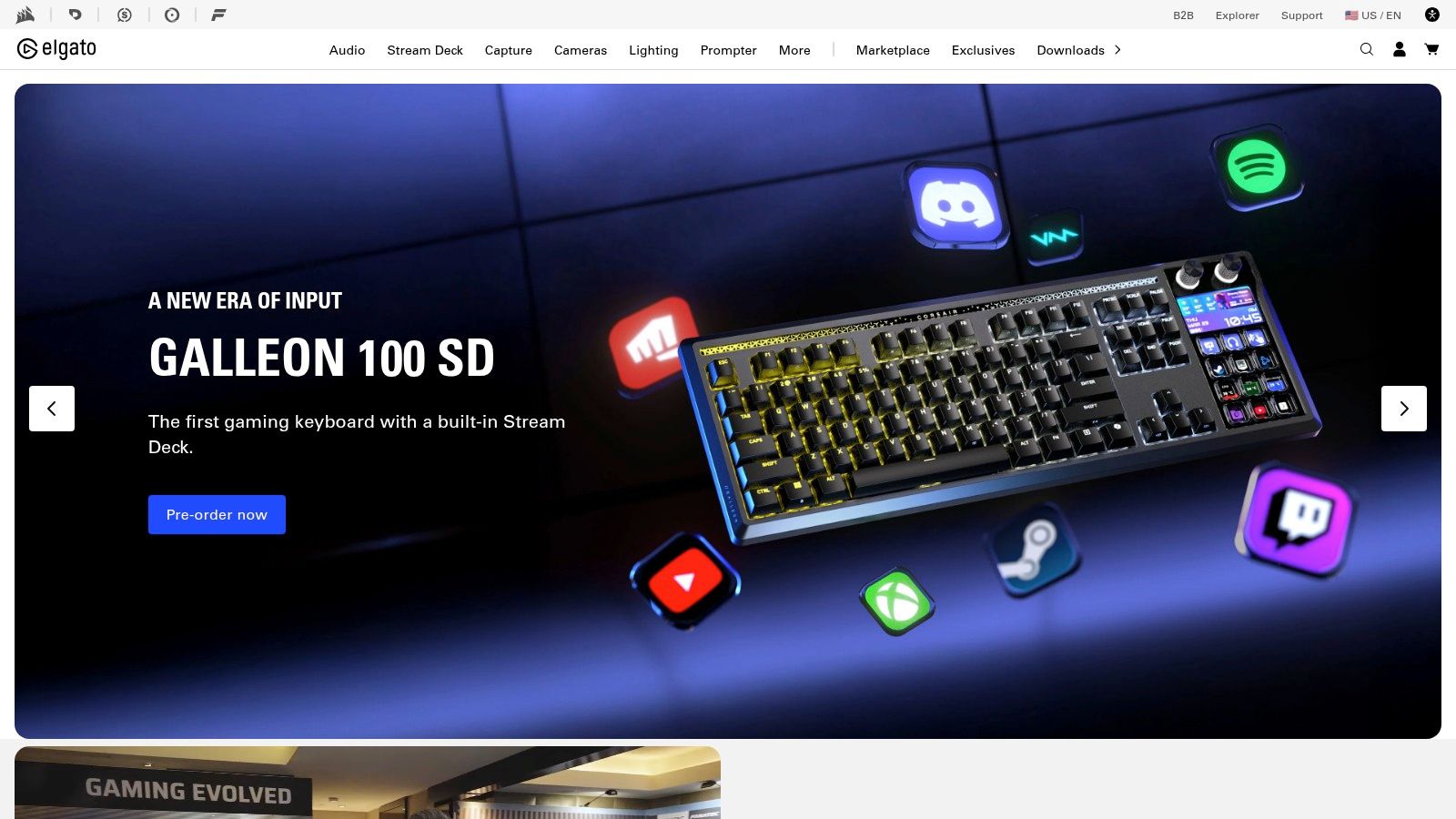
The Stream Deck is arguably its most transformative product, allowing users to map complex multi-step actions to single physical buttons. This can range from switching scenes in OBS and triggering sound effects to launching applications and controlling smart home devices. Paired with their Wave microphones and Wave Link software, creators gain granular control over audio routing, which is essential for professional-sounding streams and podcasts.
Key Details & Pricing
- Core Use Cases: Live streaming production, podcasting, video recording, workflow automation, and creating a professional home studio setup.
- macOS Compatibility: Fully native software support for the entire product line, including Stream Deck, Wave Link, and Control Center, all optimized for macOS.
- Pros: Deeply integrated hardware and software ecosystem, significantly improves live production quality, and bundles make it easy to build a complete creator rig.
- Cons: The total cost adds up quickly when purchasing multiple accessories, and product availability can fluctuate, especially for limited edition colorways.
- Pricing: Hardware is purchased individually. Key product prices include Stream Deck MK.2 ($149.99), Wave:3 Microphone ($149.99), and Facecam ($129.99). Bundles offer modest savings.
Practical Tip: Use the Stream Deck not just for streaming but as a productivity powerhouse. Create profiles for different applications like Premiere Pro or Photoshop to map your most-used shortcuts, macros, and actions to dedicated keys, dramatically speeding up your editing workflow.
9. B&H Photo Video
While software is crucial, high-quality content production ultimately relies on the right hardware. B&H Photo Video serves as a one-stop-shop for creators building or upgrading their physical toolkit. As a major retailer, it offers an extensive catalog of cameras, microphones, lighting, and computer hardware, making it one of the best tools for content creators to source everything from a single lens to a complete studio setup. The platform stands out for its knowledgeable support staff, detailed product pages with reliable user reviews, and educational resources.
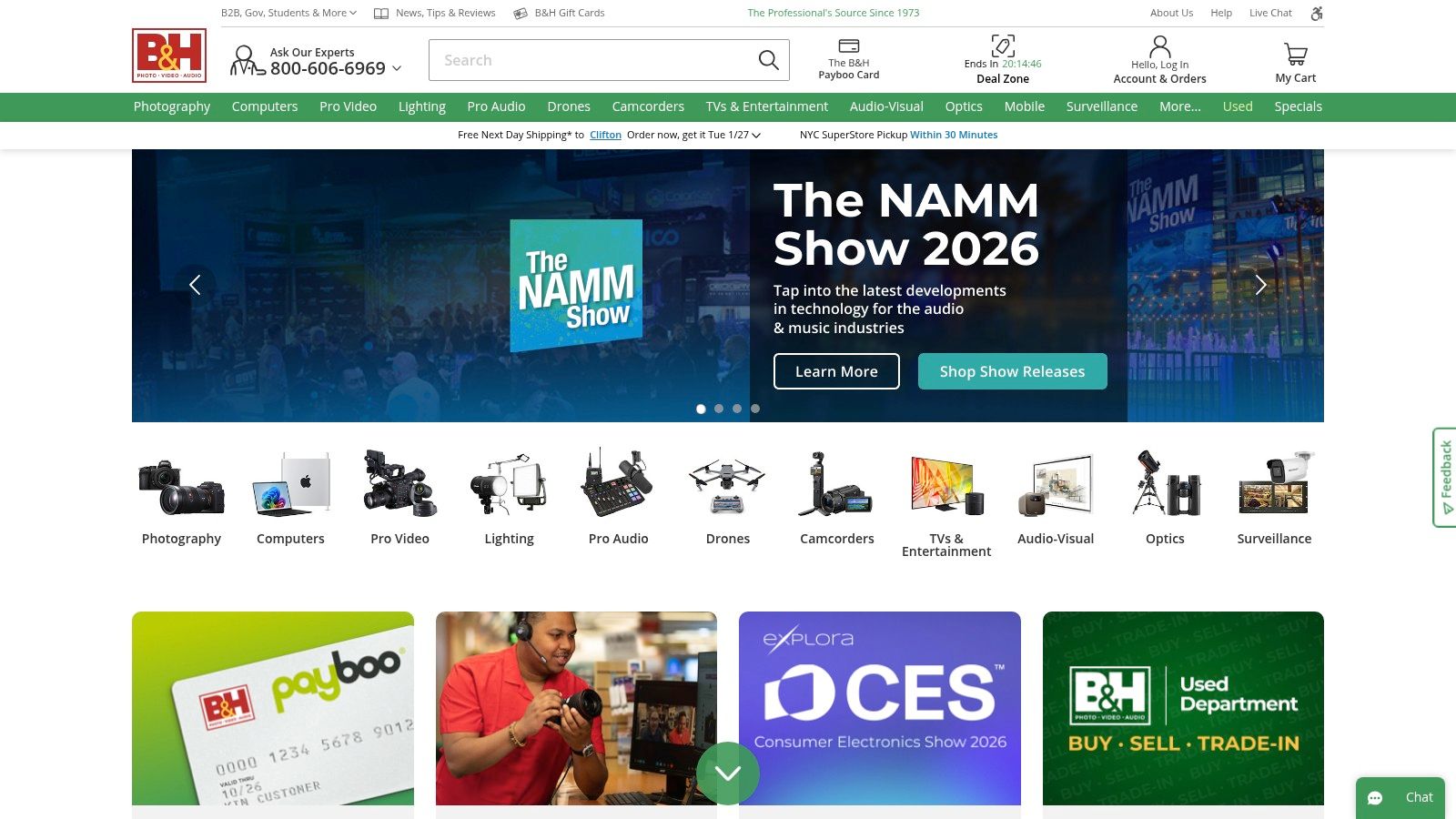
B&H simplifies the often-overwhelming process of gear selection by offering curated creator kits and bundles that ensure compatibility between components like cameras, lenses, and tripods. This is particularly valuable for new creators who need a dependable starting point. The combination of a massive inventory, expert advice via live chat, and consistent U.S. shipping makes it a trusted supplier for professionals and hobbyists alike.
Key Details & Pricing
- Core Use Cases: Sourcing cameras, lenses, audio equipment, lighting, capture cards, and other creator hardware. Building complete production rigs from scratch.
- macOS Compatibility: Sells macOS-compatible hardware, including Mac computers, external drives, and peripherals optimized for Apple ecosystems.
- Pros: Huge, reliable inventory of professional gear, expert customer support and detailed product listings, and convenient bundles for complete setups.
- Cons: Return policies and financing terms can be strict and require careful review. Some specialized software might be priced higher than buying direct from the developer.
- Pricing: Varies by product. B&H is a retailer, not a service, so costs are based on individual item prices. Offers frequent deals and a Payboo credit card for tax savings in eligible states.
Practical Tip: Use the "Compare" feature on B&H to see a side-by-side spec sheet for multiple cameras or microphones. This is incredibly useful for making a final decision based on key features like sensor size, audio bit-depth, or connectivity options without having to jump between multiple browser tabs.
10. Envato Elements
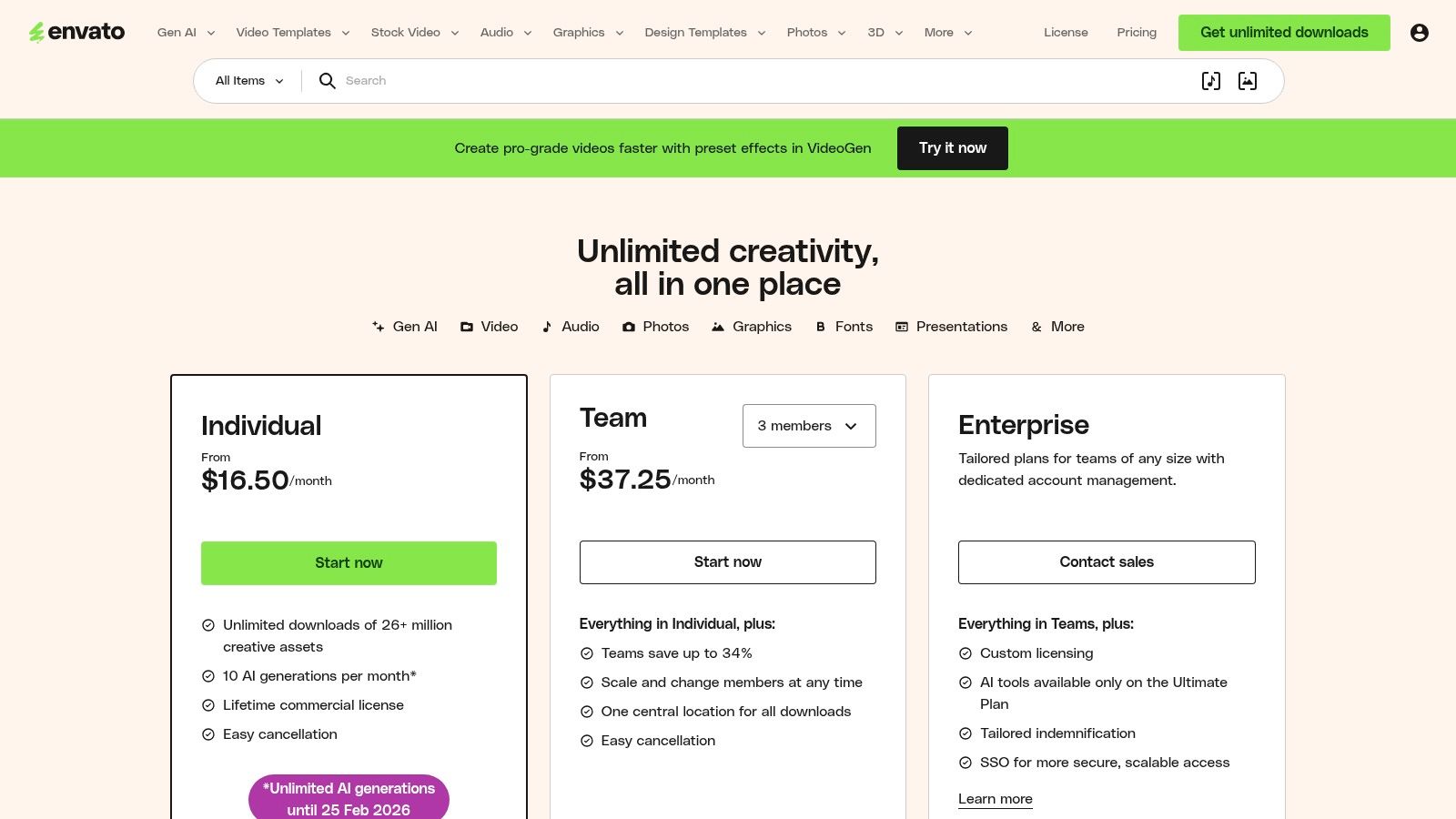
Envato Elements is an all-in-one creative subscription service offering unlimited downloads from a massive library of over 26 million digital assets. Its primary value for creators lies in its sheer volume and variety, providing everything from video templates and stock footage to music, sound effects, fonts, and graphics. This makes it one of the best tools for content creators who need a constant supply of high-quality assets without the friction of per-item licensing or budget constraints.
The platform is particularly strong for video editors and motion designers. Its extensive collection of templates for Premiere Pro, After Effects, and Final Cut Pro allows creators to produce professional-looking social media packages, intros, and lower thirds quickly. The simple commercial license covers most use cases, and project-based licensing ensures that any assets used remain licensed even after a subscription ends, providing peace of mind for client work.
Key Details & Pricing
- Core Use Cases: Sourcing video templates, motion graphics, stock footage, royalty-free music and SFX, fonts, and presentation templates.
- macOS Compatibility: Fully compatible, as assets are downloaded and used in native macOS applications like Final Cut Pro, Premiere Pro, and the Affinity Suite.
- Pros: Incredible value for high-volume users, simple and broad commercial licensing, and a vast selection covering nearly every creative need.
- Cons: Asset quality can be inconsistent across different contributors, and the terms for AI generation credits are subject to change.
- Pricing: Individual plans start at $16.50/month (billed annually). Team and Enterprise plans with more collaborative features are also available.
Practical Tip: Before starting a new video project, create a collection within Envato Elements to gather potential music tracks, stock clips, and graphic templates. This pre-production step saves significant time during the editing phase, as all your potential assets are organized and ready to download from a single location.
Top 10 Professional Content Creator Tools Comparison
| Product | Core features | UX / Quality ★ | Value & Pricing 💰 | Target audience 👥 | Unique selling points ✨ |
|---|---|---|---|---|---|
| Compresto 🏆 | Local compression: video/image/GIF/PDF; batch, Folder Monitoring, presets, Raycast | ★★★★★ Fast, simple drag‑&‑drop | 💰 Mac-only; pricing via app/API; huge space & bandwidth savings | 👥 Creators & teams needing fast local compression | ✨ Privacy-first local processing; up to ~90% reduction; clear savings reports |
| Adobe Creative Cloud | 20+ pro apps (Premiere/Photoshop/Acrobat); Firefly AI; Frame.io | ★★★★★ Industry-standard, feature-rich | 💰 Subscription; can be expensive for teams | 👥 Professional creatives across photo/video/design | ✨ Full cross-platform suite; integrated AI & collaboration |
| Final Cut Pro (Mac App Store) | Apple‑optimized NLE; ProRes support; AI captions/voice tools; Motion/Compressor integration | ★★★★ Native speed & stability on Mac | 💰 One-time purchase | 👥 Mac editors & Apple-centric pros | ✨ Optimized for Apple Silicon; fast rendering; one-time license |
| Blackmagic DaVinci Resolve | Edit, Color, Fusion, Fairlight in one app; free tier; Studio AI tools | ★★★★ Pro-level grading & integrated workflow | 💰 Free core; Studio one-time (affordable) | 👥 Editors, colorists, small post teams | ✨ Hollywood-grade color; powerful free tier; Neural Engine |
| Descript | Transcription-based editing; Overdub; Studio Sound; screen recording | ★★★★ Extremely efficient for spoken-word edits | 💰 Free tier + tiered paid plans | 👥 Podcasters, talking-head creators, repurposers | ✨ Text-first editing; AI voice cloning & cleanup |
| Riverside | Local 4K multi-track capture, cloud backup, Magic Clips, publishing tools | ★★★★ High-quality remote recording | 💰 Tiered plans with hours/storage limits | 👥 Remote podcasters, interview shows | ✨ Local multi-track capture + automated repurposing tools |
| OBS Studio | Live streaming & capture; modular scenes; plugin ecosystem; cross-platform | ★★★ Powerful but steeper setup | 💰 Free, open-source | 👥 Streamers, educators, power users | ✨ Free & highly configurable with extensive plugins |
| Elgato | Stream Deck, Wave mics, capture cards, lighting, creator accessories | ★★★★ Reliable creator hardware ecosystem | 💰 Hardware costs can add up | 👥 Streamers & studio builders | ✨ Integrated hardware+software for on‑air automation |
| B&H Photo Video | Large catalog of cameras, lenses, audio, lighting, kits & expert support | ★★★★ Dependable retailer experience | 💰 Wide price range; deals & financing | 👥 Buyers building rigs & pros | ✨ Vast inventory, expert sales & fast U.S. shipping |
| Envato Elements | Unlimited asset downloads (templates, stock, audio, fonts) under commercial license | ★★★★ Large asset variety for motion & web | 💰 Subscription — high value if heavy asset use | 👥 Editors, motion designers, social teams | ✨ Massive library + project-based licensing |
Building a Smarter, More Efficient Creator Workflow
Navigating the vast landscape of software can feel overwhelming, but as we've explored, assembling the right combination of the best tools for content creators is less about acquiring every popular app and more about building a strategic, integrated system tailored to your unique workflow. The goal is to create a digital assembly line where your ideas move from concept to final published piece with minimal friction and maximum impact. This isn't just about speed; it's about reclaiming creative energy that would otherwise be lost to tedious, repetitive tasks.
The tools covered in this guide, from industry-standard powerhouses like Adobe Creative Cloud and Final Cut Pro to specialized workhorses like Compresto and Descript, represent the core pillars of a modern creator's toolkit: creation, editing, optimization, and distribution. Your ideal setup will likely be a hybrid model, combining a primary creation suite with several specialized utilities that solve specific pain points. For instance, a video podcaster might pair Riverside for pristine remote recording with Descript for text-based editing, then run the final export through Compresto for web-friendly compression before publishing to YouTube.
From Individual Tools to an Integrated Ecosystem
The true power of this approach lies in creating an ecosystem where each tool hands off its deliverable to the next in a seamless chain. This means thinking about the entire content lifecycle.
- Pre-Production and Asset Gathering: Platforms like Envato Elements and B&H Photo Video provide the raw materials, from stock footage to high-quality hardware. Your workflow begins here, by sourcing assets that align with your brand and technical requirements.
- Core Creation and Editing: This is where the heavy lifting happens. Whether you prefer the all-in-one environment of DaVinci Resolve, the Apple-optimized speed of Final Cut Pro, or the transcript-first workflow of Descript, this stage is about shaping your narrative and refining your vision.
- Optimization and Finalization: This crucial, often-overlooked step ensures your hard work is seen as intended. It involves compressing videos, images, and GIFs to reduce file sizes without sacrificing quality. A tool that operates locally, like Compresto, adds a layer of security by keeping your source files off third-party servers.
- Distribution: Finally, getting your content to your audience means uploading to your hosting platform (YouTube, your podcast host, Twitch) with files that are sized right and ready to play smoothly on any connection.
Key Factors in Your Tool Selection Process
As you build or refine your toolkit, keep these critical factors in mind. First, consider the importance of local processing versus cloud-based services. For sensitive projects or creators who prioritize privacy and security, tools that process files directly on your machine are invaluable. Second, evaluate the potential for automation and batch processing. The ability to compress an entire folder of images or apply a consistent audio profile to multiple clips saves an incredible amount of time.
Furthermore, don't underestimate the technical requirements of your distribution channels. If you're a streamer or frequently upload large video files, your software choices are only half the battle. Your internet connection is the other. Understanding the best upload speed for streaming is paramount to an efficient workflow, as a slow connection can create a significant bottleneck, negating the time saved by even the fastest software.
Ultimately, the best toolkit is the one that gets out of your way and lets you focus on what you do best: creating. Start by identifying the most significant points of friction in your current process and seek out a tool specifically designed to solve that problem. By making deliberate, strategic choices, you can build a powerful, efficient, and resilient workflow that supports your creative ambitions and helps you consistently produce high-quality content.
Ready to eliminate the final bottleneck in your workflow? Compresto offers powerful, private, and lightning-fast media compression right on your Mac. Stop waiting for uploads and start publishing optimized assets in seconds with Compresto.
Workflow Automation Tools for YouTube & Twitch
The most successful content creators don't just make great content — they automate the repetitive parts of their workflow. Here are the tools that save hours every week:
Video Production Pipeline:
- DaVinci Resolve — Professional editing and color grading, completely free. The best free alternative to Premiere Pro.
- Compresto — Batch compress finished videos before uploading. Reduces upload times by 50–80% while preserving quality. Download free.
- OBS — Free screen recording and live streaming with scene switching and audio mixing.
YouTube Growth & SEO:
- TubeBuddy / vidIQ — YouTube SEO optimization, keyword research, and A/B title testing.
- Notion — Content calendars, video scripts, and project tracking in one workspace.
Thumbnails:
- Photopea — Free browser-based Photoshop alternative for advanced thumbnail editing.
Automation Glue:
- Zapier / Make — Connect tools automatically: new video published → tweet announcement → Discord notification → add to content calendar.
The key to sustainable content creation is reducing friction between ideation and publication. Automate everything that doesn't require creative judgment.