> ## Documentation Index
> Fetch the complete documentation index at: https://compresto.app/docs/llms.txt
> Use this file to discover all available pages before exploring further.
# How to compress video
> Reduce video file size while maintaining quality
## Quick Start
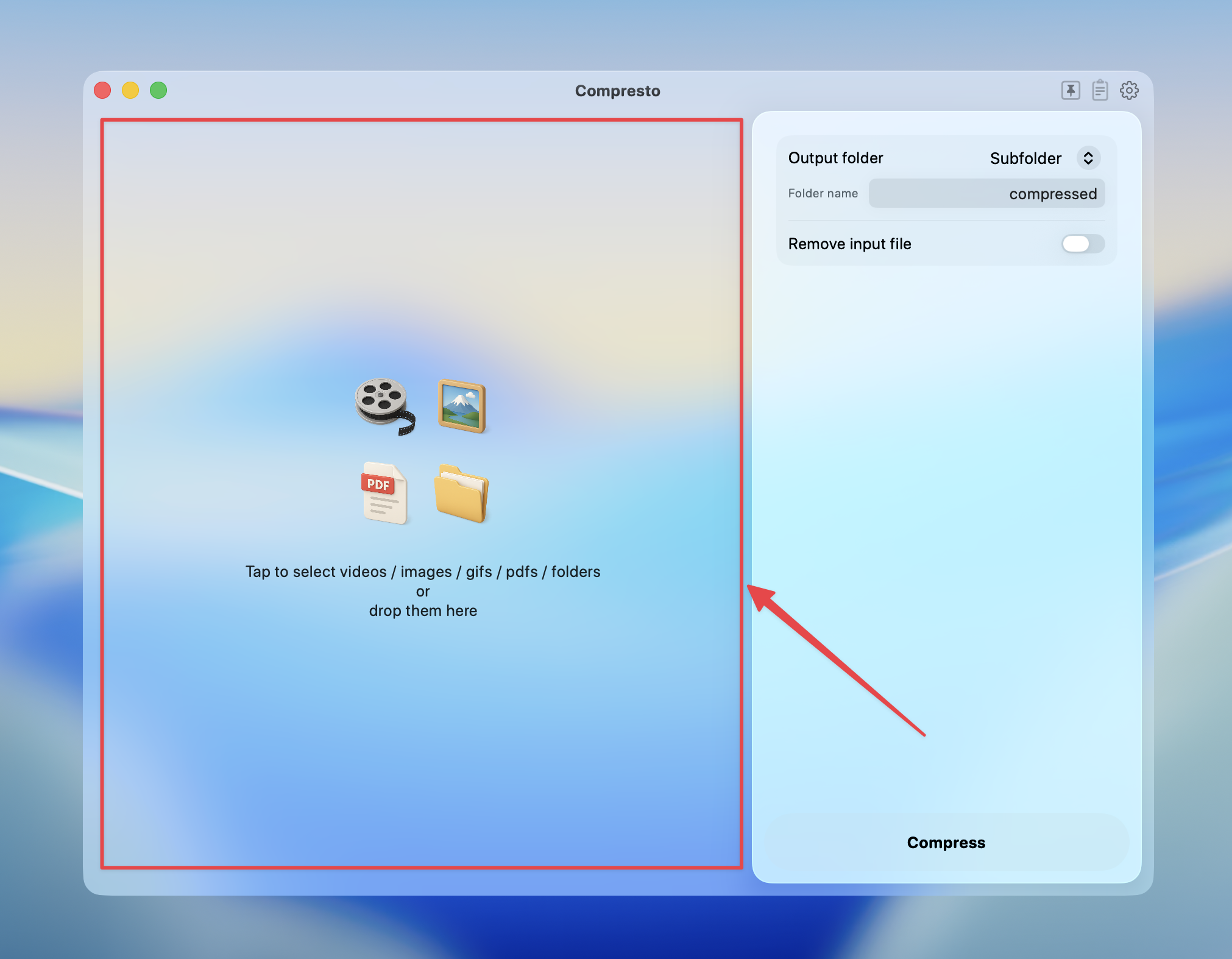
Click on the selection panel, or drag and drop files/folders into it
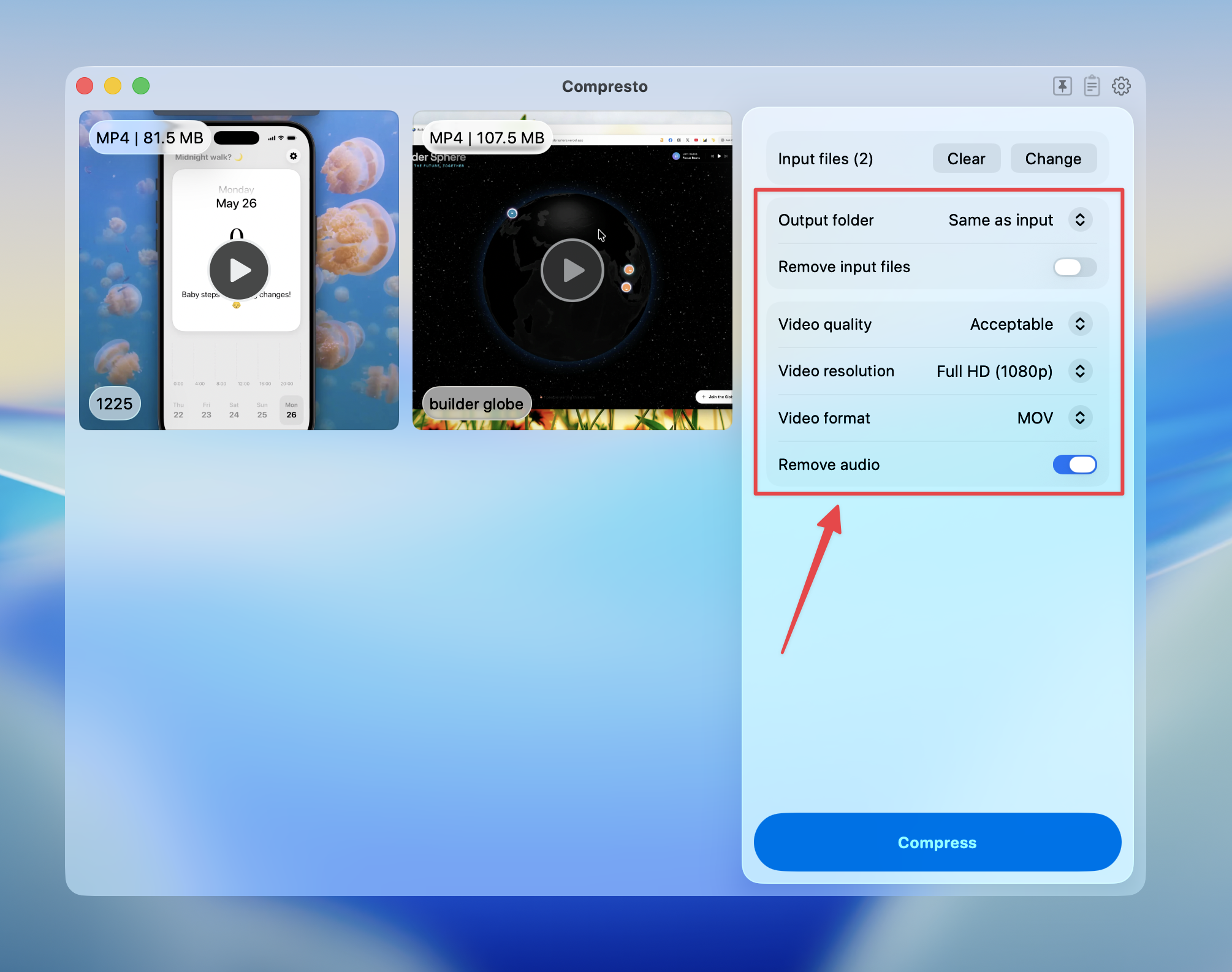
 Adjust the video compression options
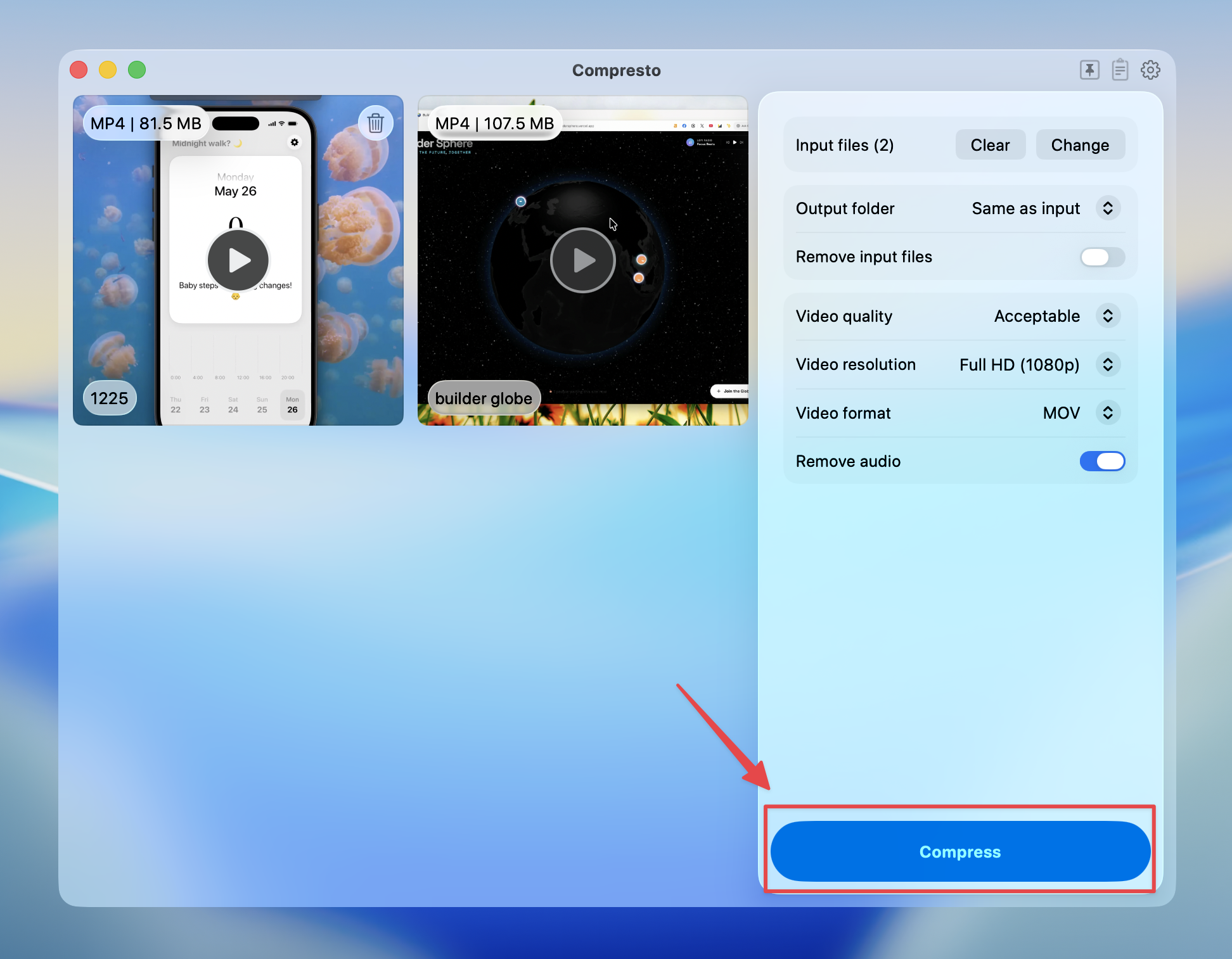
 Press **Compress** to start
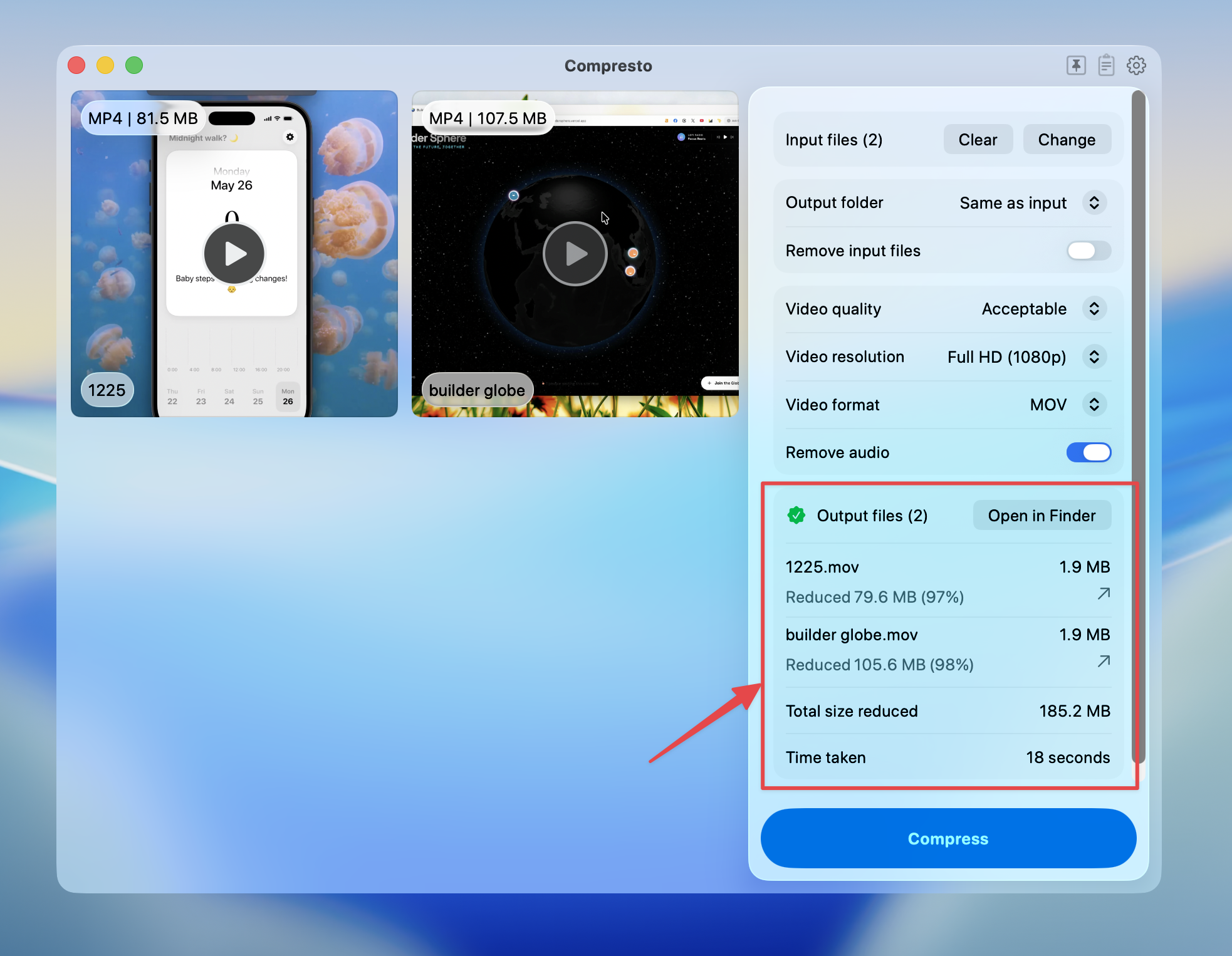
 View compression results and open files in Finder
 ## Compression Options
### Video Quality
| Quality | Description | Best For |
| -------------- | --------------------------------- | --------------------------- |
| **Highest** | Maximum quality, larger files | Archiving, professional use |
| **High** | Excellent quality (default) | General use |
| **Good** | Good balance of quality and size | Sharing online |
| **Medium** | Moderate compression | Social media |
| **Acceptable** | Higher compression, smaller files | Quick sharing, previews |
| **File size** | Target a specific file size | Size-constrained uploads |
When "File size" is selected, you can specify your target size in KB, MB, or GB. Compresto will adjust the quality to meet your target.
### Video Resolution
| Resolution | Description |
| ------------------- | ----------------------------------------------------------------- |
| **Same as input** | Keep original resolution (default) |
| **4K (2160p)** | 3840 x 2160 pixels |
| **Full HD (1080p)** | 1920 x 1080 pixels |
| **HD (720p)** | 1280 x 720 pixels |
| **Max Width** | Scale to a custom max width (preserves aspect ratio) |
| **Max Height** | Scale to a custom max height (preserves aspect ratio) |
| **Max Long Edge** | Scale the longer edge to a custom value (preserves aspect ratio) |
| **Max Short Edge** | Scale the shorter edge to a custom value (preserves aspect ratio) |
When using Max Width, Max Height, Max Long Edge, or Max Short Edge, you can enter a custom pixel value. The video will only be downscaled — if the source is already smaller than the specified value, the original resolution is kept.
### Video Format
| Format | Description |
| ----------------- | ------------------------------------------------------------------------------------------------- |
| **Same as input** | Keep original format (default) |
| **MP4** | Most compatible format, works everywhere |
| **WebM** | Optimized for web, smaller file sizes |
| **MOV** | Apple's format, good for macOS/iOS |
| **GIF** | Convert video to animated GIF |
| **MP3** | Extract audio track as MP3 ([learn more](/guides/file-compression/how-to-extract-mp3-from-video)) |
### Additional Options
#### Remove Audio
Strip the audio track from videos to reduce file size. Useful for:
* Videos where audio isn't needed
* Creating silent background videos
* Reducing file size when audio quality doesn't matter
#### Preserve Transparency
For videos with alpha channels (transparent backgrounds), enable this option to maintain transparency in the output. Available for:
* WebM format (always enabled)
* MOV format with alpha channel
When preserving transparency, only Highest, Ultra HD, and Full HD quality options are available.
## Converting Video to GIF
When you select GIF as the output format, additional options appear:
### FPS (Frames Per Second)
Adjust the frame rate of the GIF (10-50 fps). Lower FPS means smaller file size but choppier animation.
### GIF Quality
| Quality | Description |
| -------------- | -------------------------- |
| **Highest** | Best quality, largest file |
| **High** | Great quality (default) |
| **Good** | Good balance |
| **Medium** | Moderate quality |
| **Acceptable** | Smallest file size |
### GIF Dimension
Resize the GIF to reduce file size. Options include various percentage reductions or specific pixel widths.
## Tips for Best Results
* **For web use**: Choose "Good" quality and MP4 format for best compatibility
* **For social media**: Use "Medium" quality with appropriate resolution for the platform
* **For archiving**: Use "Highest" quality to preserve maximum detail
* **For file size limits**: Use the "File size" option to target a specific size
* **For silent videos**: Enable "Remove audio" to save additional space
## Compression Options
### Video Quality
| Quality | Description | Best For |
| -------------- | --------------------------------- | --------------------------- |
| **Highest** | Maximum quality, larger files | Archiving, professional use |
| **High** | Excellent quality (default) | General use |
| **Good** | Good balance of quality and size | Sharing online |
| **Medium** | Moderate compression | Social media |
| **Acceptable** | Higher compression, smaller files | Quick sharing, previews |
| **File size** | Target a specific file size | Size-constrained uploads |
When "File size" is selected, you can specify your target size in KB, MB, or GB. Compresto will adjust the quality to meet your target.
### Video Resolution
| Resolution | Description |
| ------------------- | ----------------------------------------------------------------- |
| **Same as input** | Keep original resolution (default) |
| **4K (2160p)** | 3840 x 2160 pixels |
| **Full HD (1080p)** | 1920 x 1080 pixels |
| **HD (720p)** | 1280 x 720 pixels |
| **Max Width** | Scale to a custom max width (preserves aspect ratio) |
| **Max Height** | Scale to a custom max height (preserves aspect ratio) |
| **Max Long Edge** | Scale the longer edge to a custom value (preserves aspect ratio) |
| **Max Short Edge** | Scale the shorter edge to a custom value (preserves aspect ratio) |
When using Max Width, Max Height, Max Long Edge, or Max Short Edge, you can enter a custom pixel value. The video will only be downscaled — if the source is already smaller than the specified value, the original resolution is kept.
### Video Format
| Format | Description |
| ----------------- | ------------------------------------------------------------------------------------------------- |
| **Same as input** | Keep original format (default) |
| **MP4** | Most compatible format, works everywhere |
| **WebM** | Optimized for web, smaller file sizes |
| **MOV** | Apple's format, good for macOS/iOS |
| **GIF** | Convert video to animated GIF |
| **MP3** | Extract audio track as MP3 ([learn more](/guides/file-compression/how-to-extract-mp3-from-video)) |
### Additional Options
#### Remove Audio
Strip the audio track from videos to reduce file size. Useful for:
* Videos where audio isn't needed
* Creating silent background videos
* Reducing file size when audio quality doesn't matter
#### Preserve Transparency
For videos with alpha channels (transparent backgrounds), enable this option to maintain transparency in the output. Available for:
* WebM format (always enabled)
* MOV format with alpha channel
When preserving transparency, only Highest, Ultra HD, and Full HD quality options are available.
## Converting Video to GIF
When you select GIF as the output format, additional options appear:
### FPS (Frames Per Second)
Adjust the frame rate of the GIF (10-50 fps). Lower FPS means smaller file size but choppier animation.
### GIF Quality
| Quality | Description |
| -------------- | -------------------------- |
| **Highest** | Best quality, largest file |
| **High** | Great quality (default) |
| **Good** | Good balance |
| **Medium** | Moderate quality |
| **Acceptable** | Smallest file size |
### GIF Dimension
Resize the GIF to reduce file size. Options include various percentage reductions or specific pixel widths.
## Tips for Best Results
* **For web use**: Choose "Good" quality and MP4 format for best compatibility
* **For social media**: Use "Medium" quality with appropriate resolution for the platform
* **For archiving**: Use "Highest" quality to preserve maximum detail
* **For file size limits**: Use the "File size" option to target a specific size
* **For silent videos**: Enable "Remove audio" to save additional space