> ## Documentation Index
> Fetch the complete documentation index at: https://compresto.app/docs/llms.txt
> Use this file to discover all available pages before exploring further.
# How to compress PDF
> Reduce PDF file size for easier sharing and storage
PDF compression requires **Ghostscript** to be installed on your Mac. Compresto will automatically detect if Ghostscript is missing and show an alert when you select PDF files. See the [installation guide](/guides/getting-started/install-ghostscript) for setup instructions.
## Quick Start
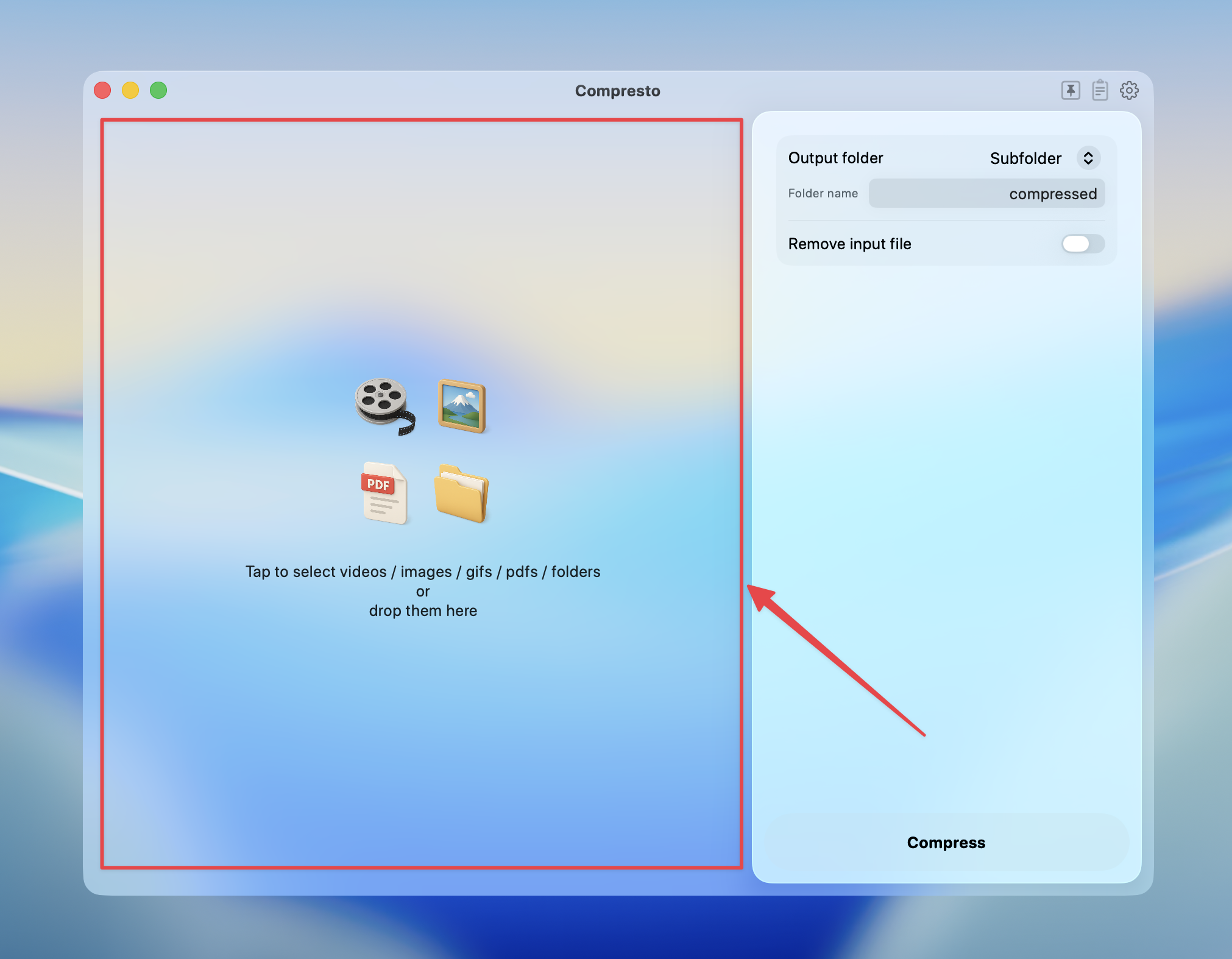
Click on the selection panel to select PDFs, or drag and drop PDFs/folders into it
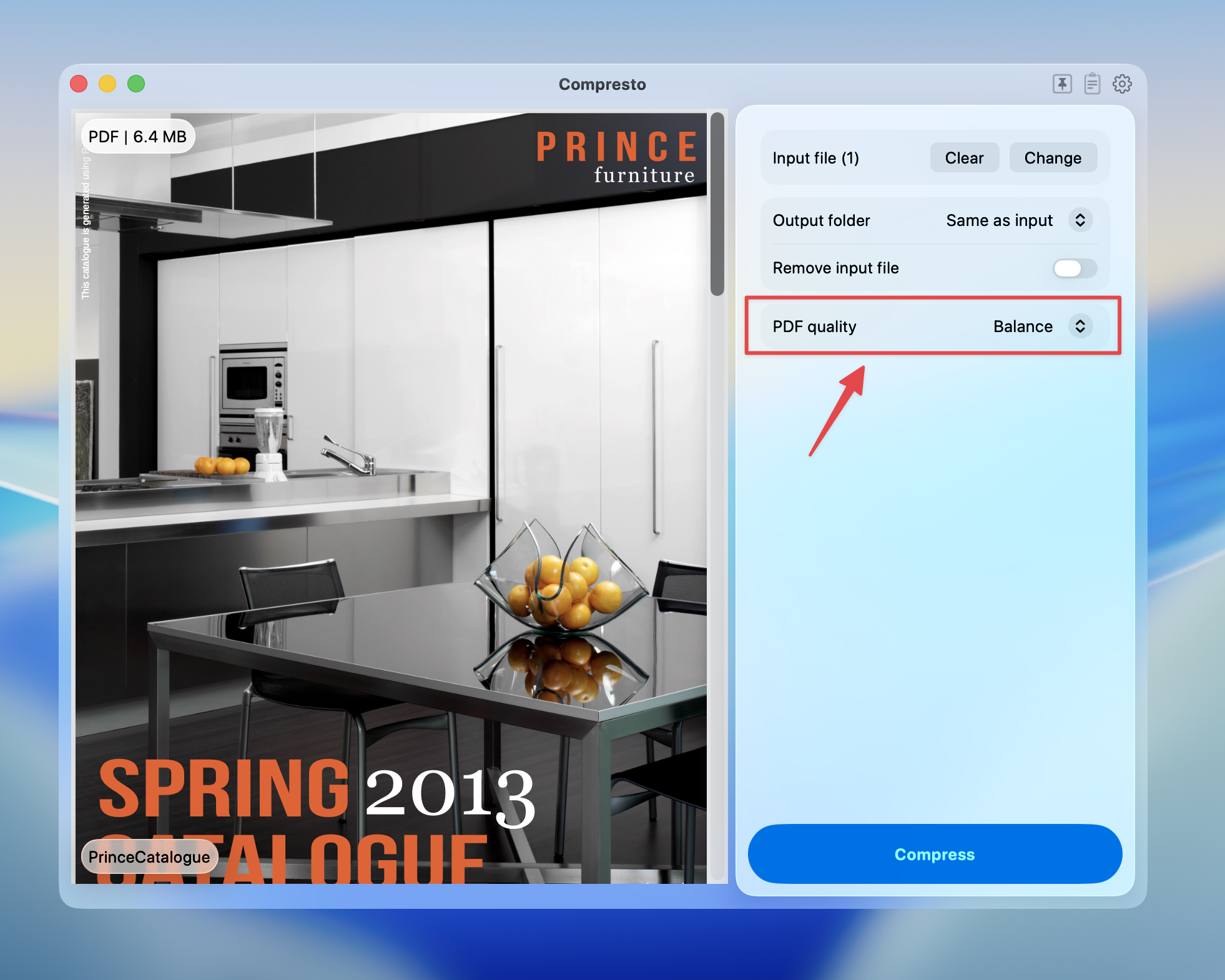
 Select the PDF quality level
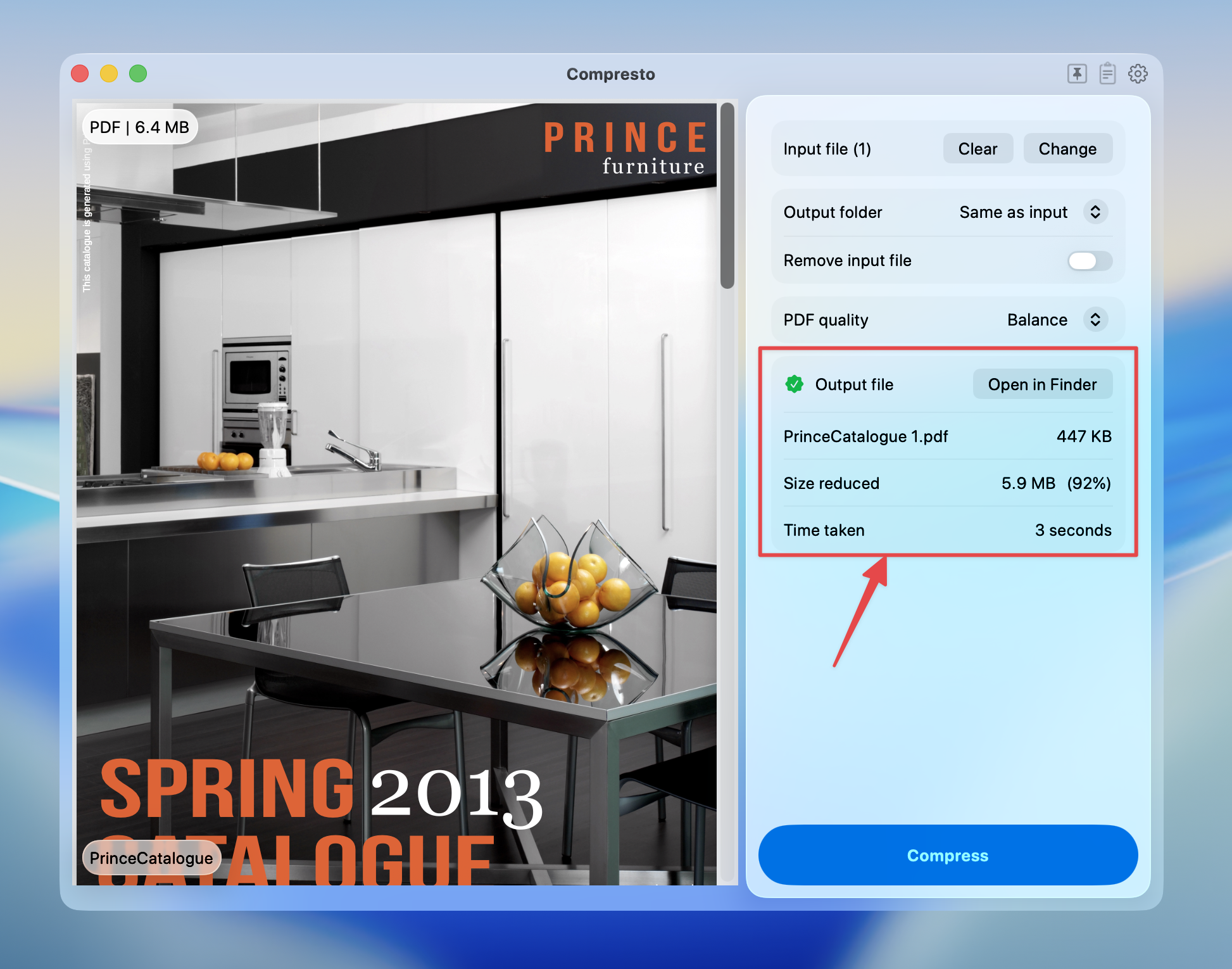
 Press **Compress** to start
View compression results and open files in Finder
Press **Compress** to start
View compression results and open files in Finder
 ## Quality Options
| Quality | Description | Best For |
| ----------- | ------------------------------------------ | -------------------------------- |
| **Best** | Highest quality, preserves all details | Professional printing, archiving |
| **High** | High quality suitable for printing | Office printing |
| **Balance** | Good balance of quality and size (default) | Email attachments, web sharing |
| **Low** | Maximum compression, screen viewing only | Quick sharing, previews |
## What Each Quality Level Does
### Best (Prepress)
* Preserves maximum image quality
* Keeps high-resolution images
* Maintains color accuracy
* Best for: Print production, archival copies
### High (Printer)
* Optimized for standard printing
* Good image quality
* Reasonable file size reduction
* Best for: Office documents, reports
### Balance (eBook)
* Optimized for screen viewing
* Moderate image compression
* Significant file size reduction
* Best for: Email, web uploads, sharing
### Low (Screen)
* Maximum compression
* Lower image resolution
* Smallest file sizes
* Best for: Quick previews, bandwidth-limited sharing
## Tips for Best Results
* **For email attachments**: Use "Balance" quality to stay under size limits
* **For printing**: Use "High" or "Best" quality
* **For web uploads**: Use "Balance" for fast loading
* **For archiving**: Use "Best" to preserve document quality
* **For quick sharing**: Use "Low" when quality isn't critical
## Quality Options
| Quality | Description | Best For |
| ----------- | ------------------------------------------ | -------------------------------- |
| **Best** | Highest quality, preserves all details | Professional printing, archiving |
| **High** | High quality suitable for printing | Office printing |
| **Balance** | Good balance of quality and size (default) | Email attachments, web sharing |
| **Low** | Maximum compression, screen viewing only | Quick sharing, previews |
## What Each Quality Level Does
### Best (Prepress)
* Preserves maximum image quality
* Keeps high-resolution images
* Maintains color accuracy
* Best for: Print production, archival copies
### High (Printer)
* Optimized for standard printing
* Good image quality
* Reasonable file size reduction
* Best for: Office documents, reports
### Balance (eBook)
* Optimized for screen viewing
* Moderate image compression
* Significant file size reduction
* Best for: Email, web uploads, sharing
### Low (Screen)
* Maximum compression
* Lower image resolution
* Smallest file sizes
* Best for: Quick previews, bandwidth-limited sharing
## Tips for Best Results
* **For email attachments**: Use "Balance" quality to stay under size limits
* **For printing**: Use "High" or "Best" quality
* **For web uploads**: Use "Balance" for fast loading
* **For archiving**: Use "Best" to preserve document quality
* **For quick sharing**: Use "Low" when quality isn't critical