> ## Documentation Index
> Fetch the complete documentation index at: https://compresto.app/docs/llms.txt
> Use this file to discover all available pages before exploring further.
# Video FPS
> Set a target frame rate for video compression to reduce file size
## Overview
Compresto allows you to set a target frame rate (FPS) for video compression. Reducing the frame rate can significantly decrease file size while maintaining acceptable visual quality for certain types of content.
## Available Options
| Option | Description |
| ----------------- | -------------------------------------------- |
| **Same as input** | Keep the original frame rate (default) |
| **60** | High frame rate for smooth motion |
| **30** | Standard frame rate for web and social media |
| **24** | Cinematic frame rate, smaller file size |
| **15** | Low frame rate for maximum compression |
## How It Works
The target FPS setting only **reduces** frame rate - it never increases it. If your input video has a lower frame rate than the target, the original frame rate is preserved.
For example:
* Input: 60 fps, Target: 30 fps → Output: 30 fps
* Input: 24 fps, Target: 30 fps → Output: 24 fps (unchanged)
## When to Use Each Option
### Same as input
Best for preserving original quality when file size isn't a concern.
### 60 fps
* Gaming videos
* Sports footage
* High-motion content
### 30 fps
* General web content
* Social media videos
* Screen recordings
### 24 fps
* Film-like aesthetic
* Cinematic content
* Good balance of quality and file size
### 15 fps
* Simple animations
* Slideshows with minimal motion
* Maximum file size reduction
## How to Configure
Open Compresto
Go to **Settings** > **Advanced**
Select your preferred frame rate from the **Target video FPS** dropdown
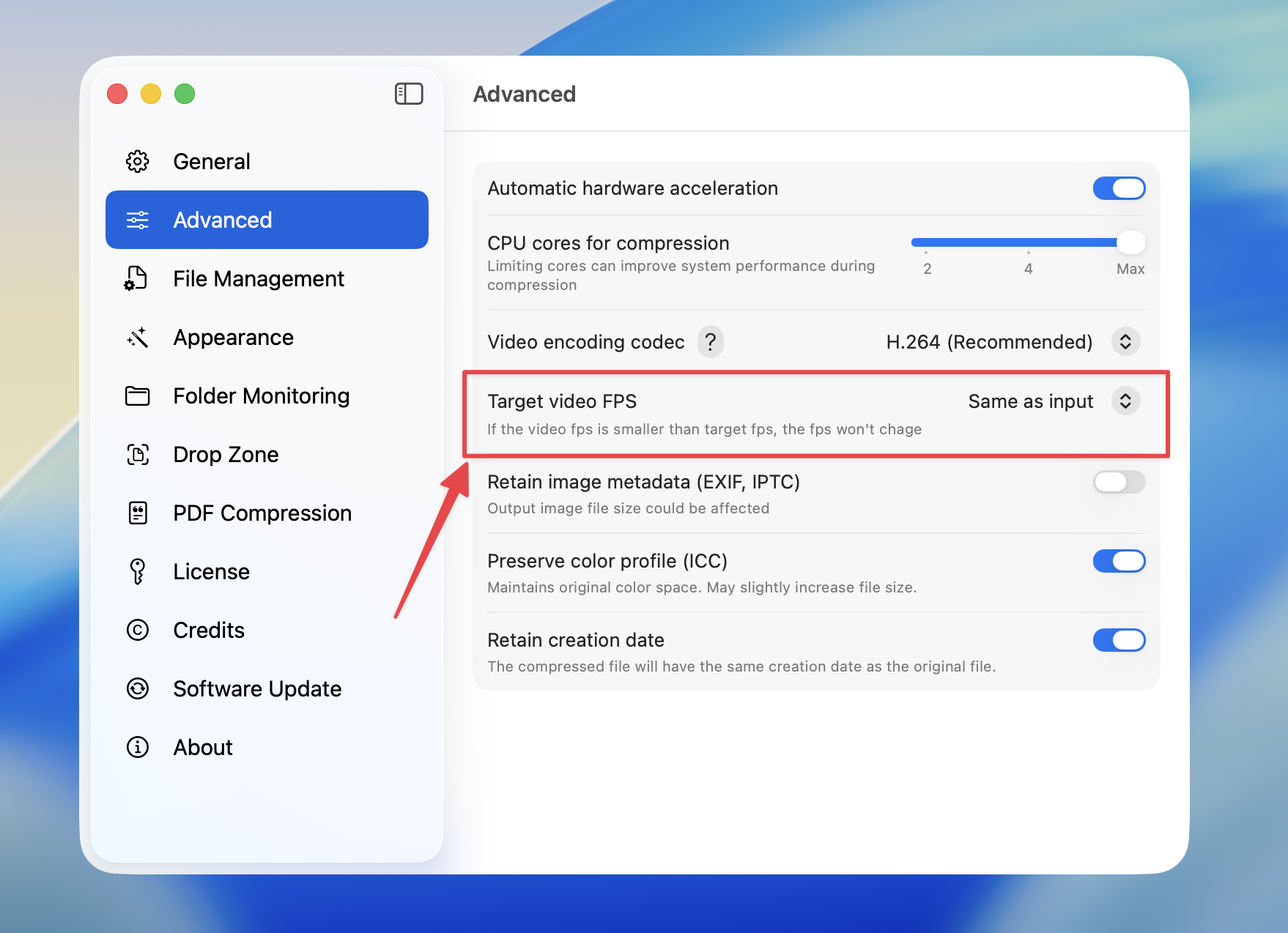 Lowering frame rate reduces file size but may make motion appear less smooth. Use lower frame rates only when the content doesn't require high motion fidelity.