> ## Documentation Index
> Fetch the complete documentation index at: https://compresto.app/docs/llms.txt
> Use this file to discover all available pages before exploring further.
# Hardware acceleration
> Use your Mac's GPU to speed up video compression
## Overview
Hardware acceleration uses your Mac's GPU to speed up video encoding and decoding. When enabled, Compresto leverages Apple's VideoToolbox framework to significantly reduce compression time.
## Benefits
* **Faster compression**: GPU encoding is typically 2-5x faster than CPU-only encoding
* **Lower CPU usage**: Frees up your CPU for other tasks during compression
* **Reduced heat**: Less CPU load means less heat generation
## How It Works
When enabled, Compresto automatically detects available hardware acceleration capabilities on your Mac and uses them for video processing. This works with:
* Apple Silicon Macs (M1, M2, M3, M4 series)
* Intel Macs with integrated or discrete GPUs
## How to Configure
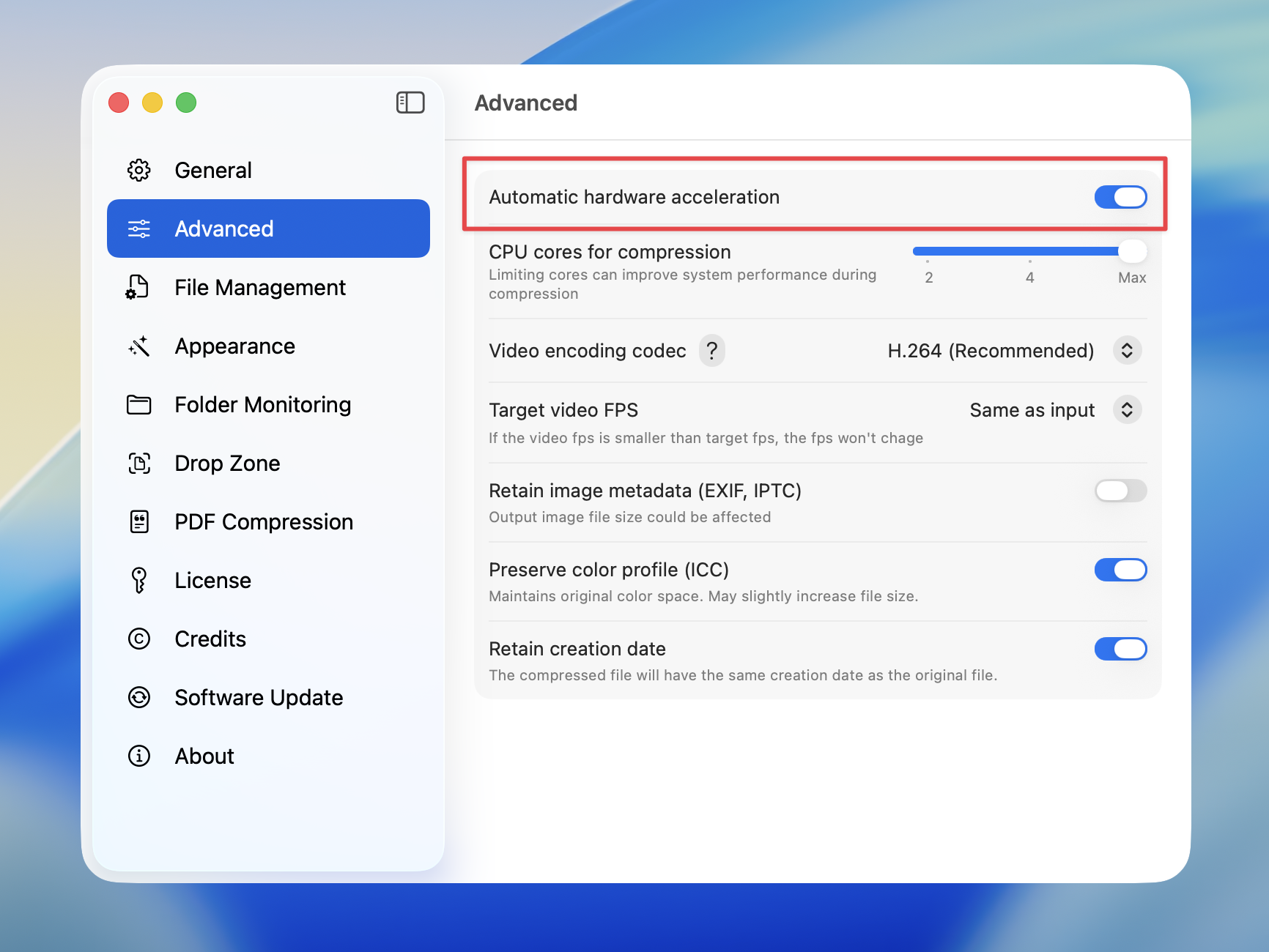
Open Compresto
Go to **Settings** > **Advanced**
Toggle **Automatic hardware acceleration** on or off
 ## When to Disable
In most cases, hardware acceleration should be left enabled. However, you might want to disable it if:
* You experience video quality issues with specific files
* You encounter compatibility problems with certain video formats
* You prefer maximum quality over speed (software encoding can sometimes produce slightly better quality at the same bitrate)
Hardware acceleration is enabled by default. Most users should leave this setting on for the best performance.
## When to Disable
In most cases, hardware acceleration should be left enabled. However, you might want to disable it if:
* You experience video quality issues with specific files
* You encounter compatibility problems with certain video formats
* You prefer maximum quality over speed (software encoding can sometimes produce slightly better quality at the same bitrate)
Hardware acceleration is enabled by default. Most users should leave this setting on for the best performance.