> ## Documentation Index
> Fetch the complete documentation index at: https://compresto.app/docs/llms.txt
> Use this file to discover all available pages before exploring further.
# Drop Zone
 ## Overview
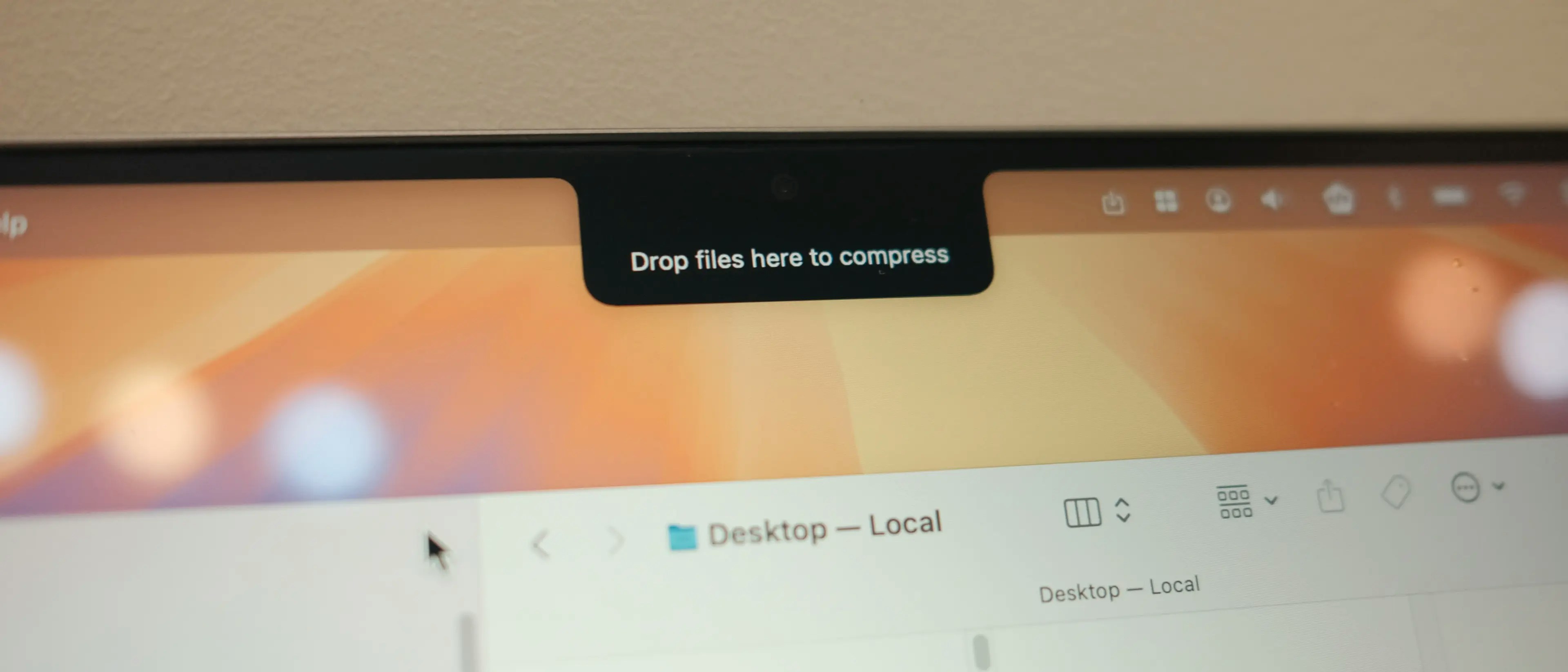
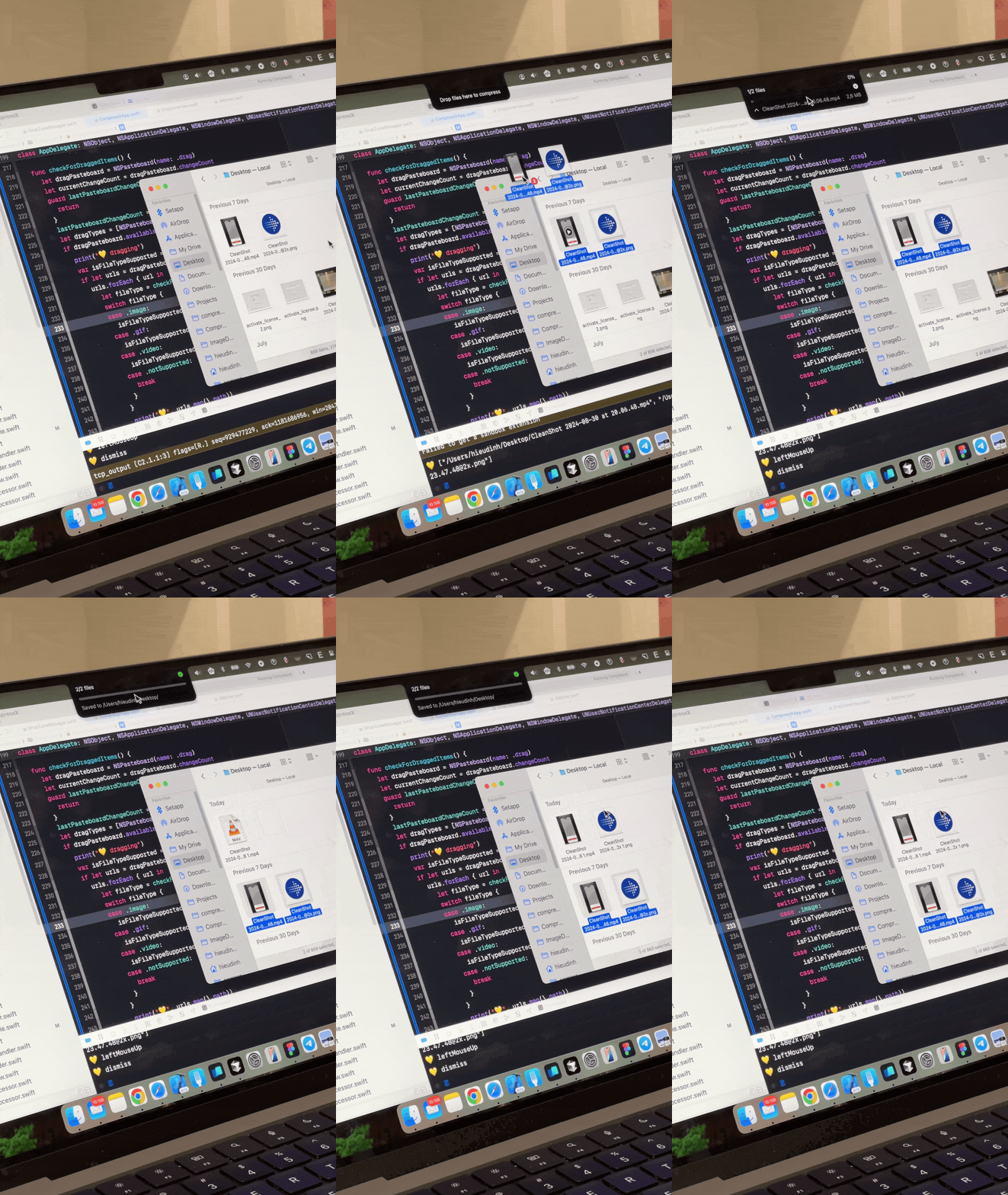
Drop Zone provides a quick way to compress files by dragging and dropping them onto a designated area that appears near your Mac's notch (or top of screen). When you drag supported files, the Drop Zone automatically appears, ready to receive your files for compression.
## Supported File Types
* **Video** - mp4, mov, webm, and other video formats
* **Image** - jpg, png, webp, and other image formats
* **GIF** - Animated GIF files
* **PDF** - PDF documents
## Getting Started
Open the Settings window and choose the **Drop Zone** tab
## Overview
Drop Zone provides a quick way to compress files by dragging and dropping them onto a designated area that appears near your Mac's notch (or top of screen). When you drag supported files, the Drop Zone automatically appears, ready to receive your files for compression.
## Supported File Types
* **Video** - mp4, mov, webm, and other video formats
* **Image** - jpg, png, webp, and other image formats
* **GIF** - Animated GIF files
* **PDF** - PDF documents
## Getting Started
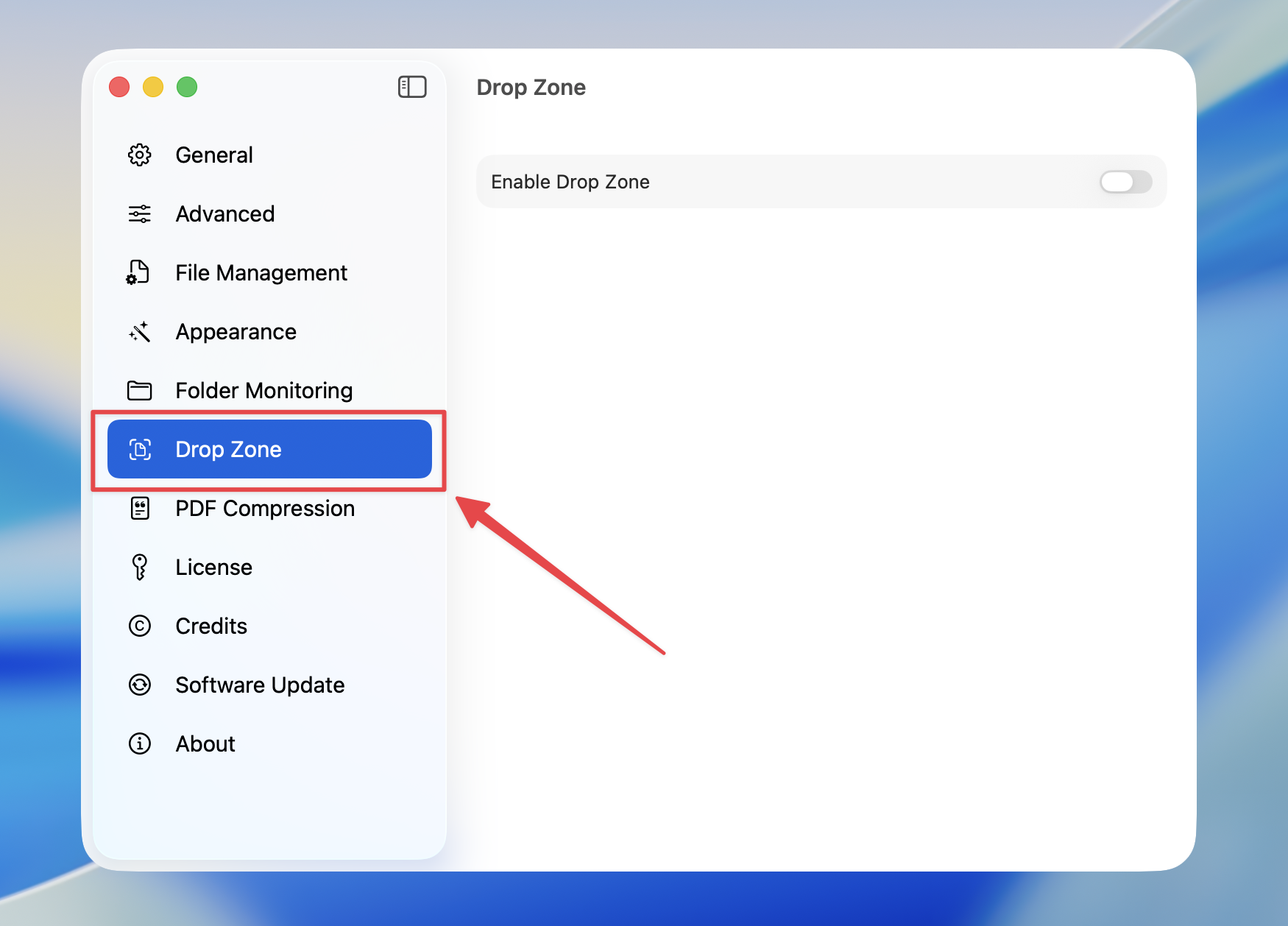
Open the Settings window and choose the **Drop Zone** tab
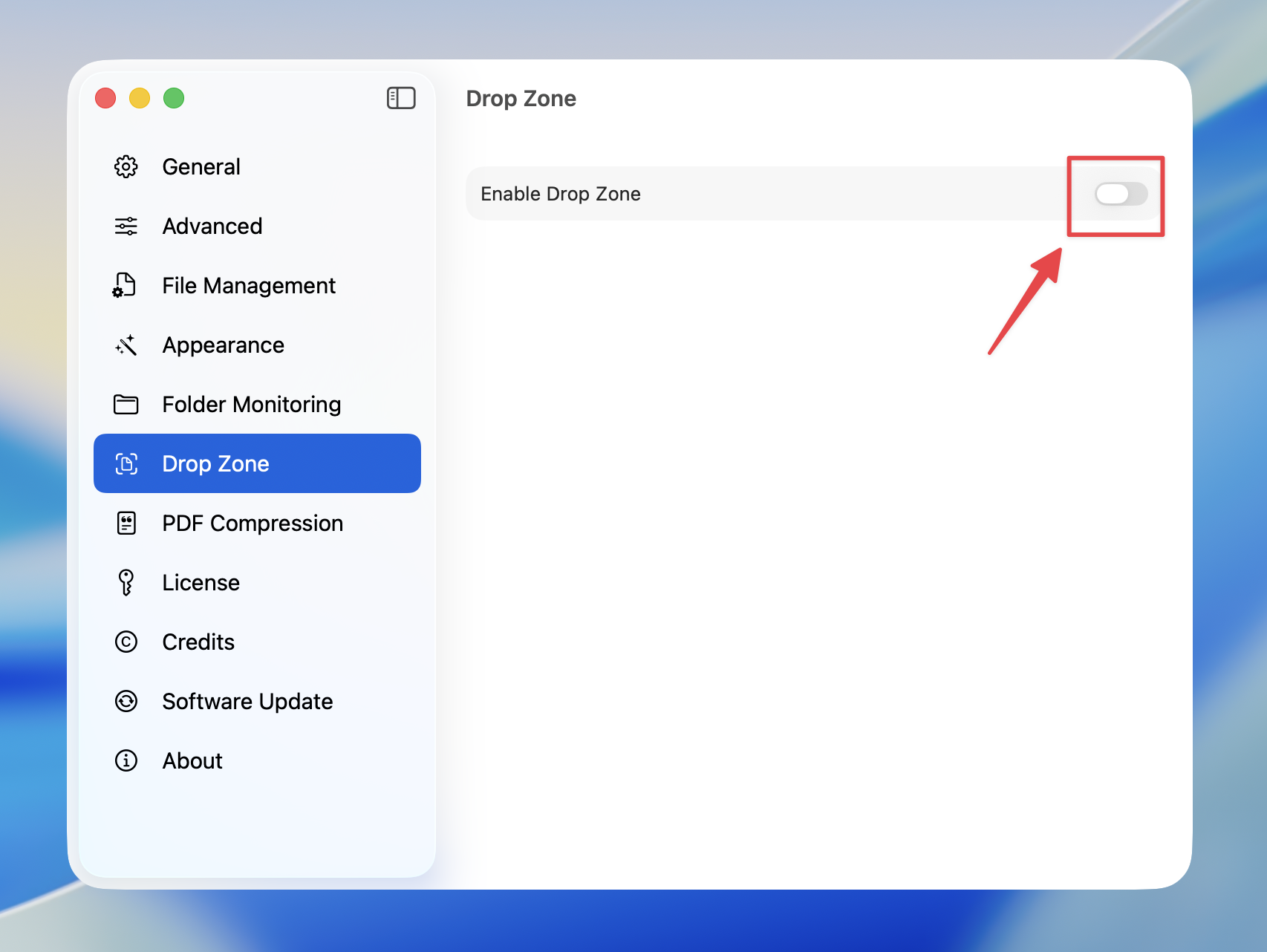
 Toggle on **Enable Drop Zone** to enable the feature
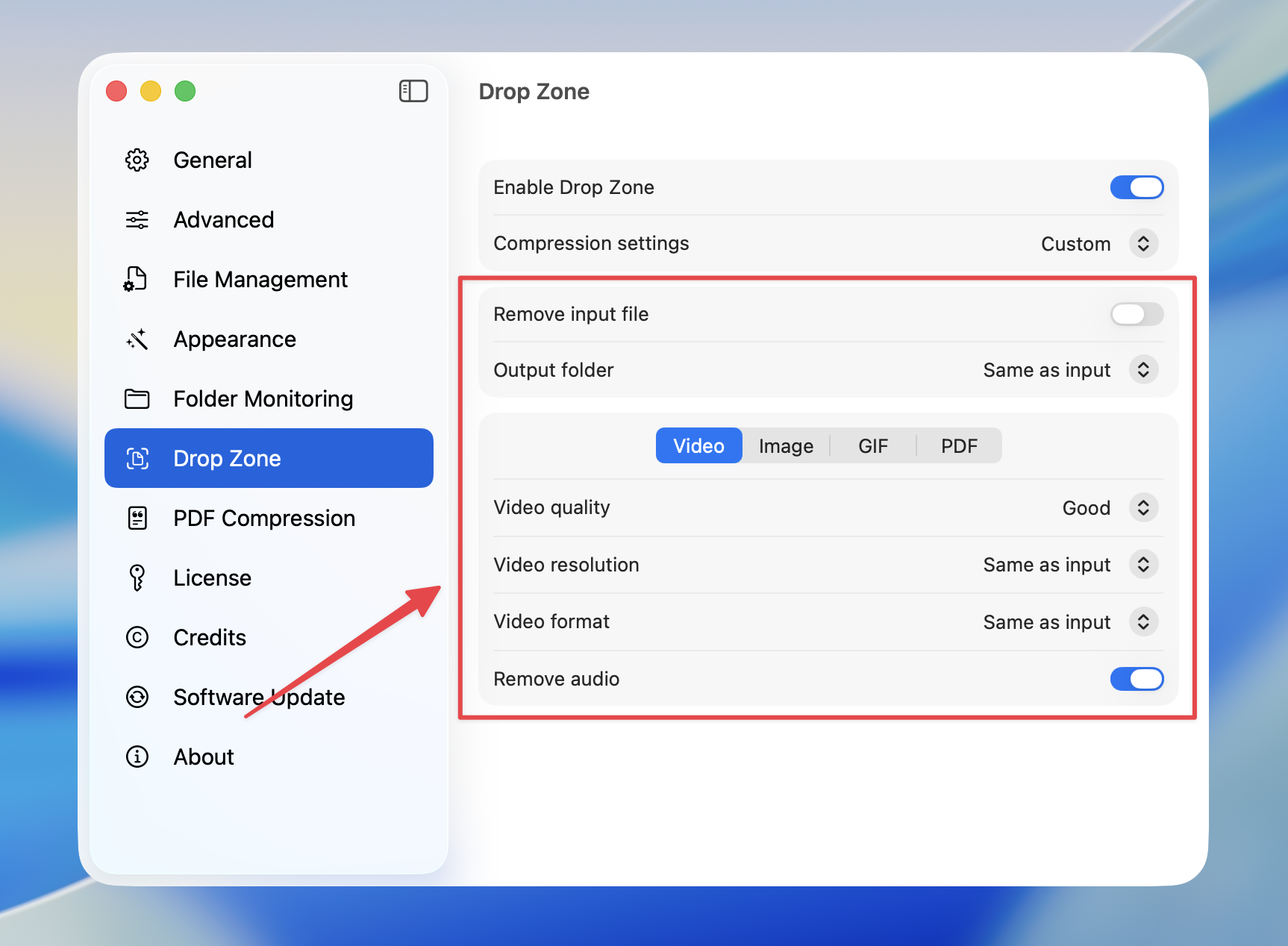
 Customize compression settings for Drop Zone
 Drag files to the Drop Zone to start compression
[
Drag files to the Drop Zone to start compression
[  ](/images/dropzone_demo.gif)
## Configuration Options
### Compression Settings Type
| Option | Description |
| ---------------------- | ----------------------------------------------------------- |
| **Last used settings** | Uses the same settings as your default compression settings |
| **Custom** | Configure separate settings specifically for Drop Zone |
### Video Settings
When using custom settings, you can configure:
* **Video quality**: highest, high, good, medium, acceptable
* **Video resolution**: Keep same or resize to specific dimensions
* **Video format**: same, mp4, webm
* **Remove audio**: Strip audio track from videos
### Image Settings
* **Image quality**: highest, high, good, medium, acceptable
* **Image format**: same, webp, jpg, png
* **Image size**: Keep same, percentage, or fixed pixel width
### GIF Settings
* **GIF quality**: highest, high, good, medium, acceptable
* **GIF dimension**: Keep same or resize
### PDF Settings
* **PDF quality**: best, high, balance, low
### Output Settings
#### Remove Input File
Enable to automatically delete the original file after compression.
#### Output Folder
| Option | Description |
| ---------- | ------------------------------------------------- |
| **Same** | Save compressed files in the same folder as input |
| **Nested** | Save to a subfolder (default: "compressed") |
| **Custom** | Choose a specific output folder |
Drop Zone automatically detects when you're dragging supported file types and only appears when relevant files are being dragged.
](/images/dropzone_demo.gif)
## Configuration Options
### Compression Settings Type
| Option | Description |
| ---------------------- | ----------------------------------------------------------- |
| **Last used settings** | Uses the same settings as your default compression settings |
| **Custom** | Configure separate settings specifically for Drop Zone |
### Video Settings
When using custom settings, you can configure:
* **Video quality**: highest, high, good, medium, acceptable
* **Video resolution**: Keep same or resize to specific dimensions
* **Video format**: same, mp4, webm
* **Remove audio**: Strip audio track from videos
### Image Settings
* **Image quality**: highest, high, good, medium, acceptable
* **Image format**: same, webp, jpg, png
* **Image size**: Keep same, percentage, or fixed pixel width
### GIF Settings
* **GIF quality**: highest, high, good, medium, acceptable
* **GIF dimension**: Keep same or resize
### PDF Settings
* **PDF quality**: best, high, balance, low
### Output Settings
#### Remove Input File
Enable to automatically delete the original file after compression.
#### Output Folder
| Option | Description |
| ---------- | ------------------------------------------------- |
| **Same** | Save compressed files in the same folder as input |
| **Nested** | Save to a subfolder (default: "compressed") |
| **Custom** | Choose a specific output folder |
Drop Zone automatically detects when you're dragging supported file types and only appears when relevant files are being dragged.